Some of the Canon printer users have complained on this topic where they are having trouble using the scanner function on their Canon printer. The key problem here is that both the scanning and printing function should be working on your computer. The solution to this involves varies from usage of Windows Scan app, reinstalling the printer, which should retrieve the scanning feature on your system.
Preliminary Checks –
1. Wi-Fi connection – Check whether the Wi-Fi is working. Make sure your PC and Canon printer is connected to the same Wi-Fi.
2. Disconnect and reconnect the printer/scanner – A loose connection may often cause this issue. Detach the printer from your Windows machine and reconnect it.
Fix 1 – Use the Windows Scan App
Microsoft has its native Windows Scan app for users to manage and scan the documents on your Canon printer.
Step 1 – Make sure the Canon printer is turned on and connected to your computer.
Step 2 – Now, go ahead and open up the Microsoft Store.
Step 3 – Search for scan and install the Windows Scan.
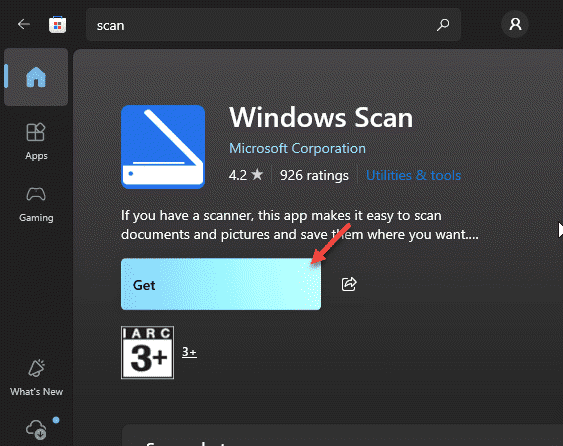
Step 4 – Once you have installed the Windows Scan app, load it up.
Step 5 – Wait for a few seconds for it to recognize the scanner.
After it recognizes the scanner, you can go ahead and use the Scan button in the app to scan the documents.
NOTE – If the Windows Scan app does not detect or recognize the scanner, disconnect the scanner and reconnect it to your system.
Fix 3 – Disable the Antivirus feature
If you are using dedicated antivirus tool, features like Exploit Protection can disable the scanner function of the Canon printer.
Step 1 – Open up the antivirus tool, like Malware Bytes on your system.
Step 2 – Next, tap the Settings function.
Step 3 – Find the Exploit Protection settings and, turn it off.
Restart your computer once. You can use the scanner function of the Canon printer again. If you are still having the same issue, remove the antivirus tool, and check.
Fix 4 – Uninstall and reinstall the Canon Printer
You can uninstall the Canon Printer from your computer, and reconnect it to the system.
Step 1 – Open the Settings on Windows and load up the Bluetooth & other Devices section.
Step 2 – Next, load up the Printer & Scanners settings.
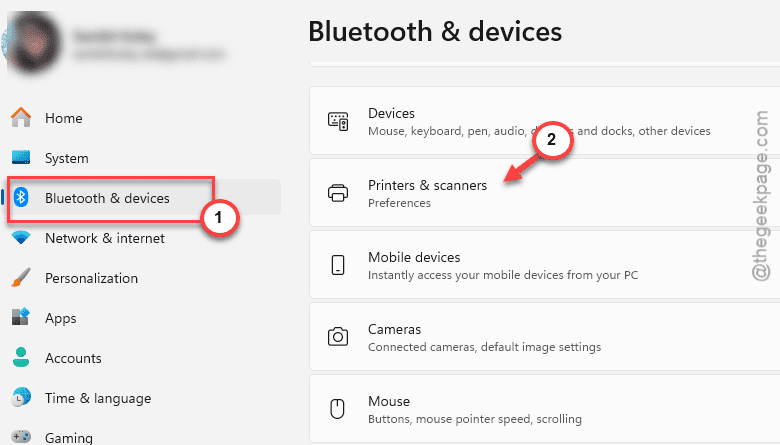
Step 3 – On the right-hand side, you will see the list of printers available on your device. Find the Canon printer there and tap it once to open it up.
Step 4 – Tap Remove to remove the printer from the system.
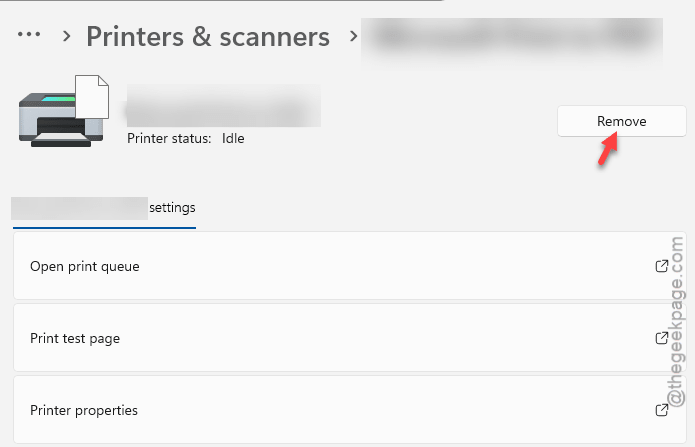
Step 5 – Follow the further steps to remove it from your computer.
Step 6 – Once you have removed it, disconnect the printer from your system. Then, reboot your system once.
Step 7 – After the system restarts, you can reconnect the printer to the computer.
Now, you can scan the documents using the Canon printer without any further issues.
If you still can’t find the Canon printer on your system, you can just download the latest printer driver for the Canon printer from the Canon Printer Driver Package and install the driver package.
Fix 5 – Use the Canon Print App
NOTE – This feature works for wireless printing from iPhone/Android smartphones. Your printer should support the Wi-Fi/Wireless printing feature for it to work.
You can directly print or scan the documents using the Canon Print app to print or scan wirelessly. It has the capability of scanning or printing the documents over the air as well.
FAQs on why the Scanner is not working with Canon Printer –
1. Why the scanner part of the Canon printer is not working?
The scanner part of the Canon printer may stop working due to loose connection, obsolete or corrupted printer driver, network connection errors and exploit protection system of antivirus tools. Users may solve this problem using the Windows Scan app or by removing and reinstalling the printer on their device.
2. Why can’t I scan or print documents wirelessly on my Canon printer?
All the printers, generally the low cost, entry level printers, are not equipped with the wireless printing mechanism. Check whether your Canon printer or scanner device supports wireless/Wi-Fi printing system. However, your printer and the system should be connected via Wi-Fi for you to print the documents. Troubleshoot the network connection issues, that may lead to such issues with the Canon scanners.