When you paste text from an external source such as another document or webpage, it carries the format, font, and all the other metadata with it. Though Microsoft Word offers proper choices to the users, where they can take control over the formatting of the text even before pasting it in the document, some users may find themselves in a predicament where the copy-pasted text is losing or altering their default Word format. Here are some solutions you can apply to resolve this issue.
| Issue | Recommend Fix |
| Gray background behind text | Paste as Keep Text Only |
| Font Size changes to different value | Change default to Merge Formatting mode |
| Double spaces after paste | Disable Smart Cut and Paste |
Fix 1 – Use the Ctrl+Alt+V shortcut
The basic shortcut to use the paste special box as a power user is the Ctrl+Alt+V shortcut tool, which can be availed while pasting selected text.
Step 1 – Copy the text that you want to paste in the Word document.
Step 2 – Then, come to Microsoft Word and hit the Ctrl+Alt+V shorcut keys together.
Step 3 – This will open up the Paste Special dialogue box. Choose the formatting you want from there and complete the entire process.
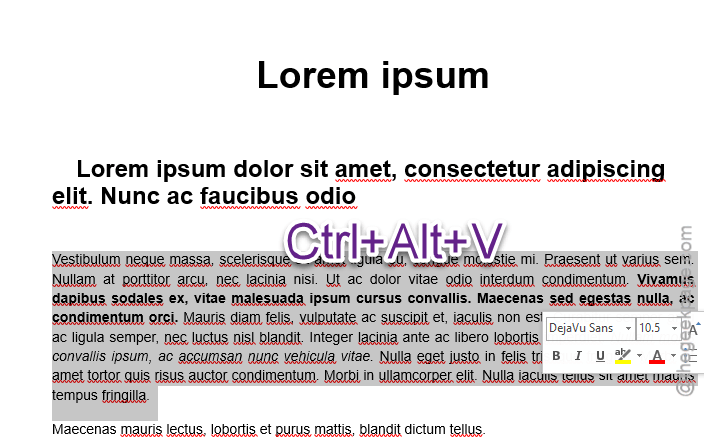
This should resolve the issue for the majority of the users.
Fix 2 – Set Default Paste to Merge Formatting mode
If you want the selected text to retain its basic properties, like bold or italicized words, but match with the document’s font and size, use the merge formatting option.
Step 1 – To do this, go to the File menu in the existing Word document. Then, open up the Options tab.
Step 2 – Proceed to the Advanced tab. Scroll to the Cut, copy and paste tab. Change the Pasting from other programs to Merge fomatting option.
Step 3 – Click OK to save the changes.
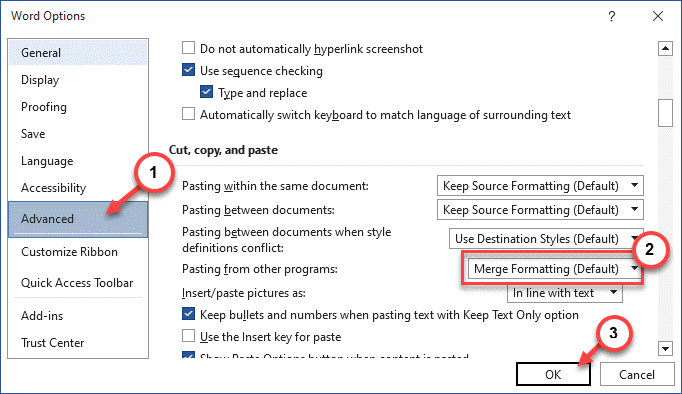
Try to paste the text again in your document.
Fix 3 – Disable Show Paste Options button
If you are annoyed by the little box that appears every time after you paste some text in Word, you can disable it.
Step 1 – Go to this way –
File > Options
Step 2 – In the Advanced tab, uncheck the Show Paste Options button when content is pasted option.
Step 3 – Click OK.
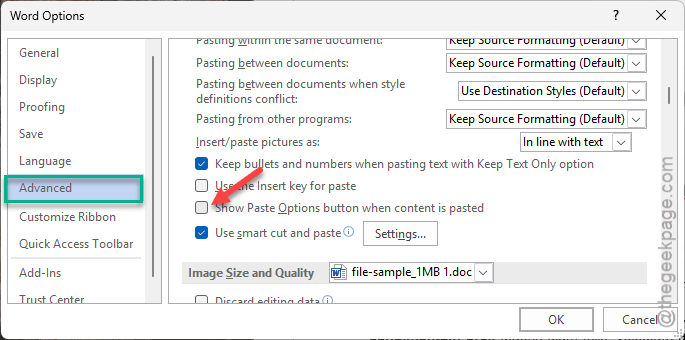
The annoying copy-paste box won’t show up again as soon as you paste anything in Microsoft Word.
Fix 4 – Use Keep Text Only as Default
Sometimes, you may see gray borders surrounding the tables or background when copy-pasting texts directly from the web, use the Keep Text Only option to fix the issue.
Step 1 – Proceed through the same path –
File > Options
Step 2 – In the same Advanced tab, set all the Pasting drop-down options to Keep Text Only format.
Step 3 – Don’t forget to save the changes.
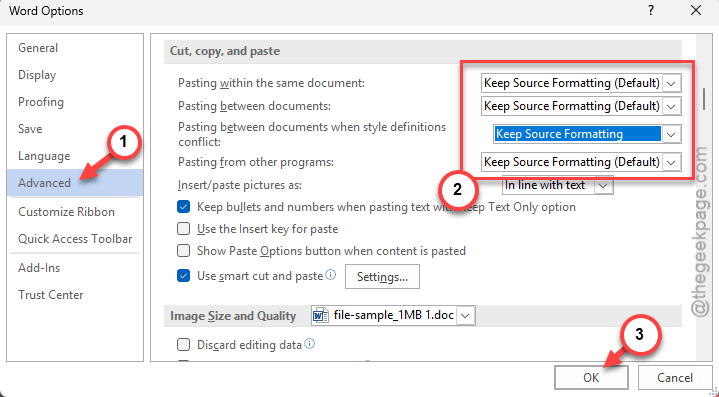
After you have applied the changes, try copy-pasting the document again.
Fix 5 – Toggle the Smart Cut and Paste settings
Microsoft Word tries to adjust the spaces between the words when you paste, which often leads to jumbled up texts and wrong formatting.
Step 1 – Open the Word Options following this path –
File > Options
Step 2 – Proceed to the Advanced tab. Go to the Cut, copy, and paste tab.
Step 3 – Make sure the Use smart cut and paste option is checked. Tap Settings button.
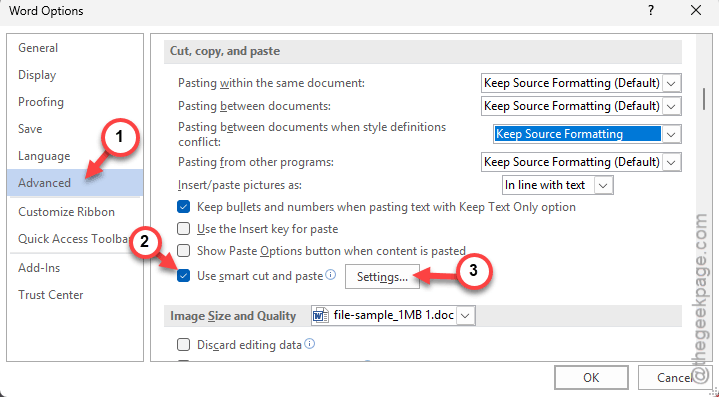
Step 4 – Next, uncheck the Adjust sententce and word spacing automatically mode. Save the changes there.
After saving these changes, this issue will be resolved in Microsoft Word. Try to copy-paste some text and check whether it works or not.