Does the iPhone timer play, but the screen does not wake up? Some iPhone users have recently reported this issue. The affected users can’t disable the alarms in one click if the screen does not wake up. Usually, this is a simple issue of an attention-aware feature gone wrong, which can be easily fixed. Follow these steps to fix the problem yourself.
Fix 1 – Disable Attention-Aware Features
If the Attention-Aware feature is enabled on the iPhone, it can disable some features while you are looking at the device or not. It can sometimes suppress the screen-wake command to prevent screen activation.
Step 1 – Go to the iPhone Settings. Then, go to the Face ID & Passcode.
Step 2 – Then, load up the Attention Aware Features service. Set it to OFF mode.
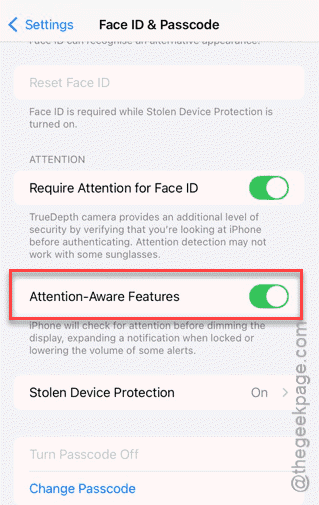
This ensures the screen wakes for every alert regardless of whether you are looking at the iPhone or not.
Fix 2 – Bypass the Adaptive Power Mode
The Adaptive Power mode of iOS 26 dims the screen and throttles background animations. If the battery is too low, this mode can block the high-brightness screen wake-up system on the timer interface.
Step 1 – Proceed to the iPhone Settings. Go to the Battery settings.
Step 2 – Ensure the Adaptive Power Mode is toggled to OFF.
Switching to the standard low power mode should keep the limiter on the battery and fix the issue as well.
Fix 3 – Disable Standby or Always On Display
While the Always-on Display is active on the iPhone, sometimes it can glitch out to produce a dark-tinted screen effect over the display while the alarm audio actually plays out.
Step 1 – In the iPhone Settings, go to the Display & Brightness module. Then, open up the Always On mode.
Step 2 – Toggle the StandBy mode to OFF.
Step 3 – Alternatively, you can tweak the Show Notifications within Always-On menu to OFF mode.
This should resolve this weird issue.
Fix 4 – Enable Time-Sensitive Notifications in Focus
There is a facility in the Focus Filters where time-sensitive notifications pass through the restrictive barrier of the active focus mode.
Step 1 – Load up the Focus settings on the iPhone Settings.
Step 2 – Open up your active focus profile.
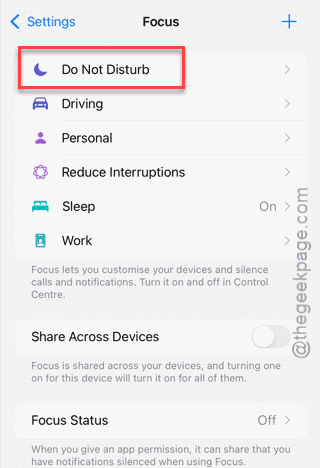
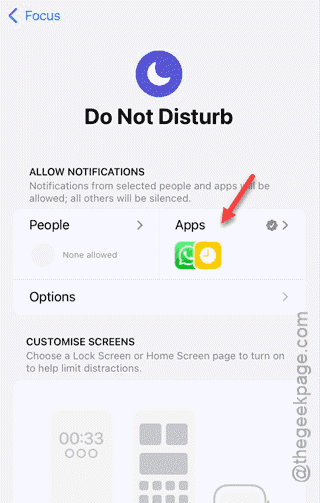
Step 3 – In the Apps section, tap the Add Apps panel.
Step 4 – Toggle the Time Sensitive Notifications to ON.
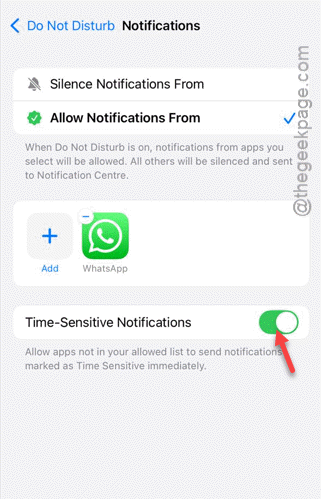
This way, the timer alert will light up the display properly.
Fix 5 – Force Restart the iPhone
If the iPhone is still not waking up during the timer alarm, you should force-restart the device once to get rid of the issue.
Step 1 – Quickly hit the Volume Up button and release it.
Step 2 – Then, press and release the Volume Down button.
Step 3 – Finally, press-hold the Side Button until the screen completely shuts down and the Apple logo shows up.
After the iPhone restarts, the alarm should start to work normally.