The Teams Inline Viewer can help users to view and edit the files on the go. But the inline viewer can fail sometimes due to a failed inline viewer bridge situation. There are many possible reasons behind this issue, with the key reasons being the unstable connection between the Teams client and missing SharePoint/OneDrive permissions. Here are some resolutions you can apply to fix the problem yourself.
Quick Fix Table ~
| Symptom | Quickest Fix |
| Gray/Blue Screen | Fix #1: Single-click or click the search bar. |
| Spinning Wheel | Fix #3: Delete LocalCache folder |
| File not Found | Fix #2: Toggle Open Preference |
Fix 1 – Use the Single Click to Inline View
There are reports of a bug in Microsoft Teams that may cause the inline viewer to fail if you just double-click the objects to view the file.
Step 1 – Close the blank document viewer and return to the chat.
Step 2 – Then, single-click the file name once. Do not double-click the file.
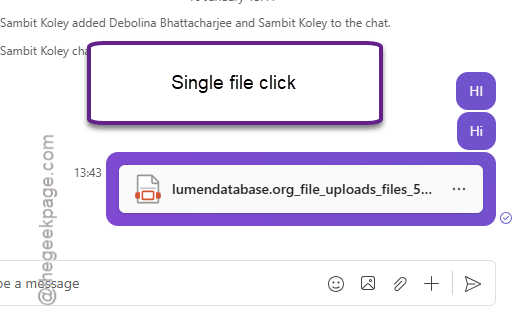
If you see a gray screen again, tap the Teams Search Bar at the top of the app, and then return to the document.
See if this works or not.
Fix 2 – Reset the File Open Preference
The link handler can get confused about which app to use to view the files: the Teams viewer, the browser or the desktop client.
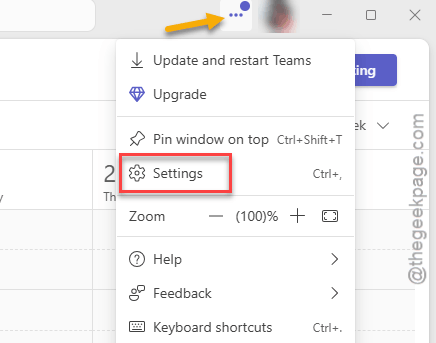
Step 1 – In the Microsoft Teams client, tap the three-dots button, and tap Settings.
Step 2 – Go to the Files and links tab.
Step 3 – Under the File open preference section, change the settings to Browser or Desktop App.
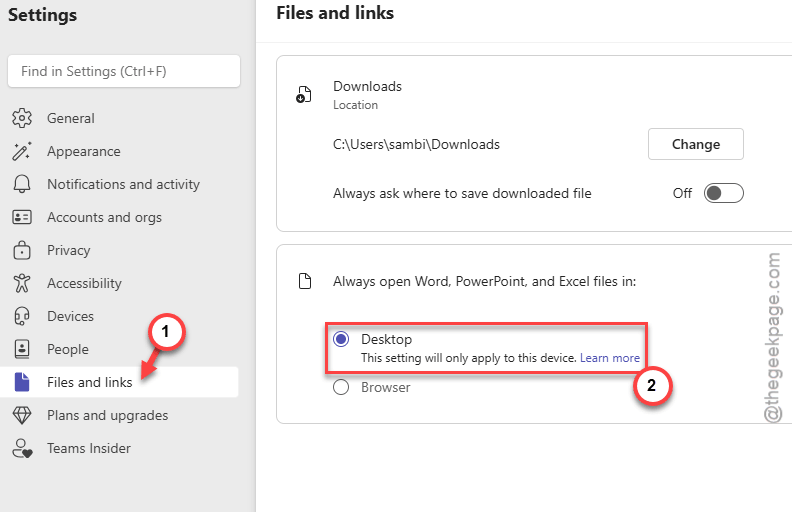
Try to open that file again.
Fix 3 – Purge the New Teams LocalCache
You can purge the New Teams localcache frm your local files to fix this problem.
Step 1 – At first, you have to quit the current instance of the Microsoft Teams app. Then, quit it from the taskbar as well.
Step 2 – Then, press the Win+R buttons together. Paste this there, and click OK to reach the Teams local cache location.
%localappdata%\Packages\MSTeams_8wekyb3d8bbwe\LocalCache\Microsoft\MSTeams
Step 3 – Delete everything inside that folder.
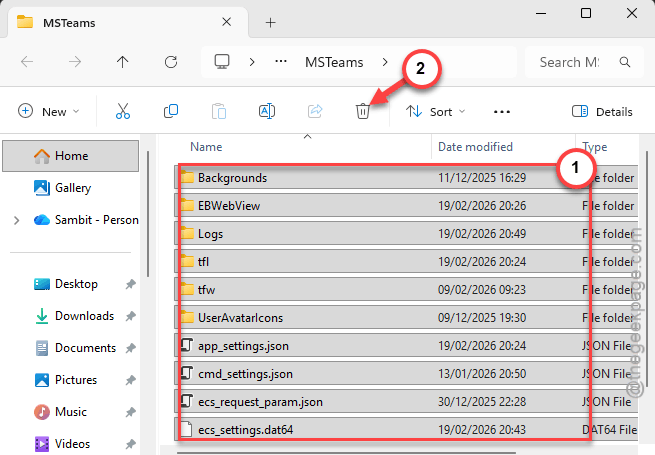
After doing that, just relaunch the Microsoft Teams app. Then, try to check the condition of the inline viewer now. Changing those settings should also resolve the issue.
Fix 4 – Disable OneDrive LockDown Mode
If you get an ‘Access Denied’ error message inside the Teams viewer but can open the file in the browser, your OneDrive site, like, has a blockage placed upon the viewer app.
Step 1 – Go to the OneDrive on a web browser.
Step 2 – Then, sign in to your account.
Step 3 – Tap the ⚙ button, and tap Settings to load up the OneDrive settings. Go to More Settings.
Step 4 – Under Features and storage functions, select Site Collection Features.
Step 5 – Locate the Limited-access user permission lockdown mode and tap Deactivate.
This should allow the Teams server account to render the files.
Fix 5 – Perform an Online Repair of Microsoft 365
You must initiate the online repair on the Microsoft 365 client that should fix the issue.
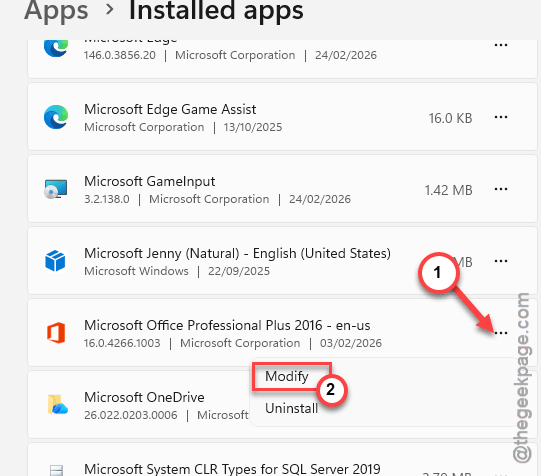
Step 1 – Right-click the Start button, and tap Installed Apps.
Step 2 – Find the Microsoft 365 (Office) app. Tap the three-dot button next to that, and click Modify.
Step 3 – Use Online Repair mode and tap Repair to initiate the repairing process.
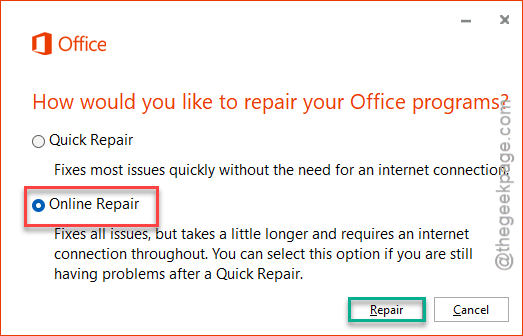
Wait until the repairing process finishes. This will fix the inline office file embeds issue.