You go to Settings, find Remote Desktop, and try to flip the toggle on. Nothing happens. It just sits there. Greyed out, stuck, won’t budge.
This started hitting people after the 25H2 update. A Group Policy conflict or a firewall reset usually causes it. Annoying, but fixable.
Why This Happens
Windows uses Group Policy rules to control whether Remote Desktop is allowed. After a feature update like 25H2, those policies can reset or conflict with each other. So the toggle in Settings just stops responding.
And sometimes it is not policy at all. The Windows Defender Firewall gets confused during the upgrade. It blocks the RDP port or disables the service silently. Either way, the toggle breaks.
Fix 1 – Enable Remote Desktop Through Group Policy
The Settings toggle is basically a front-end. The real switch is in Group Policy. So if the toggle is stuck, go straight to the source.
1 – Press Windows + R to open the Run dialog.
2 – Type gpedit.msc and press Enter.
3 – In the left pane, go to
Computer Configuration > Administrative Templates > Windows Components > Remote Desktop Services > Remote Desktop Session Host > Connections.
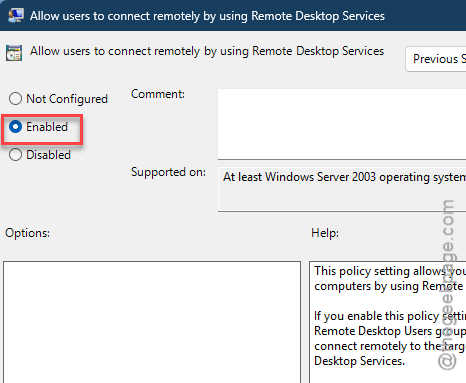
4 – On the right side, double-click Allow users to connect remotely by using Remote Desktop Services.
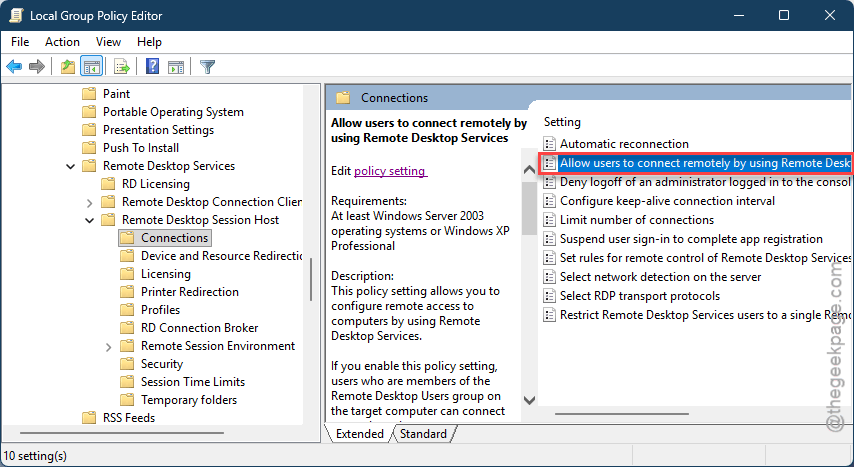
5 – Set it to Enabled. Click Apply, then OK.
And while you’re in there, also check this one:
6 – Go back to
Computer Configuration > Administrative Templates > System > Remotte Assistance
7 – Find Configure Offer Remote Assistance. Set it to Enabled too.
8 – Set the Permit remote control of this computer to Allow helpers to remotely control the computer mode. You must add the particular usernames that you can provide permission for remote access.
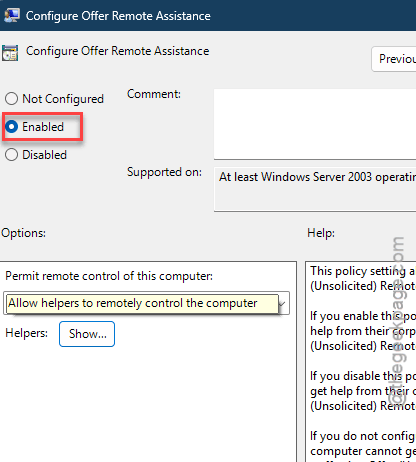
8 – Restart your PC.
The toggle should work now. If it’s still greyed out, keep reading.
Fix 2 – Force-Enable via Registry
If Group Policy didn’t do it — or if you’re on Windows Home and do not have gpedit — you can flip the switch directly in the registry. Takes a minute.
1 – Press Windows + R, type regedit, press Enter.
2 – Go to this path in the left pane:
HKEY_LOCAL_MACHINE\SOFTWARE\Policies\Microsoft\Windows NT\Terminal Services
3 – Look for a value called fDenyTSConnections on the right side.
4 – Double-click it. Set the value to 0. That means “allow connections.”
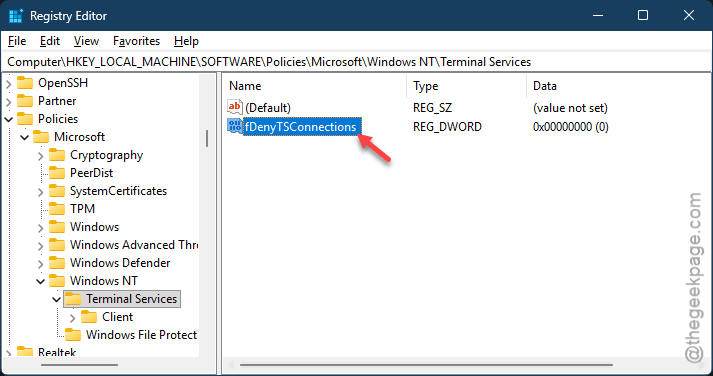
5 – Click OK and close Registry Editor.
6 – Restart your PC.
If fDenyTSConnections was set to 1, that was blocking everything. Changing it to 0 should unlock the toggle.
Fix 3 – Reset Windows Firewall to Default
Sometimes the firewall — not the policy — is the real problem. A corrupted firewall rule can silently block RDP. And the toggle won’t work because the service can’t actually start.
1 – Open Command Prompt as administrator. Right-click the Start button and pick Terminal (Admin).
2 – Type this command and press Enter:
netsh advfirewall resetnetsh advfirewall reset
3 – Restart your computer.
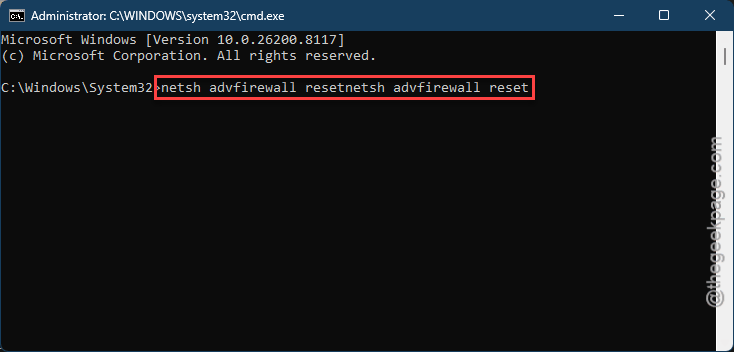
But heads up — this resets ALL your custom firewall rules to default. So if you had manual rules for other apps, you’ll need to redo those. Worth it though if nothing else works.
Fix 4 – Create a New Local Admin Account
Weird fix. But it works for a surprising number of people. Your user profile might be corrupted in a way that prevents the toggle from responding.
1 – Open Command Prompt as admin.
2 – Run:
net user user1 pass1 /add
(replace user1 and pass1 with whatever you want).
3 – Run:
net localgroup administrators user1 /add
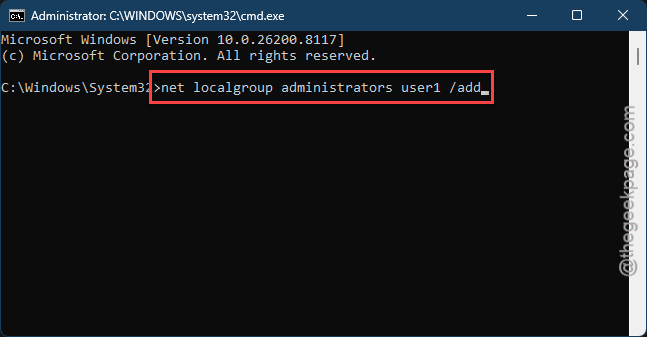
4 – Log out. Sign into the new account.
5 – Go to Settings > System > Remote Desktop.
6 – Try the toggle.
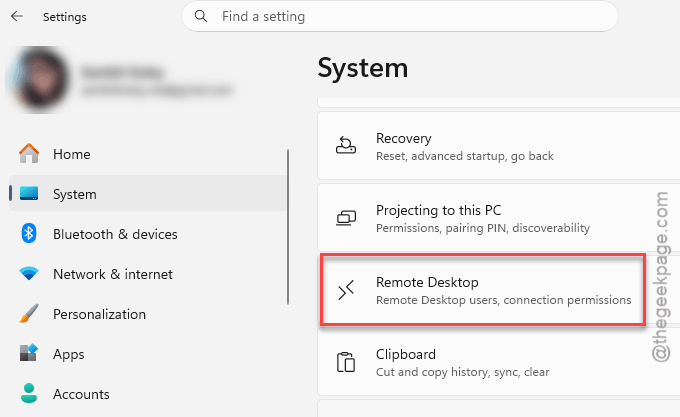
If it works on the new account? Your original profile has a problem. You can either keep using the new account or try resetting your user profile settings.
Fix 5 – Check Your Router Name
This one sounds odd, but it tripped people up. Windows shows your PC name in Remote Desktop settings. But your router might call the machine something different. And if the names don’t match, connections fail silently.
1 – Log into your router’s admin page (usually 192.168.1.1 in your browser).
2 – Find the list of connected devices.
3 – Check what name your router assigned to your desktop.
4 – Use THAT name when connecting via Remote Desktop from another device.
Not the most obvious fix. But it solved the issue for multiple users.
How to Prevent This
- After major Windows updates, check Group Policy settings for Remote Desktop. They reset more often than you’d think.
- Keep a backup of your firewall rules before feature updates.
- Avoid using the Settings toggle as your only method — know the registry and Group Policy paths as backup.
- Make sure your PC name matches across Windows and your router.
People Also Ask
Cannot enable Remote Desktop Windows 11?
Usually a Group Policy or registry block. Open gpedit.msc and check Remote Desktop Services > Connections. Make sure the “Allow users to connect” policy is Enabled. And if you’re on Home edition, you have to edit the registry manually. Set the fDenyTSConnections dword value to 0 to fix it.
Windows 11 Remote Desktop not working after update?
The Feature updates for Windows 11 (like 25H2) loves resetting firewall rules and Group Policy values to their defaut setting. Reset your system firewall with netsh advfirewall reset code, and alter the Group Policy, and restart. That fixes it for most people.
Why is Remote Desktop greyed out in Windows 11?
Either Group Policy is blocking it and your firewall settings is interfering, or your Windows edition doesn’t support it. Home editions do not include Remote Desktop hosting by default. Windows Pro and Business Edition do. Check your edition in Settings > System > About.