Is the Microsoft Word app refusing to open any documents that you have downloaded from the internet? This issue is mostly caused by a security filter in Word known as the Protected View. There are high chances of any downloaded Word file containing malware or other items with high security risks. But it should at least let you view the file. If MS Word is abruptly refusing to open the file, here are some troubleshooting steps that may help you.
Quick Fix Table –
| Symptom/ Error Message | Recommended Fix |
| Nothing happens when clicking | Fix #1: Unblock in Properties |
| ‘Word experienced an error’ | Fix #2: Disable Protected View |
| File opens as ‘Read Only’ | Fix #3: Add as Trusted Location |
Fix 1 – Unlock the File from its Properties
Windows automatically put a lock on individual files downloaded from browsers, like Chrome or Edge.
Step 1 – Right-click the downloaded file in the root folder and tap Properties.
Step 2 – Then, go to the General tab.
Step 3 – Check the box that says Unblock and click Apply to save the changes.
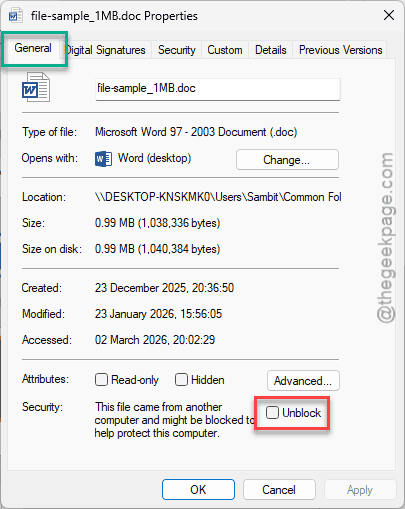
Once it is unblocked, the file should be accessible properly using Microsoft Word.
Fix 2 – Disable the Protected View for Internet Files
If you trust the source of the files, you can just disable the very setting that puts a blocker on the protected view mode for files downloaded from the internet.
Step 1 – To do this, open the Microsoft Word and proceed this way –
File > Options
Step 2 – Tap the Trust Center button.
Step 3 – Click the Trust Center Settings.
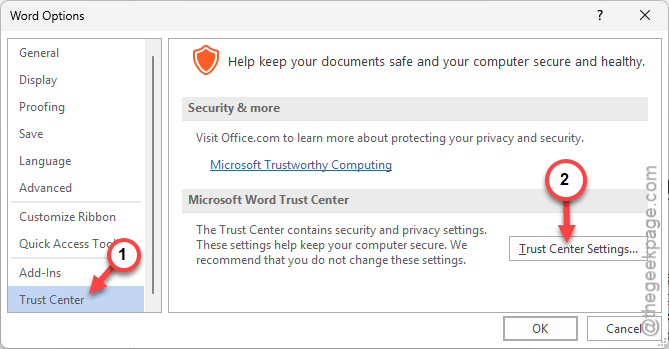
Step 4 – Choose the Protected View mode. Uncheck the Enable Protected View for files originating from the Internet box.
Step 5 – Save the changes.
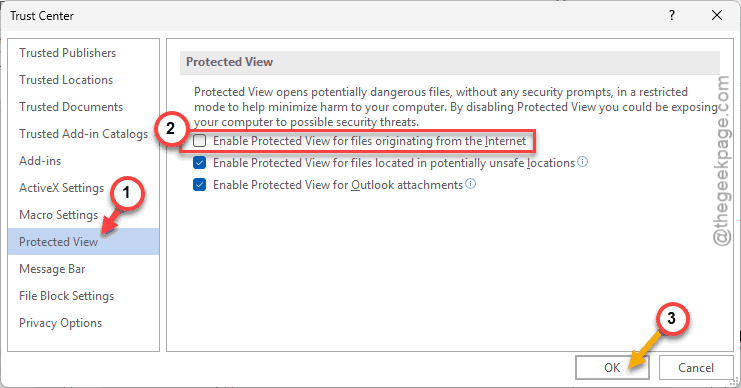
Microsoft Word will open up the file, bypassing the default protected view format.
Fix 3 – Add it to Trusted Location
If you regularly download a file to a particular folder (like Downloads or Work), you can just add that to the Trusted Location list.
Step 1 – Once again, proceed this way –
File > Options
Step 2 – Open up the Trust Center Settings in the Trusted Center column. Go to the Trusted Locations.
Step 3 – Then, tap the Add new location… option and browse to the location of the file.
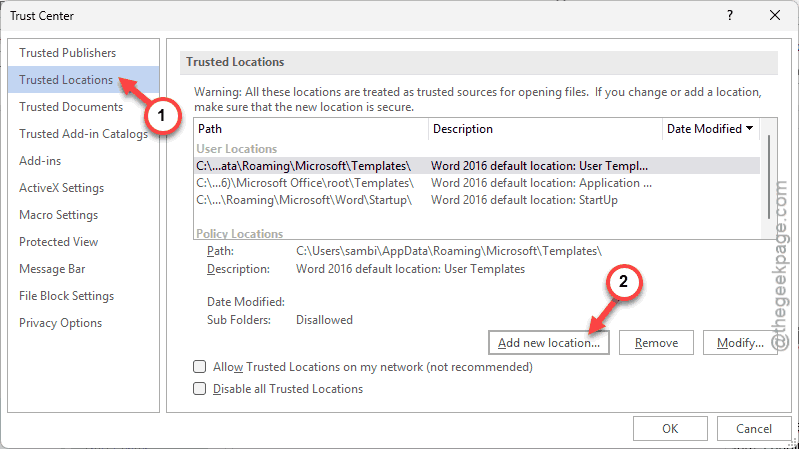
Step 4 – Check the Subfolders of this location are also trusted and click OK.
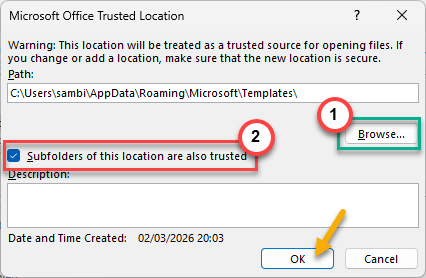
Word treats the trusted locations as a safe zone. Hence, there will be no such issue.
Fix 4 – Turn off the File Block Settings
The modern versions of Microsoft Word have a security feature that can block older Word files from opening that you have downloaded from the internet.
Step 1 – Open up the Word Options in Microsoft Word.
Step 2 – In the Trust Center button, click the Trust Center Settings.
Step 3 – Choose the File Block Settings. Look for the file type that you are trying to open. Ensure the Open checkbox is unchecked.
Step 4 – Set the Open behavior to Open selected files types in Protected View mode.
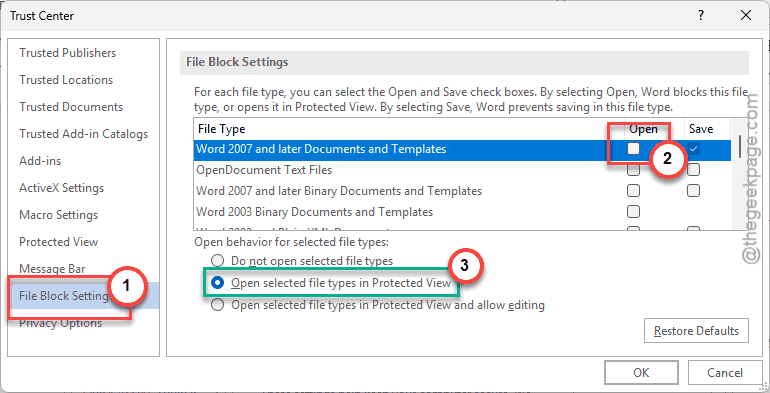
This way, Microsoft Word won’t open these file types in protected view mode.
Fix 5 – Repair the Component Object Model (COM) Office Files
A broken bridge between the COM component of Word and the browser can lead to such issues as well.
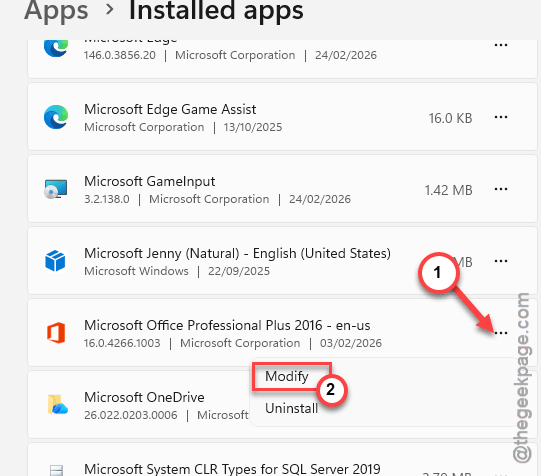
Step 1 – Hit the Win+X keys and tap the Installed Apps.
Step 2 – Search and locate the Microsoft Office app.
Step 3 – Right-click the Office app, and tap Modify.
Step 4 – Choose the Quick Repair option and tap Repair to initiate the main repairing option.
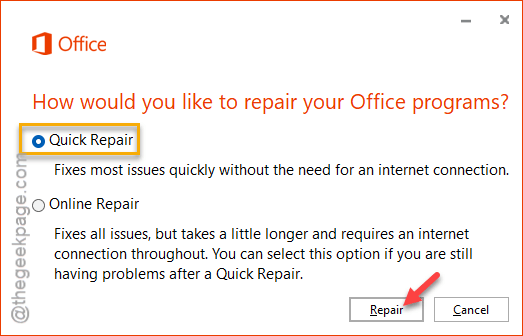
After the repairing process is done, this problem will be gone.