Do the bold or style changes apply to the entire sentence instead of a particular word in Microsoft Word? There are some intricate settings present in Microsoft Word that can lead to such problems. It usually happens due to the Automatically Update settings in MS Word that can automatically alter a sentence instead of a word. Follow this quick fix guide to navigate to the perfect solution that matches your case.
| Issue | Recommend Fix |
| Bolding one word bolds the whole document | Disable the Automatically Update settings (Fix 1) |
| Clicking a single word selects the whole thing | Turn off Smart Selection (Fix 2) |
| Font changes when you hit Enter | Disable define Style based on the formatting (Fix 3) |
Fix 1 – Disable the Automatically Update Style in Word
Microsoft Word can automatically apply the style for texts in Word to match it up with the rest of the document.
Step 1 – In the Microsoft Word document, right-click the Normal style in the Home tab gallery, and tap Modify.
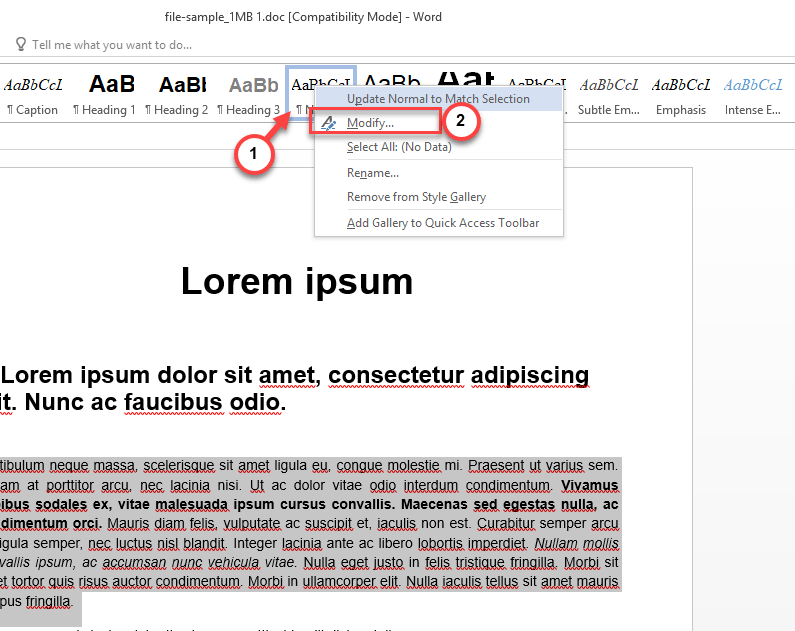
Step 2 – Now, uncheck the Automatically update box, and click OK to save the changes.
Once you have saved these changes, you can easily alter paritcular word.
Fix 2 – Turn Off Select Entire Word Setting
Word can sometimes lead to some formatting issues when the smart selection toggle is enabled.
Step 1 – In the Microsoft Word document, proceed this way –
File > Options
Step 2 – Go to the Advanced tab in Word Options page.
Step 3 – In the Editing option, uncheck the When selecting, automatically select entire word option. Click OK to save the changes.
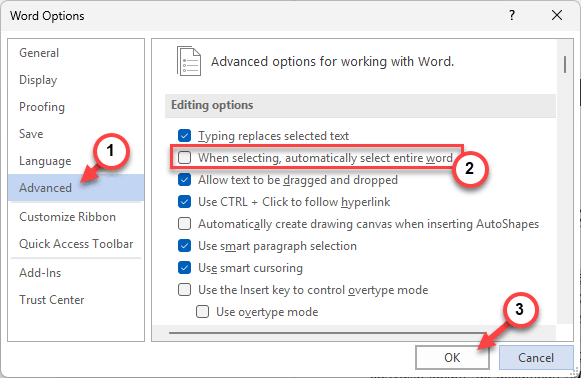
After applying these changes, you can take manual control over the text selection and formatting.
Fix 3 – Disable Define Style Based on Your Formatting
Word’s Autoformat system learns from your usage pattern and tries to predict and apply style based on the formatting of the text.
Step 1 – Go to the File tab in MS Word. Then, go to the Options tab.
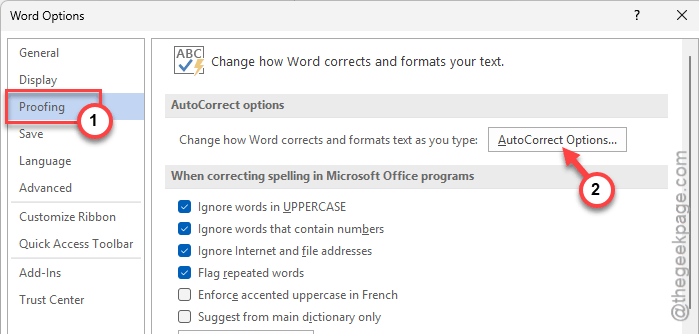
Step 2 – Go to the Proofing tab. Click the AutoCorrect Options panel.
Step 3 – Now, go to the AutoFormat As You Type tab, and uncheck the Define styles based on your formatting box.
Step 4 – Save the changes using the OK button there.
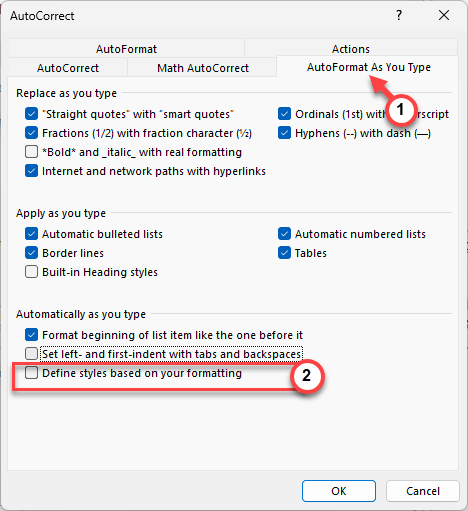
After you have applied these changes, you can
Fix 4 – Reset all the Formatting
If you are having this bold/style issue with a particular word, follow these steps to resolve the issue.
Step 1 – At first, highlight the problematic sentence where you are having this issue.
Step 2 – Then, press the Ctrl+Spacebar buttons.
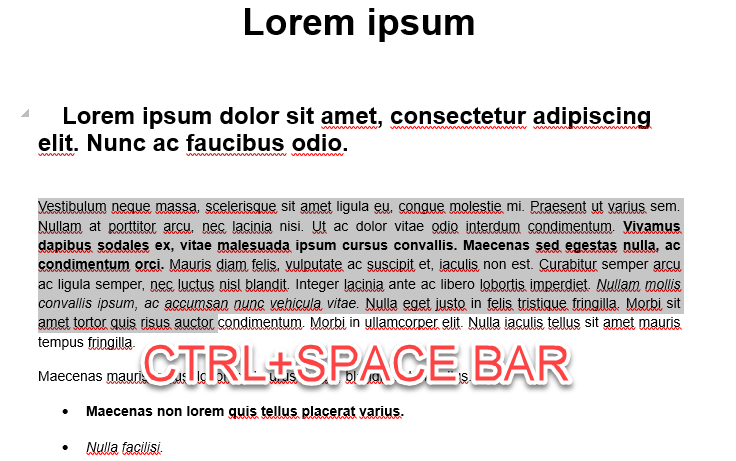
This automatically clears all formatting from the selected text. Now, you can manually format the text or part of the text to fix the problem.
Fix 5 – Make Word Prompt to Update Style
You can set up a warning prompt for Microsoft Word before it applies the style in the document.
Step 1 – Load up the Word Options following this way –
File > Options
Step 2 – Find the Editing options there. Check the Prompt to update style option.
Step 3 – Tap OK to save the changes.
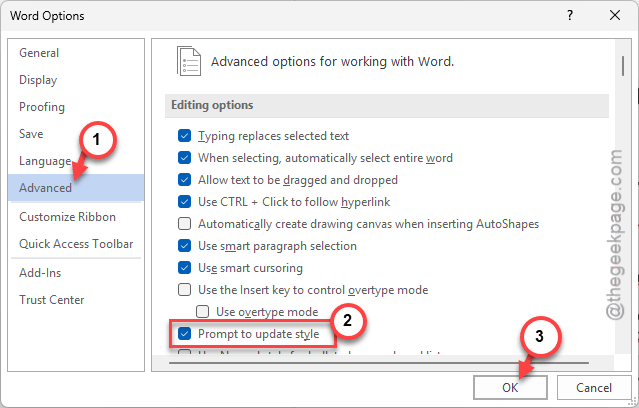
After saving these changes, try to modify the text in Microsoft Word. Check whethe this solves the problem or not.