Microsoft Word can sometimes refuse to paste into text boxes, usually because of a layering conflict or a formatting mismatch in the document. Some users have complained about this problem where they are unable to copy-paste texts directly into the text box. Here are the solutions you can apply to fix this problem at your end.
| Issue | Recommend Fix |
| Pasted text appears behind the box | Change Wrap Text to Square mode |
| Paste option is greyed out | Right-click the box, and select Edit Text |
| Word freezes when pasting | Use Ctrl+Alt+V (Unformatted Text) |
Fix 1 – Use Paste Special Feature in Microsoft Word
The regular copy-paste system may not carry forward the complex metadata like ‘Paragraph Styles’ in the text box.
Step 1 – After copying the text from the source, click inside the text box.
Step 2 – Then, hit the Ctrl + Alt + V shortcut keys.
Step 3 – Now, select the Unformatted Text format, and click OK to paste it.
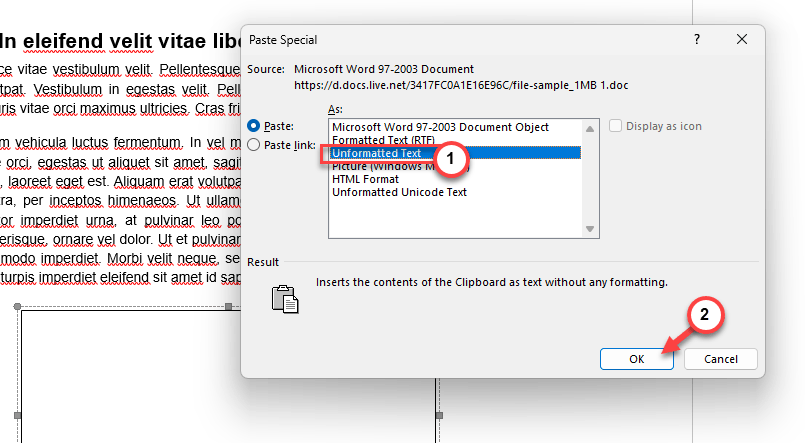
This will paste the contents in the text box without any formatting. You can later format it according to your requirement.
Fix 2 – Check the Edit Text Mode
Sometimes text boxes can behave like rigid shape boxes, not editable text containers. You can easily modify the text boxes in the Edit Text mode.
Step 1 – Right-click at the edge of the text box, and tap Edit Text.
Step 2 – Make sure the cursor is blinking in the text box. Then, press the Ctrl+V keys together.
This will paste the copied text in the text box.
Fix 3 – Clear the Object Anchors from document
If the text box is linked to a read-only or a protected part of the document, you can’t paste the text into it or edit anything there.
Step 1 – Select the text box in the document.
Step 2 – Go to the Shape Format feature. Choose the Wrap Text option and tap More Layout Options.
Step 3 – In the Positions tab, ensure the Lock anchor feature is unchecked.
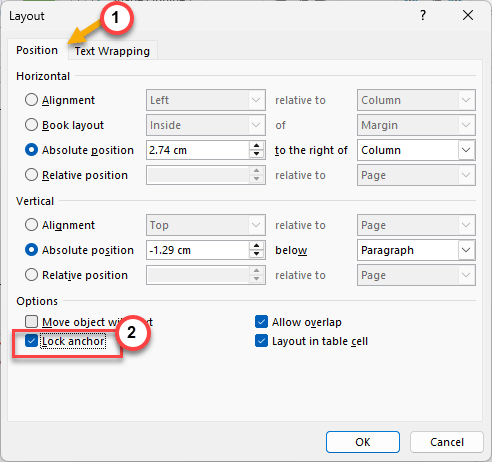
Lifting the object anchor from the text box should
Fix 4 – Adjust the Text Wrapping Style
A wrong text wrapping style of the text box, like the ‘In Front of Text’ module, can lead you to such issue. You can’t edit the text box unless you disable the wrapper effect.
Step 1 – Select the text box in the document. Then, click the Layout Options icon next to it.
Step 2 – Change it to Square or Tight mode from there.
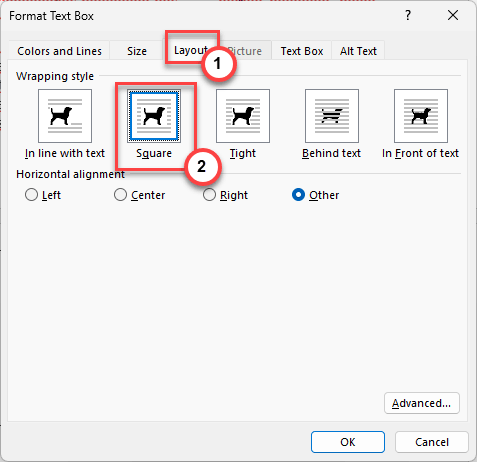
This simple alteration should make the text box editable.
Fix 5 – Bypass this issue with Text Recovery Method
If you still can’t copy-paste text or anything to the text box, use a mediator text container (like Notepad) to do it properly.
Step 1 – Open a fresh new page of NotePad.
Step 2 – Copy the text that you want to paste into the Notepad file.
Step 3 – Then, copy the entire text that you have pasted in Notepad and go paste it in the text box in your Microsoft Word document.
This way, there won’t be any format-related issues in the text box at all.