When Word freezes or hangs while opening a document with embedded objects (like Excel charts or PowerPoint PTTs), it is usually because Word is trying to refresh all of them. If the source file of the embedded object is missing or present on a disconnected network drive, Microsoft Word itself may become completely unresponsive.
Quick Fix Table ~
| Issue/ Error Prompt | Recommended Action |
| “Waiting for OLE Action” | Fix #5: Kill process in Task Manger |
| Freeze happens immediately at 0% | Fix #1: Disable Auto-Update |
| Document opens up, but clicks freeze | Fix #2: Lock with Ctrl+F11 |
Fix 1 – Disable Automatic Link Updates
Microsoft Word by default tries to update or refresh every embedded object in the file.
Step 1 – Go to the File menu. Then, open up the Options menu.
Step 2 – Tap the Advanced tab.
Step 3 – Slide down to General section.
Step 4 – Uncheck the Update automatic links at open box. Click OK to save the change.
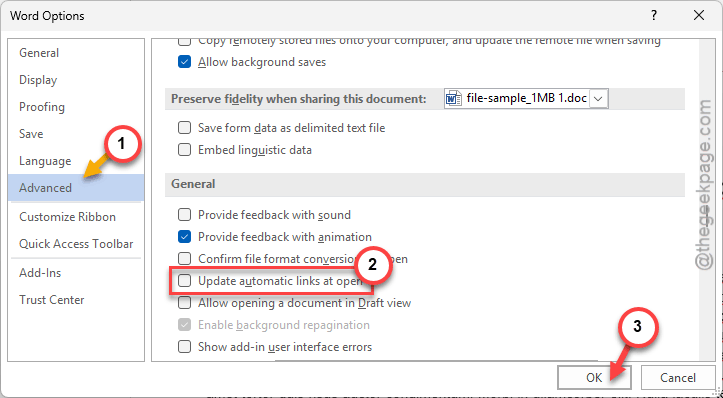
Upon saving the change, the document can use the cached image data of the object.
Fix 2 – Use the Ctrl+Shift+F11 Shortcut to Manually Unlock
If during the refreshing of an object in Microsoft Word gets it stuck, you can manually lock that particular object.
Step 1 – Open up the document. If it hangs, try loading up the file in Safe Mode. You can access Word in Safe Mode by clicking the Word icon while pressing the Ctrl button.
Step 2 – Select the embedded object.
Step 3 – Press the Ctrl+F11 keys together to lock object.
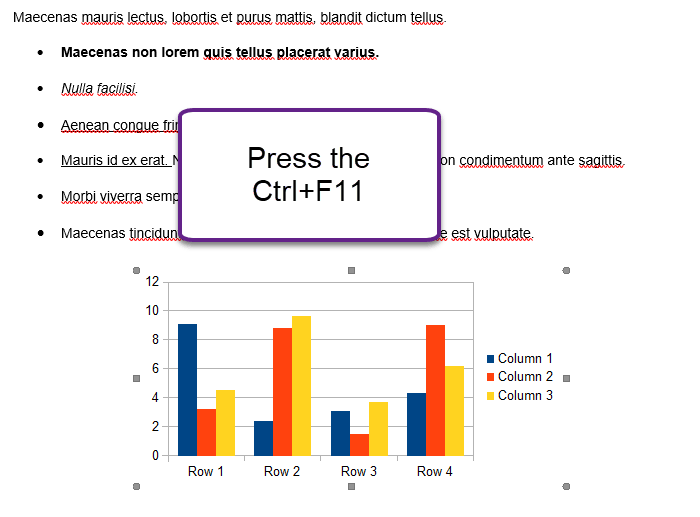
You can deactivate these locks usign the Ctrl+Shift+F11 keys together.
Fix 3 – Break the Ghost Links
If the document was created by anyone else or moved from one inaccessible location or server, the broken links can have this kind of fallout.
Step 1 – Go to the File tab. Open up the Info menu.
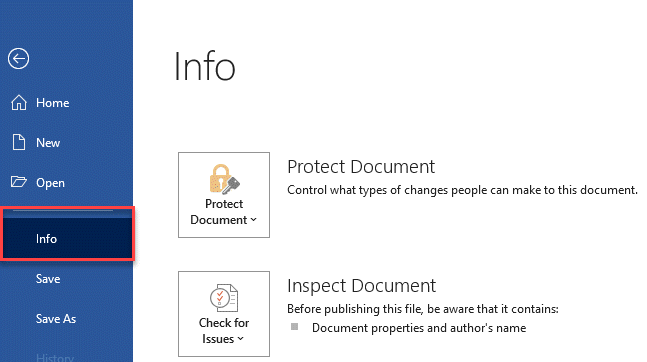
Step 2 – Then, look for the Edit Links to Files option (this feature only shows up if there are links that do exist).
Step 3 – Select any suspected link that may cause the problem and tap Break Link.
Breaking the links will enforce the live object into a permanent object, diminishing the root cause of the issue.
Fix 4 – Change Display as Icon mode to Picture
Instead of directly putting the object in Word, which may get stuck in the app-selection console, you should just include a screenshot of the said object and hyperlink it.
Step 1 – Do not insert the object using the standard Insert menu.
Step 2 – Instead, just take a screenshot of the object and save it as the picture.
Step 3 – Insert the picture in the place of the object and just hyperlink it back to the file.
Pictures in MS Word require minimal processing. Hence, there will be no chance of Word freezing up at all.
Fix 5 – Clear the OLE Action Cache
If you are getting an error message ‘Word is waiting for another application to complete OLE action,’ it may be due to a conflict between apps.
Step 1 – Hit the Ctrl+Shift+Esc keys together to load up the Task Manager.
Step 2 – Look for any background processes that are linked to the embedded objects, like Excel.exe.
Step 3 – Then, right-click any such background processes and tap End task to kill it.
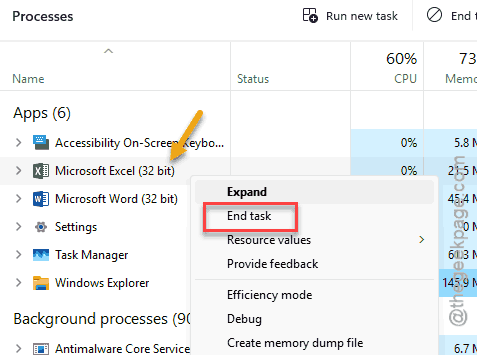
Return to the Microsoft Word page, and the problem will be resolved.