Random Word files showing up in your Recent list. Files you never opened. Never even heard of. Creepy? A little.
Turns out it is not a virus. It is OneDrive and Office being overly helpful in the background. They sync and index files you never touched, and Windows dumps them into your Recent list. For some reason, Microsoft thinks this is a feature.
Why This Happens
Windows Explorer pulls recent file data from multiple sources. Your actual activity is one. But OneDrive sync activity is another. And Office cloud suggestions are a third. So when OneDrive syncs a shared folder or Office indexes cloud files, those show up as “recent” even though you never clicked on them. This got worse after a Windows 11 update added “account-based insights” to File Explorer. Which is just a fancy way of saying it shows you cloud files you did not ask to see.
Fix 1 – Turn Off “Show Files from Office.com”
This is the one that fixes it for most people. File Explorer has a hidden option that pulls in Office cloud files.
1 – Open File Explorer.
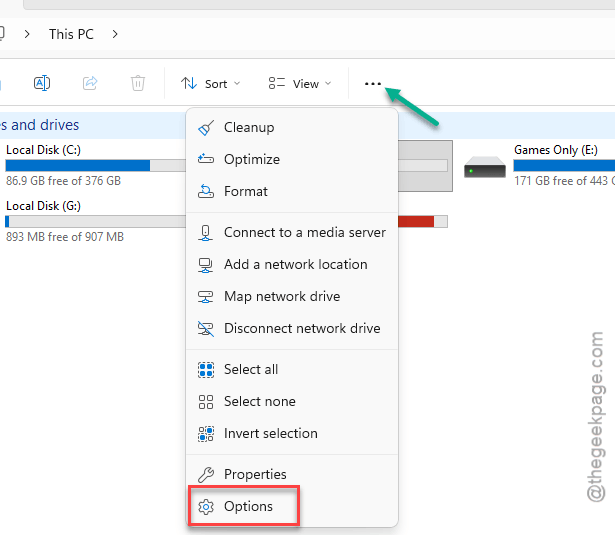
2 – Click the three dots … at the top of the window (next to the View menu).
3 – Click Options.
4 – Uncheck the box that says Show files from Office.com.
5 – While you are there, click the Clear button under the Privacy section to wipe the current list.
6 – Click OK. Close and reopen File Explorer.
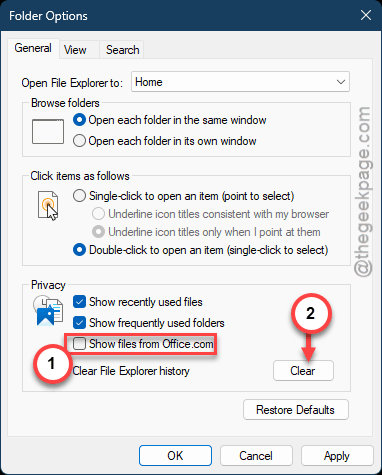
And just like that, the phantom files should stop appearing. Weirdly, this option is on by default.
Fix 2 – Disable “Account-Based Insights”
Another setting that feeds cloud data into File Explorer. Turning it off stops Windows from suggesting files based on your Microsoft account activity.
1 – Open Settings (press Windows + I).
2 – Go to Privacy & security on the left side.
3 – Look for the File Explorer section or search for “File Explorer Options.”
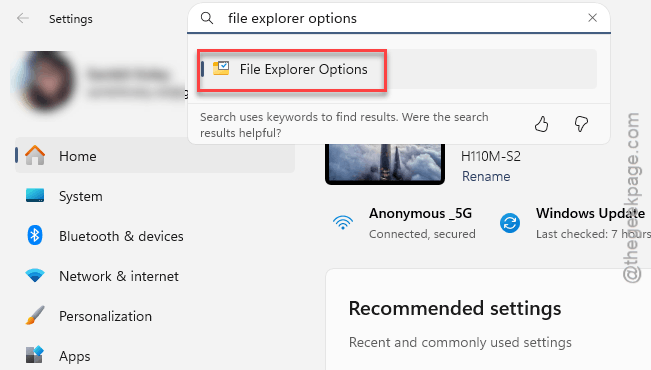
4 – Find the option that says Include account-based insights, recent, favorite, and recommended files in File Explorer. Uncheck it.
That should stop the random suggestions. Takes about 30 seconds
.
Fix 3 – Temporarily Quit OneDrive
OneDrive syncing is a big reason files you never opened show up as recent. Quick test to confirm.
1 – Click the OneDrive icon in the system tray. It is on the right side of the taskbar (might be hidden under the ^ arrow).
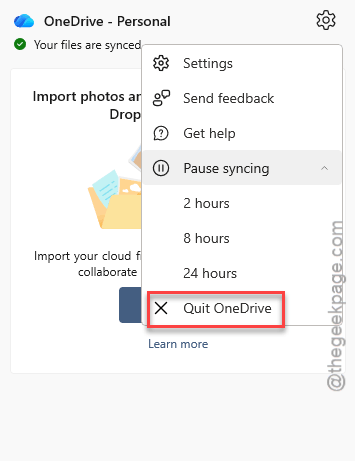
2 – Click the gear icon at the top right of the popup.
3 – Click Quit OneDrive.
4 – Restart your PC.
Now check your Recent list. If the mystery files are gone, OneDrive was the culprit. So you can keep it closed or move on to Fix 4 for a more permanent solution.
Fix 4 – Clear the Recent Files List Manually
Want to start fresh? You can wipe the whole list.
1 – Open File Explorer and go to the Home tab at the top.
2 – Click the first file in the recent list.
3 – Scroll down to the last file. Hold Shift and click it to select everything.
4 – Right-click and select Remove from List.
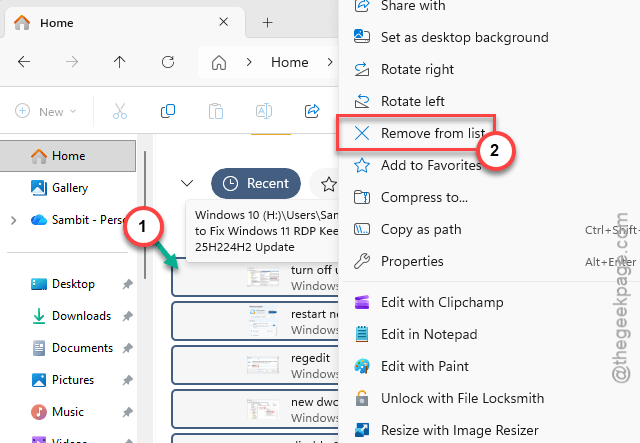
All gone. But they might come back if you do not disable the cloud suggestions from Fix 1 and Fix 2 first.
Fix 5 – Disable “Show Recently Opened Items” in Start Settings
This is a broader setting that controls recent files across Windows. Not just File Explorer.
1 – Open Settings (press Windows + I).
2 – Go to Personalization on the left. Then click Start.
3 – Toggle off Show recommended files in Start, recent files in Start, Jump Lists, and File Explorer.
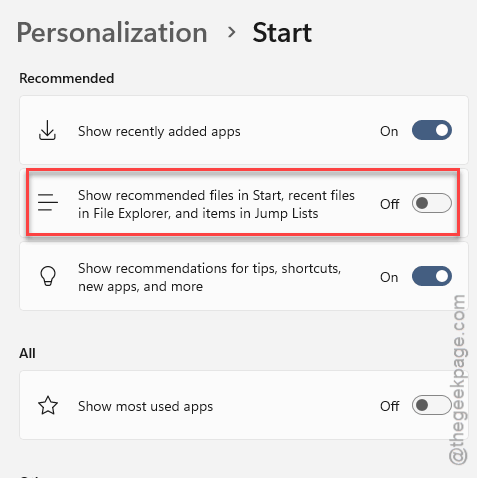
This kills the entire recent files feature. Nuclear option. But effective if the phantom files really bother you.
How to Prevent This
– Keep “Show files from Office.com” turned off unless you actually use that feature.
– After Windows updates, check these settings. They sometimes reset without telling you.
– If you share a OneDrive folder with coworkers, their edits can trigger recent file entries on your machine. Annoying, I know.
– Periodically clear your recent files list to keep things tidy.
People Also Ask
How do I stop Windows Explorer from showing recent files?
At first, open the File Explorer. Then, click the three dots, then Options. Uncheck “Show files from Office.com.” and save the changes there. Next, you have to turn off recent items from the Settings.
Why don’t I see recent files in Windows Explorer?
You probably turned off the particular setting at some point. Open up the Personalization settings in Windows Settings, then go to Start module. Turn on the Show recently opened items feature. there to fix the issue. Then open Folder Options and re-enable Show recently used files option there. The recent files should re-appear after that.
How to recover Word docs showing up in recents?
The recent files that appears in File Explorer is just shortcuts. The actual file stays wherever you saved them. You must check OneDrive, Documents, or Downloads. If you cannot find it, search for the filename in File Explorer. It is somewhere on your drive or in the cloud.