Does the Ember app refusing to open up on your iPhone? Some new users of the Ember products have raised this issue across various channels that the Ember app is freezing up on the startup screen. Ember app is the main console for the users to get the best out of their Ember products. So, if the Ember app starts to fail, there is no way you can connect it to your Ember Mug and control it.
Why the Ember app is refusing to connect on iPhone?
The Ember app is serves as a control medium for the Ember products. It also procures additional information from the Ember appliances, like temperature, and shows it up on the Ember app. Now, since the recent update, there is this widespread issue for the Ember app users where the app is just stuck at orange Ember screen.
While there are any standard resolution to this problem, we have got a weird fix that has fixed the issue for many users. It involves changing the language of the Ember app to Italian/Spanish and later re-modify the language.
Fix 1 – Change the language of the app
You have to alter the language of the Ember app to Spanish/Italian and then, proceed to use the app and change the language back to English from inside the app. These steps have solved the issue for many users.
NOTE – We are going to change the iOS language to Spanish briefly. Stick to the instruction or use another device to translate the terms on the iPhone screen. If you are familiar with any other language, like Italian or French, you may use that as well.
Stage – 1
Step 1 – Close the current instance of the Ember ap on your iPhone. Next, proceed to the Settings page on iPhone.
Step 2 – Later, get to this point ~
General > Language & Region
Step 3 – In the Language & Region settings, tap the Add language option there.
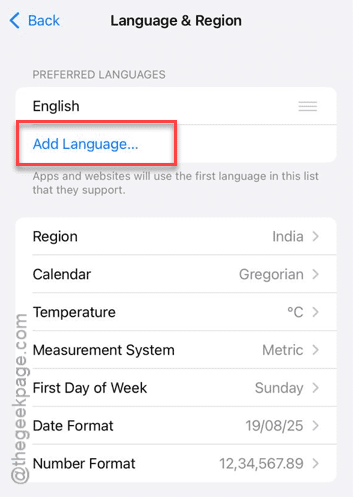
Step 4 – Choose the Español option from the list.
Step 5 – Tap Use Spanish option to implement Spanish language throughout the iOS.
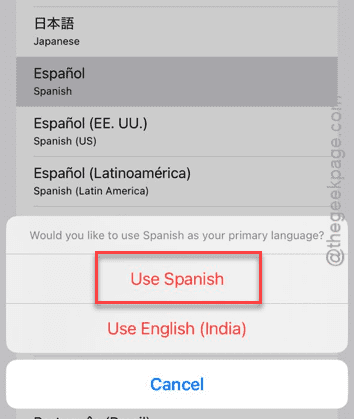
Minimize the Language & Region settings page, but do not close it.
Stage 2 –
Open the Ember app and set up connection to your mug.
Step 1 – Load up the Ember app. This time it should start up normally.
Step 2 – It will ask you to activate the Bluetooth. Do that so you can connect the Ember mug to the app.
Step 3 – Follow the on-screen steps (take the help of any translation tool to translate, if needed) and complete pairing up with your Ember mug.
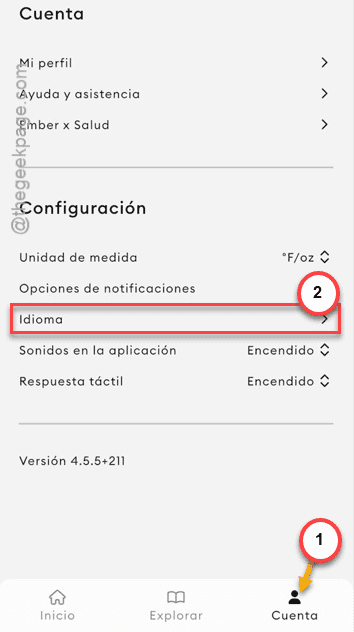
Once you have successfully paired it up, you can change the language of the app directly from there.
Step 4 – To do that, go to the Cuenta section and later open up the Idioma page.
Step 5 – Select English from there and apply it for the app.
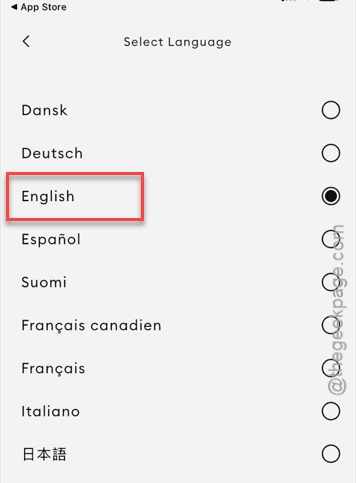
It should be good to go now!
Stage 3 –
Revert the iPhone’s language to English or the language you were using before.
Step 1 – Bring up the minimized Language & Region page.
Step 2 – Now, simply hold the English language button (or the language that you were using previously) there and put it at the top place.
Step 3 – Tap Continuar to switch back to the English language.
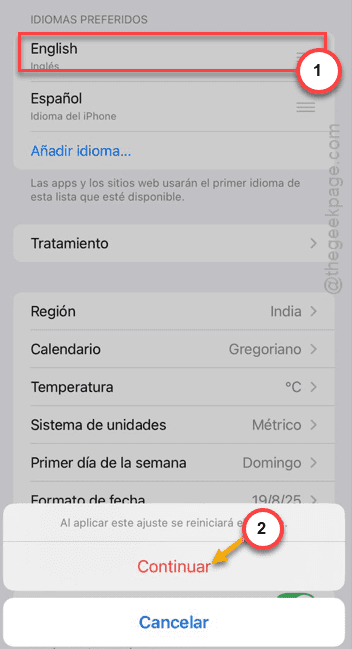
The iPhone language will be set to English once again. You can now use the Ember app as usual.
Fix 2 – Offload the app and reinstall
If you still can’t connect your Ember mug to your iPhone, just offload the app and reinstall the latest version.
Step 1 – To do this, open the iPhone and follow this path ~
General > iPhone Storage
Step 2 – Then, proceed to the list of apps. Find the Ember app in the list and open it up.
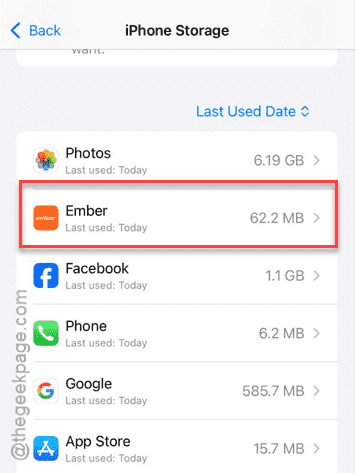
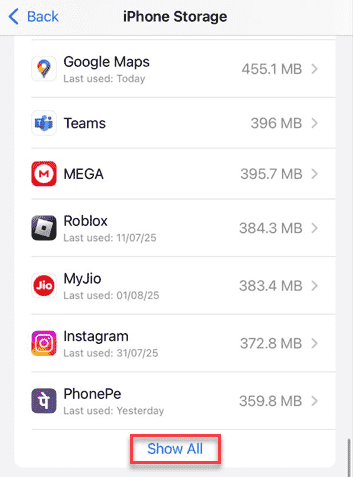
Step 3 – Can’t find it in the default list? Tap the Show App option to view the full list of apps.
Step 3 – Once you have opened the Ember app settings page, tap the Offload App option.
Step 4 – Finally, tap the Offload app option from there to offload the app.
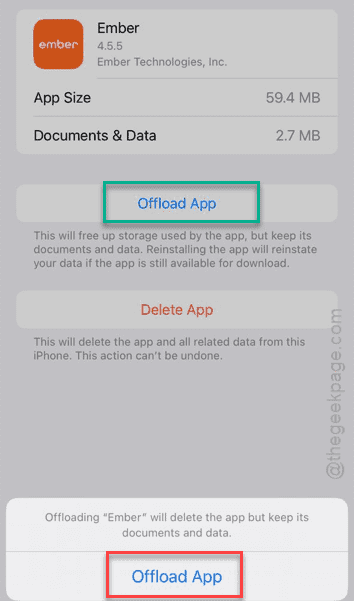
Wait for a few seconds.
Step 5 – Use the Reinstall App option to reinstall the app on the iPhone.
After reinstalling Ember, you can use the app again. Check if this works out for you!