Are the watch face customizations not saving on your Apple Watch? Watch face customizations do take time, and many users like their own customized watch face on their wearables. It is not possible for them to change or customize the watch face if every time it keeps changing to something different. So, here are some tips you can follow to either get a workaround to this issue or a permanent resolution.
Fix 1 – Edit Directly on the Apple Watch
Instead of customizing the watch face on the Watch app of the Apple Watch.
Step 1 – Long press the current watch face directly on the Apple Watch.
Step 2 – Tap the Edit button there.
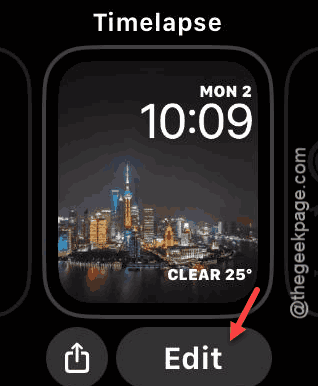
Step 3 – Customize the watch face the way you want.
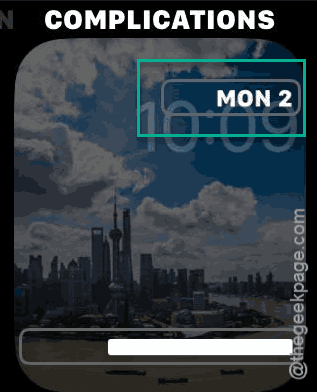
Step 4 – Press the digital crown once to save the changes.
This way, the customized watch face will be saved directly on the Apple Watch without the dependency on the Watch app.
Fix 2 – Try the Watch Face Swap Refresh
There is a chance that a particular watch face is bugged, which is another reason why the Apple Watch is failing to save the customized watch face.
Step 1 – On the iPhone Watch app, go to the My Watch tab. Open up the My Faces tab.
Step 2 – Tap the Edit button there and delete the problematic watch face from there.
Step 3 – Restart both the Apple Watch and the iPhone.
Step 4 – Then, go to the Face Gallery on the iPhone and recreate the face from scratch.
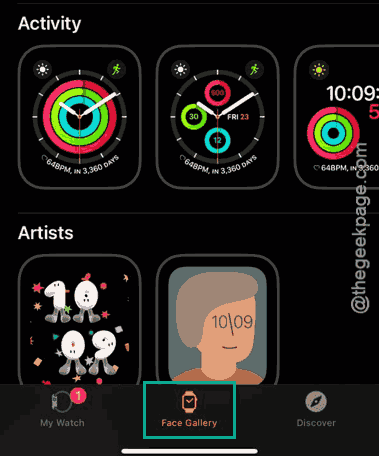
Check if this resolves your issue. Otherwise, proceed to the next fix to solve the issue.
Fix 3 – Check the iCloud Clock Storage
If the iCloud is completely full, the watch face customizations that you have performed may get stuck on the iPhone.
Step 1 – On the iPhone, go to the Settings tab. Open up your name banner to edit it. Tap the iCloud settings.
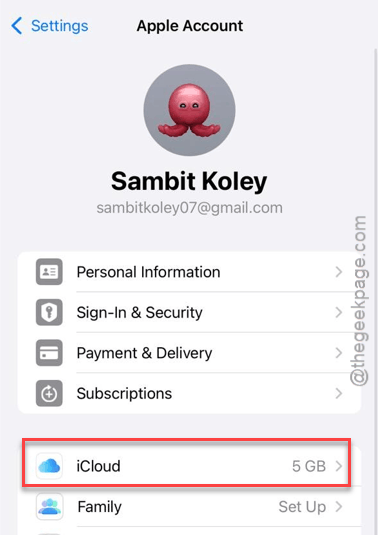
Step 2 – Tap the Show All option. Make sure the Health and Watch are toggled to ON.
Step 3 – If they are already turned ON, turn OFF them and ON to refresh it.
This should nudge the iCloud sync, which often cause such temporary issues.
Fix 4 – Toggle Screen Time Restrictions
There are some content and privacy restrictions that might be blocking the Watch from modifying the system files.
Step 1 – On the iPhone Settings, go to the Screen Time tab. Tap the Content & Privacy Restrictions module.
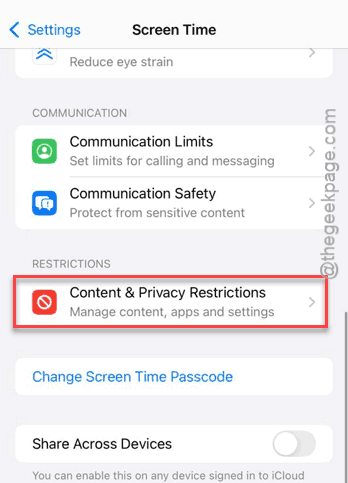
Step 2 – If it is turned On, look for the Location Services and System Customization.
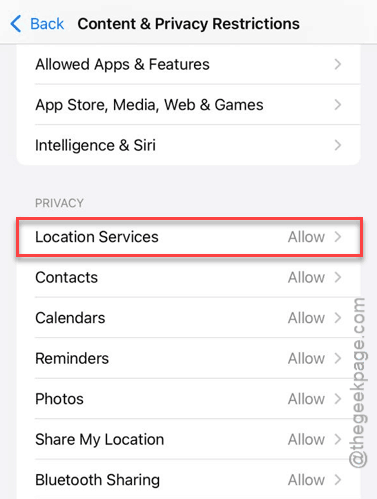
Step 3 – Make sure these two are set to Allow Changes mode.
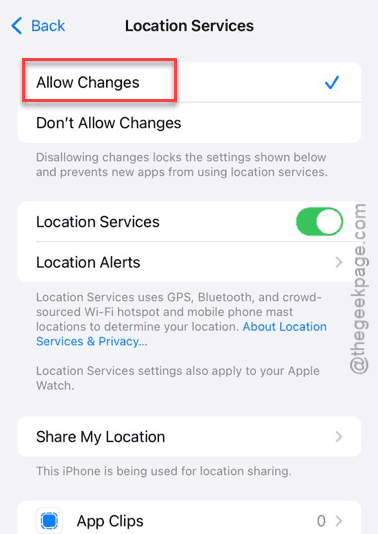
If these restrictions are imposed, watch can’t save new watch faces at all.
Fix 5 – Reset the Sync Data
If your complications like Weather or Calendar are failing to save or update, you should reset the synchronized data on the Apple Watch to resolve the issue.
Step 1 – At first, open up the Watch app on the iPhone.
Step 2 – Then, go to the General tab. Load up the Reset section, next.
Step 3 – Then, use the Reset Sync Data feature to reset the sync data on the Watch and the iPhone.
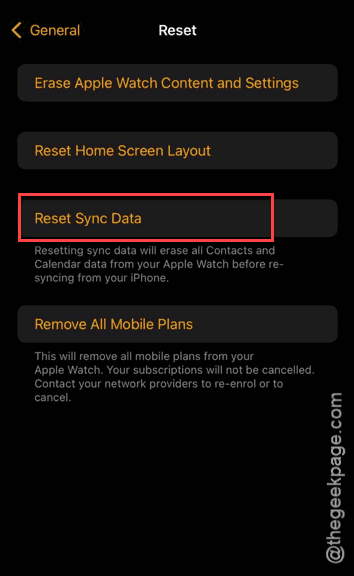
Although there won’t be any visible signs of the synced data refreshing, it does happen in the background.
Wait for an entire minute or two before you try to customize and implement the watch face on the Apple Watch.