Microsoft Word does not lose any data even if you experience a sudden shutdown, system crash, or anything out of your control. The AutoSave feature automatically keeps saving the file at an interval. But some users have recently complained about losing unsaved work while switching between cloud and local environments. If you are experiencing such scenarios, here are some countermeasures and fixes that you can implement to restore the file or take precautionary measures to prevent it from happening any further.
Quick Troubleshooting Guide –
| Issue | Recommended Fix |
| Version Conflict error pops up | Select Keep my version or Save a copy |
| File reverts to a version from 1 hour ago | Check this way –
File > Info > Version History |
| Word hangs during Uploading to SharePoint | Fix #3 – Delete the cached files |
Fix 1 – Recover the Dirty Cache Files
Microsoft Word stores a local version of the document before it synchronizes with the cloud.
Step 1 – In the Microsoft Word document, go this way –
File > Info
Step 2 – Tap the Manage Document tab and use the Recover Unsaved Documents.
Step 3 – Look for the files with the .asd extension created during your last session.
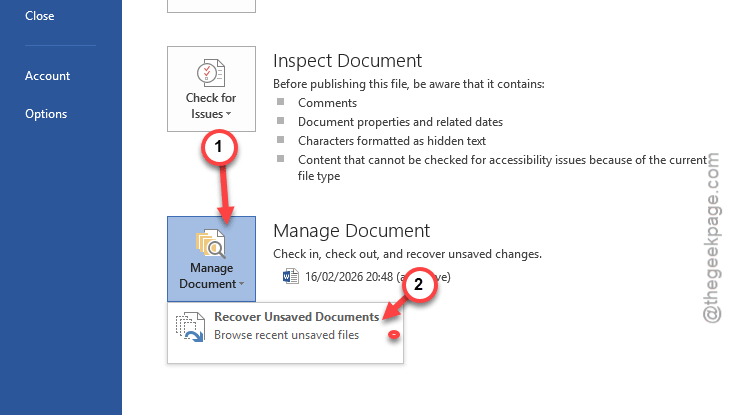
You can find your work here in this directory.
Fix 2 – Disable AutoSave to Force Local Control
AutoSave is customized to save the file in the cloud. If you notice any disruption in the internet connection, AutoSave may overwrite a newer saved file with an older version of the file.
Step 1 – Find the AutoSave toggle in your document on the top-left corner in Microsoft Word.
Step 2 – Toggle it to Off mode.
Now, only toggle it to back to On mode when the document is at the correct place.
Fix 3 – Clear the Office Document Cache
Possible corruption in the main Office document cache can cause such issues.
Step 1 – Close all the Microsoft Office apps, except Microsoft Word.
Step 2 – Now, go this way –
File > Options
Step 3 – Go to the Save tab.
Step 4 – In the Cache Settings tab, tap the Delete cached files option.
Step 5 – Tap OK to save the change.
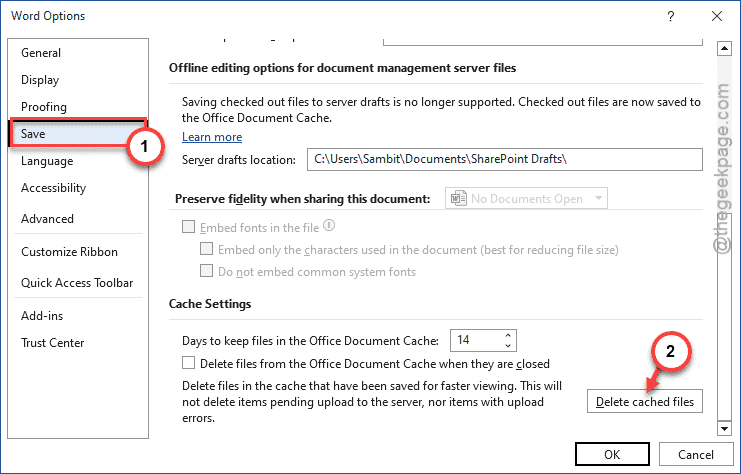
After this, reopen the Microsoft Word utility and try to continue your work.
Fix 4 – Tweak the Always Keep on This Device Setting
Windows 11 sometimes uses the Files On-Demand service, where the working file is saved in SharePoint/OneDrive. Switching to the local storage can break the link.
Step 1 – Load up the OneDrive folder in the File Explorer. Find the folder/file where you are working.
Step 2 – Then, right-click that folder/file and choose Always keep on this device option.
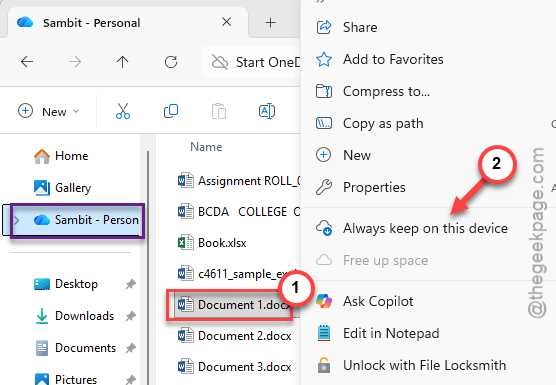
This ensures that a physical copy of the document is always present on the hard drive. So, a breach in connection does not affect the document version at all.
Fix 5 – Increase AutoRecover Frequency
If you frequently edit the file across the cloud and local environments, the default 10-minute backup window may not be enough, and hence Word is losing the unsaved work.
Step 1 – In the Microsoft Word document, go this way –
File > Options
Step 2 – In the Word Options panel, go to the Save tab.
Step 3 – Set the Save AutoRecover information every minutes to 1 minute.
Step 4 – Check the Keep the last AutoRecovered version if I close without saving box.
Step 5 – Save the changes.
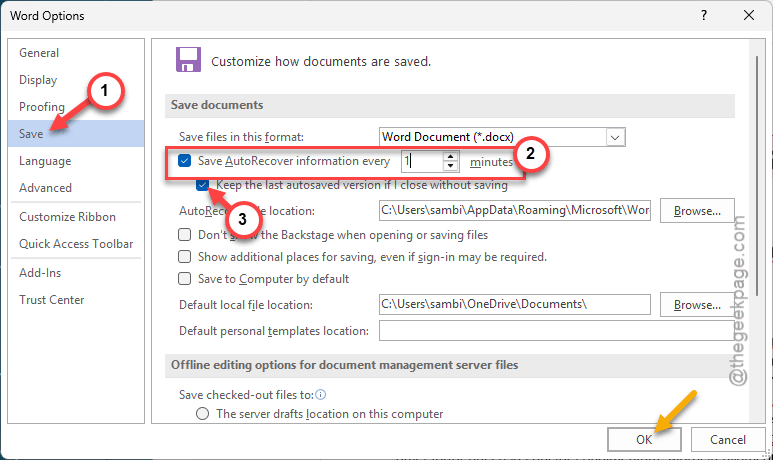
Once you have enacted this change, Word will now automatically save the changes in the document every 1 minute. So, there are no chances of you losing the document in a frenzy.