Suddenly getting corrupted messages across a Microsoft Word document? Full length data corruption happens due to unexpected shutdowns, storage errors, or application crashes. You can fix the file yourself directly from Microsoft Word. If you are facing this problem, here are some tips to fix the issue.
Quick Fix Table ~
| Error Message / Issue | Recommended Action |
| Word crashes when scrolling to Page 5 | Fix #1 – Copy everything except the last mark |
| ‘File is corrupted and cannot be opened’ | Fix #2 – Use the Open and Repair Tool |
| Document shows symbols/gibberish | Fix #3 – Use Recover Text From Any File |
Fix 1 – Change the Final Paragraph Mark
Microsoft Store stores the document metadata in the last paragraph mark of the document.
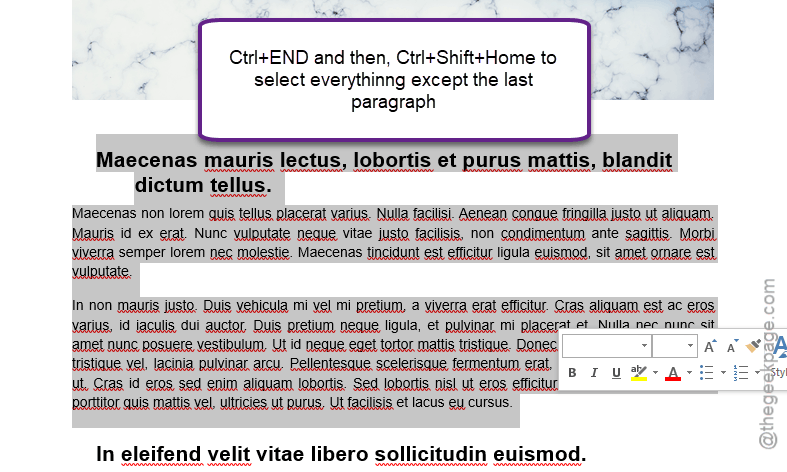
Step 1 – Open up the corrupted file. Then, press the Ctrl+End keys together. Now, press the Ctrl+Shift+Home buttons to select everything in the document except the last paragraph.
Step 2 – Then, copy the entire text using Ctrl+C. Open a blank document in Microsoft Word.
Step 3 – Next, use the Ctrl+V keys together to paste it there.
Step 4 – Additionally, you can import the last paragraph as well.
After this, just save the file and you are good to go.
Fix 2 – Open and Repair the Corrupted File
There is a hidden recovery tool in Microsoft Word that you can use to open and repair the allegedly corrupted document.
Step 1 – Open Microsoft Word, but don’t load up that document yet.
Step 2 – Then, go this way –
File > Open > Browse
Step 3 – Select the corrupted file there, and expand the Open drop-down button. Choose the Open and Repair.
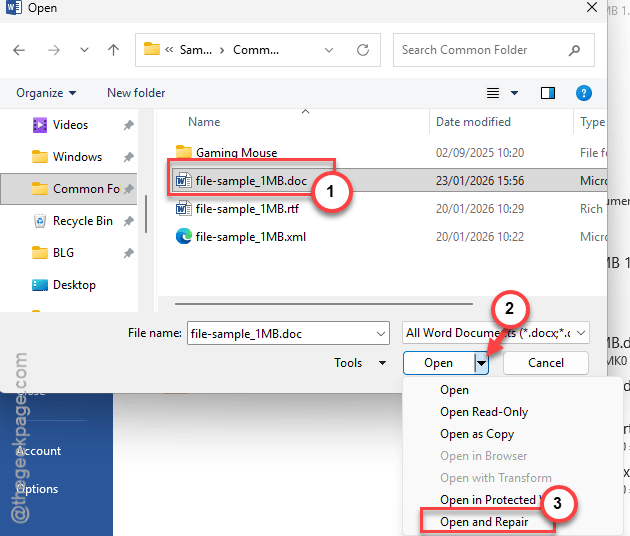
Word will repair the corrupted file. Go for the next solution if you are still stuck with the corrupted file.
Fix 3 – Use Recover Text from Any File Converter
If the Word file just shows only squares or symbols, you should force Word to recover to extract the raw text from the document.
Step 1 – In Microsoft Word document, proceed this way –
File > Open > Browse
Step 2 – Set the ‘File type:’ to Recover Text From Any File. Then, open the file that you are trying to load.
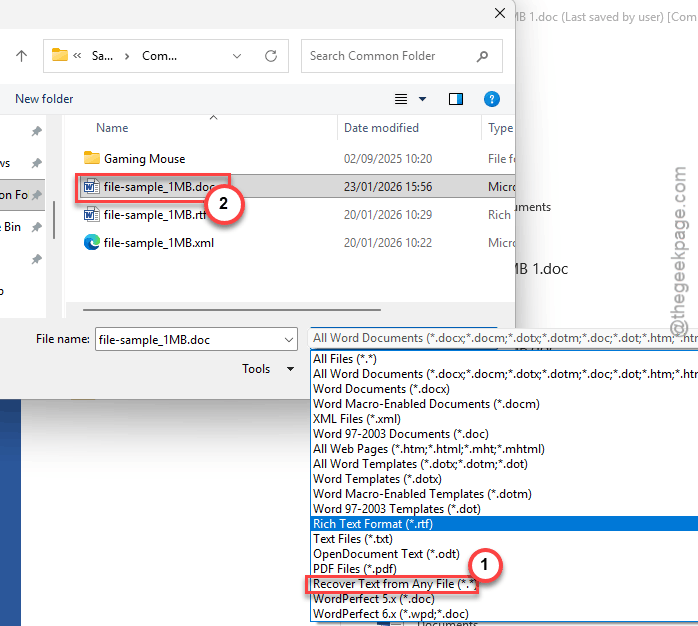
This will strip away the formatting from the Word document, but it will fix any hidden metadata corruption along with it.
Fix 4 – Save the file as Rich Text Format (.rtf)
Sometimes, this corruption is buried deep in the main XML structure of the document, which cannot be fixed in the standard .doc format. So, you must convert it to .rtf format first and then work on it.
Step 1 – If you can open the file, open it up this away –
File > Save As
Step 2 – Choose the Rich Text Format (.rtf) format and save the file in a location of your choice.
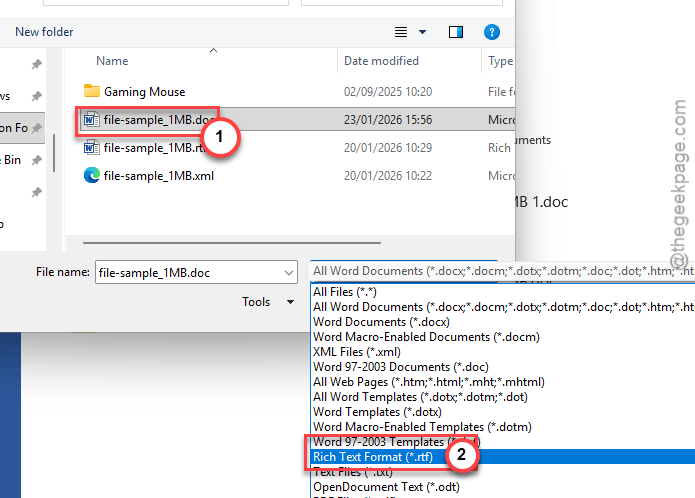
Close the Microsoft Word utility after this.
Step 3 – Load up the .rtf file in Microsoft Word.
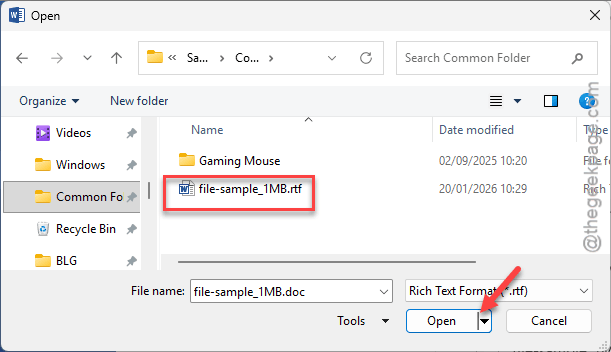
Step 4 – Save the file back as a .docx file.
The file will be accessible once again.
Fix 5 – Pull the data to a clean document and Push
If the file is not responding to your commands, you can just import the data to a fresh, new MS Word file.
Step 1 – Open a new blank Word document. Go to Insert tab.
Step 2 – Tap the arrow next to Object and choose Text from file.
Step 3 – Select the corrupted document from there, and click Insert to insert it.
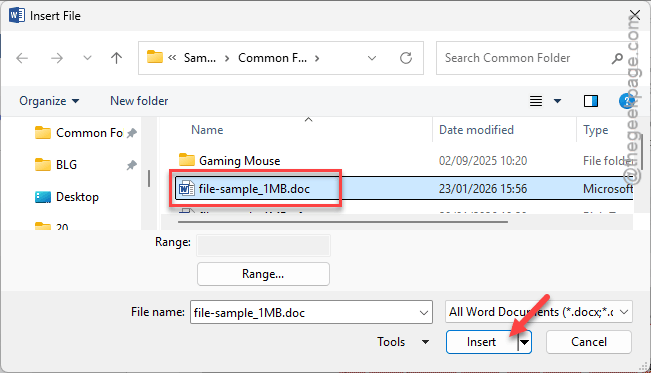
Word will now treat the corrupted file as just a data source, not a standard document. The new document should be accessible without any issues.