When Microsoft Word detects a change in a file on the OneDrive or SharePoint server, while you are making some changes to it, it immediately triggers a version conflict. When MS Word runs into such a conflict, it usually locks the file or creates a duplicate copy of the file name with -ComputeName in the same location. Here are some tips you can follow to avoid running into such occurrences.
Quick Fix Table: Cloud Sync Version Conflicts
| Issue | Recommended Fix |
| Changes aren’t appearing for others | Fix #2: Enable AutoSave in Options |
| “Upload Failed” message | Fix #3: Clear Files Needing Attention |
File name has "-ComputeName" added |
Fix #4: Toggle “Use Office to Sync” feature |
Fix 1 – Use the Compare Tool
If MS Word presents you with two versions and you are not sure which is your original file, you can force Word to show you the differences side by side.
Step 1 – Save the local version of the file as Local_copy.
Step 2 – Now, go ahead and open the cloud version of the file. Go to the Review tab. Use the Compare tool to compare both the files.
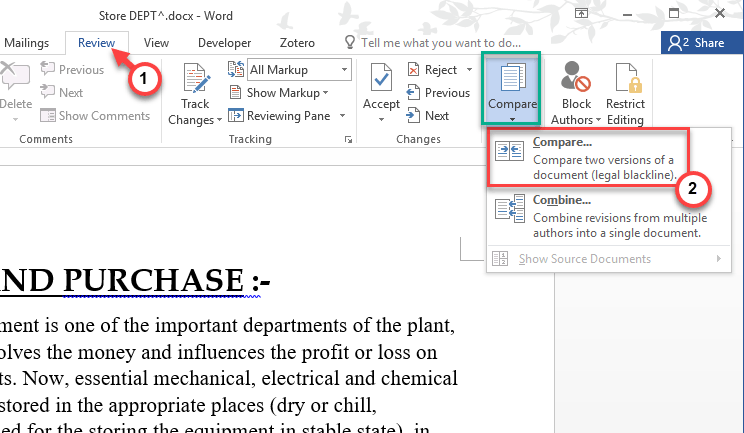
Step 3 – Then, choose the cloud version as the Original and Local_copy as the Revised.
This will end the conflict between two versions of the file, which is causing this issue.
Fix 2 – Enable the Metadata Sync in Office Options
While Word is syncing the content and it is getting blocked by the cached data on your local drive, it can run into such conflicts.
Step 1 – Go to the File tab in MS Word. Then, proceed to the Options tab.
Step 2 – Go to the Save sub-section menu.
Step 3 – Find the AutoSave OneDrive and SharePoint Online files by default on Word option, and make sure it is checked. Then, check the Show additional places for saving, even if sign-in may be required item.
Step 4 – Tap OK to save the changes.
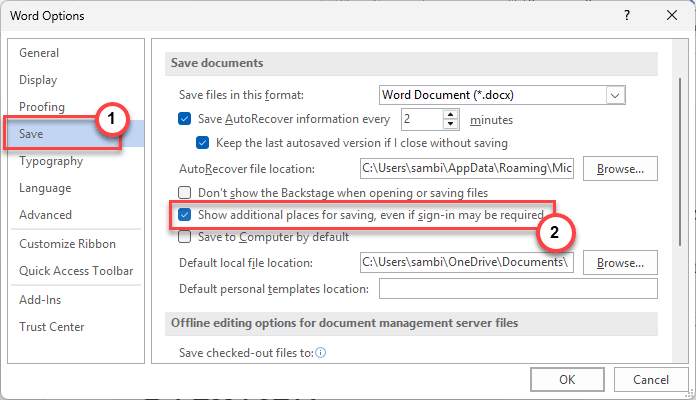
See if this resolves the problem for you.
Fix 3 – Clear the Upload Center Pending Queue
If you see a ❌ sign next to your file icon, the local Office Upload Center has a stuck version of the file that is restricting all the synchronization processes.
Step 1 – In the Microsoft Word document, go to the File tab. Then, tap the Open panel.
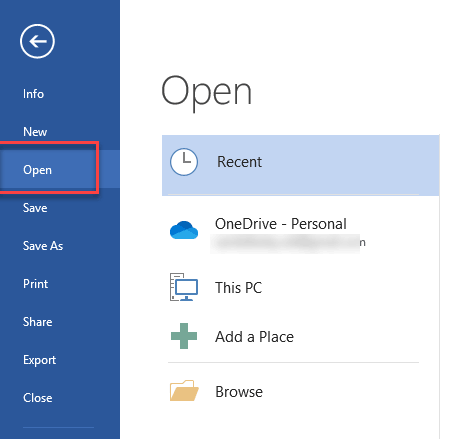
Step 2 – Tap the Files Needing Attention option there.
Step 3 – Next, right-click the conflicted file and select Discard Changes or Open to Resolve feature.
This should resolve the issue.
Fix 4 – Toggle the Use Office to Sync Settings
If the ‘File in Use’ error message is showing up on your device, that means the OneDrive app on Windows and the Word app are competing for control over the file.
Step 1 – At first, right-click the OneDrive cloud icon, and tap Settings to load it up.
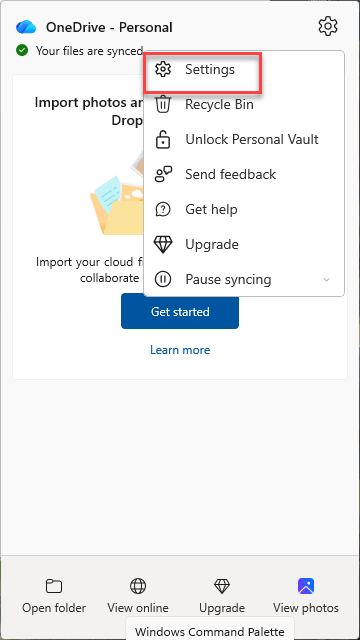
Step 2 – Go to the Office tab. Then, uncheck the Use Office applications to sync Office files that I open feature.
OneDrive can now handle the file movement as a standard data transfer.
Fix 5 – Increase the AutoRecover Buffer settings
If you are connected to an unstable network connection, increasing the AutoRecover Buffer settings should delay the process.
Step 1 – Proceed to this way –
File > Options
Step 2 – In the Save panel, find the AutoRecover settings and set it to 2 minutes.
Step 3 – Now, redirect the AutoRecover file location to any other location outside the OneDrive folder.
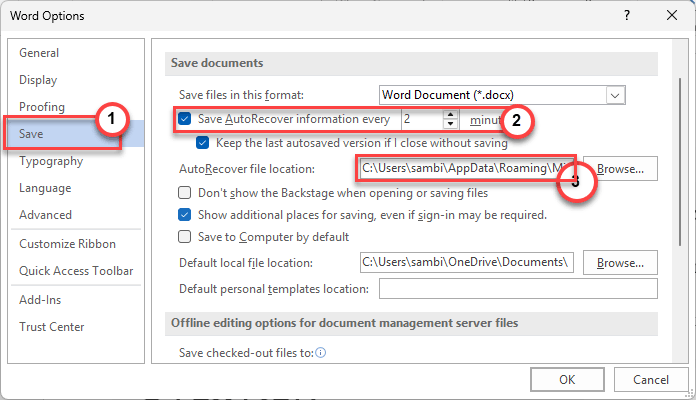
Once you have enacted this change, this problem will be resolved.