Intermittent join meeting failures may affect some Microsoft Teams users. The Microsoft Teams desktop client users have reported this issue in various threads. The inability to join a meeting despite being on time and having proper credentials can be a frustrating experience. Here are the countermeasures you can apply to fix this frequent meeting failures issue in the Teams client.
Quick Troubleshooting Chart ~
| Error Message/Issue | Recommended Action |
| Kicked out after a few seconds | Click Sync Now in Time Settings (Fix 2) |
| Meeting Not Found error | Join with Meeting ID (Fix 3) |
| Join button does nothing | Delete LocalCache (Fix 1) |
Fix 1 – Clear the Teams Local Cache Files
If Microsoft Teams is crashing intermittently for the participants at the time of joining the meeting, there must be an issue with the Teams cache.
Step 1 – Fully quit the Microsoft Teams app. Then, right-click the Microsoft Teams app in the taskbar, and tap Quit Teams feature.
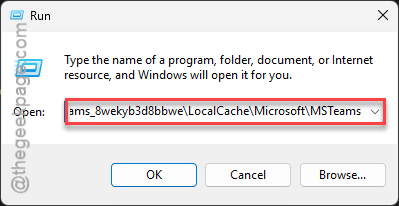
Step 2 – Then, hit the Win+R buttons and put this there, and click OK.
%localappdata%\Packages\MSTeams_8wekyb3d8bbwe\LocalCache\Microsoft\MSTeams
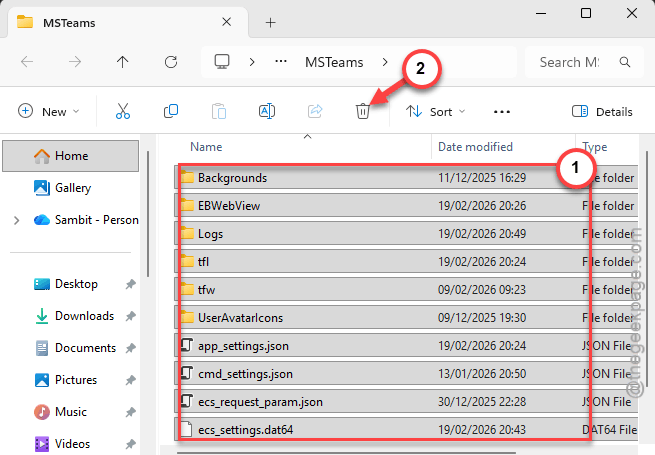
Step 3 – Delete everything inside this folder.
Step 4 – Then, go and relaunch the Teams client.
This should refresh the Microsoft Teams app cache and let you start from scratch.
Fix 2 – Use the Join with ID bypass method
Sometimes the links can be tricky to handle, as they may have travelled through various Outlook clients and gets broken in the due process.
Step 1 – Open up the Teams Calendar.
Step 2 – Then, tap the Join with an ID button at the top of the screen.
Step 3 – Next, manually input the meeting ID and passcode from the email invite.
This way, you can manually join the meeting instead of relying on broken links in the Microsoft Teams URL-based web console.
Fix 3 – Synchronize the Windows Time Clock
Microsoft Teams authentication is time-sensitive. So, if your system clock is set to wrong time/date settings, you may not be able to join the meeting because of that.
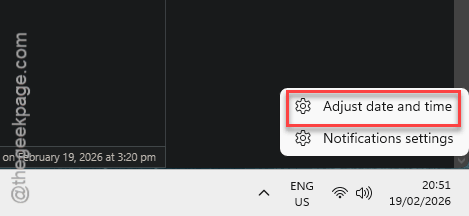
Step 1 – Just right-click the time/date icon on the taskbar, and select the Adjust date and time option.
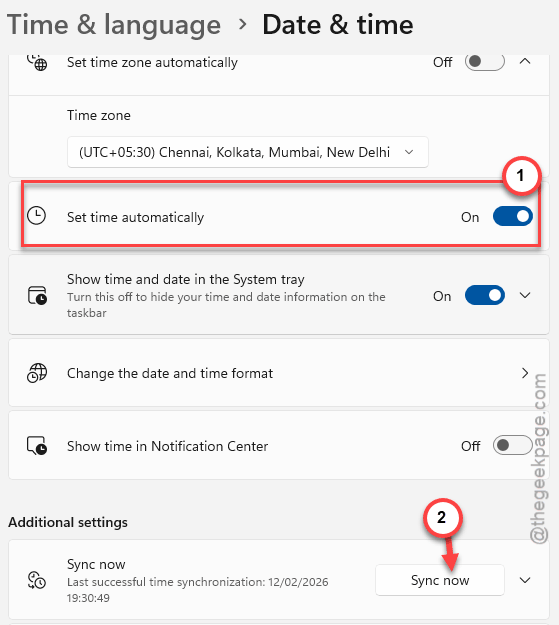
Step 2 – Then, use the Sync now button under the Synchronize your clock section.
Step 3 – Ensure the Set time automatically feature is tweaked to ON.
Step 4 – Then, restart the Microsoft Teams client.
Once Microsoft Teams restarts, try to join the meeting again.
Fix 4 – Open the Meeting Link in Incognito Tab
If the meeting link is not taking opening up the meeting in Microsoft Teams desktop client, you shall do that in an incognito tab of the browser.
Step 1 – Copy the meeting link from the email.
Step 2 – Then, go to your preferred browser and tap the three-dot button there, and click the New Incognito Tab/ InPrivate browser window. Alternatively, you can use the Ctrl+Shift+N buttons to load it up.
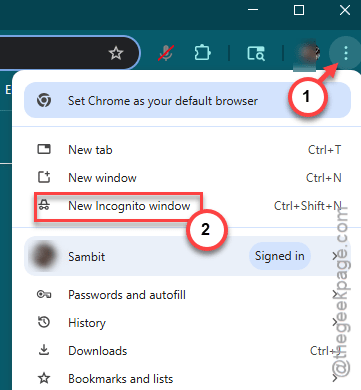
Step 3 – Paste the meeting link there and hit Enter.
Step 4 – Choose the Continue on this browser option when asked.
The web client offers a similar experience compared to the Microsoft Teams desktop app, so you won’t face any issues. If you can join the meeting without any issues, there must be an issue with the desktop app.