You moved a drive to a new controller. Now Windows says it’s RAW. The data looks gone.
But it’s not gone. ReFS is still down there — Windows just can’t see it anymore. Annoying? Sure. Lost? No. Here’s what’s really going on, and how to get the volume back.
Why This Happens
ReFS — Microsoft’s Resilient File System, the heavy-duty cousin of NTFS — is picky about the hardware underneath it.
It pins its file table to the exact disk layout it was built on. Sector size matters. Controller mode matters. Even the Windows version it last touched matters. Change one of those and ReFS loses its place.
So when you swap controllers? The new card often rewrites the drive headers with its own RAID info. Windows reads that, shrugs, and calls the whole thing RAW.
And sometimes it’s not the controller at all. The drive got upgraded by a newer Windows, and your older system can’t read the new format. Same RAW result. Different cause.
Fix 1 – Switch the Controller to Pass-Through (IT Mode)
Start here if you moved the drive onto a hardware RAID card or HBA. These cards love to wrap drives in their own RAID metadata, which hides the ReFS partition from Windows completely.
1 – Restart the PC and enter your storage controller’s setup screen. Watch for a prompt at boot — something like “Press Ctrl + R” or “Press F8 to configure”.
2 – Find the port or drive configuration setting.
3 – Change the mode from RAID Mode (sometimes called IR Mode) to Pass-Through, JBOD, or IT Mode.
4 – Save and exit.
This tells the card to hand the raw disk straight to Windows, no translation in between. Reboot, open Disk Management, and the ReFS volume often pops right back.
Fix 2 – Match the Sector Size (512e vs 4Kn)
This one trips up a lot of migrations. ReFS locks its metadata to the drive’s physical sector size. So if the old controller showed the drive as 512e and the new one shows it as 4Kn, ReFS reads as RAW the instant it loads.
512e and 4Kn are just two ways a drive reports its sector size — the chunk size it reads and writes in. They have to match what ReFS expects.
1 – Press Windows + X and open Command Prompt (Admin).
2 – Type this and press Enter. Swap X for your drive letter:
fsutil fsinfo sectorinfo X:
3 – Look at the sector size it reports back.
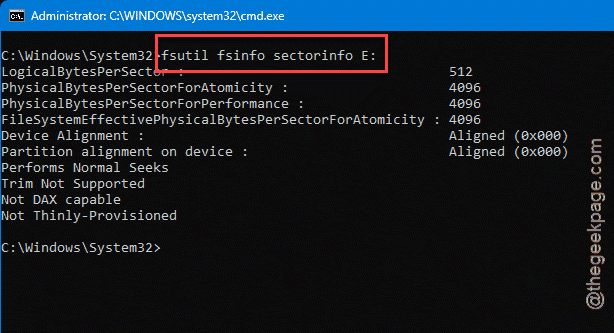
If it doesn’t match what the old setup used, go back into the controller firmware and set the sector emulation to match the original. ReFS needs that number to line up. Exactly.
Fix 3 – Install the Real Controller Drivers
Generic Windows storage drivers are fine for basic disks. But ReFS leans on advanced SCSI commands, and the stock Microsoft driver sometimes drops them. When that happens, Windows quietly ditches the whole file system layer.
1 – Press Windows + X and open Device Manager.
2 – Expand Storage controllers.
3 – Look at what’s listed. See Standard SATA AHCI Controller or some generic Windows name? That’s your clue.
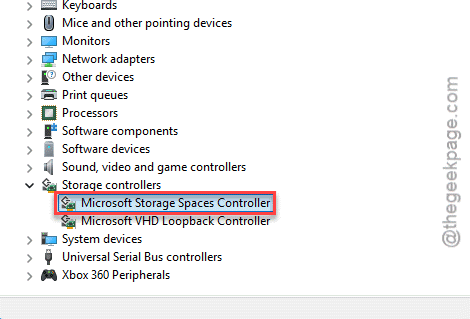
4 – Download the official driver for your card from the vendor — AMD RAID, Intel RST, LSI/Broadcom, whoever made it. Install it.
5 – Restart your PC.
Then check the drive again. Real drivers mean full SCSI support, and ReFS usually shows up once it’s there.
Fix 4 – Check for a ReFS Version Mismatch
Did this drive recently touch a newer version of Windows or Windows Server? If so, the metadata may have auto-upgraded behind your back.
Here’s the catch. An older Windows kernel can’t read a newer ReFS format. So your current system sees RAW — even though nothing is actually broken on the disk.
The fix is simple. Plug the drive back into that newer machine, or into any system running the same Windows version or newer. It should mount normally there. Can’t do that? The next fix is your backup plan.
Fix 5 – Salvage It With refsutil
Last resort. If the move scrambled the primary metadata, Windows ships a built-in tool that rebuilds ReFS structures and copies your files out to safety.
1 – Open Command Prompt (Admin).
2 – Run this. Swap D: for your RAW drive and C:\Recovery for where you want the rescued files to land:
refsutil salvage -QA D: C:\Recovery -v
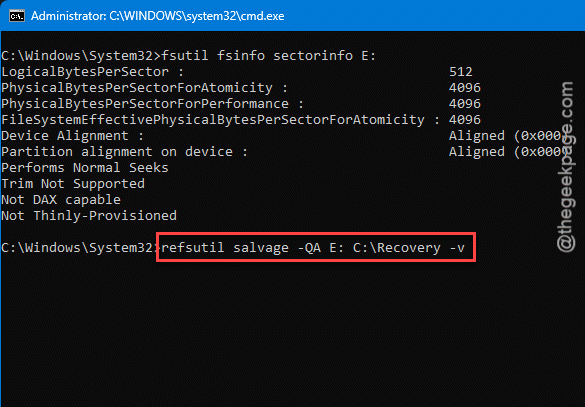
It scans the volume and saves whatever it can recover to that folder. Give it time on a big drive — this can run for a while. Don’t kill it halfway through.
How to Prevent This
– Before you move a drive, note its sector mode (512e or 4Kn) and match it on the new controller. Saves you the guesswork later.
– Run RAID cards in IT or Pass-Through mode for ReFS drives. RAID wrapping is exactly what hides the volume.
– Keep the vendor’s storage drivers installed, not just the generic Windows ones. ReFS needs the full command set.
– Never mount a ReFS drive on an older Windows than the one that made it. The format only upgrades, never down. Trust me on that one.
People Also Ask
What is the ReFS format?
ReFS stands for Resilient File System. It’s Microsoft’s heavy-duty alternative to NTFS, built for big storage setups and servers. It handles huge volumes, repairs certain kinds of corruption on its own, and checks data integrity as it works. You’ll mostly see it on servers, Storage Spaces, and Dev Drives.
What’s the difference between NTFS and ReFS?
NTFS is the default for everyday Windows drives — your C: drive is almost certainly NTFS. ReFS is the specialist. It scales to far bigger volumes and focuses on resilience and data integrity, but it drops some NTFS features like file compression and EFS encryption. For a normal PC, stick with NTFS. For large or critical storage, ReFS earns its place.
Why does ReFS show up as RAW after moving the drive?
Usually it’s a layout mismatch. The new controller changed the sector size, wrapped the drive in RAID metadata, or the drive’s ReFS version is newer than the OS trying to read it. Fix the mismatch — pass-through mode, matching sector size, matching Windows version — and the volume comes back without data loss in most cases.