If you are experiencing Microsoft Word freezing, blurred text (ghosting), or a failing scroll wheel problem in Windows 11, don’t worry. These issues are linked with conflict between the Windows 11 Mica or Acrylic Transparency effect and the MS Word hardware rendering engine. This is prevalent in entry-level laptops with limited CPU and GPU capabilities, although this is not entirely linked to system hardware. Here is a complete list of to-do steps that should help you resolve this issue.
| Issue | Recommend Fix |
| Text Blurs or Ghosting Issue | Enable Optimize for Compatibility in MS Word (Fix 4) |
| Scroll Wheel Doesn’t Move | Change the default printer to Microsoft Print to PDF (Fix 3) |
| Word Freezes | Disable Transparency Effects in Windows Settings (Fix 2) |
Fix 1 – Turn Off Hardware Graphics Acceleration
The hardware acceleration feature in Microsoft Word can sometimes backfire and cause this problem. This issue can stem from the GPU failing to process the Word interface properly.
Step 1 – Open the File tab on MS Word. Load up the Options tab.
Step 2 – Go to the Advanced tab. Find the Display section.
Step 3 – Check the box for Disable Hardware Acceleration feature. Click OK to save the changes.
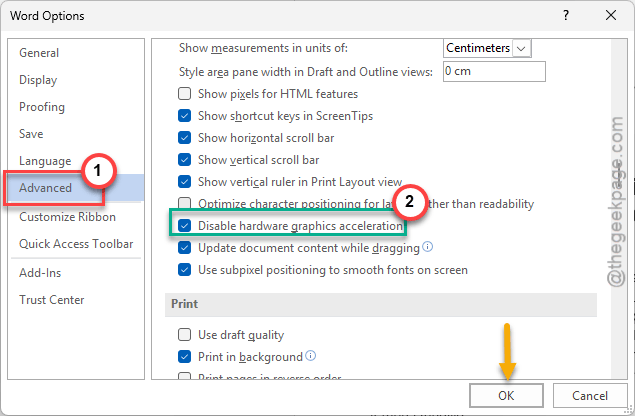
You may have to close and relaunch MS Word for this change to take effect.
Fix 2 – Disable the Windows 11 Transparency Effects
The transparency effects of Windows 11 UI can cause this issue in MS Word.
Step 1 – Use the Win+I keys to load up the Windows Settings. Go to the Accessibility tab.
Step 2 – Open the Visual Effects panel.
Step 3 – Set the Transparency effects to OFF mode.
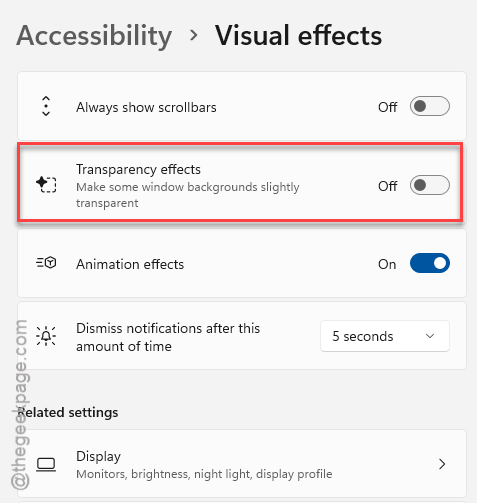
After disabling the transparency effects, relaunch Microsoft Word. Check whether this solves the issue or not.
Fix 3 – Change the Default Printer
Some users have fixed the stuck scrolling option in MS Word simply by tweaking the default printer settings.
Step 1 – Open the Windows Settings. Open the Bluetooth & devices tab.
Step 2 – Now, open up the Printers & Scanners tab.
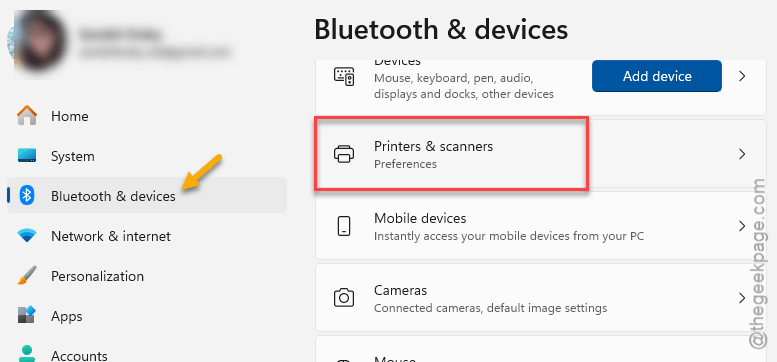
Step 3 – Next, load up the Microsoft Print to PDF utility.
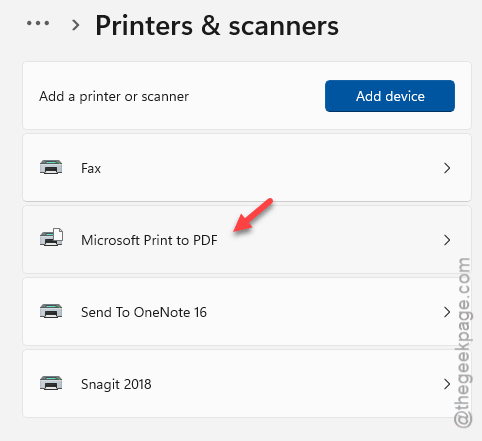
Step 4 – Click the Set as Default to set it as the default printer.
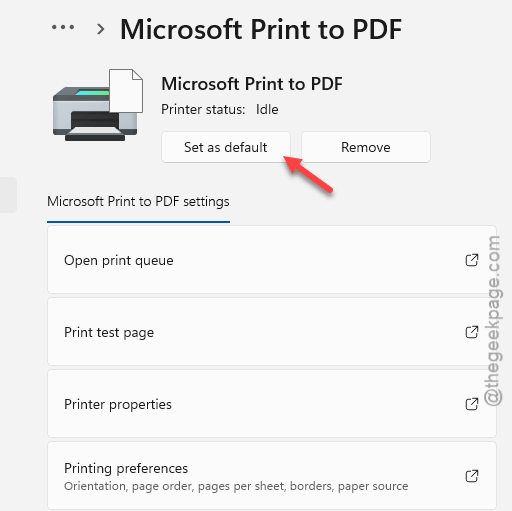
Step 5 – Now, return to the Microsoft Word and check.
See whether MS Word is still struggling during basic tasks like scrolling or typing.
Fix 4 – Optimize MS Word for Compatibility
If you are working on high-resolution (4K) monitors, Word may often blur the text if you switch between them.
Step 1 – Go to the File tab in MS Word. Proceed to the Options tab there.
Step 2 – Proceed to the General tab.
Step 3 – Under the User Interface panel, look for the When using multiple displays option.
Step 4 – Choose the Optimize for Compatibility button.
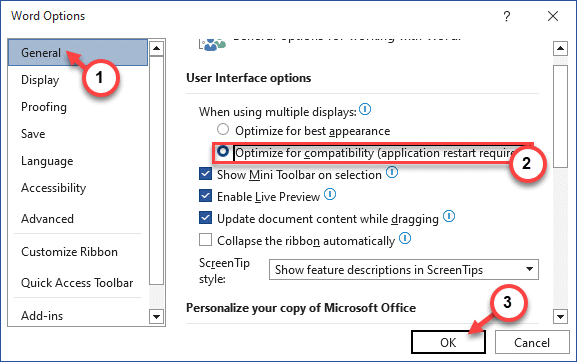
Don’t forget to save the changes in the Microsoft Word settings. After this, check whether MS Word works correctly or not.
Fix 5 – Turn Off Smooth Scrolling in Windows
If the scroll function is erratic or not working completely, disable the smooth scrolling function on Windows.
Step 1 – Press the Win+R keys together. Then, type this there and, click OK.
main.cpl
Step 2 – Go to the Wheels tab. Find the Vertical Scrolling panel. Set the ‘The following number of lines at a time:‘ to 3.
Step 3 – Use the Apply and OK buttons to save the changes.
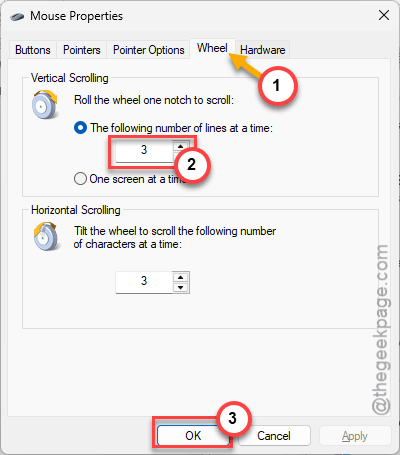
After you have saved the changes, open Microsoft Word.
Step 4 – Now, go this way –
File > Options
Step 5 – Proceed to the Advanced tab. Uncheck the Provide feedback with animation box. Save the changes using the OK button.
After you have saved these changes, you