You insert a citation. And Word just… stops. “Not responding.” The whole thing freezes solid.
Right in the middle of a thesis or a paper, of course. Worst possible timing. Don’t force-quit yet — here’s how to unstick it.
Why This Happens
Here’s the deal. EndNote works by stuffing hidden field codes into your Word document. Every citation, every reference — it’s a little embedded code. And when one of those goes corrupt, Word chokes trying to read it.
But the field codes aren’t the only cause. Your citation style matters too. If the style you’re using has an empty bibliography template — a blank slot where a format should be — Word crashes the instant it tries to build the reference list. Sneaky, because the style looks fine on the surface.
And sometimes it’s not the document at all. It’s Word’s master template, the Normal.dotm file. When that gets damaged, every Word session acts up, EndNote included.
So the trick is narrowing it down. Is it this document? This style? Or Word itself? We’ll test each one.
Fix 1 – Unfreeze the Document (Convert to Unformatted)
Start here. This strips the live, breakable field codes back to plain placeholder text, which usually unfreezes everything. You re-link them cleanly at the end.
1 – Close EndNote entirely. If it’s fully frozen, restart your PC first.
2 – Open the problem Word document.
3 – Go to the EndNote tab in Word’s ribbon.
4 – Click Convert Citations and Bibliography, then choose Convert to Unformatted Citations.
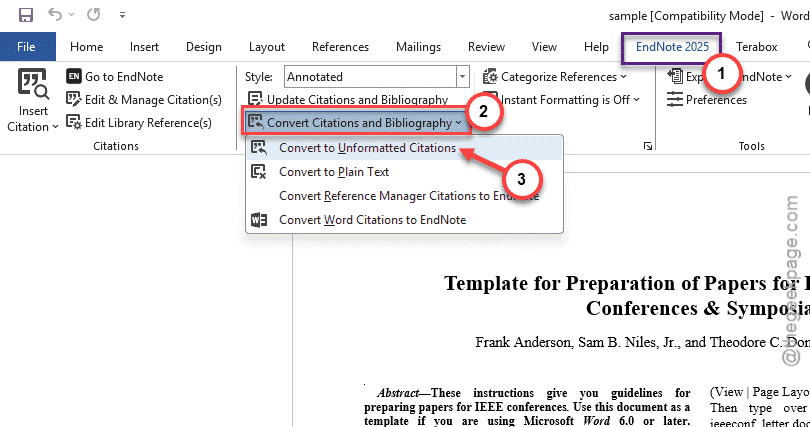
5 – Your citations turn into plain text placeholders like {Author, 2024 #5}. That’s expected — don’t panic.
6 – When you’re ready, click Update Citations and Bibliography to re-format them.
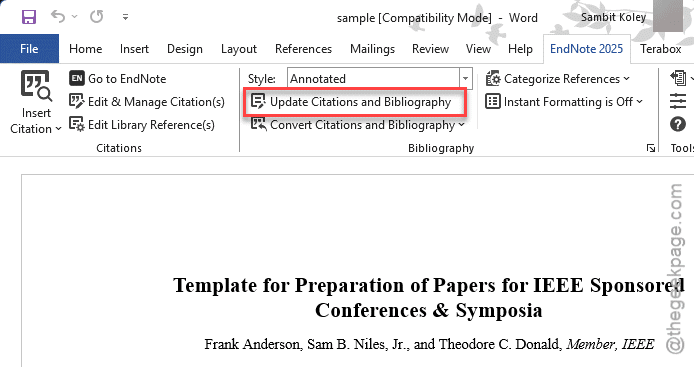
This clears the most common freeze on the spot. The placeholders look ugly for a minute, but they’re harmless.
Fix 2 – Test With a Different Citation Style
If the freeze hits with one specific style, the style is the suspect. An empty bibliography template inside it will crash Word every time.
1 – In Word’s EndNote tab, change your style to a safe default like APA 6th or Numbered.
2 – Try inserting a citation. No crash? Then your original style is the problem.
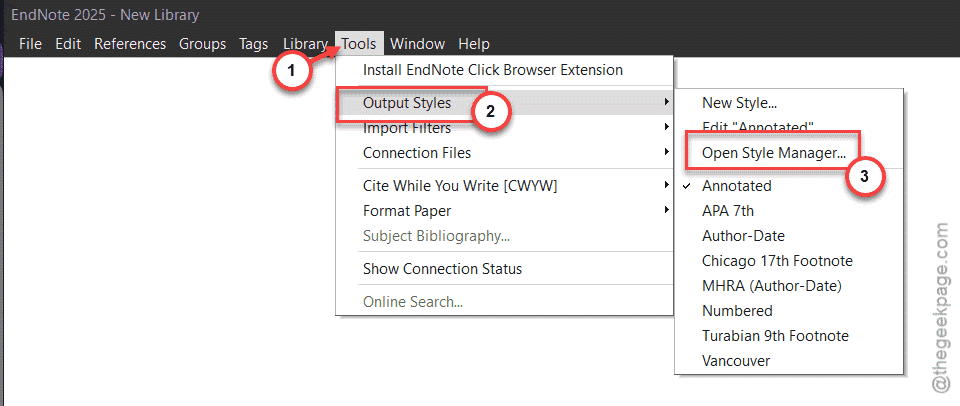
3 – To check it, open EndNote and go to Tools > Output Styles > Open Style Manager (it’s under the Edit menu in older versions).
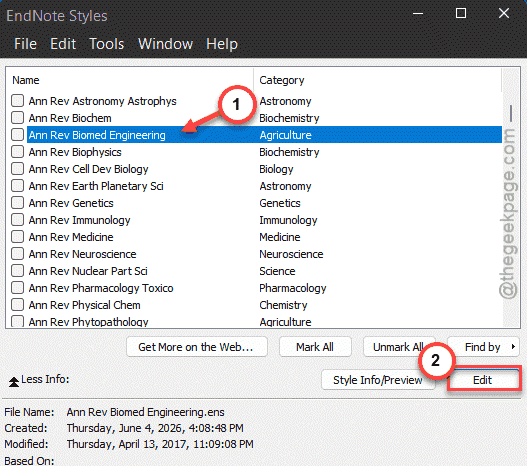
4 – Highlight your style and click Edit.
5 – In the left panel, select Templates under Bibliography. Look for any blank entry on the right.
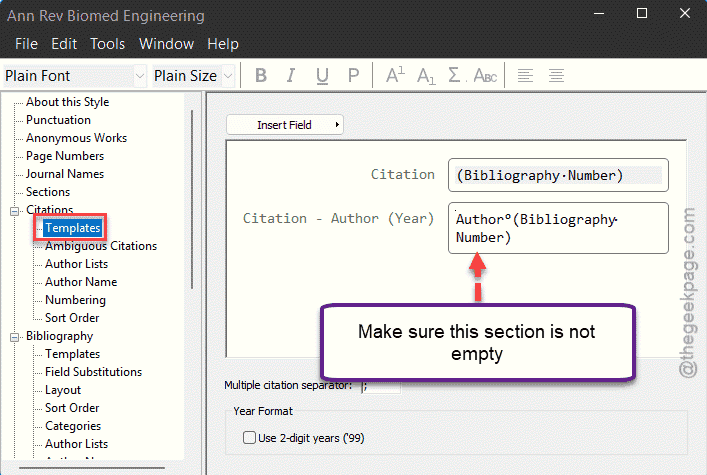
A blank template is a guaranteed crash. Either switch to a style that has valid templates, or build one for the reference type you’re citing. And if no style works at all? Move on to the next fix — it’s Word, not the style.
Fix 3 – Reset Word’s Preferences
If EndNote freezes in every document with every style, Word’s master template is likely damaged. Renaming it forces Word to build a fresh, clean one. This is safe — you won’t lose your documents.
1 – Close every Office app.
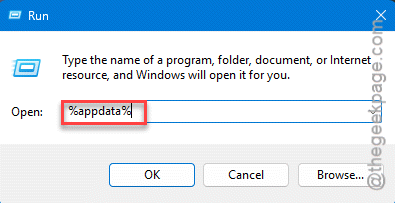
2 – Press Windows + R, type this code and press Enter to open the Roaming folder.
%appdata%
3 – Go to Microsoft > Templates. Rename Normal.dotm to Normal.old.
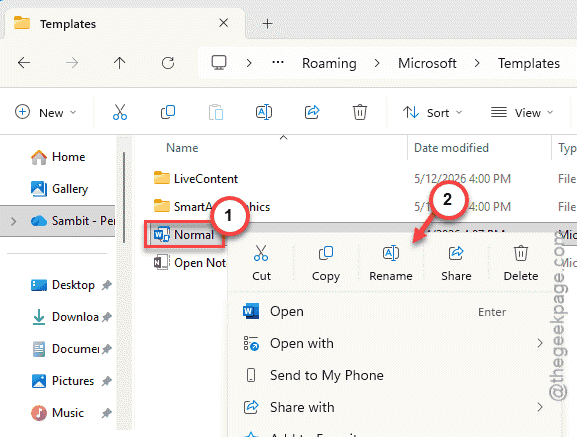
4 – While you’re there, delete any temporary files starting with ~$.
5 – Now go to Microsoft > Word > STARTUP and delete any files starting with ~$.
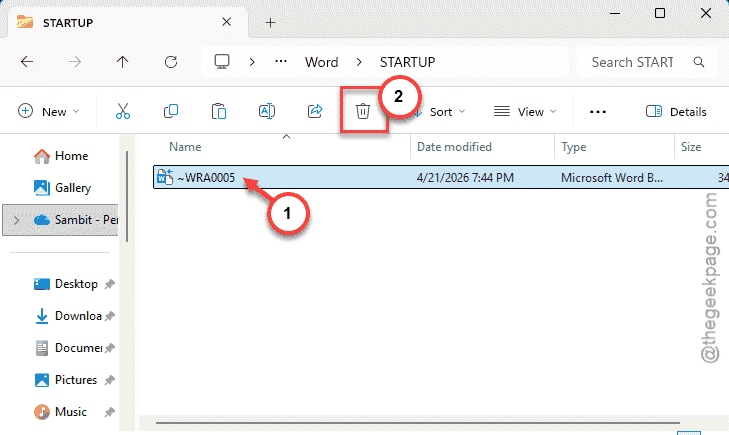
6 – Reopen Word. A brand-new Normal template gets created automatically.
Check if this works. Then they’ll show.
Fix 4 – Move Your Text to a Fresh Document
Some documents just get too corrupted to save. Lifting your text into a clean file leaves the broken bits behind.
1 – In the frozen document, press Ctrl + A to select everything.
2 – Press Ctrl + 6 to unlink the hidden field codes (use the 6 above the T and Y keys, not the numpad).
3 – Copy it all with Ctrl + C.
4 – Open a brand-new blank Word document and paste with Ctrl + V.
5 – In the new document, go to the EndNote tab and click Update Citations and Bibliography to re-link everything cleanly.
Check if this works.
Fix 5 – Repair Microsoft Office
Still freezing? Then repair Office itself. This rebuilds Word from clean files when the install is the real problem.
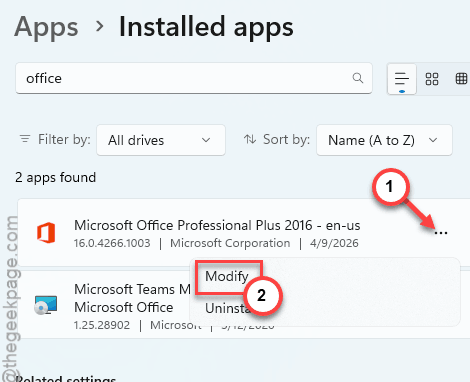
Quick path. Press Windows + I, go to Apps > Installed apps, find Microsoft 365 (or your Office version), click the three dots, and choose Modify.
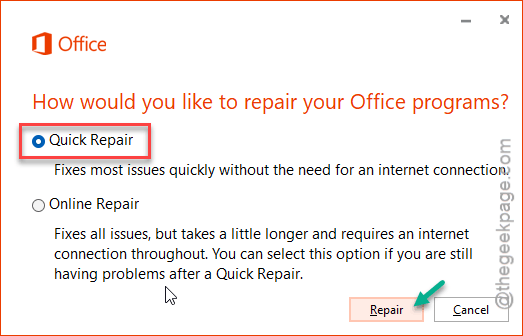
Run a Quick Repair first — it’s fast and offline.
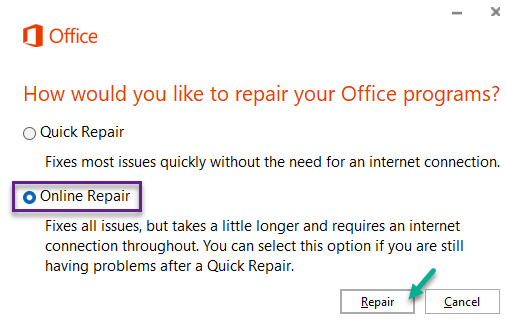
If the freezing survives that, come back and run an Online Repair, which is more thorough but needs internet and takes longer.
One of the two clears up a broken Word install.
How to Prevent This
– Stick to well-tested citation styles. A style with empty templates is a crash waiting to happen.
– Save often and keep backup copies of long documents. A corrupted file is far less scary when you’ve got yesterday’s version.
– Update EndNote and Word together. A version mismatch between them causes a lot of these freezes.
People Also Ask
Why is EndNote not responding?
Usually a corrupted field code in your document, or a citation style with an empty bibliography template that crashes Word when it builds the reference list. Sometimes it’s Word’s damaged Normal.dotm template. Converting your citations to unformatted text is the quickest first move — it clears the most common freeze.
How to fix EndNote citation in Word?
If a single citation is broken, convert your citations to unformatted, then update them again to re-link cleanly. For a document-wide freeze, select all, press Ctrl + 6 to unlink the fields, and paste the text into a fresh document. Then re-run Update Citations and Bibliography to rebuild them properly.