Can’t find your recent downloads in the File app on your iPhone? The Files app usually shows all the items in your local storage, including the items that you have downloaded on your device. If you can’t find the item from the Spotlight, it can just be due to an indexing issue, or it can be a simple bug in the iOS version you are using.
Quick Fix Table –
| Issue Cause | Quick Fix | Settings Location |
|---|---|---|
| Path Conflict | Verify the Download Location | Settings > Safari > Downloads |
| Indexing Bug | Toggle the Recent Items | Settings > Apps > Files |
| Out of Sync with iCloud | Toggle the iCloud Drive | Settings > Apple ID Banner > iCloud |
Fix 1 – Verify the Safari Download Path
Sometimes after a major iOS 26 update, the default download path in the Safari browser can get altered. Check and modify it, if necessary.
Step 1 – Open the Settings. Open the Apps tab. Go to the Safari tab.
Step 2 – Go down to the Downloads section.
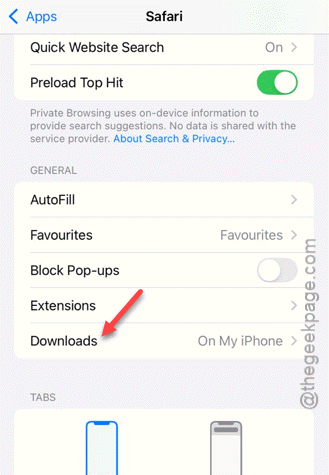
Step 3 – Make sure the On My iPhone or iCloud Drive folder is selected.
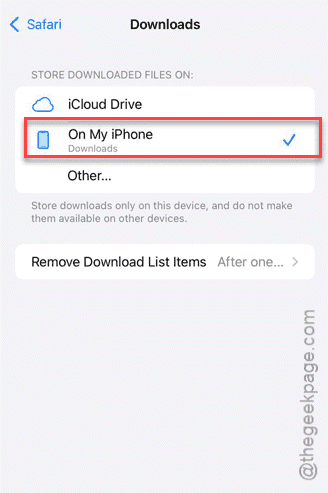
Step 4 – You may refresh it switching it to any other location and back to the same.
Check if this works.
Fix 2 – Toggle Recent Items Indexing
A possible corruption in the Recent tab in the Files app can cause this issue.
Step 1 – In the iPhone Settings, go to the Apps tab. Open up the Files settings.
Step 2 – Find the Show Recent Items toggle and turn it OFF.
Step 3 – Wait for 10 seconds and turn it back ON.
Now, re-open the Files app and go to the Recents section. Check whether it is showing up the files properly or not.
Fix 3 – Force-Restart the iPhone
The FileProvider service on iOS is responsible for handling files in the background. A force-restart can shake things up and fix the issue for you.
Step 1 – At first, quickly press the Volume Up button and release it.
Step 2 – Now, press the Volume Down key and release it as well.
Step 3 – At last, press and hold the Side Power button until the Apple logo glows up on the iPhone screen.
Once the iPhone is operational, check again.
Fix 4 – Toggle the iCloud Drive App Sync
If you are downloading files into an iCloud-synced folder, it can get stuck due to a synchronization fault.
Step 1 – In the iPhone Settings, go to the Apple ID banner. Tap the iCloud settings.
Step 2 – Now, find the iCloud Drive or Files app toggle. Turn it OFF.
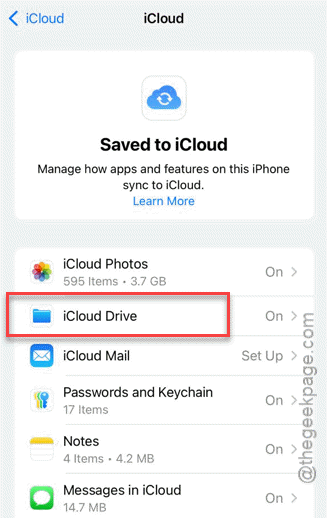
Step 3 – Wait for a few seconds. Then, tweak it back to ON mode.
This will re-sync all the files that are waiting to be downloaded on the device.
Fix 5 – Offload and Reinstall the Files App
If the Files app is itself corrupted after an iOS update, you should just offload the app and reinstall the same.
Step 1 – At first, go to the General tab on the iPhone settings.
Step 2 – Now, go to the iPhone Storage settings. Tap the Show All button to get the full list of apps.
Step 3 – Later, find the Files app in there. Tap to open it up.
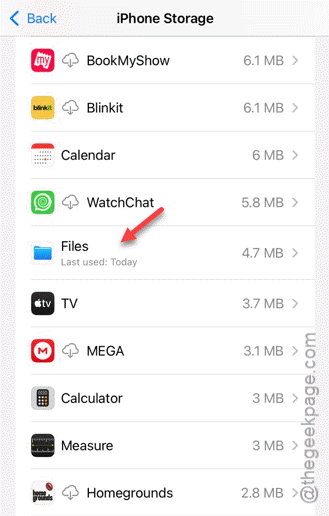
Step 4 – Use the Offload App feature there.
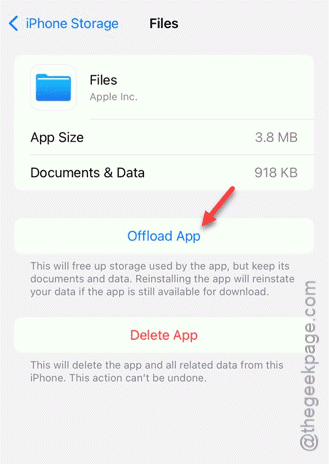
Wait for a few seconds till the app is offloaded.
Step 5 – Now, click the Reinstall App option on the same page to reinstall the app.
This procedure won’t touch any of your personal files, but it will fix any bug in the Files app.
Fix 6 – Check for file type support
If the file that you are looking for is incomplete or corrupt or a completely different file type, it may not show up in the Files main console.
Hope these fixes have helped you resolve the issue.