When a document’s multilevel list metadata becomes detached from the actual paragraph styles, the list-level styles might reset unexpectedly. When you hit Enter or change the indents, Word may lose track of the list library it should follow and run into such issues. Here are some countermeasures you can apply to fix the issue yourself.
| Issue | Recommended Fix |
| Tab key does not change level | Fix #2: Uncheck “Set indent with tabs” |
| Level 2 starts back at “a” | Right-click the number > Continue Numbering |
| Font changes mid-list | Fix #1: Link levels to Styles |
Fix 1 – Link Your List Levels to Specific Styles
If you use the bullet or numbering buttons in the Home tab, Word treats the list as basic formatting, which may break easily.
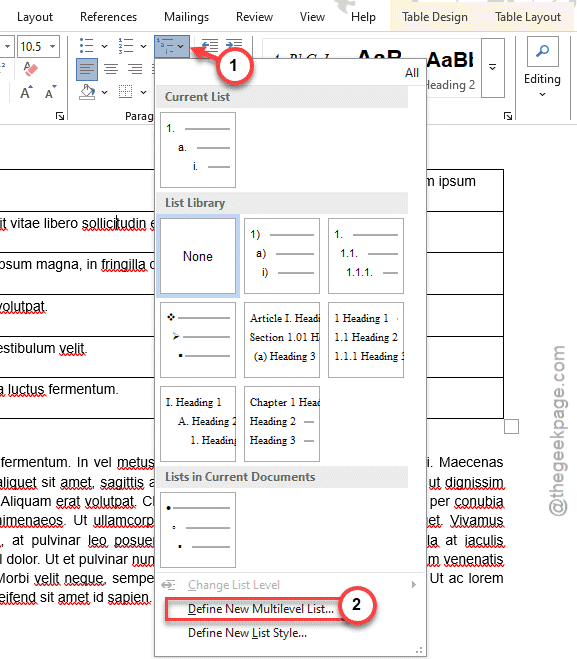
Step 1 – Click on a list item. Go to the Home tab.
Step 2 – Tap the Multilevel list and tap the Define New MultiLevel List.
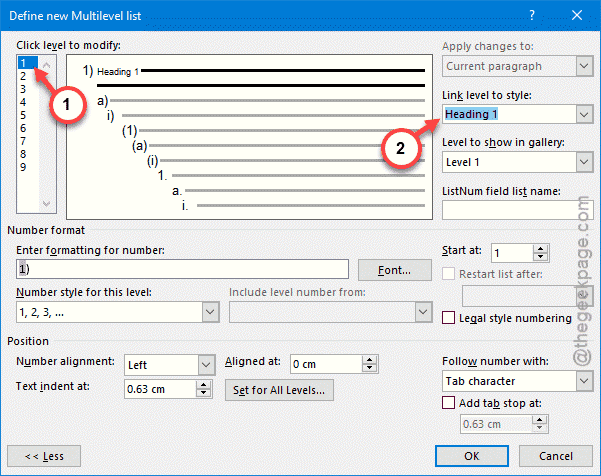
Step 3 – Tap the More>>> button.
Step 4 – For each level (1,2,3), select a style in the Link level to style dropdown (e.g., Level 1 to Heading 1 and such).
Check if this resolves the problem.
Fix 2 – Disable Set Left- and First-Indent with Tabs
When you press the Tab key, Word often assumes that you are trying to change the indent rather than the list level.
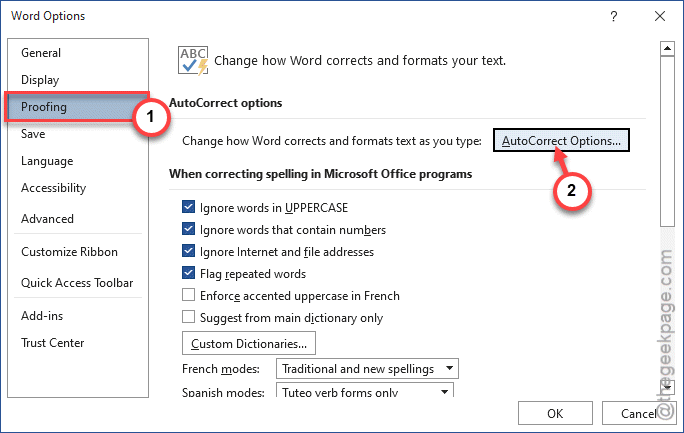
Step 1 – In the Word document, open up the File tab. Open up the Options tab.
Step 2 – Then, go to the Proofing tab. Open up the AutoCorrect Options.
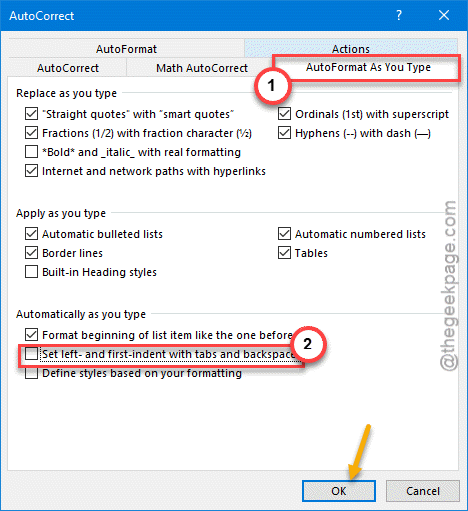
Step 3 – Go to the AutoFormat As You Type tab. Uncheck the Set left- and first-indent with tabs and backspaces option. Tap OK to save the change.
See if this works or not.
Fix 3 – Check the Style for Following Paragraphs
If your list level resets every time you hit Enter, it’s because the style you are using is programmed to switch back to the Normal style for the next line.
Step 1 – Right-click the Style you are using in the Styles Gallery, and tap Modify.
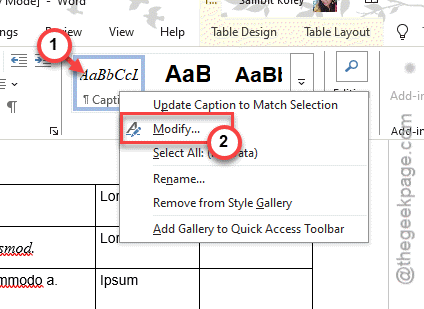
Step 2 – Tweak the Style for following paragraph feature to match the same style.
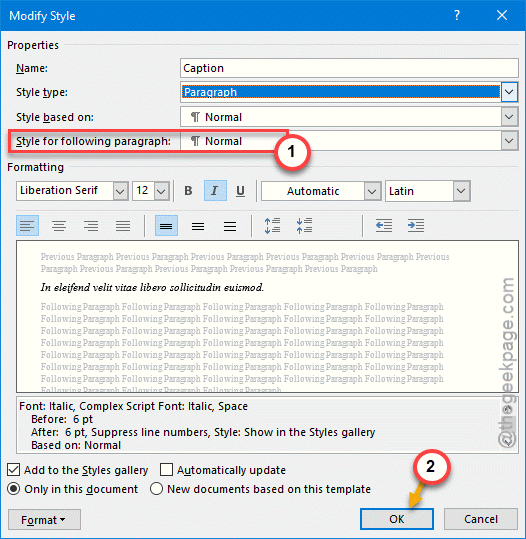
This way, Microsoft Word won’t change the list format in the middle of the work.
Fix 4 – Clear the List Gallery Cache
Sometimes the List Library in the Normal.dotm template becomes corrupted. This may cause this problem.
Step 1 – Save the changes and close the Microsoft Word console.
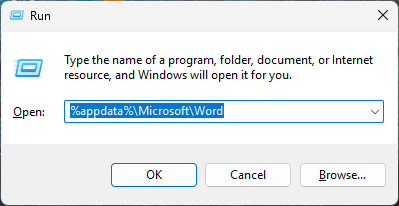
Step 2 – Then, hit the Win+R buttons together to load up the Run box.
Step 3 – Paste this in there and click OK.
%appData%\Microsoft\Word
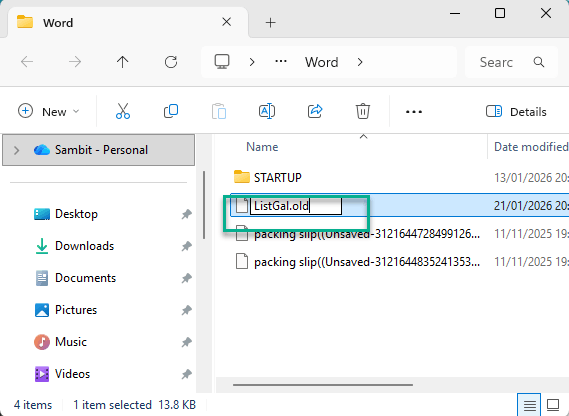
Step 4 – Find the folder named ListGal.dat (or similar). Rename it to ListGal.old format.
Step 5 – After this, restart Microsoft Word.
The next time you relaunch Word, it will rebuild the list visual library afresh, removing the corrupted one.
Fix 5 – Use the Keep with Next Paragraph Setting
If the list levels reset specifically at the bottom of the page, it is usually because an unintentional Page Break is causing this issue.
Step 1 – Highlight your list.
Step 2 – Right-click and tap the Paragraph.
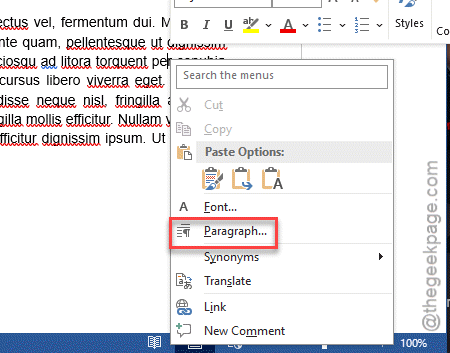
Step 3 – Go to the Line and Page Breaks tab. Check the Keep with next and Keep lines together option.
It prevents the Word from splitting a list item across two pages, which often triggers this issue.