Does the older Word file that you have not accessed in a while appearing in the File Explorer? The files that you have opened, appears in the File Explorer in the Quick Access column. It can be problematic for the users, as it can arise the question of security of those files, leaving them in a doubtful situation. Another drawback of this problem is getting the Quick Access panel overcrowded with those unnecessary items, barring no space for the actual working files.
Fix 1 – Disallow Office.com files to show up in Quick Access
The File Explorer can show the files from Office.com, like the documents on MS Word, can show up in the Quick Access.
Step 1 – So, hit the Win+R buttons together.
Step 2 – Next, type the control folders term in the Run box. Click OK.
Step 3 – Go to the General tab. Then, uncheck the Show files from Office.com checkbox.
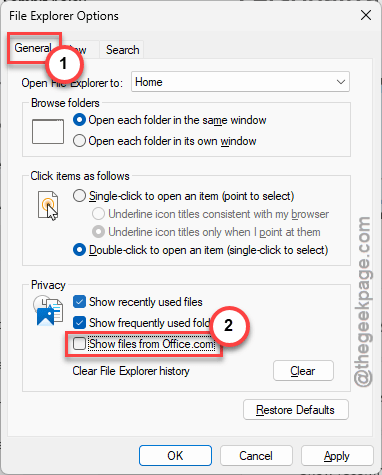
Step 4 – Save the changes using Apply and OK buttons.
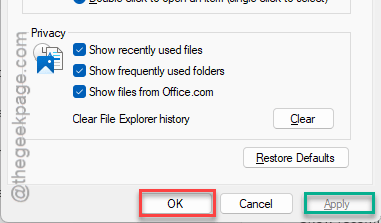
After doing this, you won’t be seeing any MS Word files in the File Explorer.
Fix 2 – Disable the Show Recently Opened Items in Start, Jump Lists and File Explorer
Turning off the recommended files from appearing in the File Explorer and in the Jump lists, you can resolve this problem.
Step 1 – To do this, go to the Settings page on Windows.
Step 2 – Next, go to the Personalization section from the left pane. Then, open the Start section.
Step 3 – Turn off the Show recommended files in Start, recent files in File Explorer, and items in Jump Lists feature.
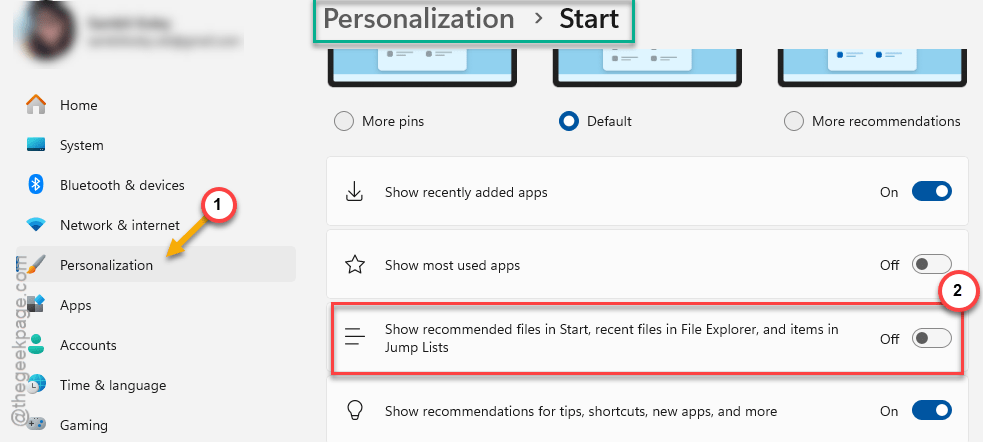
After disabling this feature, the files won’t appear in the Quick Access or Jump Lists in the File Explorer.
Fix 4 – Turn off recently used files in Quick Access
You can just disable the recently files from the Quick Access completely.
Step 1 – To do this, open the File Explorer once. Next, tap the three-dot button there, and click Options.
Step 2 – In the Folder Options tab, get to the General tab.
Step 3 – Uncheck all the options there –
Show recently used files
Show frequently used folders
Show recommended section
Show files from Office.com
Step 4 – Save the changes there.
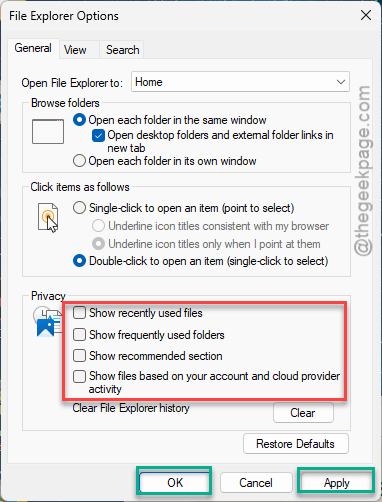
After this, there will not be any MS Word or any other recent files in the Quick Access panel in the File Explorer.
Fix 4 – Clear the File Explorer History
Emptying the File Explorer history may fix this issue.
Step 1 – Search for folder options from the search box.
Step 2 – Then, open the File Explorer Options feature.
Step 3 – Look for the Clear File Explorer history option. Tap the Clear button to clear the entire File Explorer history from your system.
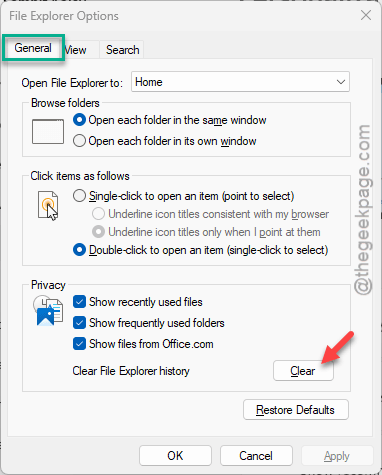
After clearing the history from the File Explorer, check if that solves the issue.
Why the older MS Word files are appearing in Quick Access?
File Explorer may show you the files directly from the Office.com. The older files may appear this way directly on the Explorer and Jump Lists. You can disable this following these steps – Open Folder Options (use control folder shortcut in Run box). Go to the General section and uncheck the ‘Show files from Office.com’ option. Save the changes, and you won’t be seeing those older files in the File Explorer.
Where can I see the recent files in File Explorer?
You can view all your recent files in a list format in Quick Access panel on the File Explorer. The Quick Access panel is located at the top of the list of drive/folder pane in File Explorer. It shows all the recent files, frequently used folders and also the files from OneDrive or Office.com. Users can also pin their most used folders manually for Quick Access.