You open File Explorer. The Recent section is empty. Or it is showing files from weeks ago. The whole feature just stopped updating.
Windows keeps track of recently opened files through a combination of settings. If even one of them gets turned off, the whole thing breaks. And Windows updates love to reset these settings without telling you.
Why This Happens
Recent files in File Explorer rely on several things working together. The activity history setting needs to be on. The Folder Options need to have recent files enabled. And the Start menu setting for recently opened items also feeds into it. If any one of these is off, you get nothing. Or stale data. Windows 11 updates are notorious for flipping these toggles. Especially the privacy-related ones. Microsoft resets them during updates to give you a “fresh start” on privacy settings. Without asking.
Fix 1 – Enable Recent Files in Folder Options
Most common fix. The setting got turned off somehow.
1 – Open File Explorer.
2 – Click the three dots … at the top. Then click Options (or go to View > Options > Change folder and search options on older builds).
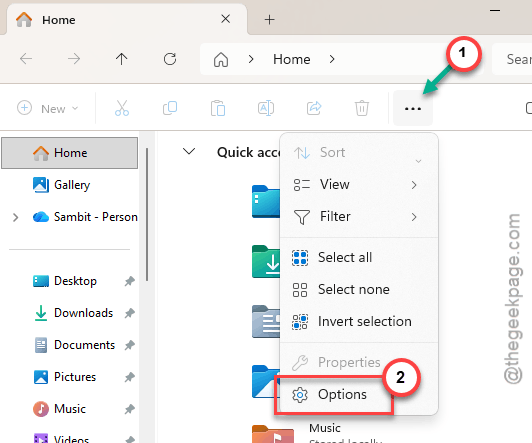
3 – Under the General tab, look at the Privacy section at the bottom.
4 – Make sure Show recently used files is checked.
5 – Also check Show frequently used folders while you are there.
6 – Click OK.
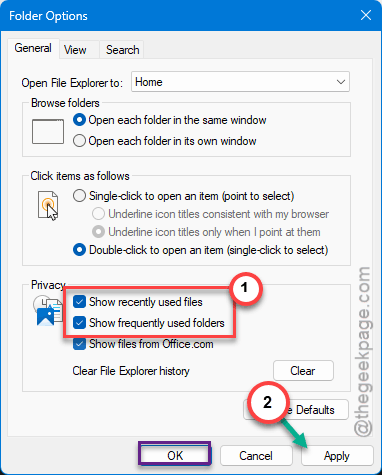
Open a few files. They should start showing up in the Recent section now.
Fix 2 – Enable the Start Menu Recent Items Setting
This setting controls whether Windows tracks your recent activity. If it is off, File Explorer gets no data to display.
1 – Open Settings (press Windows + I).
2 – Go to Personalization on the left. Click Start.
3 – Toggle on Show recently opened items in Start, Jump Lists, and File Explorer.
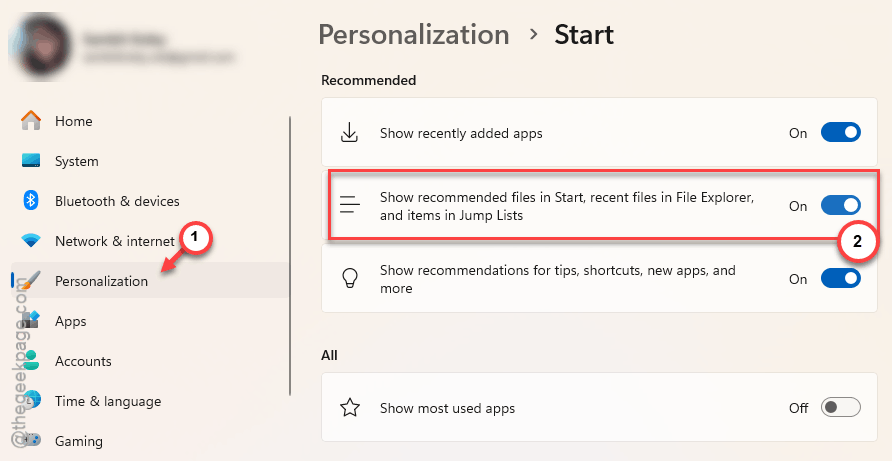
4 – Close Settings.
Now go back to Folder Options (Fix 1) and re-enable the recent files option there too. Both need to be on. Missed that detail? Yeah, it is not obvious.
Fix 4 – Rebuild the File Explorer Cache
A more targeted cleanup of the File Explorer cache specifically.
1 – Open File Explorer. Click the three dots > Options.
2 – Under the General tab, find the Privacy section at the bottom.
3 – Click the Clear button. This wipes the current cache of recent files and folders.
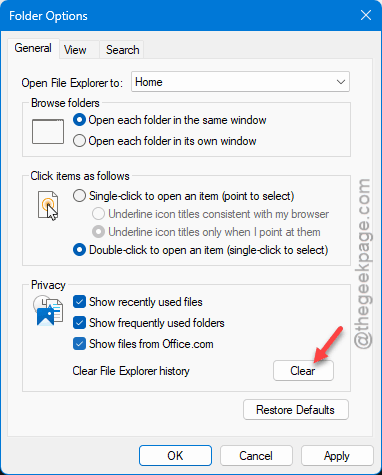
4 – Click OK. Close File Explorer and reopen it.
5 – Open a few files. The recent section should start populating again.
Quick and harmless. And no, it does not delete your actual files. Just the recent list data.
Fix 4 – Check Quick Access Settings
Quick Access is what drives the Recent section in File Explorer. If it is misconfigured, nothing shows up.
1 – Open File Explorer.
2 – Right-click Quick Access in the left sidebar (or Home on newer Windows 11 builds).
3 – Select Options or Properties.
4 – Confirm that both “Show recently used files” and “Show frequently used folders” are checked.
5 – If they were already checked, uncheck them, click Apply, then re-check them and click OK.
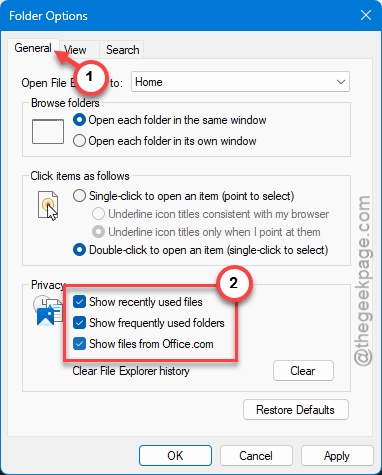
The toggle trick. Off and on again. Sounds dumb. But it forces Windows to re-register the setting. And it works more often than it should.
Fix 5 – Clear Activity History and Rebuild
Sometimes the recent files cache gets corrupted. Clearing it forces Windows to rebuild from scratch.
1 – Open Settings. Go to Privacy & security.
2 – Click Activity history.
3 – Click Clear activity history for this account (or similar wording depending on your build).
4 – Now go back to Fix 1 and make sure Show recently used files is still checked.
5 – Open a few files to populate the list.
Fresh start. Takes about a minute. But the list should work properly after this.
Fix 6 – Run Windows Update
If this started after an update, another update might fix it. Microsoft has patched File Explorer bugs several times in the past year.
1 – Open Settings. Click Windows Update on the left.
2 – Click Check for updates.
3 – Install anything available. Restart when prompted.
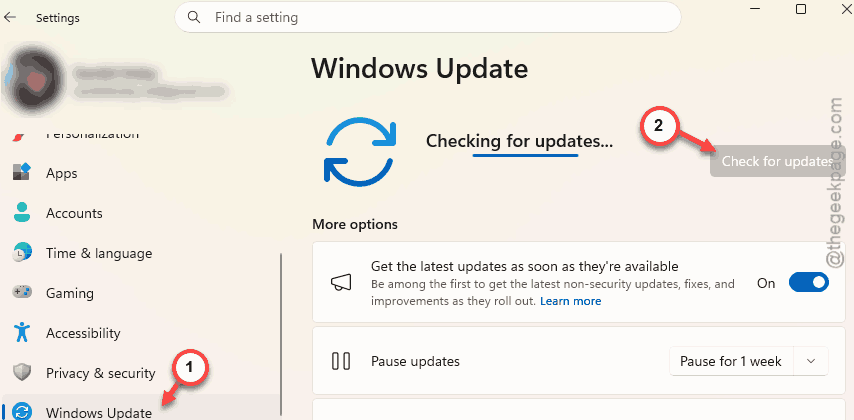
Not the most satisfying fix. But if it is a known bug, the patch might already be out.
How to Prevent This
– After every Windows update, check your Folder Options and Start menu settings. They reset more often than Microsoft admits.
– Do not use third-party privacy cleaners that wipe recent file data. They clear the cache that File Explorer needs.
– Keep File Explorer set to open to Quick Access (or Home) rather than This PC. That way you will notice immediately if recent files stop appearing.
– Periodically clear and rebuild the cache to prevent corruption from building up.
People Also Ask
How do I stop Windows Explorer from showing recent files?
Open File Explorer. Click the three dots > Options. Under Privacy, uncheck Show recently used files. Also go to Settings > Personalization > Start and toggle off recent items. Both need to be off for a full stop.
Why don’t I see recent files in Windows Explorer?
One of the settings got turned off. Either in Folder Options (Show recently used files) or in Start settings (Show recently opened items). Check both. And clear the cache while you are there. Usually fixes it instantly.
How to recover Word docs showing up in recents?
Recent files are just shortcuts. Your actual file is wherever you saved it. Check Documents, Downloads, or OneDrive. If you cannot find it, use the search bar in File Explorer and type the filename. It is still on your drive somewhere.