You connect via Remote Desktop. Works for a minute. Then disconnects. Reconnect. Disconnects again. Over and over.
Known bug from the 25H2 and 24H2 updates. Microsoft broke something in the cryptography stack that handles RDP certificates.
Why This Happens
Here’s the deal. The 24H2 and 25H2 updates changed how Windows handles RSA-based cryptography for Remote Desktop certificates. The new behavior conflicts with how RDP authenticates sessions. Connection starts fine. Certificate renegotiation fails. Session drops.
Microsoft released an out-of-band update (KB5078127) to fix this. But not everyone got it automatically. And there’s also a UDP issue — the RDP client sends traffic over UDP which gets blocked or causes instability. Multiple things breaking at once. So yeah.
Fix 1 – Install KB5078127
Microsoft released a specific fix for this. Check if you have it.
1 – Press Windows + I to open Settings.
2 – Click Windows Update from the left sidebar.
3 – Click Check for updates on the right side.
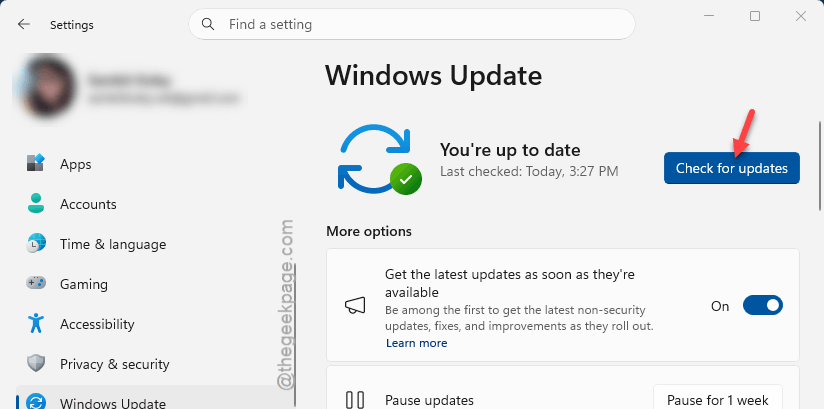
4 – Look for KB5078127 or anything labeled “Latest Updates“.
5 – Install it.
6 – Restart.
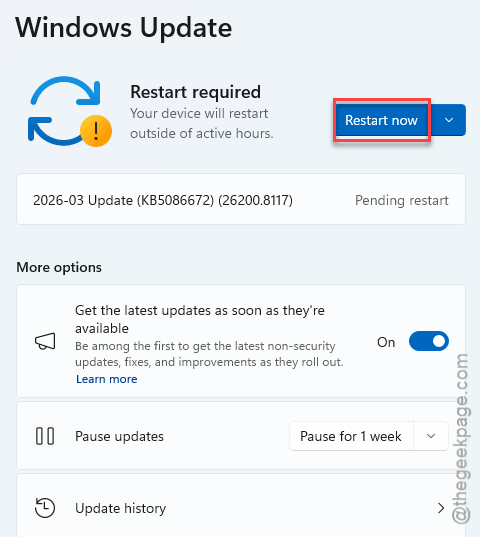
If the toggle for “Get the latest updates as soon as they’re available” is off, turn it on. This update may appear under optional updates.
Fix 2 – Set the DisableCapiOverrideForRSA Registry Key
Temporary workaround if the update isn’t available yet.
1 – Press Windows + R to open Run.
2 – Type regedit and press Enter.
3 – Click Yes if prompted by UAC.
4 – In the left panel, go to:
HKEY_LOCAL_MACHINE\SOFTWARE\Microsoft\Cryptography\Calais
5 – On the right side, look for DisableCapiOverrideForRSA.
6 – If it doesn’t exist, right-click empty space on the right.
7 – Select New.
8 – Select DWORD (32-bit) Value.
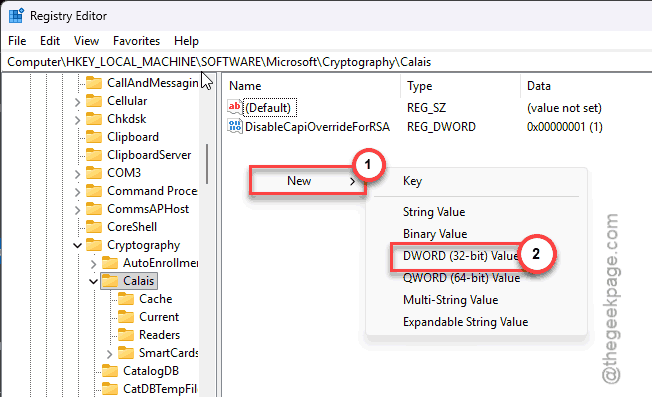
9 – Name it DisableCapiOverrideForRSA
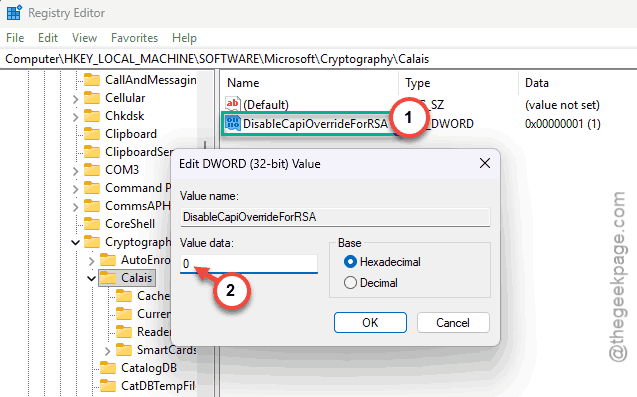
10 – Double-click it.
11 – Set the value to 0.
12 – Click OK.
13 – Restart.
This disables the new RSA behavior causing disconnections. Needs to be set on each affected machine.
Fix 3 – Disable UDP for RDP
UDP can cause instability with the new update. Disabling it forces RDP to use TCP only.
1 – Press Windows + R to open Run.
2 – Type gpedit.msc and press Enter.
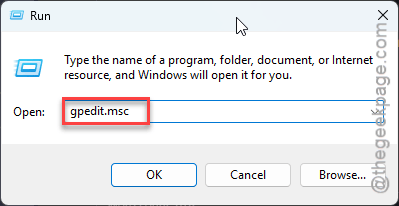
3 – In the left panel, go to Computer Configuration > Administrative Templates.
4 – Expand Windows Components.
5 – Expand Remote Desktop Services.
6 – Click Remote Desktop Connection Client.
7 – On the right side, double-click Turn off UDP on client computer.
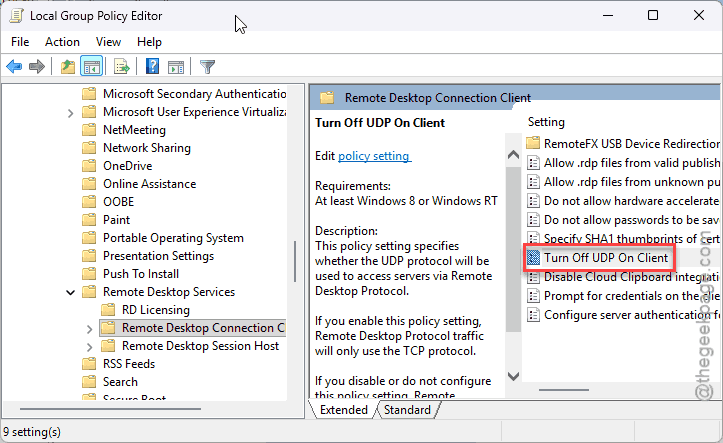
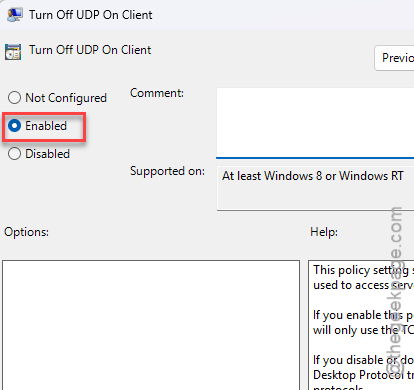
8 – Select Enabled.
9 – Click Apply.
10 – Click OK.
11 – Restart.
Fix 4 – Delete and Regenerate the RDP Certificate
If the RDP certificate itself is corrupted, regenerating it can fix persistent disconnections.
1 – Press Windows + R to open Run.
2 – Type certlm.msc and press Enter.
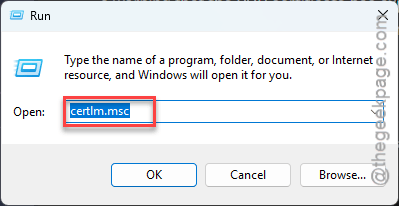
3 – In the left panel, click Remote Desktop.
4 – On the right side, find the RDP self-signed certificate.
5 – Right-click it.
6 – Click Delete.
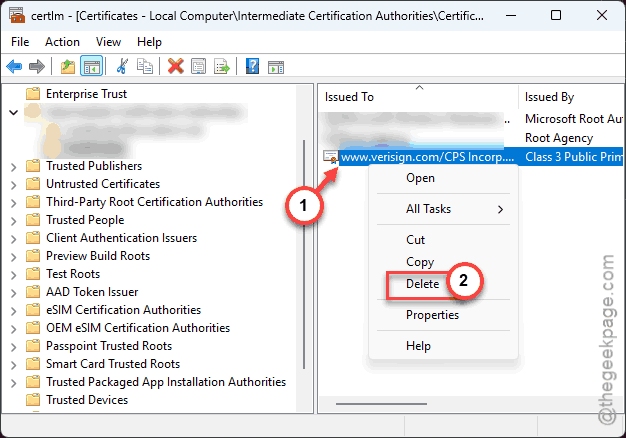
7 – Now press Windows + R again.
8 – Type services.msc and press Enter.
9 – Find Remote Desktop Services in the list.
10 – Right-click it.
11 – Click Restart.
Windows automatically generates a new certificate when the service restarts. Try connecting again.
Fix 5 – Check MachineKeys Permissions
If the certificate folder has wrong permissions, RDP can’t read or write certificates.
1 – Open File Explorer (press Windows + E).
2 – In the address bar, paste this path and press Enter:
C:\ProgramData\Microsoft\Crypto\RSA
3 – Right-click the MachineKeys folder.
4 – Click Properties.
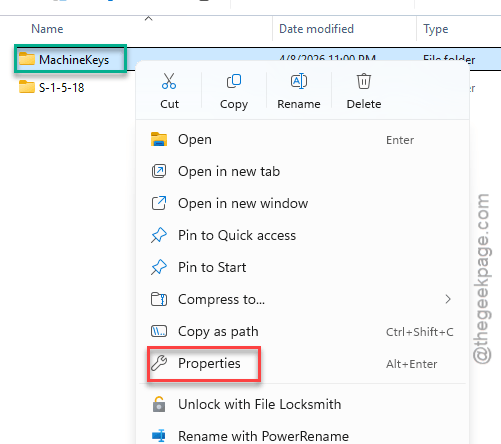
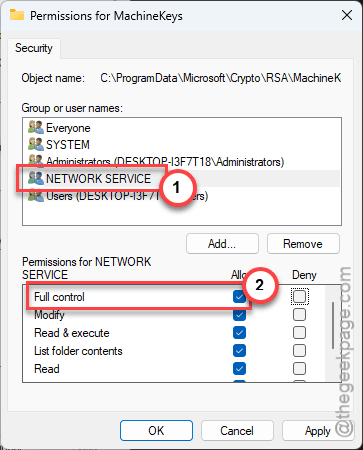
5 – Click the Security tab. Use the Edit function to edit, if necessary.
6 – Make sure Administrators has Full control.
7 – Make sure System has Full control.
8 – Make sure Network Service has Full control.
[
If you can’t find any of the groups here, you have to add it –
Add > Advanced > Find Now > Network Service (or any missing group that you want to add) > OK > OK ]
]
9 – Make sure Everyone has Read and Write.
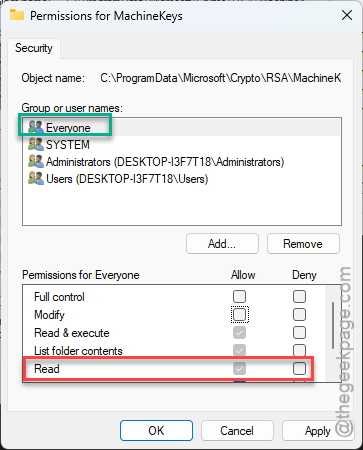
10 – Fix any missing permissions by clicking Edit and adding them.
11 – Restart Remote Desktop Services (through services.msc).
How to Prevent This
- Install KB5078127 as soon as it’s available.
- Enable “Get latest updates” in Windows Update settings.
- After major updates, test RDP connections immediately.
- Keep the DisableCapiOverrideForRSA key set until Microsoft confirms the issue is fully resolved.
People Also Ask
Why Windows 11 24H2 has issues with RDP after recent updates?
Microsoft changed how RSA cryptography works for Remote Desktop certificates. The new behavior breaks certificate negotiation mid-session. Install the KB5078127 update. Or set the DisableCapiOverrideForRSA registry key to 0 as a workaround.
Are there issues with Windows 11 24H2 update?
Yes — multiple. RDP disconnections, Quick Settings layout bugs, notification service freezing. Microsoft has released patches for most of these. Keep checking Windows Update and install everything, including optional updates.
Why does my RDP session keep disconnecting?
After the 24H2 or 25H2 update, it’s probably the RSA cryptography bug. Install KB5078127 if available. Set the DisableCapiOverrideForRSA registry value to 0. And disable UDP in Group Policy. One of those should stabilize the connection.