Your accounting app, your reference manager, whatever it is — it opens Word or Excel behind the scenes. Used to work fine. Now it crashes the second it tries.
And Word on its own? Opens perfectly. So it’s not Word that’s broken. It’s how other apps are allowed to talk to it. A recent Windows 11 update changed the rules.
Why This Happens
The culprit is a security change. The update tightened how Windows lets one program control another.
Lots of apps quietly use Word or Excel in the background — a dental records program printing a letter, a citation tool building a bibliography, that sort of thing. They reach into Office through a system called DCOM, the plumbing that lets one app drive another.
And the update clamped down on that plumbing. Tighter token checks. Stricter trust levels. So when your app reaches for Word, Windows now blocks the handoff. The app doesn’t know what to do with the rejection. It crashes.
Nothing’s corrupted, for the record. The permission rules just got stricter overnight.
Fix 1 – Run the Other App as Administrator
Easiest first try. The crash often comes down to a trust mismatch — Word runs at one permission level, your app at another. Matching them up can fix it on the spot.
1 – Close the app that’s crashing.
2 – Find its icon on the desktop or in the Start menu.
3 – Right-click it and choose Run as administrator.
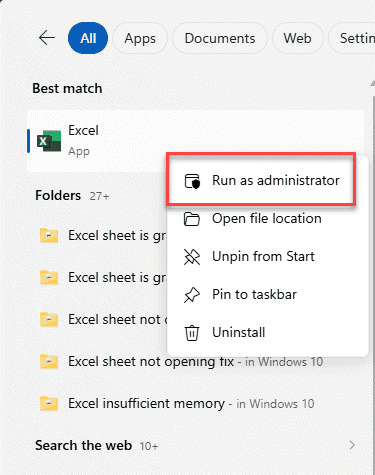
4 – Click Yes if Windows asks for permission.
5 – Try the action that was crashing — printing, exporting, whatever it was.
See if this helps.
Fix 2 – Re-register the Automation Files
Windows uses two core files to let apps automate each other — ole32.dll and oleaut32.dll. If the update left them mis-registered, the link breaks.
1 – Right-click the Start button and open Command Prompt (Admin).
2 – Type this and press Enter:
regsvr32.exe %systemroot%\System32\ole32.dll
3 – A small pop-up says it succeeded. Click OK.
4 – Then run:
regsvr32.exe %systemroot%\System32\oleaut32.dll
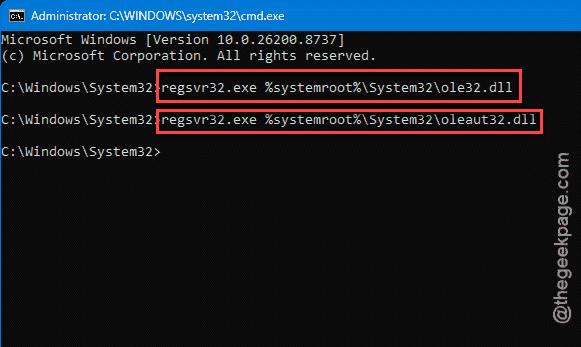
5 – Restart your PC and test the app.
Check if this works.
Fix 3 – Loosen the DCOM Impersonation Level
This targets the exact setting the update tightened.
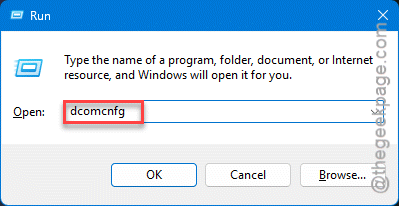
1 – Press Windows + R, type dcomcnfg, and press Enter. The Component Services window opens.
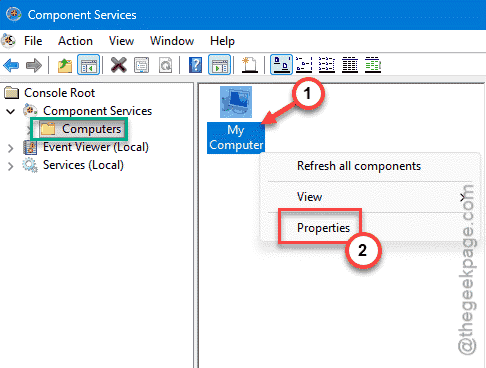
2 – In the left pane, expand Component Services, then Computers.
3 – Right-click My Computer and choose Properties.
4 – Click the Default Properties tab.
5 – Find Default Impersonation Level. Change the dropdown from Identify to Impersonate.
6 – Click Apply, then OK, and restart your PC.
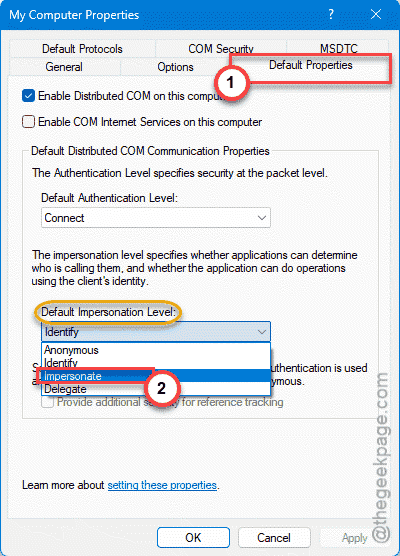
Impersonate lets the calling app borrow your permissions to open Word or Excel — which is exactly what it needs to do. Identify is too restrictive for this.
Fix 4 – Unblock the App’s Template File
Some apps crash because Windows flagged their Office template as “came from another computer” and quietly blocked it. Unblocking it clears the flag.
1 – Open the folder where the app keeps its Word or Excel template. Check the app’s settings for the template path if you’re not sure where it is.
2 – Turn on hidden files. In File Explorer, click View, then Show, then Hidden items.
3 – Find the desktop.ini file in that folder. Right-click it and choose Properties.
4 – At the bottom of the General tab, look for an Unblock checkbox. Tick it.
5 – Click Apply, then OK.
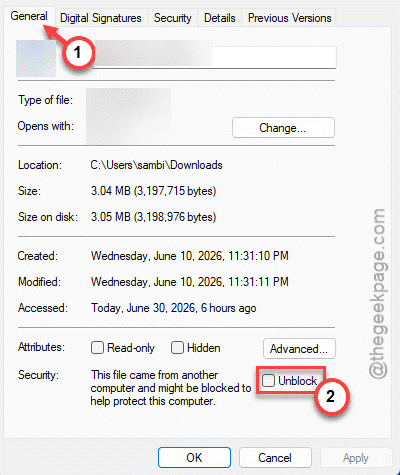
No Unblock box? Then the file wasn’t blocked — move on to the next fix. If there was one, that flag was likely the whole problem.
Fix 5 – Uninstall KB5094126
Nothing else worked, and you rely on this app for real work? Roll back the update that started it. Microsoft tends to ship a corrected version later.
1 – Open Settings, go to Windows Update, then Update history.
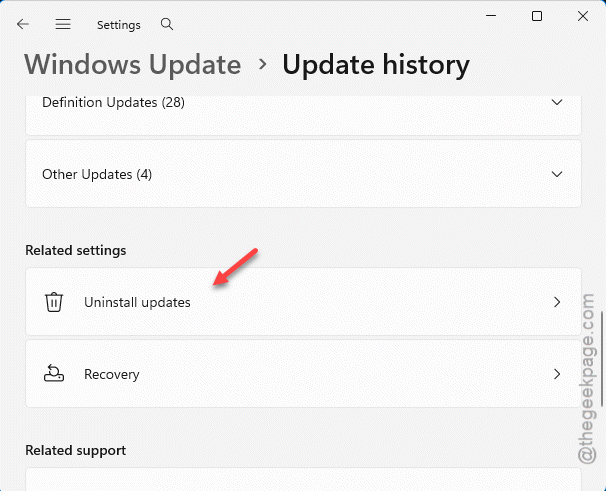
2 – Scroll to the very bottom and click Uninstall updates.
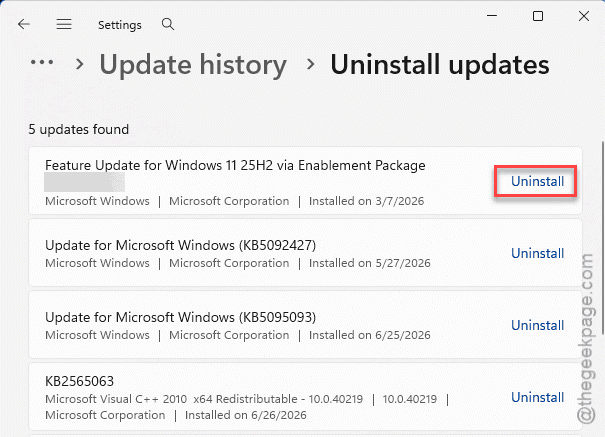
3 – Find KB5094126 in the list and click Uninstall.
4 – Let your PC restart.
5 – Back in Windows Update, click Pause updates so it doesn’t quietly reinstall.
Then test your app. With the stricter rules gone, the crash should go with them.
How to Prevent This
– On a work PC, ask IT to test big Windows updates before rollout. This kind of DCOM change breaks line-of-business apps first.
– Keep your third-party apps updated too. Vendors often patch their Office integration to match Windows’ new rules.
– If an app needs admin rights to drive Office, set that once in its Properties. Saves the crash every single time.
People Also Ask
Why do my Excel and Word keep crashing?
If they only crash when another app opens them — a database or citation tool, say — it’s usually a permissions change from a Windows update, not Office itself. Try running the other app as administrator, then re-register ole32.dll and oleaut32.dll. Word opening fine on its own is the giveaway that the app link is the real problem.
How do I repair Excel in Windows 11?
You can repair the Office client in Windows Settings. But if the crash only happens inside other apps, repairing Excel won’t help — the issue is how Windows lets apps talk to it, not Excel’s own files. Look at the DCOM and admin fixes instead.