The latest iterations of iPhones are nothing short of a mini computer that undoubtedly excels in multitasking. So, if your iPhone starts to crash or stall while switching apps or running basic apps in the background after the iOS 26 update, it can be a very annoying experience. It can be a resultant of anything like, a bug in the iOS or misconfigured background app refresh settings or other various factors. Here are some resolutions you may apply to fix this problem.
Fix 1 – Force-Clear the App Cache Layer
Force-close the applications running on the iPhone, and re-open them to solve this issue.
Step 1 – At first, swipe up from the left side to load up the app switcher. Close all the apps one-by-one.
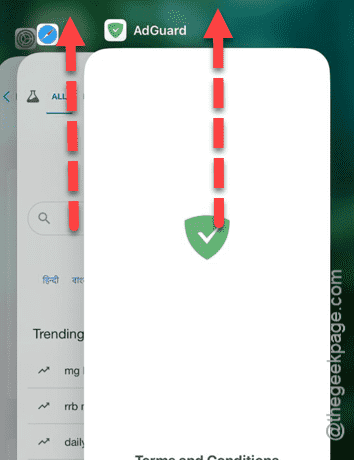
Step 2 – After closing all those apps, restart the iPhone. To do that, tap the Power icon there and switch off the iPhone.
Step 3 – Wait for a few seconds and reboot the iPhone.
Step 4 – After this, re-open the problematic app, and then load up other apps. Now, try to switch to the other apps.
Check whether this works.
Fix 2 – Disable the Background App Refresh
Turn off the background app refresh system for some of the heavy apps.
Step 1 – To do this, load up the iPhone Settings.
Step 2 – Then, go to the General tab. Open up the Background App Refresh feature.
Inside the Background App Refresh feature list, you will find several apps that refreshes in the background.
Step 3 – Now, pause any heavy apps, like YouTube, Instagram, Facebook, Maps, Chrome etc.
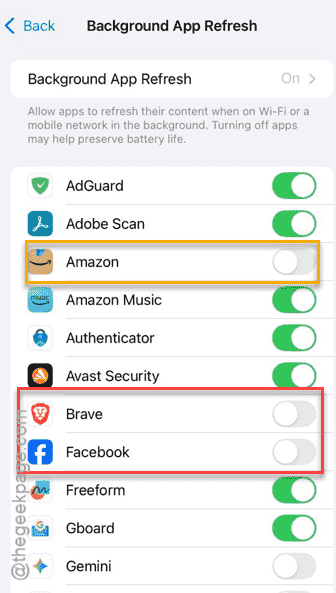
Step 4 – Reboot the iPhone.
After restarting the iPhone, try to switch between apps and check whether the device is still crashing or not.
Fix 3 – Reset the Display & Motion Rendering Stack
Resetting the display motion rendering stack should fix this UI freeze issue.
Step 1 – To do this, open up the Display & Brightness tab.
Step 2 – Next, set the True Tone to Off mode. Now, wait for 5 seconds or so. Later, turn on the True Tone.
Step 3 – Next, turn off the Auto Brightness feature. Then, wait for another 5 seconds or so. Turn it back on.
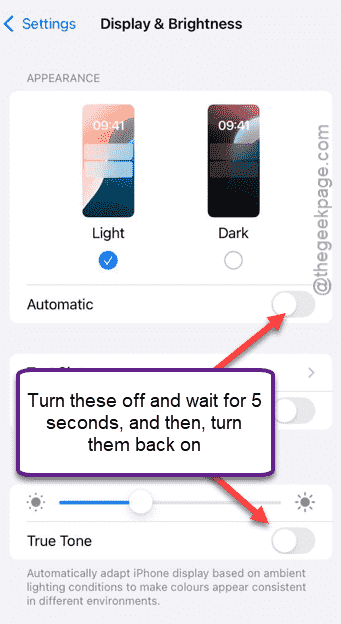
After switching the True Tone and Auto Brightness feature, it should fix the apps crash issue during multitasking as well.
Fix 4 – Disable the Reduce Motion Feature
The animation during the app-switching process may result into such issues.
Step 1 – Open up the Accessibility tab in the iPhone Settings.
Step 2 – Next, go to the Motion tab.
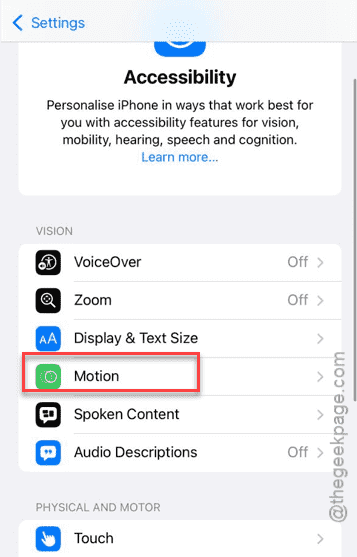
Step 3 – Turn off the Reduce Motion feature. If you can find, turn off the Prefer Cross-Fade Transitions to off mode, as well.
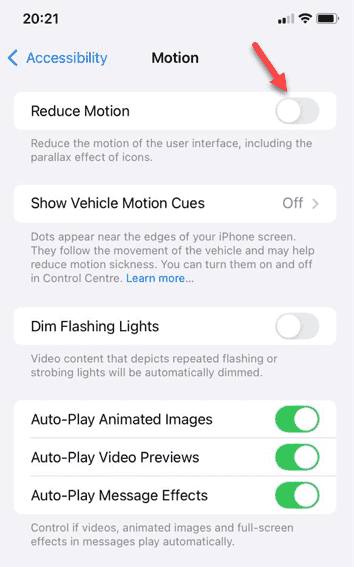
Try switching the apps now. See if the iPhone is still struggling or freezing while switching apps.
Fix 5 – Clear Up Enough Storage on iPhone
If your iPhone is critically low on space, it may struggle even with basic animations like app switching.
Step 1 – Go to the iPhone Settings. Then, go to the General tab.
Step 2 – Then, load up the iPhone storage.
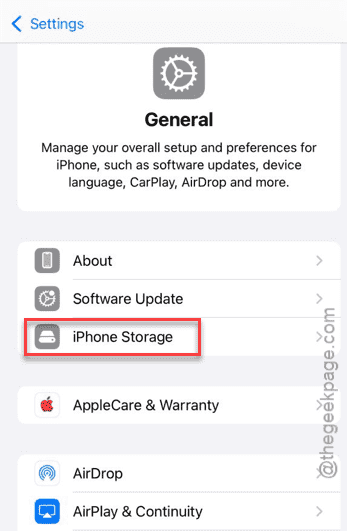
Step 3 – Check how much free space you have on the iPhone. If it is less than 5GB, you should just delete some of the large files.
Once you have freed up enough space, try switching between apps once again.