When inserting a high-resolution image or an OLE object to a Microsoft Word document, sometimes it can behave erratically, slow down significantly, and even crash down completely. If the Word’s Layout Engine is overwhelmed due to the metadata and glitch in the application. Here are some helpful fixes that have come into the help of many users facing the same sort of issue.
| Symptom of the issue | Recommended Action |
| Crash trying to insert any image | Disable Hardware Graphics Acceleration (Fix 1) |
| OLE Action Error | Close and restart the source app |
| Corrupt Red X image | Corrupted file. Check for OneDrive Sync |
Fix 1 – Turn off Hardware Acceleration in MS Word
The hardware acceleration feature, when enabled, can sometimes crash trying to render images in the Microsoft Word.
Step 1 – Go to the File menu in MS Word. Then, tap the Options tab.
Step 2 – After this, go to Advanced tab. Proceed to the Display tab on the right-hand panel.
Step 3 – Uncheck the Disable hardware graphics acceleration feature box.
Step 4 – Tap OK to save the changes.
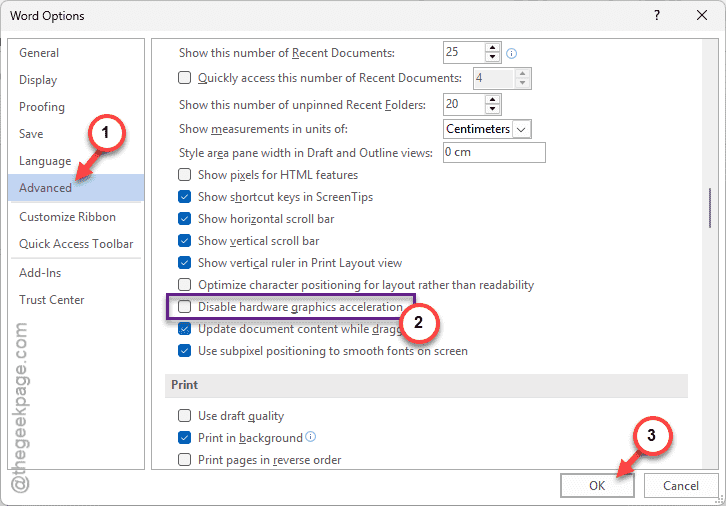
This will put an end to the Microsoft Word trying to do software-level rendering that induces such crash.
Fix 2 – Enable Show Picture Placeholders
Having too many images in the Word document can make it bulky. So, enable Picture Placeholders to just work with the text.
Step 1 – Proceed to the same settings place ⇾
File > Options
Step 2 – Go to the Advanced tab.
Step 3 – Now, on the right-hand panel, find the Show document content section. Check the Show picture placeholders box there.
Step 4 – Don’t forget to save the changes.
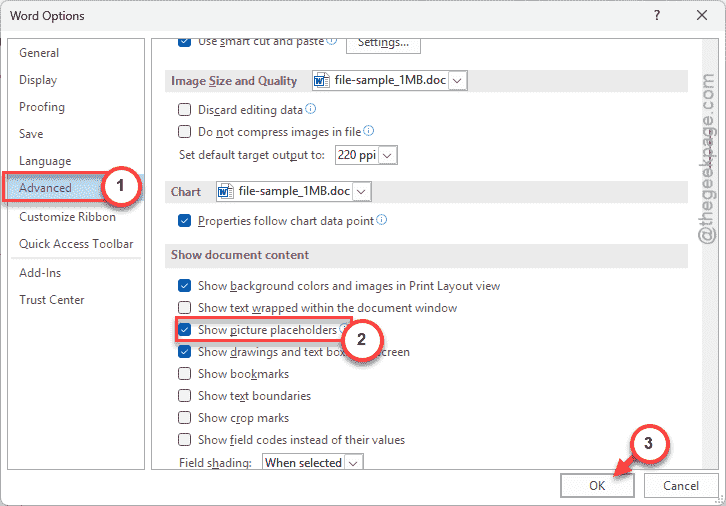
This way, Word will just show up a box instead of the whole image, putting less load on the RAM.
Fix 3 – Disable all the COM Add-ins
Some of the COM Add-ins tries to scan the images or OLE objects, which may slow the whole process.
Step 1 – Go to the Options tab in the File menu in your document.
Step 2 – Then, proceed to the Add-ins tab. Make sure to select the COM Add-ins from the right-hand panel. Tap Go to proceed.

Step 3 – Uncheck all the COM Add-in programs that you can find there. Tap OK to save the changes.
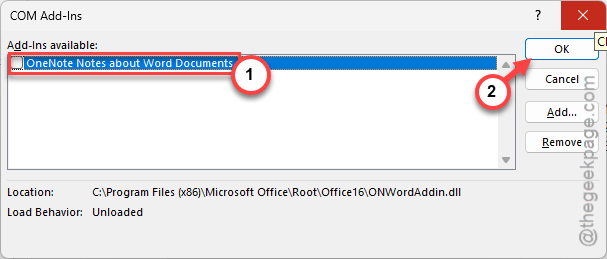
After disabling the add-ins, try to insert the same OLE objects again.
Fix 4 – Change the Paste Special Setting
You must alter the paste special settings in MS Word settings.
Step 1 – You have to just copy the content from the source app and go to the Home tab.
Step 2 – Next, click the Paste > Paste Special.
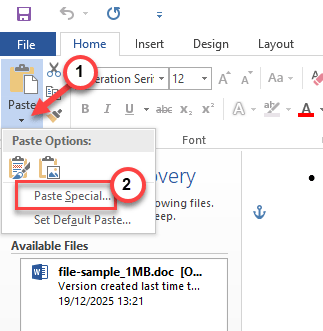
Step 3 – Choose the Picture (Enhanced Metafile) or Device Independent Bitmap style and click OK.

Check whether you can insert the image or OLE files to MS Word.
Fix 5 – Try the Online Repair in MS Word
If the MS Word library files are damaged, trying to insert such files may crash the Word app.
Step 1 – At first, hold the Win+R buttons together.
Step 2 – Type the appwiz.cpl and click OK.
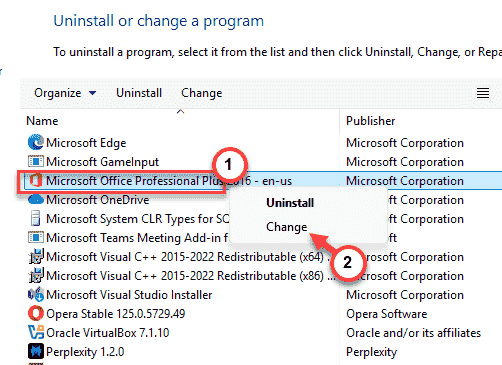
Step 3 – Find the Microsoft Office, select it, and tap Change.
Step 4 – Select the Quick Repair button and tap Repair button to repair the Office package.
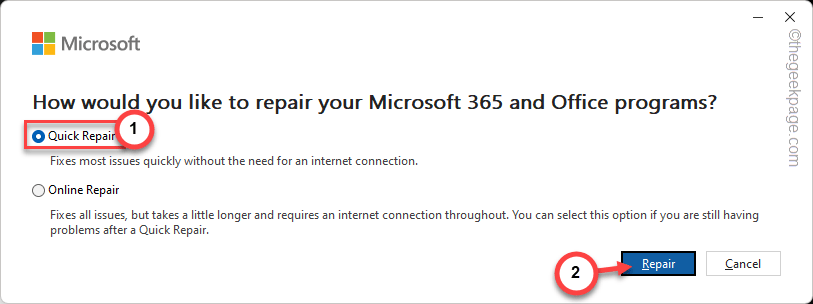
After repairing the Office, check again.