You open File Explorer and OneDrive is just… gone. No folder in the sidebar. No cloud icon in the system tray. Your files feel locked away.
Why This Happens
So what happened here? A Windows update shuffled some system files, and OneDrive’s links into File Explorer got broken in the shuffle.
OneDrive doesn’t just sit in a folder. It plugs into File Explorer with shell extensions — little hooks that draw the OneDrive entry in the sidebar and show those green and blue sync checkmarks. When an update overwrites or de-registers those hooks, the whole thing vanishes from view.
And here’s the good news. Your actual files are untouched in the cloud, and usually still on your disk too. This is a display and connection problem. Not a data problem.
Fix 1 – Reset OneDrive First
This fixes it for most people, and it’s painless.
1 – Press Windows + R to open the Run box.
2 – Paste this in exactly and press Enter:
%localappdata%\Microsoft\OneDrive\onedrive.exe /reset
3 – Wait. The OneDrive cloud icon should disappear from your system tray, then come back within a couple of minutes. That’s the reset doing its job.
4 – Don’t see it come back after two minutes? Open Run again and launch OneDrive yourself:
%localappdata%\Microsoft\OneDrive\onedrive.exe
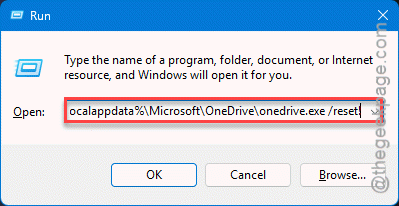
Check if this works.
Fix 2 – Force the Folder Back into the Sidebar
Reset worked but the sidebar entry’s still missing? A single registry value controls whether OneDrive shows up there. The update may have flipped it off.
1 – Start by pressing the Windows + R buttons together. Type this and press Enter.
regedit
2 – Go to this path:
HKEY_CURRENT_USER\Software\Classes\CLSID\{018D5C66-4533-4307-9B53-224DE2ED1FE6}
3 – On the right side, find System.IsPinnedToNameSpaceTree.
4 – Double-click it. Make sure the value is 1. If it’s 0, change it to 1 and click OK.
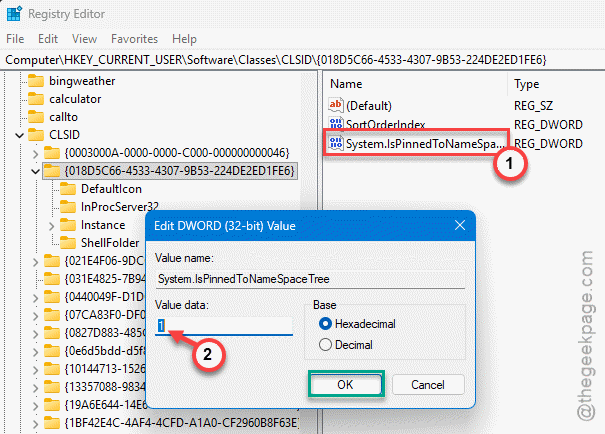
5 – Restart File Explorer: open Task Manager with Ctrl + Shift + Esc, right-click Windows Explorer, and choose Restart.
Flipping it back to 1 pins OneDrive where it belongs.
Fix 3 – Unlink and Relink Your PC
If OneDrive shows up but won’t sync — stuck, frozen, throwing errors — the link between your PC and your account probably needs rebuilding.
1 – Click the OneDrive cloud icon in the system tray. Hit the small ^ arrow near the clock if it’s hidden.
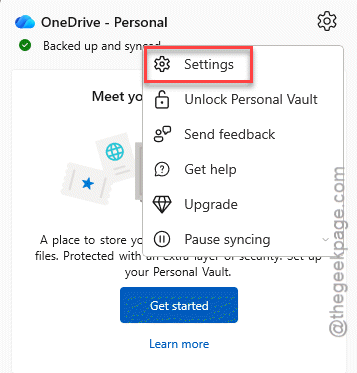
2 – Click the gear icon, then Settings.
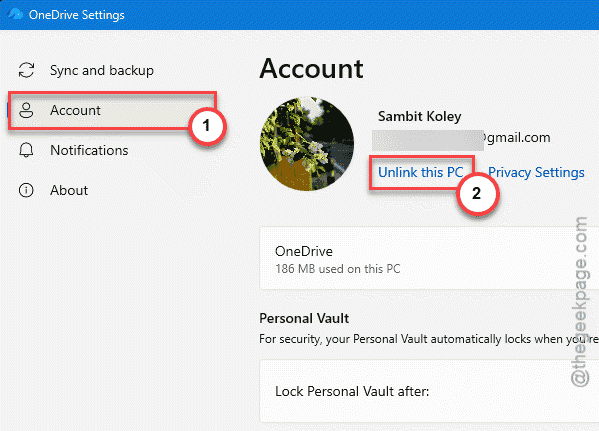
3 – Go to the Account tab.
4 – Click Unlink this PC, then confirm.
5 – When the setup window pops up, sign back in with your Microsoft account.
Signing back in rebuilds the local connection from scratch. Your files re-sync from the cloud — give it time if you’ve got a lot stored up there.
Fix 4 – Repair Shell Files With SFC
Try reparing the files with simpler system file codes.
1 – Right-click Start and open Command Prompt (Admin).
2 – Type sfc /scannow and press Enter.
3 – Let it run all the way to 100%. It can take a while, so leave it be.
4 – Restart your PC.
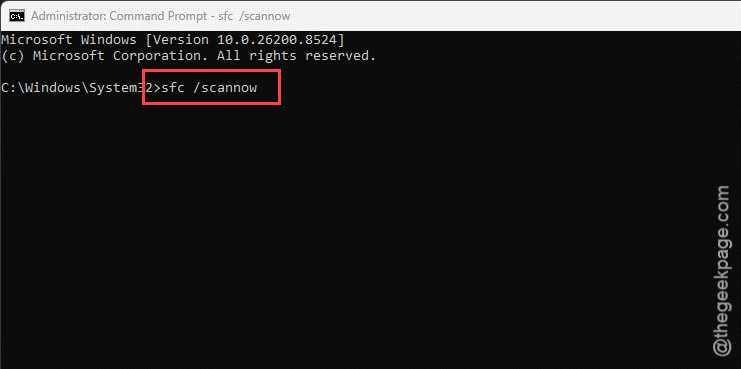
SFC finds and replaces broken system files, including the ones that render the Explorer sidebar. Worth running before you go nuclear.
Fix 5 – Reinstall OneDrive With Winget
Last resort. If OneDrive is genuinely broken — the “damaged and can’t be opened” kind of broken — overwrite it with a fresh copy.
1 – Right-click the Start button and open Terminal (Admin).
2 – Type this and press Enter:
winget install Microsoft.OneDrive --force
3 – Let it download and install over the old version.
4 – Restart your computer when it’s done.
The –force flag tells it to reinstall even though OneDrive is technically already there. Fresh files, fresh shell hooks, and your sync picks up again once you sign in.
How to Prevent This
– Let OneDrive update itself. Don’t block its background updater — an out-of-date OneDrive breaks more easily when Windows changes underneath it.
– Keep a little free space on C:. The reset and the reinstall both need room to rebuild their cache.
– Don’t force-quit OneDrive from Task Manager as a habit. That’s how the shell hooks get confused in the first place.