Your chart was fine yesterday. Now the axis labels are just… gone. Numbers disappeared. Dates vanished. The chart looks naked.
This happens a lot after Office updates. Excel recalculates how it displays chart elements, and sometimes the axis labels get caught in the crossfire. Annoying, but fixable.
Why This Happens
Excel uses something called an axis type to decide how labels show up. It can be set to Automatic, Text, or Date. After an Office update, that setting sometimes flips back to Automatic. And Automatic is not always smart. It might decide your labels are unnecessary. Or it changes the interval so half your labels disappear. Microsoft has acknowledged this bug in certain Microsoft 365 builds. But no permanent patch yet. So here we are.
Fix 1 – Resize the Chart to Force a Refresh
This one is almost too simple. But it works more often than you would expect.
1 – Click on the chart so it is selected.
2 – Grab one of the corner handles. Drag it to make the chart slightly bigger.
3 – Now drag it back to the original size.
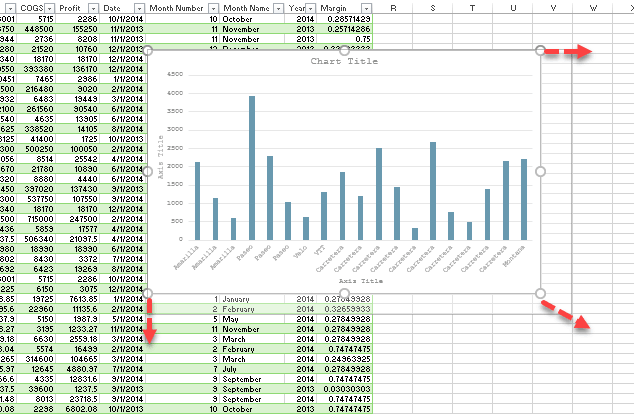
Excel recalculates the layout when you resize. And that recalculation often brings the missing labels back. Takes two seconds.
Fix 2 – Toggle Axis Titles Off and On
Another quick one.
1 – Click on the chart.
2 – Click the + button that appears on the right side of the chart. That is the Chart Elements menu.
3 – Uncheck Axis Titles.
4 – Wait a moment. Then check Axis Titles again.
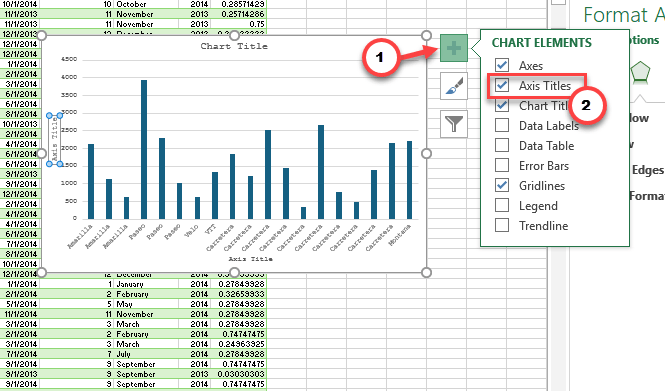
This forces Excel to redraw the axis labels from scratch. Done.
Fix 3 – Switch the Axis Type to Text
If your horizontal axis shows dates and they vanished after the update, this is probably your fix. Excel likely changed the axis type to Automatic, and Automatic decided to hide things. No idea why it does that.
1 – Right-click the horizontal axis on your chart. If you do not see it, right-click the bottom area where labels used to be.
2 – Select Format Axis from the menu.
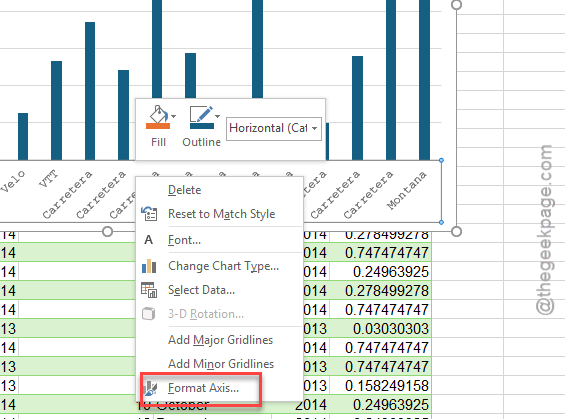
3 – In the panel that opens on the right side, look for Axis Type.
4 – Change it from Automatic to Text axis.
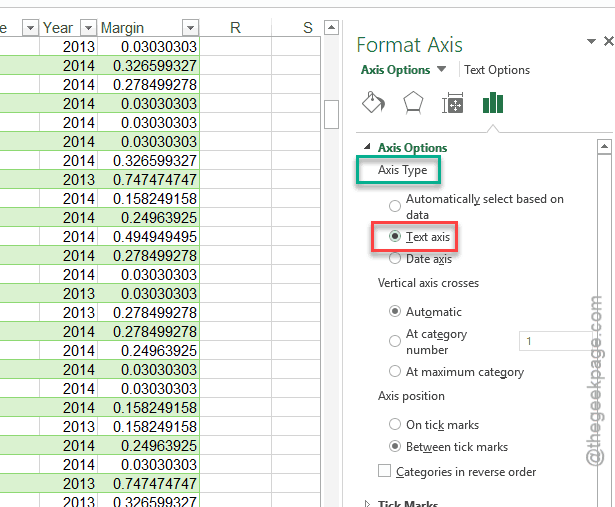
And that should bring your date labels back. The Automatic setting is honestly unreliable after updates.
Fix 4 – Check the Label Interval Setting
Sometimes the labels are there. They are just being skipped. Excel sets an interval that hides every other label (or every third one). Weird, but true.
1 – Right-click on the axis where labels are missing.
2 – Click Format Axis.
3 – In the formatting pane on the right, expand Labels.
4 – Look at Interval between labels. If it is set to a number higher than 1, that is your problem.
5 – Set it back to 1.
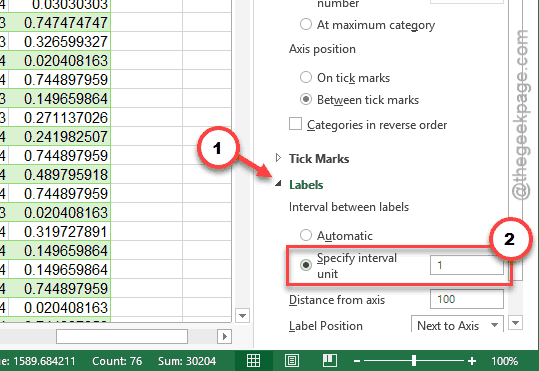
So yeah, a hidden setting buried in a side panel. Classic Microsoft.
Fix 5 – Re-Select the Axis Label Data Range
If your labels show generic numbers like 1, 2, 3 instead of your actual data, Excel lost the reference to your label range. Here is how to point it back.
1 – Right-click anywhere on the chart.
2 – Click Select Data. A dialog box opens.
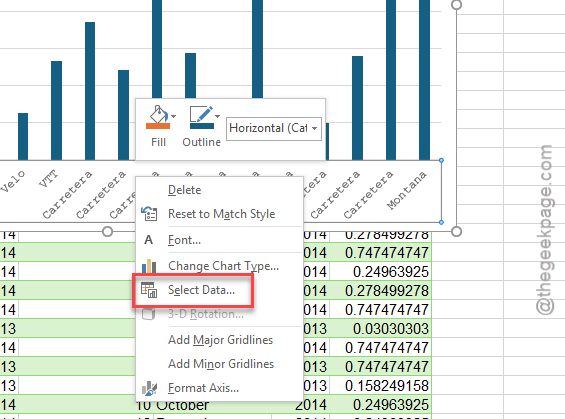
3 – On the right side, under Horizontal (Category) Axis Labels, click Edit.
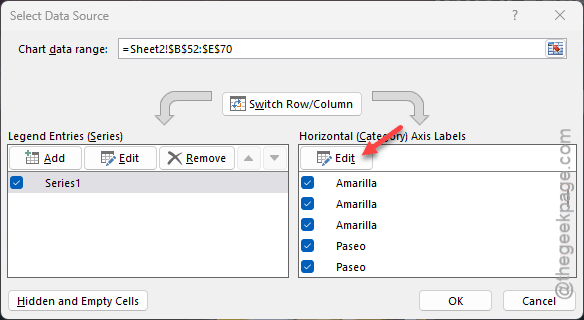
4 – Re-select the correct cell range that contains your labels.
5 – Click OK twice to close everything.
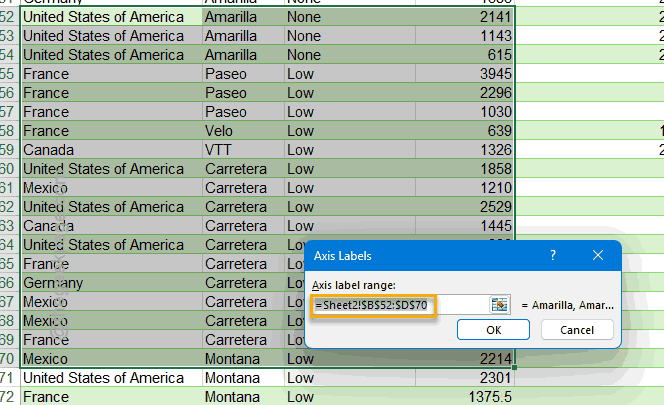
But make sure you are selecting the right column. If you pick the wrong range, you will get even weirder labels.
Fix 6 – Use the Chart Options Dropdown
Quick fix for when the formatting pane does not seem to work.
1 – Click on the chart to select it.
2 – Right-click on the chart and select Format Chart Area from the menu.
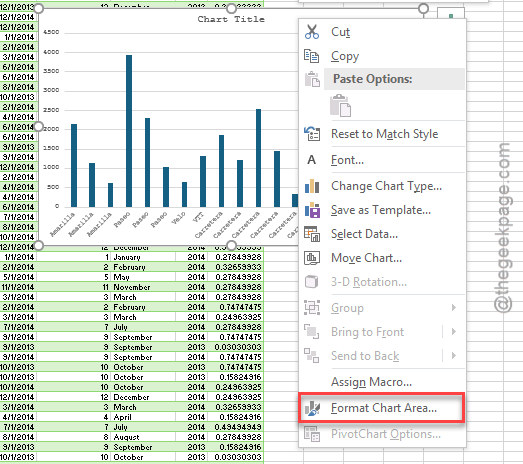
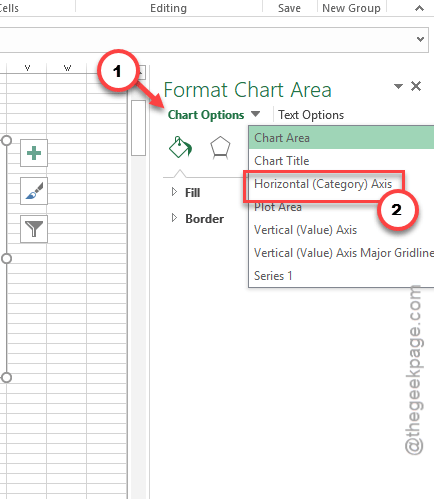
3 – A sidebar opens on the right. Click on CHART OPTIONS at the top of that sidebar.
4 – From the dropdown, select Horizontal (Category) Axis.
5 – Click the bar graph icon (the rightmost icon below the dropdown).
6 – Expand the LABELS section. Adjust the options in there until your axis labels look right.
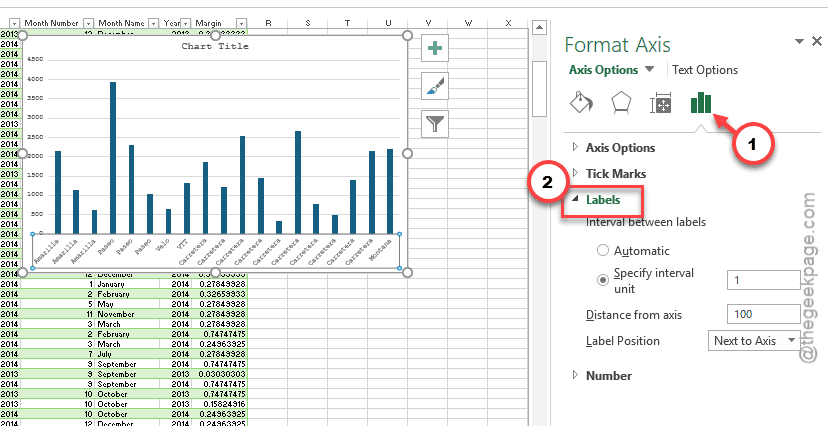
Not the most intuitive path. But it gives you full control over how labels display.
How to Prevent This
– Always set your axis type to Text axis manually instead of leaving it on Automatic. Automatic is unpredictable after updates.
– After any Office update, open your important charts and check the axis labels before sharing.
– Keep a backup copy of critical workbooks before updating Office.
– If you use dates on the axis, double-check the label interval setting. It resets sometimes.
People Also Ask
How do I add axis labels back in Excel?
Click the chart. Hit the + button on the right side. Check Axis Titles. If that does not work, right-click the axis area and choose Format Axis. And then set the axis type to Text. That usually does it.
How to fix axis labels in Excel?
Right-click the axis. Open Format Axis. Check the label interval (set it to 1). Also check the axis type. If it is on Automatic, switch to Text axis. Sound familiar? Yeah, this is the most common fix.
How do I bring back the axis in Excel?
Go to the chart, click the + icon, and re-enable axes. If they still do not show, right-click the chart, click Select Data, and re-select your axis label range. Sometimes Excel just forgets where the data is.