Add-ins can make the life a lot easier for the Microsoft Word users. But, a wrong add-in can do some damage or even crash the Microsoft Word application itself. Usually, the third-party PDF-readers are suspected to induce such crash events. Disabling that particular add-in in Microsoft Word should restore the normal function of the Word app. But, if that does not help, or you can’t identify the particular add-in responsible for the event, here are some fixes that will help you out.
Fix 1 – Start the Word in Safe Mode
Switching to the Safe Mode can give you a way out from this crash issue and let you use the app.
This will launch the Word application in Safe Mode, without the influence of any third-party components like add-ins, plug-ins etc.
Step 1 – Hit the Win+R buttons together.
Step 2 – Next, write this line there, and click OK.
winword.exe /safe
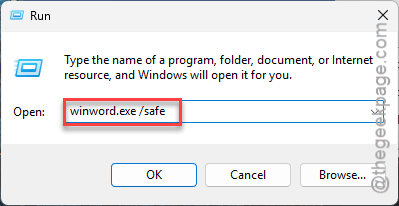
After launching the Word in safe mode, you can easily disable that problematic add-in.
Fix 2 – Disable the Problematic Add-ins
Most of the affected user reports indicates the PDF-reader as the problematic add-in responsible for this issue.
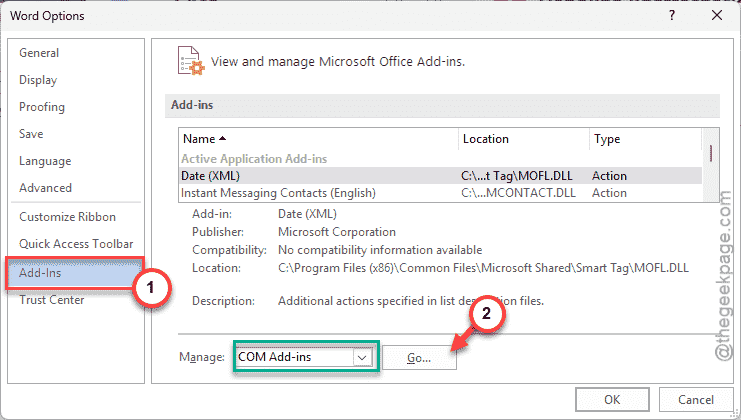
Step 1 – At first, open up the File tab in MS Word. Then, go to the Options tab.
Step 2 – Later, load up the Add-ins tab from the left-hand pane.
Step 3 – Make sure the Manage button is set to COM Add-ins. Tap the Go button there.
Step 4 – Now, once the add-ins list appears, uncheck all of them. Click OK to save the changes.
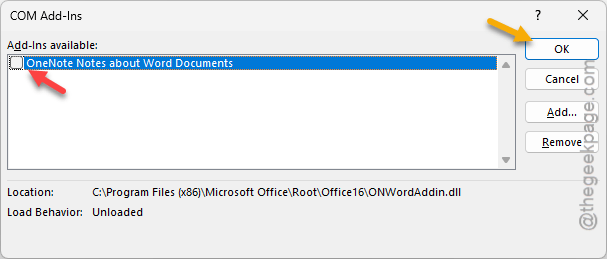
This will disable those problematic add-ins in MS Word app.
After this, close and restart the Microsoft Word app.
Step 5 – Once you have rebooted the Word app, follow the same path –
File ⇾ Options ⇾ Add-ins
Step 6 – Select the same COM Add-ins and tap Go to load up the list of add-ins once.
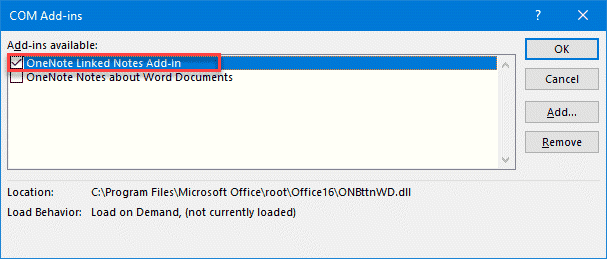
Step 7 – Re-enable the add-ins one at a time and check for which add-in the Word is crashing.
This way, you can narrow down the suspect and disable it, and the sudden crashing issue will be gone.
Fix 3 – Update the Add-in
Add-ins gets updated to suite various If the add-in has a pending update, install it right away.
Step 1 – You have to first identify the third-party add-ins in the Word. Example – PDF Creators like Adobe Acrobat Reader Add-ins, Speech to text tools, Grammarly, etc.
Step 2 – Download the latest version of the add-in program or run the updater tool to update it.
Step 3 – Now, press the Win+I buttons and go this way ⇾
Apps ⇾ Installed Apps
Step 4 – Find any unknown third-party add-ins there, and remove it from your system.
This should resolve the issue.
Fix 4 – Repair the MS Office Client
If none of the other fixes have helped, just repair the Microsoft Office client.
Step 1 – Load up the Windows Settings. Then, proceed this way –
Apps ⇾ Installed Apps
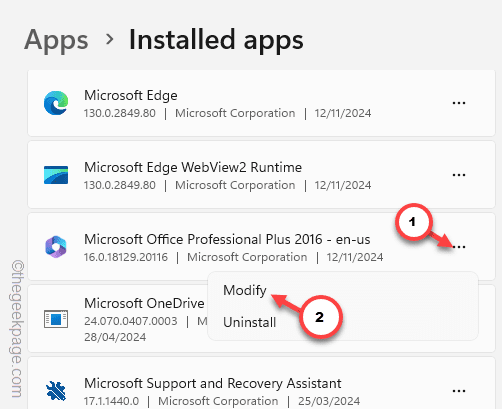
Step 2 – Find the Microsoft Office app from the list of apps.
Step 3 – Then, tap the three-dot button next to the Office app, and tap Modify.
Step 4 – Now, choose the Quick Repair function, and tap Repair to initiate the repairing operation.
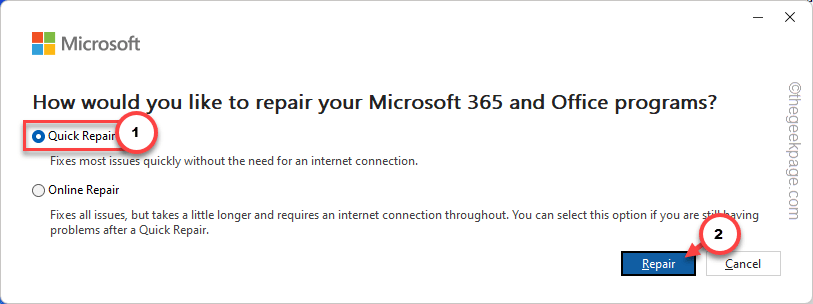
Once the Office package has been repaired, Word won’t crash due to a faulty add-in.