You set a service to Automatic. You reboot. And it’s back to Manual like you never touched it.
Or it just won’t start on boot. So whatever depends on it breaks too. Quietly. Every single time. Let’s make the change actually stick.
Why This Happens
Here’s the deal. Sometimes the service isn’t ignoring you. It’s timing out before it can finish starting.
Windows gives each service a window to start during boot. Default is 30 seconds. And if a service is slow — waiting on a disk, a network, whatever — it blows past that window. Windows marks it failed. Then it looks like the startup type “reset.”
So we do two things. Give services more time to start. And switch them to a delayed start so they’re not racing everything else at boot. One of those fixes it.
Fix 1 – Use Automatic (Delayed Start) Instead
The simplest reliable fix. A delayed start lets the slow service boot after the rush, when there’s breathing room.
1 – Press Windows + R, type services.msc, and press Enter.
2 – Scroll down and find the service that won’t stay on.
3 – Right-click it and choose Properties.
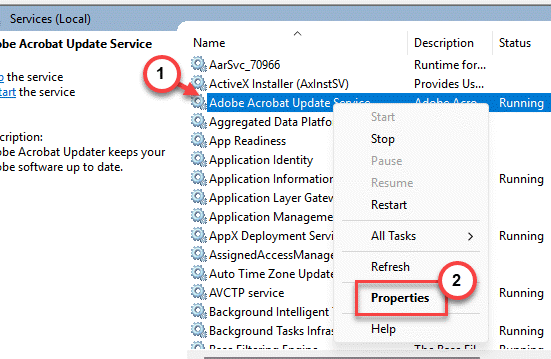
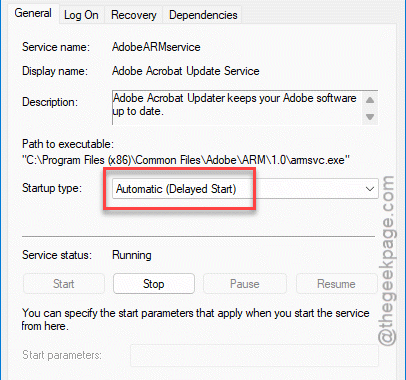
4 – On the General tab, open the Startup type dropdown.
5 – Pick Automatic (Delayed Start).
6 – Click Apply, then OK.
7 – Reboot and check it held.
It’s not the prettiest answer. But for a lot of stubborn services, delayed start is the only thing that works. Worth trying before anything heavier.
Fix 2 – Increase the Service Timeout in the Registry
We bump the global timeout. (Back up first — registry edits are serious.)
1 – Press Windows + R, type regedit, and press Enter.
2 – Go to:
HKEY_LOCAL_MACHINE\SYSTEM\CurrentControlSet\Control
3 – With the Control folder selected, right-click in the empty space on the right and choose New > DWORD (32-bit) Value.
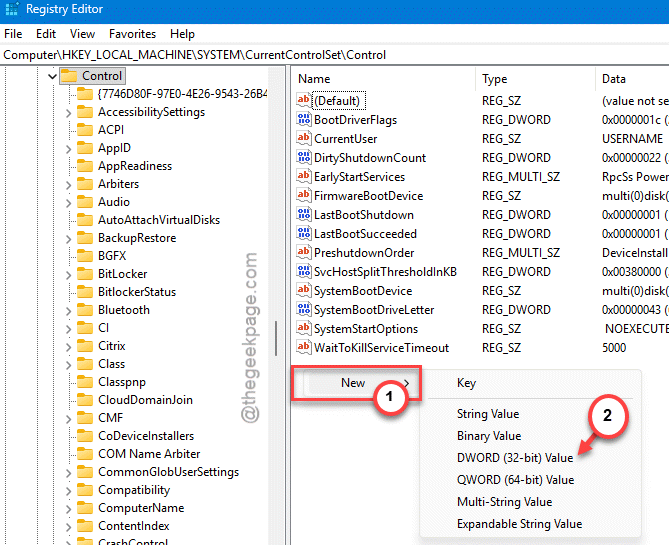
4 – Name it exactly: ServicesPipeTimeout
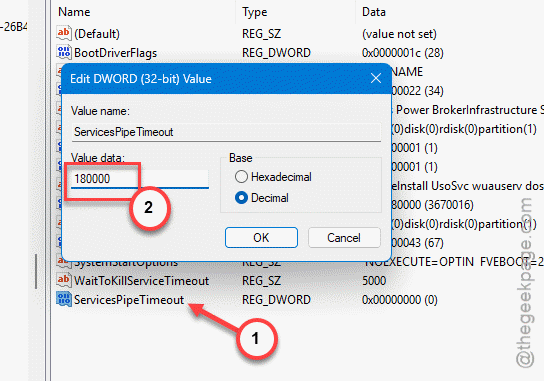
5 – Double-click it.
6 – Click Decimal, type 180000, and click OK. (That’s 180 seconds, in milliseconds.)
7 – Restart your computer — this one only kicks in after a reboot.
Now Windows waits three minutes instead of 30 seconds before giving up. Plenty of room for a slow service to come up properly.
Fix 3 – Force the Startup Type With sc config
Use the shell to change the services configuration. It sometimes sticks when the Services window won’t.
1 – Right-click Start and open Terminal (Admin) or Command Prompt (Admin).
2 – Set the service to automatic (swap in the real service name) using this code:
sc config "ServiceName" start= auto
3 – Or for delayed start:
sc config "ServiceName" start= delayed-auto
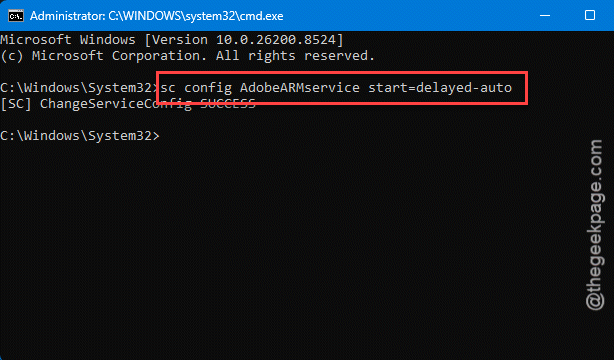
4 – Press Enter and reboot.
Mind the spacing — there’s a space after the equals sign. start= auto, not start=auto. It’s a quirk of the command, and it’ll error out if you skip it.
Fix 4 – Repair System Files and Check Dependencies
Still resetting? Try a simple system file checking scan.
1 – Open Terminal (Admin) again.
2 – Run:
sfc /scannow
3 – Then run:
Dism /Online /Cleanup-Image /RestoreHealth
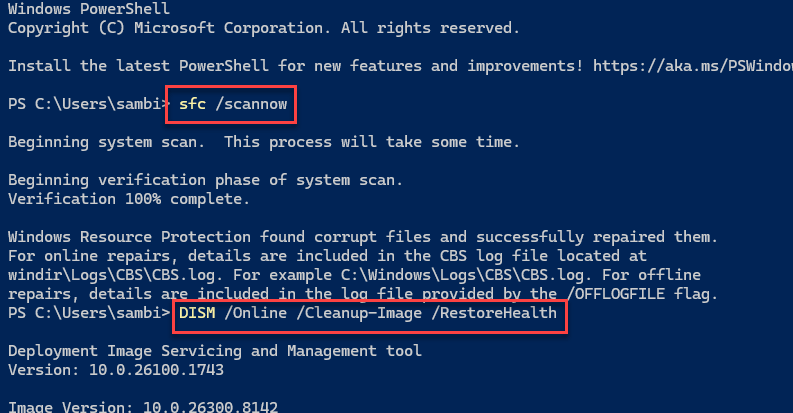
4 – Back in services.msc, open the service’s Properties and check the Dependencies tab.
5 – Make sure every service listed there is also running and set to start.
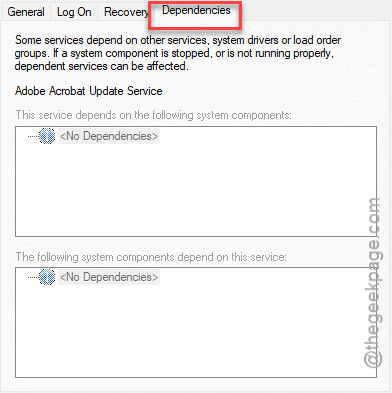
A service can’t start if something it leans on is dead. So fixing the dependency often fixes the service that kept “resetting.”
How to Prevent This
– Reach for Automatic (Delayed Start) on slow services first. It dodges the boot-time traffic jam.
– Keep system files healthy. Run SFC now and then. Corruption quietly breaks service startup.
People Also Ask
How do I reset the Windows Update service?
Open services.msc, find Windows Update, right-click and choose Restart. If it won’t stay running, set its Startup type to Automatic (Delayed Start). For a deeper reset, stop the service, clear the SoftwareDistribution folder, then start it again. That clears a corrupted update cache that often blocks it.
What is service start type 2?
When the Windows automatically kicks up the service at the system startup, that is known as the automatic startup. This is also known as the service start type 2.