Having some issues activating Office 365 on your computer? If you are having trouble activating your Office 365, the first thing you must check is that you have a valid Office 365 subscription plan. The ‘Activation Required’ message prompt is showing up on the affected Office page. There are many possible reasons why you are having issues like this, while the key reason is conflict with pre-existing Microsoft Office keys attached to the device, wrong subscription plan, corrupted Office file package data. These solutions should help you resolve the issue.
Quick Fixes –
1. Check whether you are using the correct MS Office account that has the active MS Office 365 subscription plan. You can do that from here –
Any of the Office products > File > Account
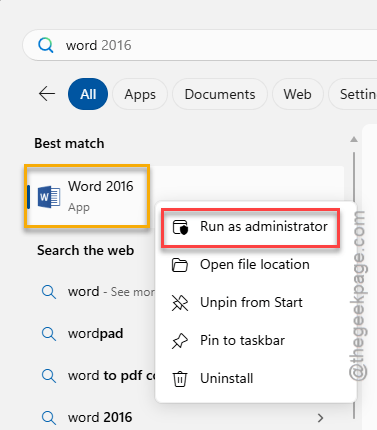
2. Run the individual Office app with administrator rights. Simply search for the app from the search box and run it as an administrator.
Fix 1 – Use the Microsoft 365 troubleshooter to fix activation
You can troubleshoot this Microsoft 365 activation issue using the troubleshooting option.
Step 1 – Open up the Microsoft 365 troubleshooters tab.
Step 2 – Expand the Microsoft 365 activation troubleshooter and tap the Start button there.
You will see the request prompt to open Get Help option. Tap the Open Get Help option to load it.
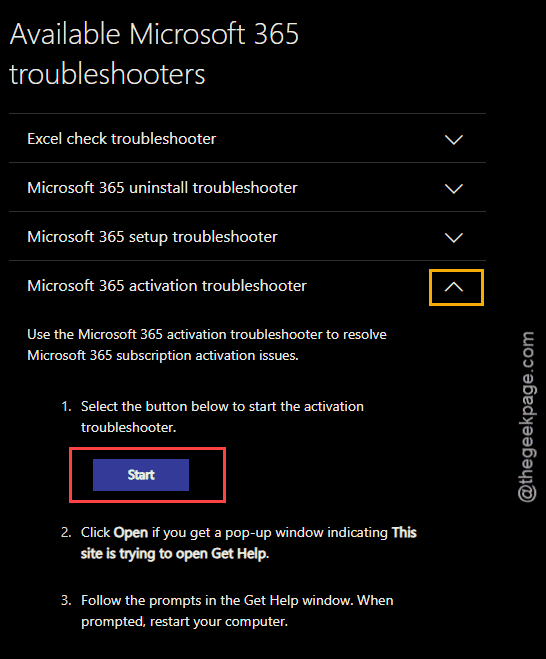
This will load up the Get Help page.
Step 3 – Follow the instructions in there and let it implement the solutions
Fix 2 – Clear any pre-existing MS Office product keys
If you have any existing Microsoft Office installed on your device, it may not recognize the Office 365 you are trying to activate now. In simpler words, your old Office key (like Office 2016 or 2019 standalone version) bound to your system is causing these interferences.
Step 1 – Search for cmd in the taskbar and right-click the Command Prompt and tap Run as administrator.
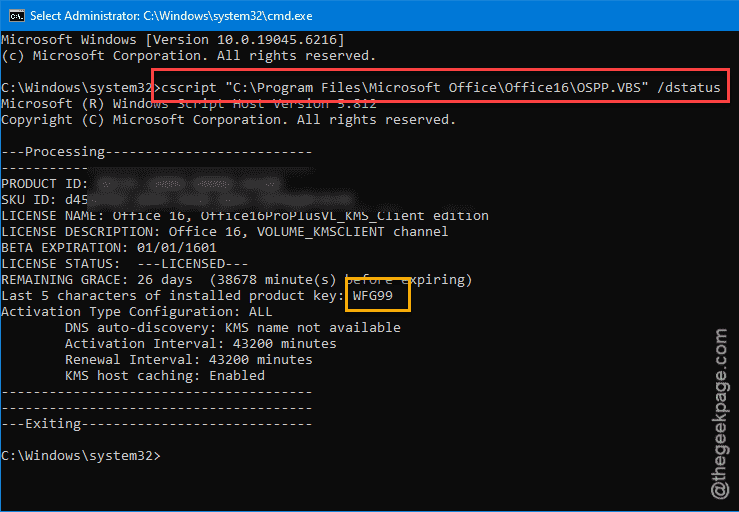
Step 2 – Now, use the specific code according to your Windows architecture (32-bit or 64-bit) to retrieve the status of the Office licence information.
Paste the specific line that works for your machine, and execute it.
For Office 2016 (32-bit) on 32-bit Windows machine –
cscript "C:\Program Files\Microsoft Office\Office16\OSPP.VBS" /dstatus
For Office 2016 (32-bit) on 64-bit Windows machine-
cscript "C:\Program Files (x86)\Microsoft Office\Office16\OSPP.VBS" /dstatus
For Office 2016 (64-bit) on 64-bit Windows 11/10 machine –
cscript "C:\Program Files\Microsoft Office\Office16\OSPP.VBS" /dstatus
Step 3 – Note down the last 5 characters of the installed Office licence key.
Step 4 – Now, you can remove the key from your system using this particular command. Replace the ‘last 5 characters’ in the code with the license key that you have copied before.
For Office 2016 (32-bit) on a 32-bit version of Windows
cscript "C:\Program Files\Microsoft Office\Office16\OSPP.VBS" /unpkey:Last5Character
For Office 2016 (32-bit) on a 64-bit version of Windows
cscript "C:\Program Files (x86)\Microsoft Office\Office16\OSPP.VBS" /unpkey:Last5Character
For Office 2016 (64-bit) on a 64-bit version of Windows
script "C:\Program Files\Microsoft Office\Office16\OSPP.VBS" /unpkey:Last5Character
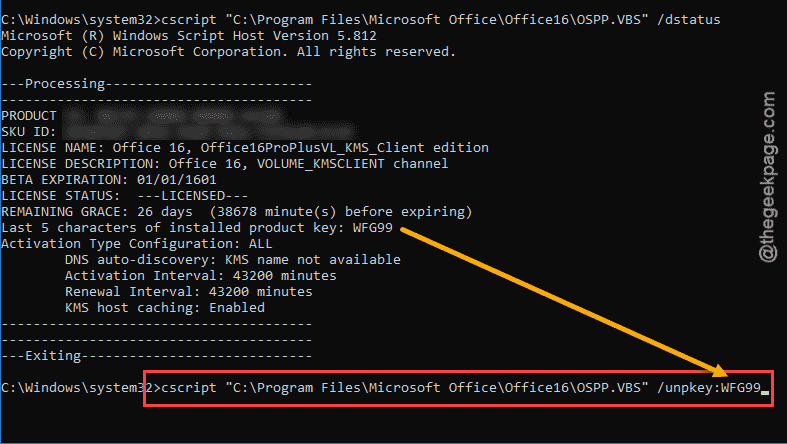
Close the terminal. Restart your system once. After removing the key from your system, you can use the MS Office 365 activation key once again.
Fix 3 – Uninstall the MS Office and reinstall from Microsoft account
Uninstall the existing version of the Microsoft Office and, then download-install the Office version from your Microsoft accounts page.
Step 1 – Open the Settings panel on your Windows device. Next, go this way –
Apps > Installed apps
Step 2 – Then, search for the office apps there. Next, tap the three-dot button in the Office app and Uninstall it to uninstall it from your system.
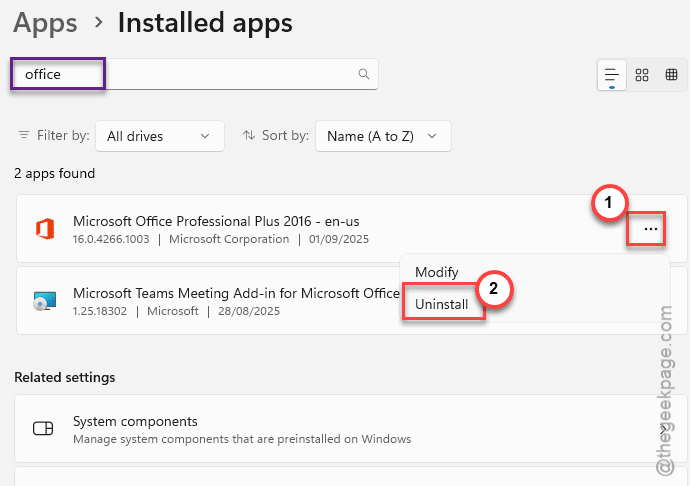
Follow the entire process to uninstall the Office package completely from your system.
Step 3 – Then, go to the Microsoft Account and use the Sign in option to sign in using proper account credentials.
Step 4 – Go to the Subscription tab on your account. You will find the Microsoft 365 ready to be installed on your device. Use the Install option in there.
That’s it! This is the correct version of MS Office that you have installed on your system. This is digitally activated, so you don’t have to worry about manual activation channels any more.
Fix 4 – Uninstall other version of Microsoft Office
There is a chance that your PC was shipped with a preinstalled version of Microsoft Office (Home version). In that case, you must remove that app from your system.
Step 1 – Go to the Apps tab. Open the Installed apps section.
Step 2 – Do a simple search for office using the search box.
Step 3 – Now, look for any preinstalled version of MS Office package such as – Microsoft Office 2016/2019/2021.
Step 4 – Tap the three dot button next to it and tap Uninstall.
Once you have uninstalled the other Office package, the Office 365 will be activated and functional in no time.
Fix 5 – Update the Office client
Microsoft keeps sending regular update for the Office 365 package.
Step 1 – Load up any of the MS Office apps, such as, Word or Excel.
Step 2 – Then, follow this path –
File > Account > Update Options > Enable Updates
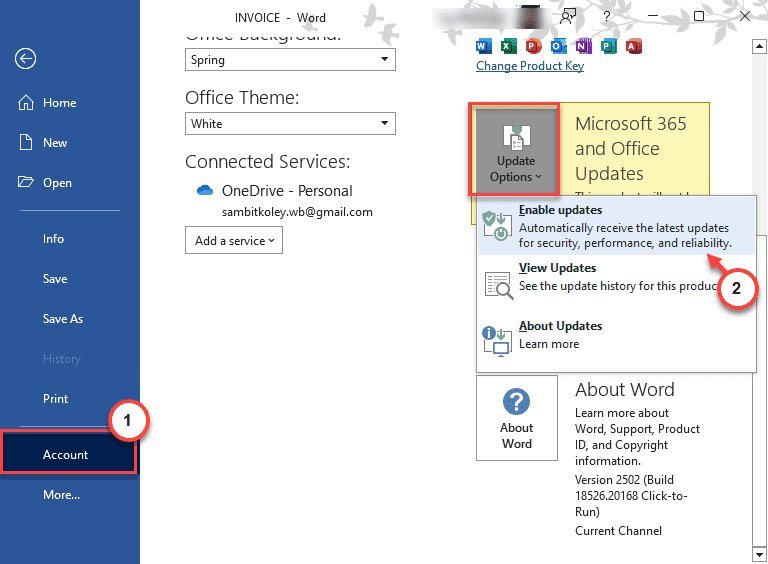
After enabling the updates, the activation issue will be resolved.
FAQs –
1. Why can’t I activate my Office 365 on my PC despite even after purchasing it?
The primary reason you can’t activate the Office products even after purchasing can be due to the version conflicts, wrong Microsoft account, License expired. Uninstalling the existing Office products and reinstalling from the Microsoft account page should fix the activation issue.
2. Can I use Office 365 for free in offline mode?
No. You may use the Microsoft Office online for free from the website, the standalone Office in offline version is not free. Only active Microsoft 365 subscription holders can use the Microsoft Office apps in offline mode. The free version of Office offers limited features and works only when you are online.