You change a setting in gpedit. Restart. Gone. Change it again. Restart. Gone again. And Windows acts like you never touched anything.
Why This Happens
Something is rewriting your settings on every single boot. So what’s doing it?
Usually one of three things. The Group Policy Client service isn’t running right. A domain policy from work is stomping on your local edits. Or the local policy files got corrupted, and Windows quietly throws your changes away.
And Windows updates make it worse. Some of them reset security-related policies without asking. No warning. No log entry you’d ever find. Your setting just… goes back. Fun, right?
Fix 1 – Check the Group Policy Client Service
This service is what applies your policies at startup. If it’s not set to start automatically, your edits never get applied after a reboot.
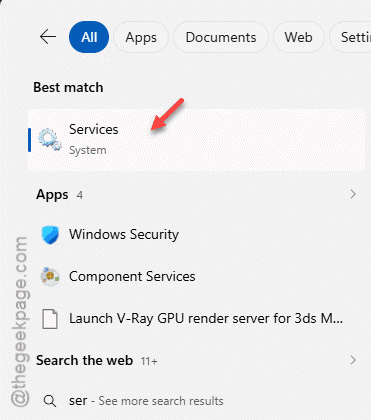
1 – Click the search box on the taskbar and type Services.
2 – Open the Services app.
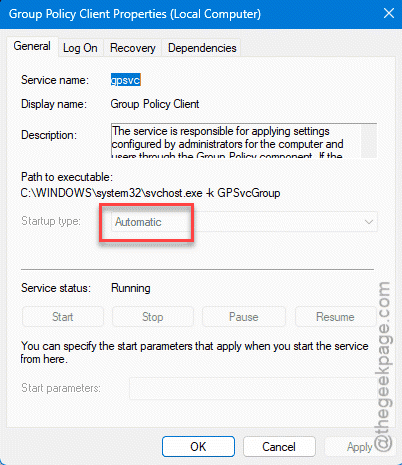
3 – Scroll down the list and double-click Group Policy Client.

4 – Look at the Startup type dropdown. It should say Automatic.
5 – If it doesn’t, change it to Automatic and click OK.
Restart and test your policy change again. Worked? Great. If not, keep reading.
Fix 2 – Make Sure a Domain Policy Isn’t Overriding You
Quick reality check before you waste an afternoon. If this is a work or school PC, local policy loses to domain policy. Every time. No exceptions.
Your local edit applies, then the domain controller pushes its own version right back over it at the next refresh. So the fix isn’t on your machine at all — ask IT to change the setting at the domain level instead.
Home PC with no domain? Skip this one and move on.
Fix 3 – Do a Clean Boot
Some third-party app might be resetting your settings at startup (system “optimizers” are famous for this). A clean boot rules that out.
1 – Press Windows + R, type this, and press Enter.
msconfig
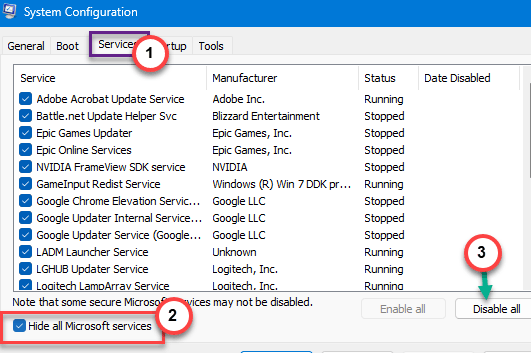
2 – Go to the Services tab.
3 – Check Hide all Microsoft services — it’s the checkbox at the bottom left.
4 – Click Disable all.
5 – Switch to the Startup tab and click Open Task Manager.
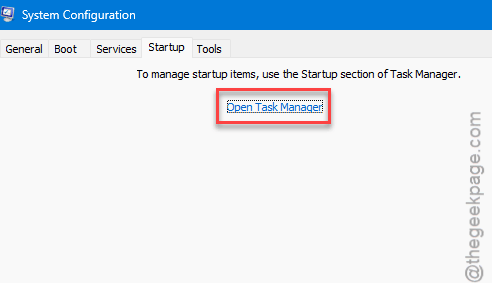
6 – Disable the startup programs you don’t need.
7 – Reboot and apply your policy change again.
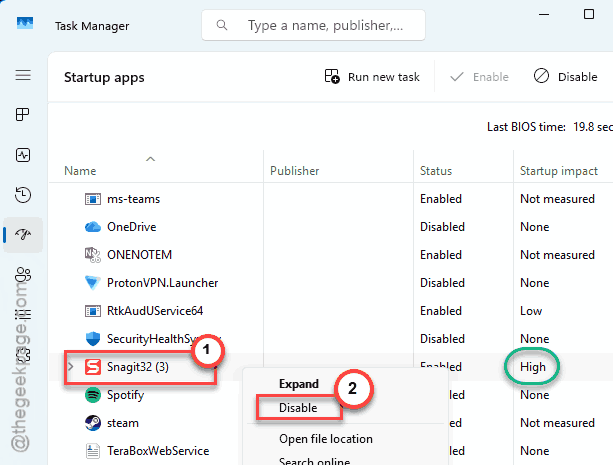
If the setting survives now, one of those disabled apps was the culprit.
Fix 4 – Reset Group Policy Completely
Nuclear option. This wipes all local policy customizations (yes, all of them) and rebuilds from scratch. But when the policy files themselves are corrupted, it’s the only thing that helps.
1 – Type cmd in the search box.
2 – Right-click Command Prompt and choose Run as administrator.
3 – Paste this command and press Enter:
RD /S /Q "%WinDir%\System32\GroupPolicyUsers" && RD /S /Q "%WinDir%\System32\GroupPolicy"
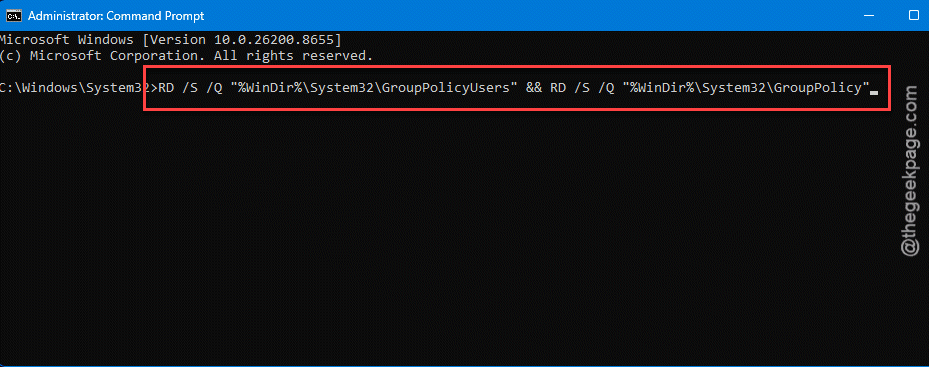
4 – Now type gpupdate /force and press Enter.
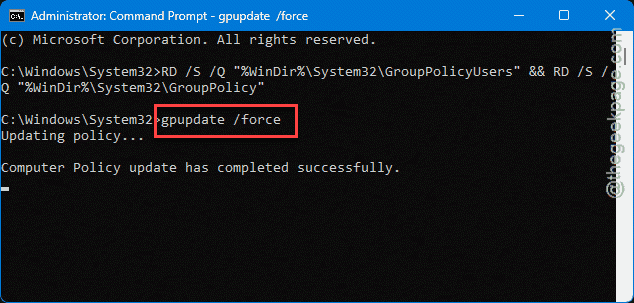
5 – Restart your computer.
Then redo your policy change. With fresh policy files underneath, it usually sticks.
Fix 5 – Set the Matching Registry Value Directly
Most gpedit settings are just registry values wearing a suit. And registry values tend to survive reboots and updates better than the policy editor does.
1 – Press Windows + R, type regedit, and press Enter.
2 – Back up the registry first. Not optional.
3 – Go to this address –
HKEY_LOCAL_MACHINE\SOFTWARE\Policies\Microsoft\Windows\Network Connections
Long path — the address bar at the top is faster than clicking through folders.
4 – Right-click in the right-side pane and create a new DWORD (32-bit) Value.
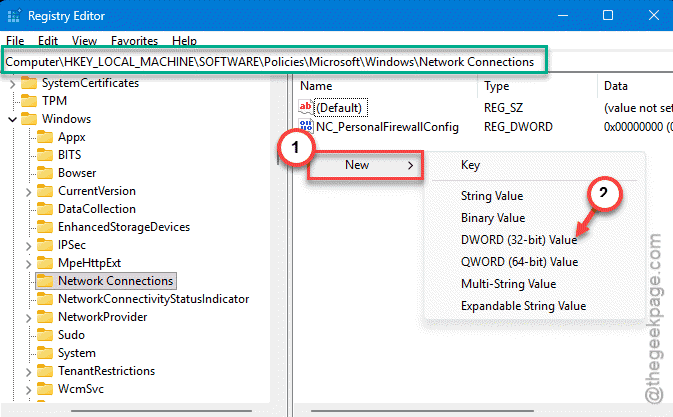
5 – Name it NC_AllowInsecureGuestAuth and set its value to 1.
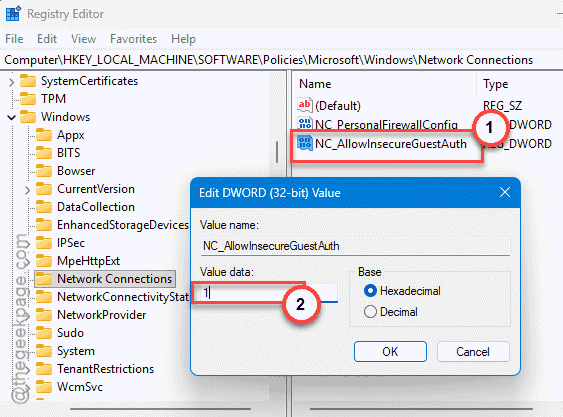
That registry entry should hang on even after a Windows update. For other policies, the idea is the same — find the registry value the policy controls and set it there.
Fix 6 – Try a Fresh User Account
Still reverting? Your user profile might be the corrupted piece.
Open Settings, go to Accounts, and add a new user. Sign into the new account and try your policy change there. If it sticks under the new profile but not your old one, you’ve found the problem. Not the answer you wanted, I know. But at least now you know where it lives.
How to Prevent This
- Set important tweaks in both gpedit and the registry. Belt and suspenders.
- Re-check your key policies after every big Windows update. Updates reset security policies without telling you. Rude, honestly.
- On a domain PC? Don’t fight IT’s policies — ask them to make the change at the domain level.
- Back up the registry before you touch it. Takes a minute. Saves hours.
People Also Ask
Why do my registry changes revert after a reboot?
Because something rewrites them at startup. Group Policy is the usual suspect — it reapplies its values on every boot, flattening your manual edits. Third-party tweakers and some antivirus tools do it too. Find what owns that key, change the setting there instead.
How do I fix “Failure configuring Windows updates, reverting changes”?
Mostly? Wait. You should not interfere with it, like force-rebooting the PC or shutting it down abruply. And install big updates one at a time after that.