You set your sound to Dolby Atmos. Everything’s rich and wide. Then you reboot — or just come back later — and it’s quietly flipped itself back to Windows Sonic.
And you have to fix it again. And again. DTS:X does the same thing. So before you go nuclear and reset Windows, don’t. This is almost always a small config slip, and it’s quick to nail down.
Why This Happens
Basically? Windows keeps checking whether your spatial format is still valid. The second something doesn’t line up, it bails out to Windows Sonic, the safe built-in default.
What trips that check? A sample-rate mismatch is a big one — your audio gear and Windows disagreeing on the format. Mono audio being switched on does it too.
And the Dolby or DTS app has to pass a license check on every boot. If its cache is corrupt, that check fails. So Windows shrugs and drops you back to Sonic. No error message. Just gone, again. Annoying doesn’t cover it.
Fix 1 – Re-Pick the Format in the Classic Control Panel
The modern Settings app has a UI bug that won’t hold spatial sound. The old Control Panel sidesteps it. Quick to try.
1 – Press Windows + S, type Change system sounds, and open it.
2 – Click the Playback tab.
3 – Click your output device, then click Properties.
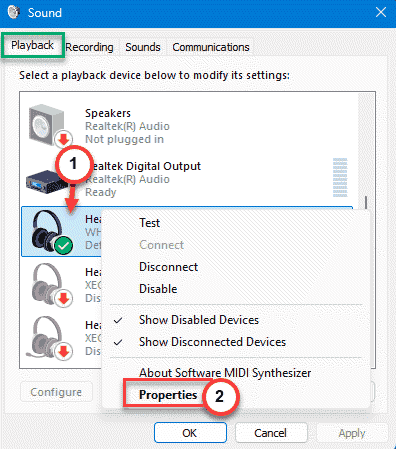
4 – Go to the Spatial sound tab.
5 – Set the dropdown to Off and click Apply first. This clears the stuck state.
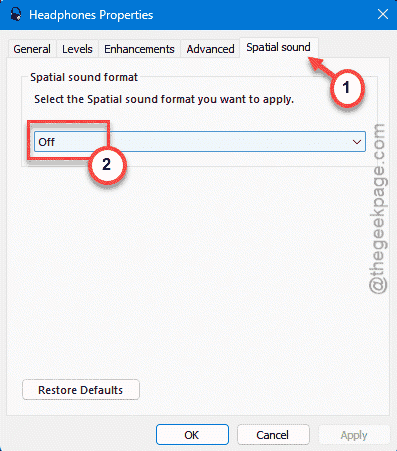
6 – Now open the dropdown again, pick Dolby Atmos or DTS:X, and click Apply.
Toggling it off and back on through the old panel makes the choice actually stick. If it still reverts after a reboot, the cause is deeper — keep going.
Fix 2 – Stop Apps From Hijacking Your Audio
Some media players and games grab total control of your sound device. When they do, they crash the Dolby or DTS hook and you snap back to Sonic. There’s a checkbox that blocks them.
1 – Press Windows + R, type mmsys.cpl, and press Enter. This opens the classic Sound panel.
2 – Right-click your active playback device and choose Properties.
3 – Click the Advanced tab.
4 – Under Exclusive Mode, uncheck Allow applications to take exclusive control of this device.
5 – Click Apply, then OK.
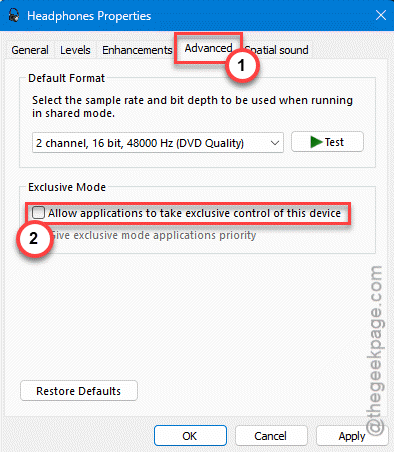
See if that works.
Fix 3 – Fix the Sample Rate and Kill Mono Audio
A format mismatch is one of the most common triggers. Spatial audio expects a specific baseline, and mono downmixing breaks it outright. Set both right and Windows stops bailing.
1 – Press Windows + I, go to Accessibility, then Audio.
2 – Make sure Mono audio is toggled Off. Spatial sound can’t run in mono.
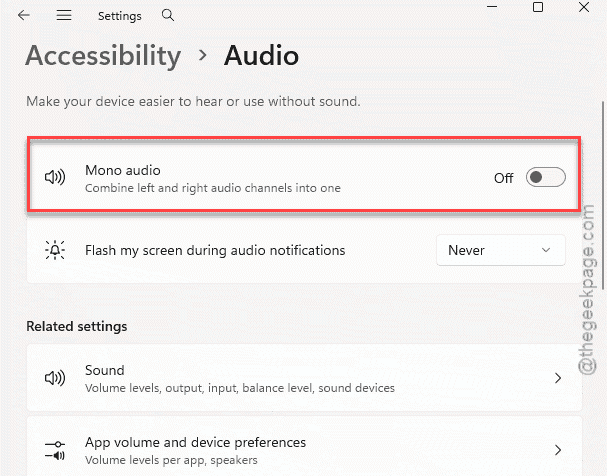
3 – Now press Windows + R, type mmsys.cpl, and press Enter.
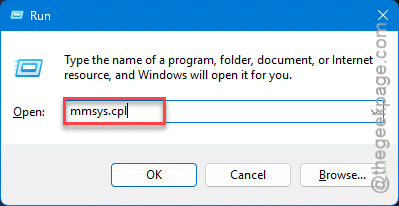
4 – Right-click your playback device, choose Properties, and open the Advanced tab.
5 – Set the Default Format to 24-bit, 48000 Hz (Studio Quality). That’s the native baseline spatial audio is built around.
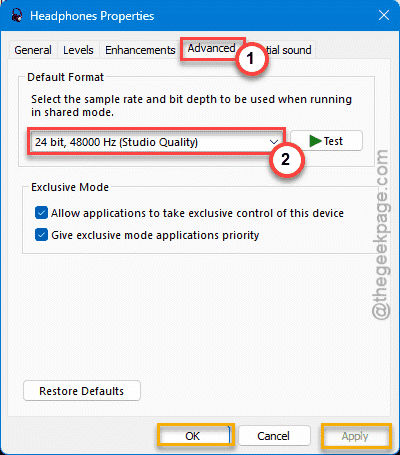
6 – Click Apply, then OK.
Fix 4 – Repair the Dolby or DTS App
If the app’s cache is corrupt, its license check fails on boot and Windows drops to Sonic every time. Repairing clears the cache without touching your settings.
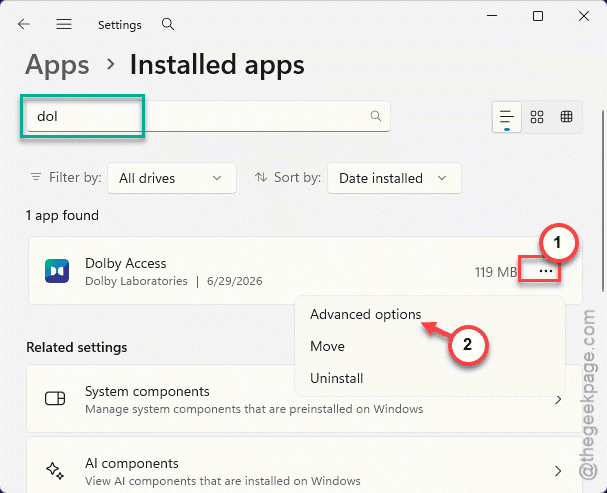
1 – Open Settings, go to Apps, then Installed apps.
2 – Find Dolby Access or DTS Sound Unbound, depending on which you use.
3 – Click the three dots (…) next to it and choose Advanced options.
4 – Scroll down and click Repair.
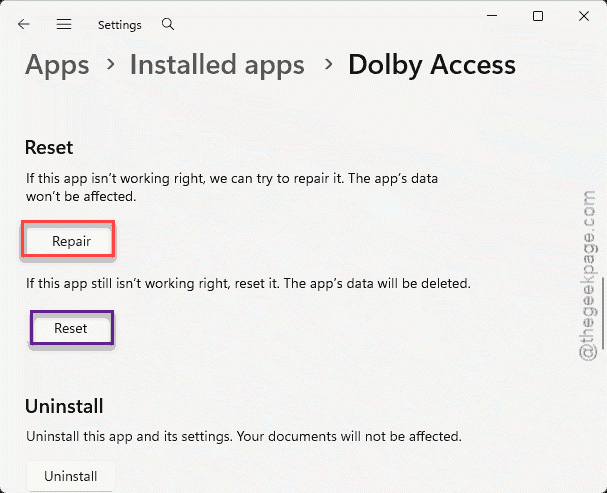
Reboot and check. Still reverting? Come back to the same screen and click Reset — that wipes the app state completely and forces a fresh license check.
Fix 5 – Swap the Generic Driver for Your Vendor’s
Here’s the one that fixes the stubborn cases. Windows’ generic “High Definition Audio Device” driver doesn’t map spatial formats properly, so the config keeps dropping. Your sound chip’s real driver does it right.
1 – Press Windows + X and click Device Manager.
2 – Expand Sound, video and game controllers.
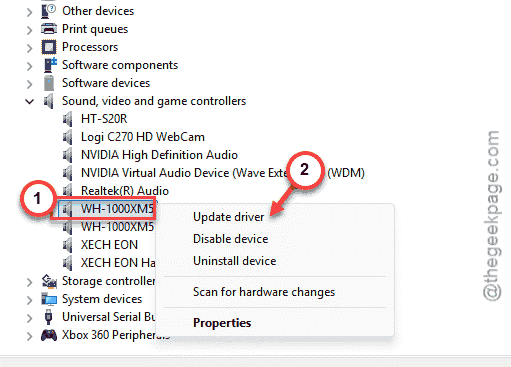
3 – Right-click your audio device (Realtek, Creative, whatever you have) and choose Update driver.
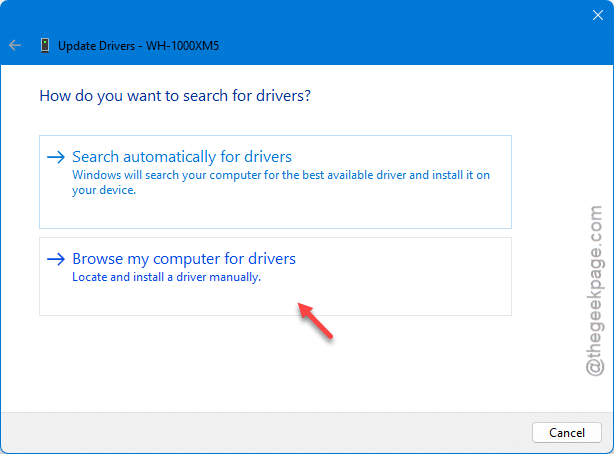
4 – Click Browse my computer for drivers.
5 – Click Let me pick from a list of available drivers on my computer.
6 – Choose the named manufacturer driver — like Realtek High Definition Audio — instead of the generic High Definition Audio Device.
7 – Click Next, let it install, and reboot.
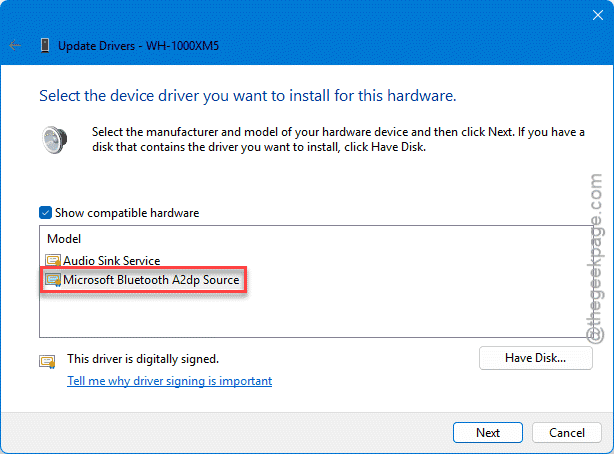
The proper driver gives spatial sound the endpoint mapping it needs, and the format finally stays put.
How to Prevent This
– Use your vendor’s audio driver, not the generic Windows one. That’s what keeps the format from drifting back.
– Leave exclusive mode unchecked. One greedy app is all it takes to undo everything.
– After a Windows update, glance at the spatial sound setting. Updates sometimes reset it to Sonic.
– Keep the Dolby or DTS app updated through the Store so its license check doesn’t choke on boot.
People Also Ask
Should I enable spatial sound or Windows Sonic?
Depends on your gear. Windows Sonic is free and works on any headphones — a solid baseline. Dolby Atmos and DTS:X cost a little but give richer, more precise positional audio, especially with supported hardware. For gaming and movies on good headphones, the paid options pull ahead. For casual listening, Sonic is plenty.
Is Windows Sonic as good as Dolby Atmos?
Close, but not quite. Both fake surround sound on stereo headphones. Sonic is the lighter, free option and sounds fine. Atmos handles object-based audio with more nuance, so footsteps and effects place more accurately. Most people can tell the difference in a game or a well-mixed film, less so with music.
Does Dolby Atmos turn on automatically?
It shouldn’t revert on its own once it’s set correctly — that behavior is the bug this article fixes. But it won’t enable itself out of the box either. You pick it manually under your playback device’s Spatial sound tab. If it keeps switching back to Sonic, a format mismatch or a corrupt app cache is usually why.