You click the Antigravity icon. And… nothing. No window, no error, no loading screen. Or maybe it flashes for half a second and dies. Either way, the IDE will not start, and you’ve got work to do.
Quick fixes ahead. One of these gets it running.
Why This Happens
Here’s the deal. Antigravity is built on the same foundation as a Chromium browser. Which means it inherits Chromium’s quirks. GPU rendering conflicts. Sandbox errors. Certificate checks that fail silently on some networks. Any one of those can kill the launch before a window ever appears.
And there’s a sneakier cause. Some people end up with two versions installed — “Antigravity” and “Antigravity IDE”. They clash. The app tries to start, trips over its twin, and quits. No error message, of course. Why would there be?
Leftover config files do it too. A broken setting from an old install just sits there, poisoning every new launch.
Fix 1 – Launch With Compatibility Flags
This works around GPU and sandbox crashes. You’re telling Antigravity to skip the parts that break.
1 – Right-click the Antigravity shortcut on your desktop.
2 – Click Properties.
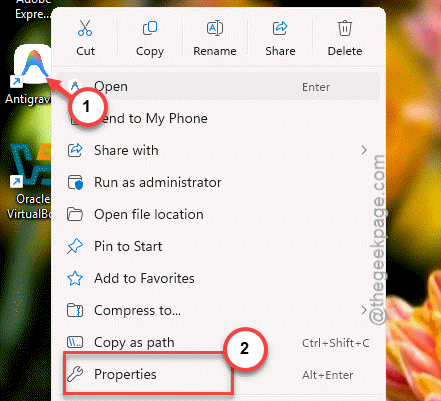
3 – Find the Target field. It shows the path to Antigravity.exe.
4 – Change the target line to this (keep the quotes, use your own username):
"C:\Users\YOUR_USERNAME\AppData\Local\Programs\antigravity\Antigravity.exe" --ignore-certificate-errors --disable-gpu --no-sandbox
5 – Click OK.
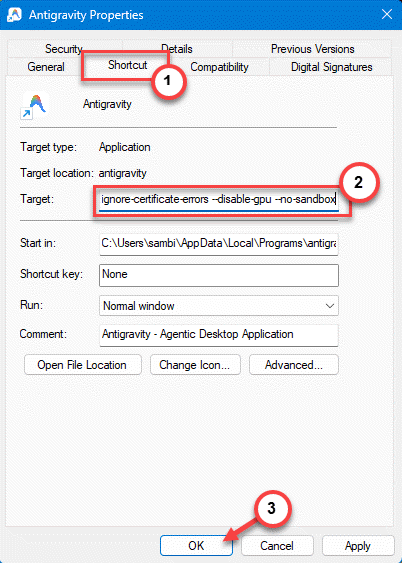
6 – Double-click the shortcut to launch.
The flags go after the closing quote, separated by spaces. And yes, it looks hacky. It is. But if the IDE opens now, you know exactly what was choking it.
Fix 2 – Remove the Duplicate “Antigravity” Install
Two similarly named apps, one broken launch. Sound familiar? Check if you have both.
1 – Press Windows + I to open Settings.
2 – Go to Apps > Installed apps.
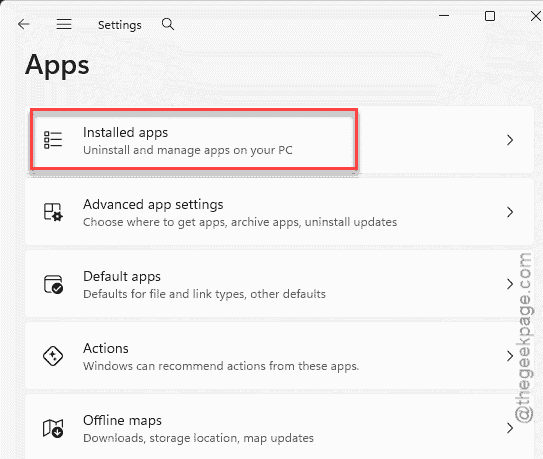
3 – Type “Antigravity” in the search box at the top. Way faster than scrolling.
4 – Look at the results. Seeing both Antigravity and Antigravity IDE? That’s your problem.
5 – Uninstall Antigravity — the plain one. Keep only Antigravity IDE.
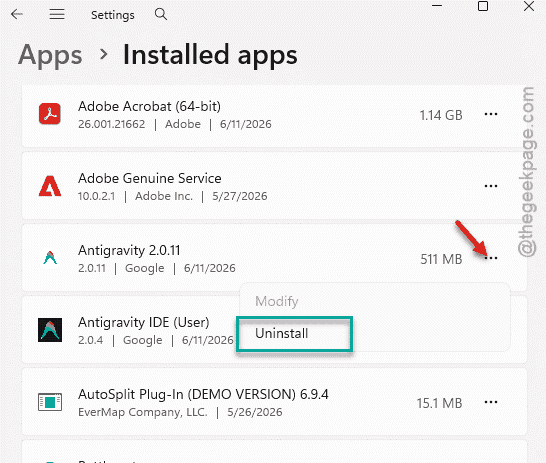
6 – Restart your PC and launch the IDE.
One user fixed this exact issue by uninstalling Antigravity and installing only Antigravity IDE. The two installs step on each other. Pick one.
Fix 3 – Clean Reinstall (Wipe the Leftovers)
The nuclear option. A normal reinstall isn’t enough here — old config folders survive uninstalls and re-poison the new copy. So you delete those too.
1 – Uninstall Antigravity IDE from Settings > Apps > Installed apps.
2 – Press Win + R to open the Run box.
3 – Type this and hit Enter.
%APPDATA%
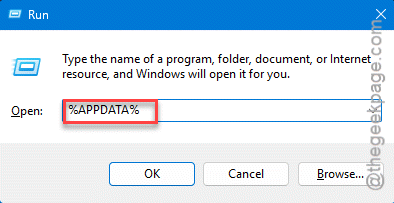
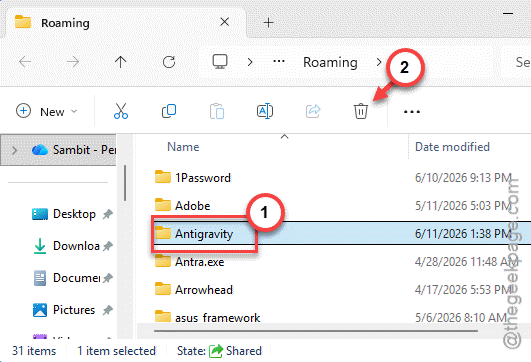
4 – Look for any Antigravity folder in there. Delete it.
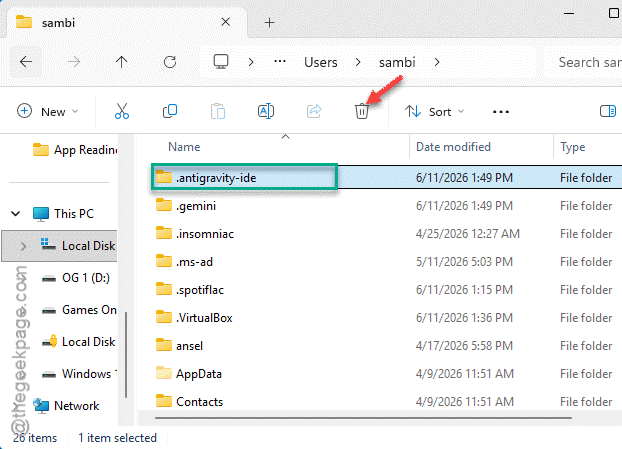
5 – Now open File Explorer and go to C:\Users\<Username>\ — your own user folder.
6 – Find the .antigravity folder (note the dot at the front) and delete it.
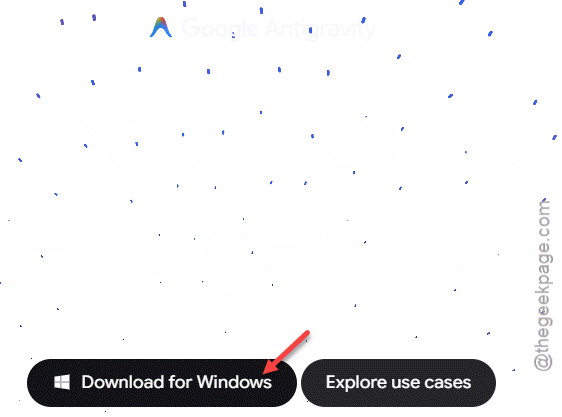
7 – Download the latest installer from the official website.
8 – Run it and launch the IDE.
Fresh install, zero leftovers. Whatever broken setting was blocking the launch is gone now.
How to Prevent This
- Install only one version. Antigravity IDE, nothing else. Two installs guarantee weirdness.
- Download installers from the official site only. Mirrors lag behind and ship broken builds.
- When an update misbehaves, do the clean reinstall with folder deletion. Plain reinstalls keep the corrupted config. Every time.
- Keep your GPU drivers updated — Chromium-based apps lean on them hard.
People Also Ask
Why is the Antigravity browser not working?
The browser piece runs on Chromium, so the usual Chromium suspects apply — GPU rendering crashes, sandbox failures, certificate errors on strict networks. Launching with the –disable-gpu and –no-sandbox flags usually reveals which one it is. A clean reinstall handles the rest.
Is Google Antigravity available for Windows 11?
Yes. There’s a Windows installer on the official Antigravity website, and it runs fine on Windows 11. Just make sure you install Antigravity IDE only — having both “Antigravity” and “Antigravity IDE” on the same machine causes launch conflicts.
How do I fix a program not opening on Windows 11?
Start simple. Restart the PC, then try launching again. Still dead? Reinstall the app — and delete its leftover folders in %APPDATA% before installing fresh. Old configuration files survive normal uninstalls, and they’re behind more broken launches than people think.