You go to update Windows 11 to 25H2. And it just won’t. The button’s missing, or the update never shows, or the Installation Assistant sits there doing nothing.
So you’re stuck on an older version. With no clear reason why. Annoying. Let’s figure out what’s blocking it.
Why This Happens
Here’s the deal. Windows runs a quiet eligibility check before it’ll offer a feature update. Fail it, and the update silently vanishes.
And a broken driver can wreck the upgrade mid-flight. A bad Realtek card reader driver is a known offender — it rolls the whole thing back. Sometimes it’s just a corrupted update cache, too.
So we check eligibility, clear the update components, and if all else fails, force the upgrade with the ISO. One route gets you there.
Fix 1 – Check Hardware Eligibility First
Before anything else, find out whether your PC even qualifies. No point fighting the update if Microsoft’s blocking it on purpose.
1 – Download the official PC Health Check app from Microsoft.
2 – Install and open it.
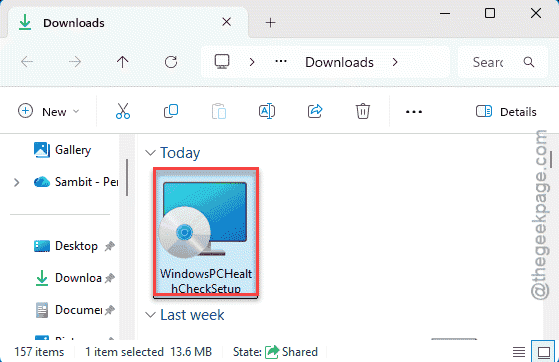
3 – Click Check now under the Windows 11 section.
4 – Read the result.
If it passes, great — move on to the next fixes. If it fails, your PC is on unsupported hardware, and over-the-air updates are blocked. Your options there are staying put or doing a clean install. At least now you know which problem you’ve got.
Fix 2 – Reset the Windows Update Components
A corrupted update cache stops 25H2 cold. Clearing it is the most common fix for an update that refuses to appear.
1 – Download this Windows Update reset batch script (the well-known one wipes the update cache automatically).
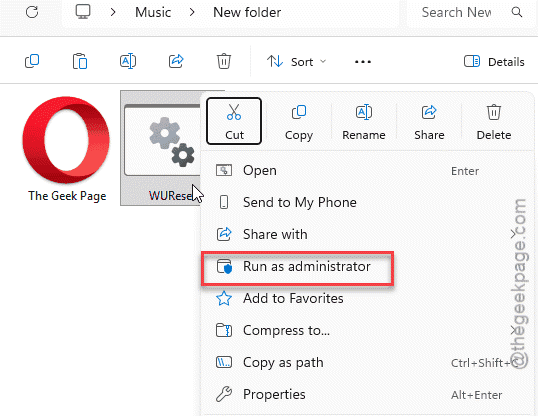
2 – Right-click the script file and choose Run as administrator.
3 – Type Y if it asks to stop dependent services.
4 – Let it run — it stops the services, clears the cache, and restarts them.
5 – Press any key to reboot when prompted.
6 – Go back to Windows Update and click Check for updates.
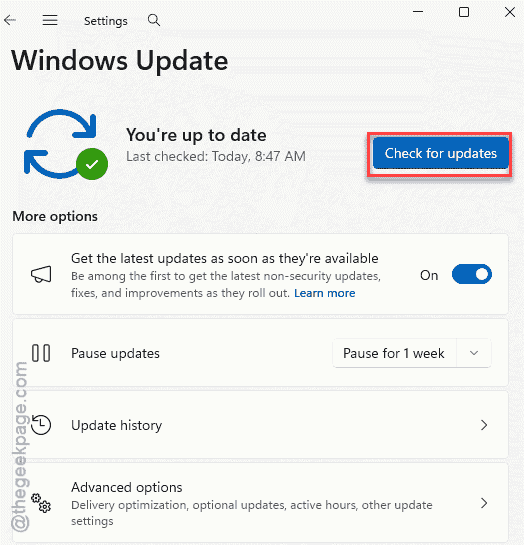
So check again before trying anything heavier.
Fix 3 – Use the Windows 11 Installation Assistant
You can force the 25H2 update using the Windows 11 Installation Assistant.
1 – Go to Microsoft’s official Download Windows 11 page.
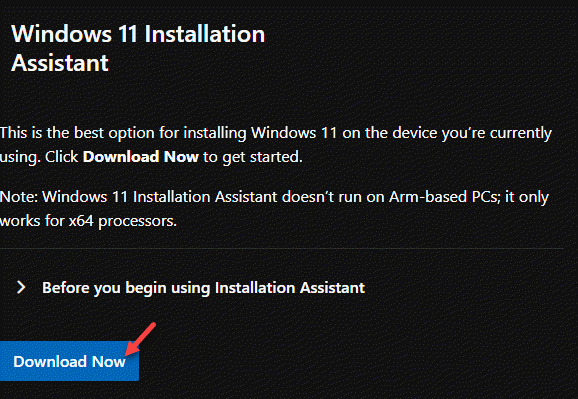
2 – Under Windows 11 Installation Assistant, click Download now.
3 – Find the downloaded file (check your Downloads folder) and run it.
4 – Click Yes on the UAC prompt.
5 – Click Accept and install to push the upgrade to 25H2 over your current system.
Delete any old Assistant file you’ve still got first — old copies expire and misbehave. And only ever download it from Microsoft’s real site.
Fix 4 – Find and Remove the Blocking Driver
If the upgrade keeps rolling back, a bad driver is usually the cause. SetupDiag reads the logs and names it.
1 – Download the latest SetupDiag from Microsoft. Tap the Download the latest version of SetUp Diag to download the latest version of the tool.
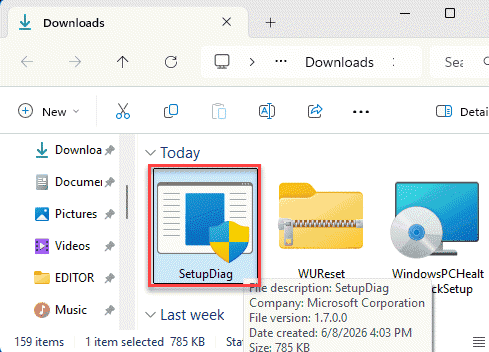
2 – Open Command Prompt as administrator and run it, pointing it at the upgrade logs:
SetupDiag.exe /Output:C:\SetupDiag\Results.txt /LogsPath:C:\$WINDOWS.~BT\Sources\Panther
3 – Open the results file and look for the named blocker. A common one is the Realtek card reader driver, rtsbastor.inf.
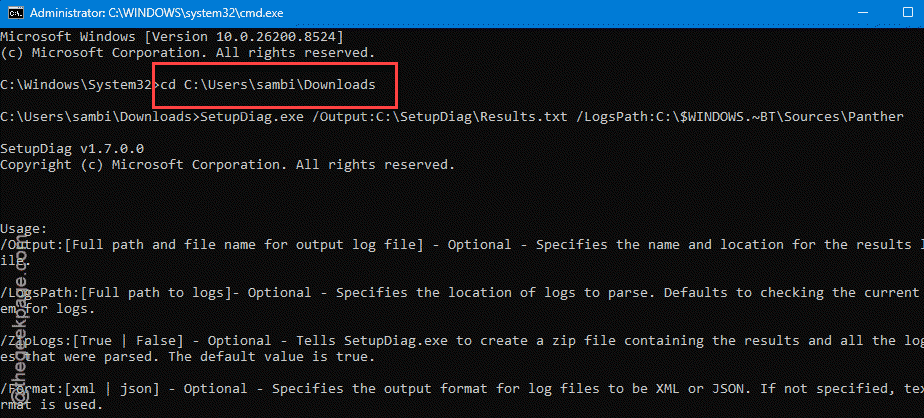
4 – Find its published name:
pnputil /enum-drivers | findstr /i rtsbastor
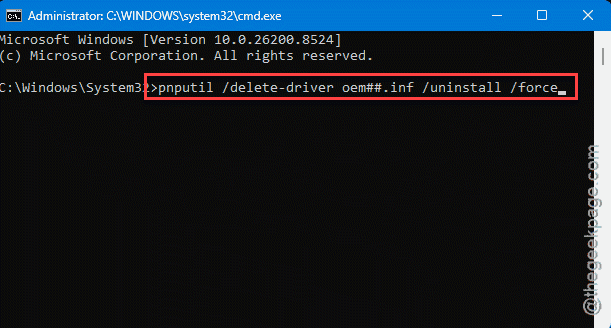
5 – Remove it (replace oem##.inf with the number you found):
pnputil /delete-driver oem##.inf /uninstall /force
6 – Restart and try the upgrade again.
With the bad driver gone, the upgrade usually sails through.
Fix 5 – Force the Upgrade With the ISO
Last resort, and the most reliable when everything else stalls.
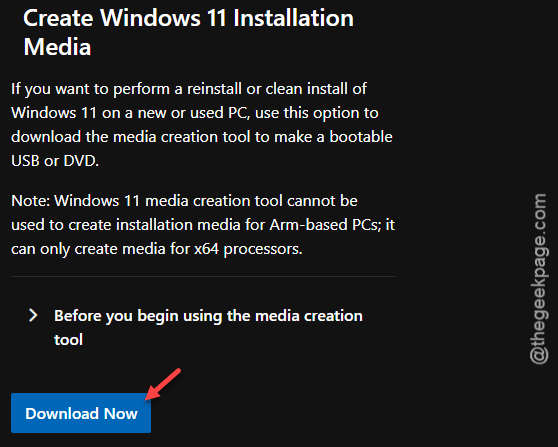
1 – On Microsoft’s Download Windows 11 page, scroll to Download Windows 11 Disk Image (ISO), pick the multi-edition ISO, choose your language, and download it.
2 – Stay inside your current Windows — don’t boot from a USB.
3 – Then, right-click the ISO file and choose Mount.
4 – open the new drive that appears, and run setup.exe.
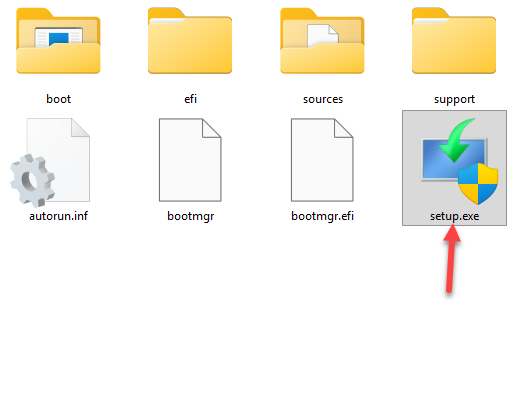
5 – Follow the prompts, and make sure Keep personal files and apps is selected before you click Install.
Check whether the installation is successful or not.
How to Prevent This
– Run PC Health Check before you fight an update. It tells you in one click whether you’re even eligible.
– Keep drivers current, especially card readers and storage. A single bad driver rolls back the whole upgrade.
– Always grab the Assistant and ISO from Microsoft directly. Never a third-party mirror. Old copies expire too.
– If updates keep failing, reset the update components early. A corrupted cache is the silent, common culprit.
People Also Ask
Why is the Windows 11 update not showing up?
Windows always rolls out these update is phased fashion. But, elligble users can manually upgrade to the latest version (25H2 or 26H2) manually from the official Microsoft webpage.
Where can I found Windows 11 Update Assistant?
Always get the Update Assistant from the official Microsoft webpage .Not from a third-party site. Delete any old copy you’ve downloaded before, since expired versions often fail to run or hide the install button.