You double-click a photo. And up pops File system error (-2147219196). That’s it. No picture.
Just an ugly number and a dead app. So you try again. Same thing.
Why This Happens
Short version: the Photos app is broken, not your photos. The error code looks scary. It just means Windows can’t read part of the app’s own files.
Why does it break? A few reasons. A bad Windows update is the usual one. Sometimes the app’s files get corrupted mid-update. And sometimes a system upgrade leaves the whole thing half-installed.
The Photos app is a UWP app — one of those built-in Store apps. And UWP apps are weirdly fragile. One missing file and the whole thing won’t open. No warning. Just that error.
But here’s the good news. Your actual pictures are fine. Sitting safe in your folders. So we just fix the viewer.
Fix 1 – Reset the Photos App
This fixes about 85% of UWP app problems. No exaggeration. It clears the app’s broken data and starts it fresh. Try this first.
1 – Press Windows + I to open Settings.
2 – Click Apps in the left sidebar.
3 – Click Installed apps (or Apps & features on some builds).
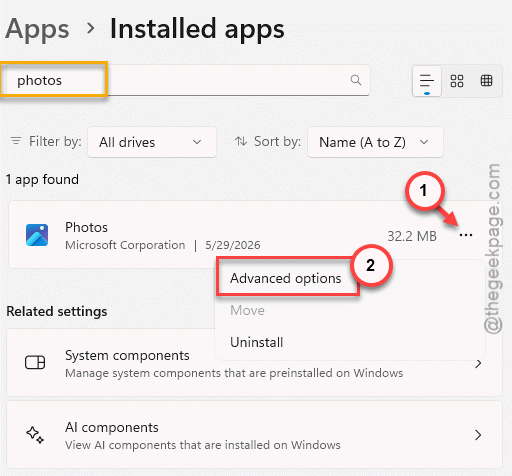
4 – Type ‘Photos’ in the search box at the top. Way faster than scrolling.
5 – Click the three dots (⋯) next to Microsoft Photos and choose Advanced options.
6 – Scroll down to the Reset section.
7 – Click Repair first. It tries to fix the app without wiping anything. Worth a shot before the nuclear option.
8 – Still broken? Click Reset right below it. Confirm when it asks.
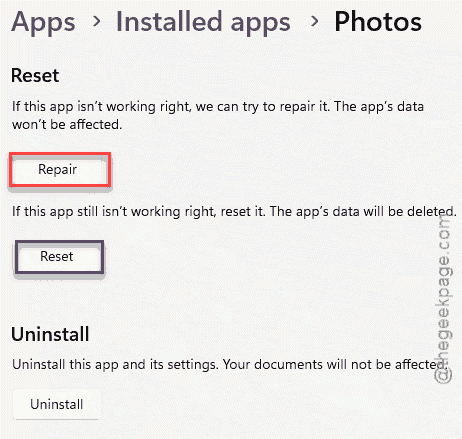
And that’s usually it. Reset wipes the app’s settings and rebuilds it. Won’t touch your photos (they’re stored separately). Give it a minute, then open a picture.
Fix 2 – Reinstall Photos With PowerShell
Reset didn’t do it? Time to fully uninstall and reinstall. Sounds drastic. It’s not — takes about two minutes.
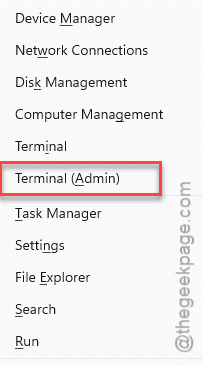
1 – Right-click the Start button.
2 – Choose Terminal (Admin) or PowerShell (Admin) from the menu.
3 – Click Yes on the UAC prompt.
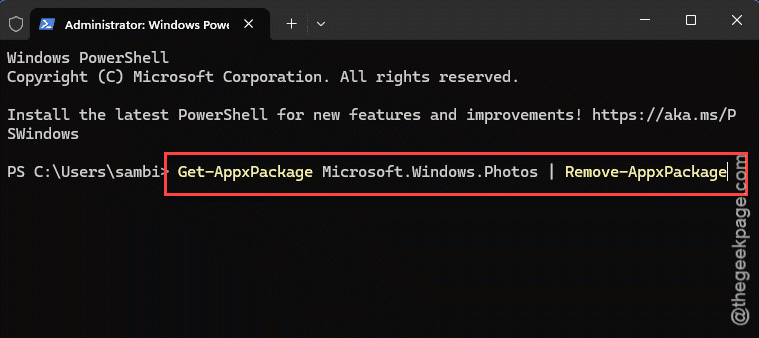
4 – Paste this command and press Enter:
Get-AppxPackage Microsoft.Windows.Photos | Remove-AppxPackage
5 – That rips out the broken app. The screen might flash. Normal.
6 – Now open the Microsoft Store.
7 – Search for Microsoft Photos.
8 – Click Get or Install for a clean copy.
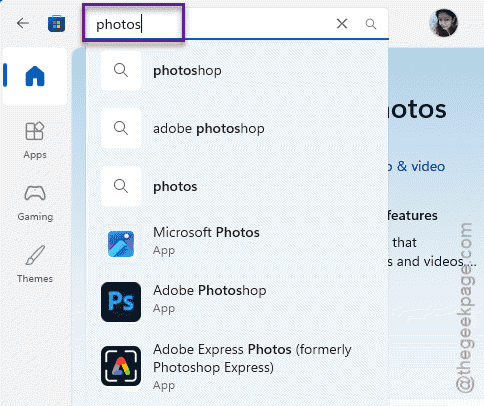
A fresh install means fresh files. No corruption carried over. And honestly, this should’ve fixed itself during the update — but here we are.
Fix 3 – Re-Register All Built-In Apps
Photos not the only app acting up? Maybe Calculator’s dead too, or Movies & TV. Then it’s a system-wide UWP problem. One command re-registers everything at once.
1 – Open Terminal (Admin) again — right-click Start, pick it from the list.
2 – Paste this whole thing and hit Enter:
Get-AppXPackage | Foreach {Add-AppxPackage -DisableDevelopmentMode -Register "$($_.InstallLocation)\AppXManifest.xml"}
3 – Let it run. You’ll see a wall of text scroll by. Some red error lines are normal — ignore them.
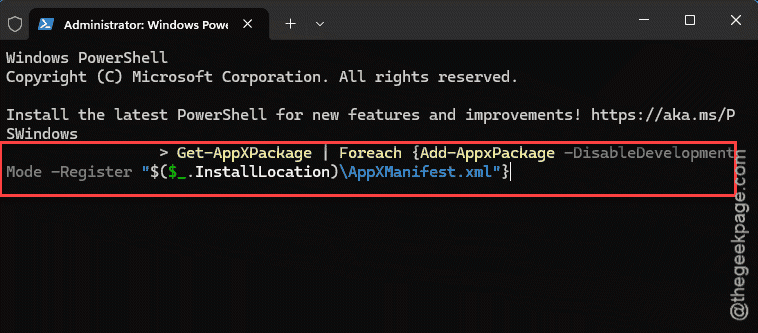
4 – Wait for it to finish and the prompt to come back.
5 – Restart your PC.
This re-registers every built-in app, repairing any missing or damaged pieces Photos needs. It’s heavy-handed (it touches all of them), but it works when a single app fix won’t.
Fix 4 – Repair Windows System Files
If the error keeps coming back no matter what, the rot might be deeper. In Windows itself. Two built-in scans clean that up.
1 – Open Terminal (Admin) one more time.
2 – Type this and press Enter:
DISM /Online /Cleanup-Image /RestoreHealth
3 – Wait. This one’s slow — could sit at 20% for a while. That’s normal, don’t kill it.
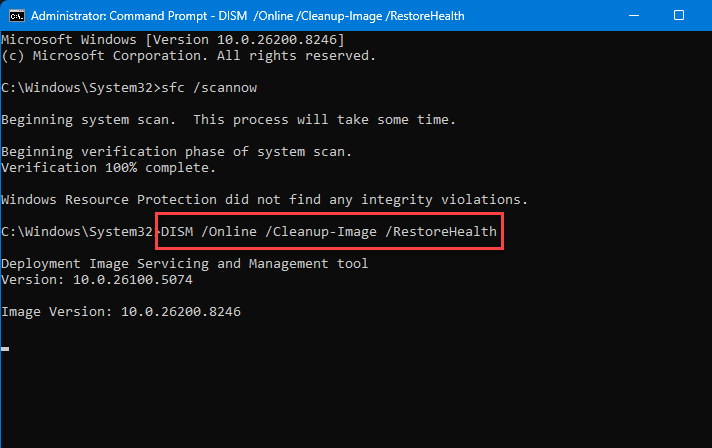
4 – When it’s done, type this and press Enter:
sfc /scannow
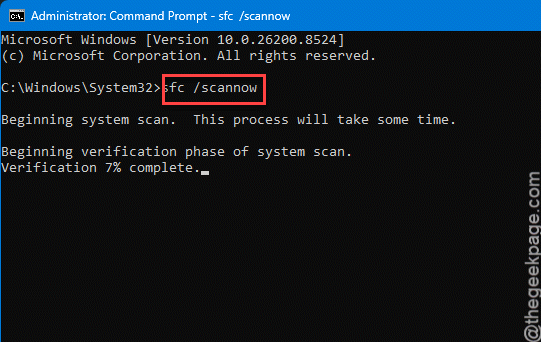
5 – Let it finish the scan. It’ll repair any corrupted system files it finds.
6 – Restart and try Photos again.
Why both? DISM fixes the underlying Windows image. SFC then repairs the individual files using that fixed image. Run them in that order. Takes a while, but it clears out the deep corruption that breaks apps.
Fix 5 – Just Use a Different Photo Viewer
Don’t want to fight with it? Fair. Quick one. Open the Microsoft Store, search for a viewer like Pictureflect or IrfanView, and install it. Then right-click any photo, choose Open with > Choose another app, pick your new viewer, and tick Always use this app. Done. The old Photos app stays broken, but you’ll never have to look at it again. Sometimes the best fix is the detour.
How to Prevent This
– Update your Store apps now and then. Open the Store, hit Library, click Get updates. Takes two seconds.
– If one built-in app breaks, run the re-register command early. It heads off the rest before they go too.
– Keep a backup photo viewer installed. Always. So a broken Photos app never leaves you stuck.
People Also Ask
What is file system error -2147219196?
The app’s own files got corrupted — usually from a bad or interrupted update. The number looks alarming, but it just means Photos can’t load properly. Resetting or reinstalling the app clears it almost every time.
Does resetting the Photos app delete my pictures?
Nope. Your photos live in your folders — Pictures, OneDrive, wherever you saved them. Resetting only wipes the app’s settings and cached data, then rebuilds it fresh. Your actual images are completely untouched.
How do I fix file system error -2147219194 too?
Same playbook. That code hits other built-in apps the same way — corrupted UWP files. Reset the affected app first through Settings. If that flops, re-register all built-in apps with the PowerShell command, then run DISM and SFC. The fixes here work across those error numbers.