Your internet just dies. The connection icon shows that little warning triangle. And nothing loads.
You check — your PC never got an IP address. So it’s sitting on the network with no way to talk to anything. Frustrating. Here’s how to get it back.
Why This Happens
Here’s the deal. Your router hands out IP addresses automatically. That’s DHCP. When it works, you never think about it.
But sometimes the handshake fails. Your PC asks for an address. And nothing comes back. Or it grabs a weird 169.254.x.x self-assigned one — which is Windows saying “I gave up, here’s a placeholder.”
Why? A few things. The DHCP Client service might be stopped. Your network settings could be set to a fixed IP by mistake. Or the router’s address pool is just full or glitchy. Annoying, but each one’s fixable.
So we’ll restart the hardware, check the settings, and reset the network stack. One of these does it.
Fix 1 – Restart Your Router and Modem
But it clears a stuck DHCP pool more often than anything else. Start here.
1 – Unplug the power from your router and modem.
2 – Wait a full 30 seconds. Don’t rush it — the capacitors need to drain.
3 – Plug them back in.
4 – Let the lights settle.
5 – Restart your PC.
And that fixes it surprisingly often. If your internet’s back? Done. If not, keep going.
Fix 2 – Make Sure You’re Set to Get an IP Automatically
Someone may have set a manual IP at some point.
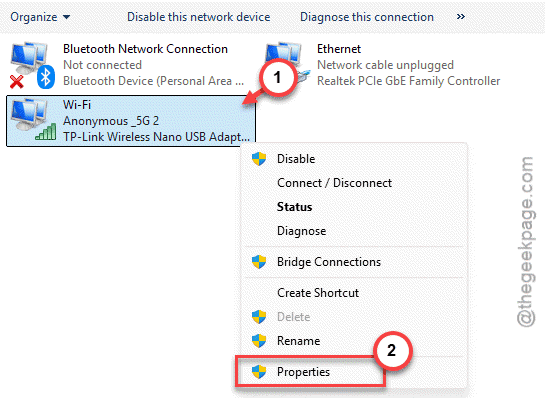
1 – At first, hit the Windows + R. Then, type ncpa.cpl and press Enter.
2 – Now, right-click your active connection (Wi-Fi or Ethernet), and choose Properties.
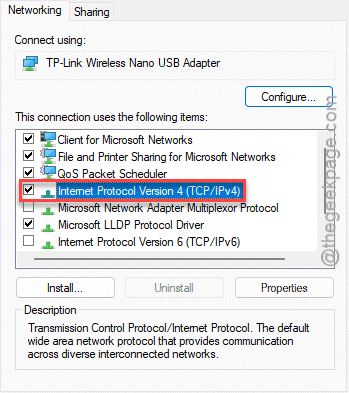
3 – Double-click Internet Protocol Version 4 (TCP/IPv4).
4 – Select Obtain an IP address automatically.
5 – Select Obtain DNS server address automatically too.
6 – Click OK on both windows.
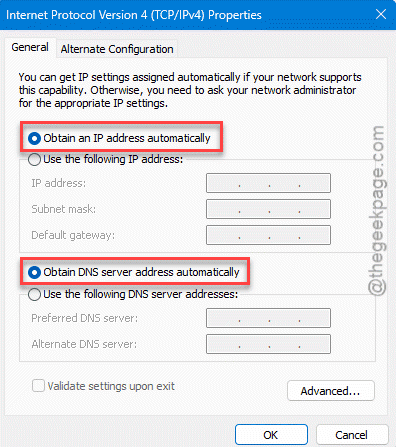
That hands control back to DHCP. If it was on a stale manual address, this alone might fix everything.
Fix 3 – Force-Start the DHCP Client Service
If the service that handles all this is stopped, nothing works.
1 – Press Windows + R, type services.msc, and press Enter.
2 – Scroll down to DHCP Client.
3 – Look at the Status column. It should say Running.
4 – If it’s blank or stopped, right-click it and choose Start.
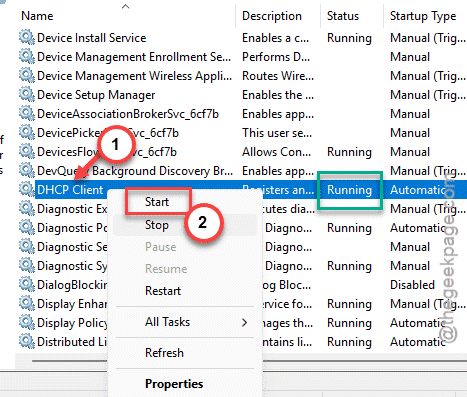
5 – Then, right-click the service, choose Properties.
6 – Finally, switch it to Startup type to Automatic and Click OK.
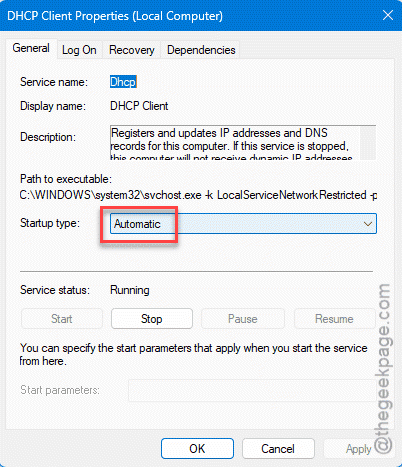
Now it’ll start itself every boot. No more silent failures from a dead service.
Fix 4 – Release and Renew Your IP
Quick command-line one.
1 – Open Command Prompt as administrator. Then, write CMD in search box, right-click, Run as administrator.
2 – Run these one at a time, pressing Enter after each:
ipconfig /release
ipconfig /flushdns
ipconfig /renew
3 – Wait for /renew to grab a new address.
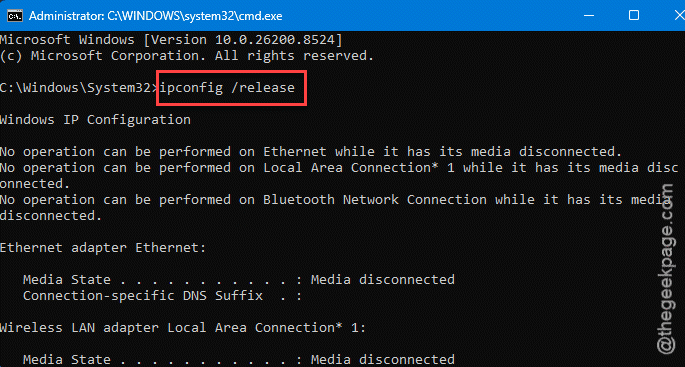
See if this works out for you.
Fix 5 – Reset the Network Stack
Still nothing? Nuclear option. This rebuilds Windows’ networking from the ground up.
1 – Open Command Prompt as administrator again.
2 – Run this and press Enter:
netsh winsock reset
3 – Then run this and press Enter:
netsh int ip reset
4 – Restart your PC. This part isn’t optional — the reset only takes hold after a reboot.
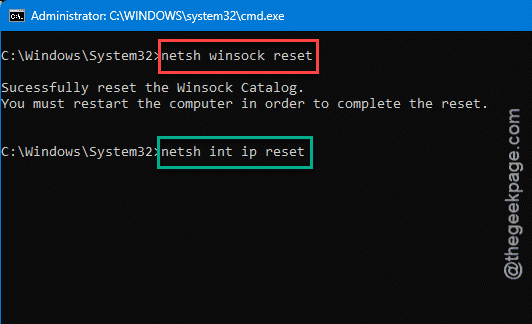
This wipes corrupted socket and IP configuration that the smaller fixes can’t reach.
Fix 6 – Update or Roll Back the Network Adapter Driver
Sometimes the latest Windows Update can contradict with the network adapter driver version.
1 – Right-click Start and open Device Manager.
2 – Expand Network adapters.
3 – Then, right-click your Wi-Fi or Ethernet adapter in the list and choose Update driver.
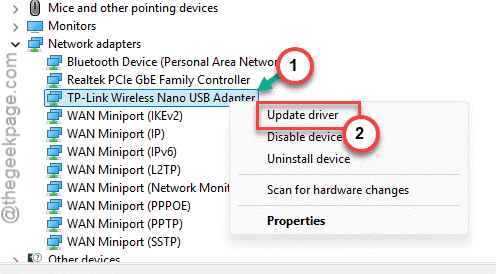
4 – Choose the Search automatically for the best driver option.
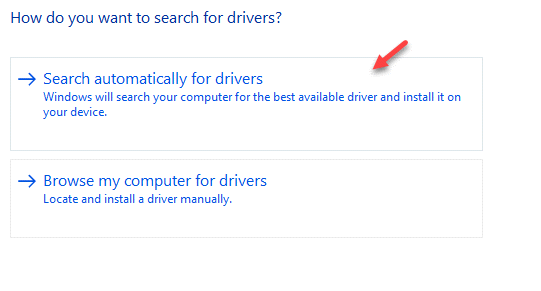
Check if this works.
How to Prevent This
– Keep the DHCP Client service running in the Automatic startup mode.
– Don’t forget to restart your router once in a while. It clears the address pool before it clogs.
People Also Ask
What causes DHCP failure?
Usually a broken handshake between your PC and router. The DHCP Client service might be stopped, your settings could be locked to a manual IP, or the router’s address pool is full or glitchy.
What is DHCP with auto IP?
It is when a network setting of your device automatically fetches its IP address and configuration from a network server (DHCP). It skips the tiring process of IP address details, subnet masks. It makes the Wi-Fi plug and play.