You installed a new M.2 SSD. Booted up. Opened File Explorer and… it’s not there. No new drive, no popup, nothing. Just your old drives staring back at you.
The drive is almost certainly fine. It’s probably just invisible, not dead.
Why This Happens
A new SSD may not show up in File Explorer by default. Sounds broken, but it’s normal. New drives ship blank — no partition, no drive letter. Windows sees the hardware just fine. It just won’t display the drive until you format it. Nobody tells you this when you buy one.
But sometimes the problem goes deeper. A loose drive that isn’t seated all the way. A motherboard slot that quietly doesn’t support your drive’s protocol. Or this annoying one: some boards disable SATA ports or PCIe slots the moment you populate a certain M.2 slot. It’s in the manual. Who reads the manual?
And on AMD systems, a RAID driver can hijack the drive so Windows can’t see it properly. Weird, but common.
Fix 1 – Format the Drive in Disk Management
If Windows detects the drive but File Explorer doesn’t show it, this is the fix. Takes two minutes.
1 – Press Win + R, type diskmgmt.msc, and press Enter.
2 – If a prompt asks you to initialize the disk, do it — choose GPT.
3 – Find your new drive in the list at the bottom. It’ll show a black bar labeled Unallocated.
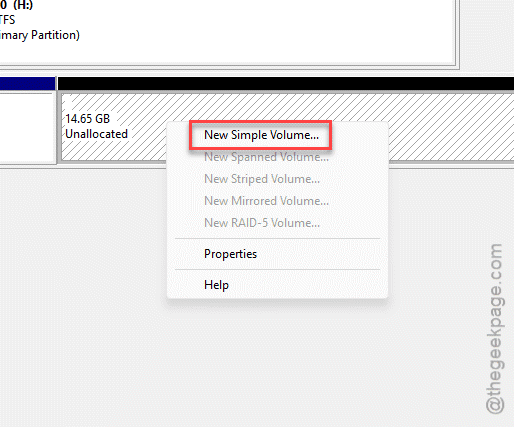
4 – Right-click that unallocated space and select New Simple Volume.
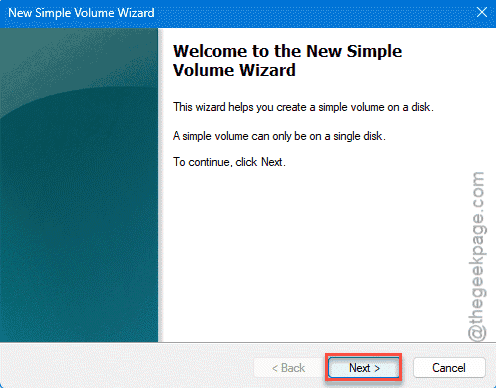
5 – Click Next through the prompts. The defaults are fine.
6 – Let it format and assign a drive letter.
Done. Check File Explorer — the drive should be sitting there now, ready to use.
Fix 2 – Re-Seat the Drive
No drive in Disk Management at all? Could be a connection problem. M.2 slots are picky about seating.
1 – Shut down the PC completely and unplug the power.
2 – Open the case.
3 – Remove the M.2 SSD entirely — unscrew it, slide it out of the slot.
4 – Re-seat it firmly. It goes in at an angle, then presses flat. You’ll feel it click into the slot.
5 – Screw it back down and boot up.
Got a SATA drive acting up instead? Check that both the SATA data cable and the power cable are tightly plugged in. Cables work loose more often than you’d expect. (Especially after moving the PC.)
Fix 3 – Check Your Motherboard’s Limits
This one stings because nothing is actually broken. The board just has rules.
Two things to verify:
- Does your M.2 slot support your drive’s protocol? Some slots are NVMe only. Some are SATA only. Put the wrong drive type in and it simply won’t appear. Check your motherboard manual for which slot supports what.
- Is the slot stealing lanes from something else? Then there are some motherboards can disable specific SATA ports or PCIe slots when a particular M.2 slot is populated. So your new SSD might work — while knocking another drive offline. Or the other way around.
The manual sounds boring, I know. But five minutes there beats two hours of reinstalling drivers that were never the problem.
Fix 4 – Check the BIOS
If Windows can’t see the drive, find out whether the motherboard can.
1 – Restart your PC.
2 – Spam Delete or F2 while it boots to enter BIOS.
3 – Find the Storage section.
4 – Look for your drive in the list.
Drive shows up in BIOS? Then the hardware is fine — go back to Fix 1 and format it. Drive missing here too? Update your motherboard BIOS first.
Older firmware sometimes can’t recognize newer SSDs. Still nothing after the update? Test the drive in a different slot, or in another PC. If no machine sees it, the drive itself is faulty. Time for an RMA.
Fix 5 – Swap the AMD-RAID Driver for the Standard NVMe Controller
AMD system? This fix has saved a lot of people. A leftover RAID driver grabs the drive and Windows never sees it.
1 – Right-click Start and select Device Manager.
2 – Expand Storage Controllers.
3 – Find AMD-RAID Bottom Device. Right-click it and select Properties.
4 – Go to the Driver tab and click Update Driver.
5 – Choose Browse my computer for drivers.
6 – Click Let me pick from a list of available drivers on my computer.
7 – Select Standard NVM Express Controller and click Next.
And that’s it. One user reported everything started working within two seconds of swapping the driver. No restart, no reinstall. The RAID layer was the whole problem.
How to Prevent This
- Check the motherboard manual before buying an M.2 drive. Match the slot’s protocol — NVMe vs SATA — to the drive. Saves a return shipment.
- Initialize and format new drives right after installing them. Disk Management, GPT, simple volume. Make it a habit.
- Keep your BIOS reasonably current. Not bleeding-edge, just not three years stale.
- Skip the RAID drivers unless you genuinely run RAID. The standard NVMe controller is cleaner.
People Also Ask
Why is Windows 11 not detecting my NVMe SSD?
Usually the drive just isn’t initialized — open Disk Management and look for unallocated space. If it’s not there either, check the BIOS. A drive missing from BIOS points to seating, slot compatibility, or outdated firmware.
How do I fix an M.2 SSD that’s not detected?
Work from the bottom up. Re-seat the drive first. Then check BIOS — visible there means software, so format it in Disk Management.
How do I activate an M.2 SSD in BIOS?
There’s usually no “activate” switch — if the slot works and the drive is seated, it appears in the Storage section automatically. What you can do is check that the slot isn’t disabled or set to the wrong mode, and update the BIOS if a new drive isn’t recognized.