You hit F5 to run your project. The browser opens. And then — nothing. “Unable to connect to web server IIS Express.” Or the page loads once, then drops the second you refresh.
IIS Express, if you’re new to it, is the small local web server Visual Studio spins up to run your site while you build. When it flakes out on localhost, dev grinds to a halt. Painful.
Why This Happens
It usually comes down to one thing. Your PC can’t agree with itself on what “localhost” means.
Localhost is just your computer’s nickname for itself. But it can point two ways. The newer style is IPv6 — that’s ::1. Both mean “this machine,” but they’re different addresses.
Here’s the snag. On Windows 11, when you ping localhost, it often answers as IPv6 (::1) now. But IIS Express might only be listening on the IPv4 side. So your browser knocks on the IPv6 door, and nobody’s home. Connection dropped.
And sometimes it’s not the address at all. It’s a stale config file Visual Studio hangs onto, or a port that another app quietly grabbed.
Fix 1 – Force IPv4 by Using 127.0.0.1
This is the fastest test for the IPv6 problem. That skips the ::1 confusion entirely.
1 – Look at the URL in your browser when the app launches. It’ll say something like https://localhost:44321.
2 – Swap the word localhost for 127.0.0.1, keeping the same port. So it becomes
https://127.0.0.1:44321
3 – Press Enter and see if the page loads.
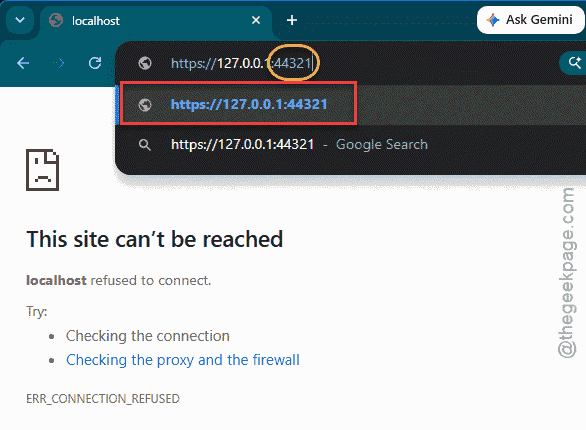
If it works now, you’ve confirmed it — IPv6 was the troublemaker. This is a fine workaround on its own. But if you want localhost itself to behave, the port and config fixes below get you the rest of the way.
Fix 2 – Restart Visual Studio
A clean restart often clears a dropped binding.
Close Visual Studio completely — not just the tab, the whole thing. Wait a couple seconds. Reopen your project and run it again. Sometimes that’s the entire fix.
Fix 3 – Delete the Hidden .vs Folder
Visual Studio keeps a hidden folder called .vs in your solution. It caches a bunch of settings — including the IIS Express config. When that cache goes bad, connections drop. Deleting it forces a clean rebuild of those settings.
Don’t worry, this is safe. Visual Studio recreates the folder automatically next time you open the project.
1 – Close Visual Studio first. The folder is locked while it’s open.
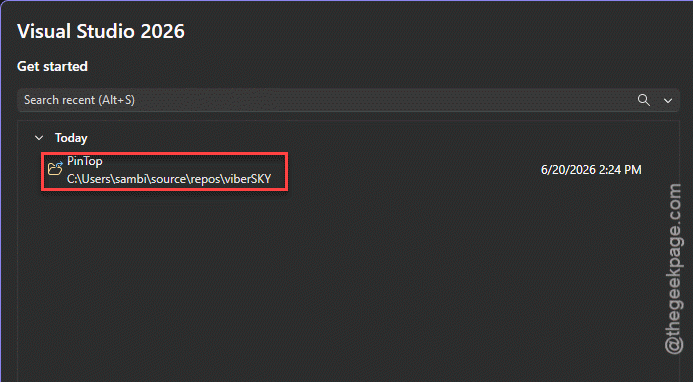
2 – Open File Explorer and go to your project’s root solution folder — the one with the .sln file in it.
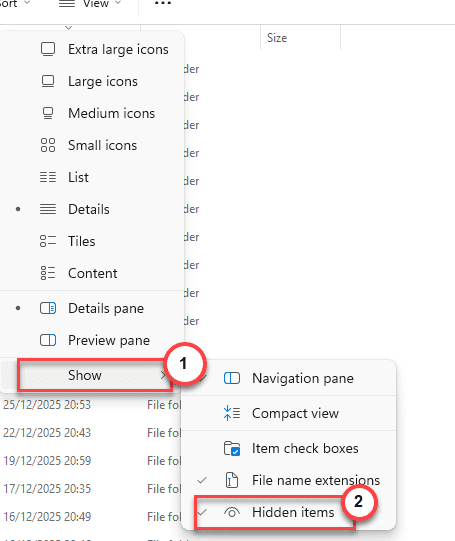
3 – Click the View menu, then turn on Hidden items so the .vs folder shows up.
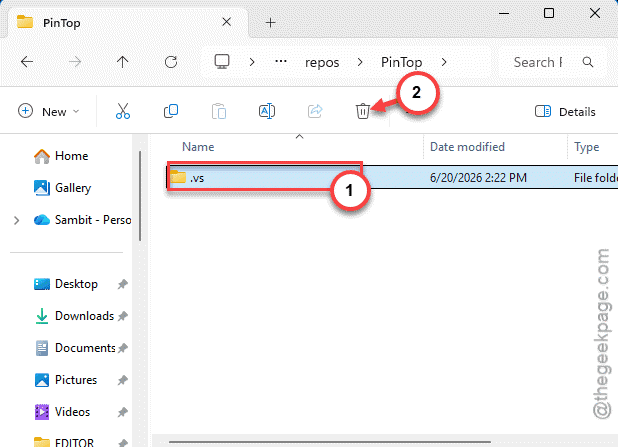
4 – Delete the .vs folder.
5 – Reopen your project. Visual Studio rebuilds the folder and a fresh IIS Express config with it.
Fix 4 – Change the IIS Express Port Number
If another app already grabbed the port IIS Express wants, the bind fails and connections drop. Moving to a fresh port sidesteps the clash. Where you change it depends on your project type.
For a .NET Core project:
1 – In Solution Explorer, expand the Properties folder and open launchSettings.json.
2 – Find the iisSettings block.
3 – Change the SSL port to a new number between 44300 and 44399 — one you’re not already using.
4 – Save the file and run the project again.
For an older MVC web app:
1 – Right-click the project in Solution Explorer and open its Properties.
2 – Go to the Web tab and find the IIS Express section.
3 – Change the port number there, then save.
Fix 5 – Switch Your Debugging Browser
Some browsers handle the localhost SSL certificate differently, and one will drop the connection while another sails through. Quick thing to rule out.
1 – Look at the top toolbar in Visual Studio, next to the green run arrow. There’s a browser name with a small dropdown.
2 – Click the dropdown and pick a different browser — if it’s failing on Firefox, try Chrome or Edge.
3 – Run the project again with the new browser selected.
Fix 6 – Clean and Rebuild the Solution
A half-broken build can leave the server in a weird state. Clearing it out and building fresh fixes that.
1 – Click the Build menu at the top.
2 – Click Clean Solution and let it finish.
3 – Open the Build menu again and click Rebuild Solution.
4 – Run the project once the rebuild completes.
How to Prevent This
– Pick a unique IIS Express port per project. No two projects fighting over the same number means fewer dropped binds.
– Delete the .vs folder whenever Visual Studio starts acting strange. It’s a safe reset and clears a lot of weird caching bugs.
– Close Visual Studio fully before you shut down. Letting it exit cleanly keeps the IIS Express config from getting corrupted.
People Also Ask
How to fix unable to connect to web server IIS Express?
Restart Visual Studio first — IIS Express gets stuck often. If that fails, close it and delete the hidden .vs folder in your solution root; it rebuilds on its own.
How to change IIS Express to local IIS?
You just have to right-click in the Solution Explorer and use the debug function. You’ll usually need to run Visual Studio as administrator and have the full IIS feature turned on in Windows.