Getting frustrated with frequent crashes on the new Assassin’s Creed Shadows? Well, if you are experiencing the same fate, you will be glad to know that you are not the only gamer who is affected by this. Among all the gamers, most of the reports are pouring in of these 0x887A0006 and 0x887A0005 crashes. Don’t worry. These steps should help you get back into the Sengoku period of Japan in no time!
NOTE – It seems that the 0x887A0005 error code is appearing on AMD Radeon GPU users. There is certainly no limitations of probability of the same issue effecting NVIDIA users as well. So, we have both section of the users covered in this guide.
Fix 1 – Don’t overclock or underclock the GPU, CPU
The main reason behind this problem is the overclocked or underclocked condition of the GPU or CPU.
Step 1 – Users use different types of utilities to overclock the GPU or CPU.
Step 2 – So, whether you are using – MSI Afterburner, EVGA Precision or any other utilities to overclock either of CPU or GPU, disable it from the respective app.
Step 3 – If you are using the BIOS method to inflict any overclocking effect, disable it that way.
Step 4 – Whatever method you follow, make sure to restart your computer after disabling
Later, you shall not have any problem playing AC Shadows.
Fix 2 – Decrease the max frequency of GPU
You have to decrease the maximum frequency of your GPU.
NVIDIA Card users –
Step 1 – Load up the NVIDIA App on your device.
Step 2 – Then, go to the “System” panel.
Step 3 – Found the “Performance” tab. You can now choose the ‘Automatic Tuning‘ feature to let the GPU take control of the GPU clock according to your system needs.
Step 4 – Or, you can restrict the GPU clock to a lower value.
After this, give the AC Shadows another try and check it out yourself.
AMD card users –
Step 1 – If you are using AMD Adrenalin app, go to the “Performance” section.
Step 2 – Then, enable the “Custom Tuning” option from the ‘Tuning’ section.
Step 3 – Now, turn on the “GPU Tuning” and then do the same thing with the “Advanced Control”.
Step 4 – Reduce the “Max Frequency” to “1950 MHz” value.
This way, you can control the overclocking of the GPU unit. You won’t see the same message while you are playing Assassin’s Creed: Shadows.
Fix 3 – Set the AC Shadows to use high performance
You can set the AC Shadows to use the high performance, your main GPU while gaming.
Step 1 – At first, load up the Settings page. Do that using Win+I button together.
Step 2 – Next, go to the “System” settings.
Step 3 – Load up the “Display” settings.
Step 4 – Then, open up the “Graphics settings” option.
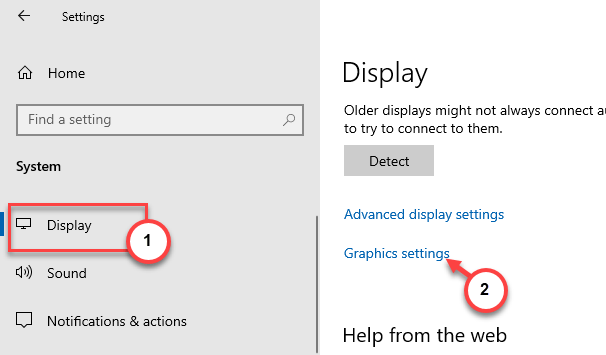
Step 5 – Try to find the “Assassin’s Creed: Shadows” game there.
Step 6 – If you don’t find it there, tap the “Browse” option.
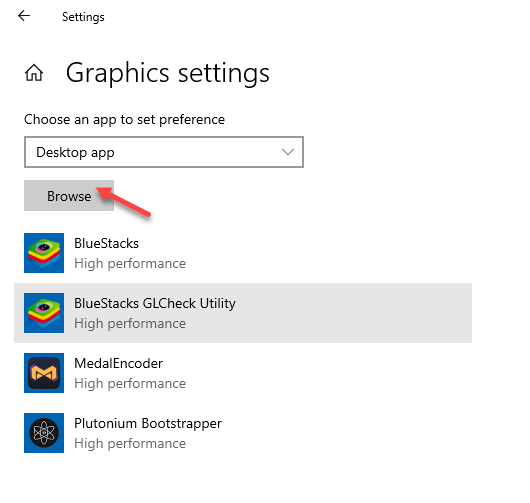
Step 7 – Next, reach the location of the AC Shadows executable file.
[If you can’t find it anywhere, you can follow these steps –
1. Open the Ubisoft Connect.
2. Tap the three-dot button beside ‘Play’ on AC Shadows and tap “Manage” and select “Properties“.
3. Now, you may go to the “Installation” and later open up the installation directory.
4. You can now find the “AC Shadows.exe” executable file.
]
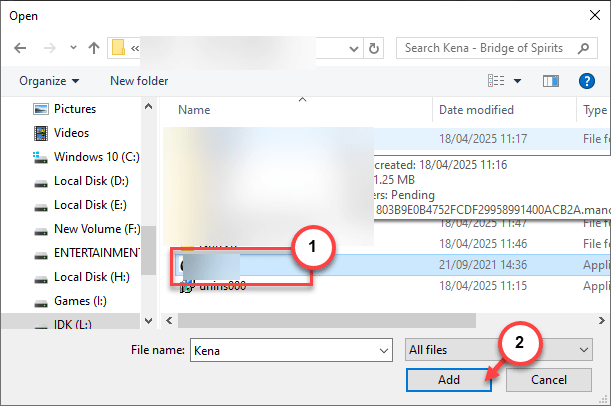
Step 8 – Select the executable file and click “OK” to import it in the list.
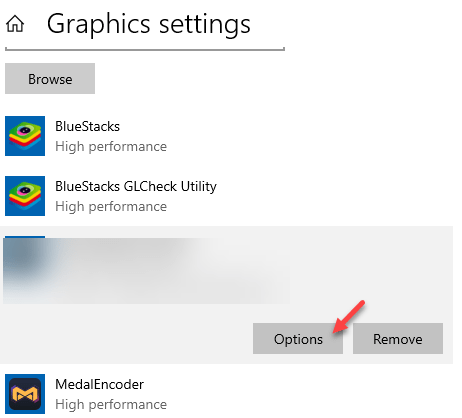
Step 9 – Tap the “Options” on the AC Shadows game.
Step 10 – Select the “High Performance” mode and save it there.
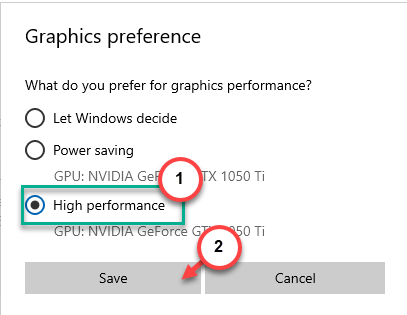
After saving the changes for the AC Shadows, you can play the game without any problem.
Fix 4 – Force AC Shadows to launch with Dx12 argument
You can force AC Shadows to use the DirectX 12 features of the GPU.
Step 1 – You have to reach the location of AC Shadows again.
Step 2 – So, open up the Ubisoft Connect. Tap the dot button beside “AC Shadows” and tap “Manage“, then reach the installation directory.
Step 3 – Now, tap the “Properties” option there.
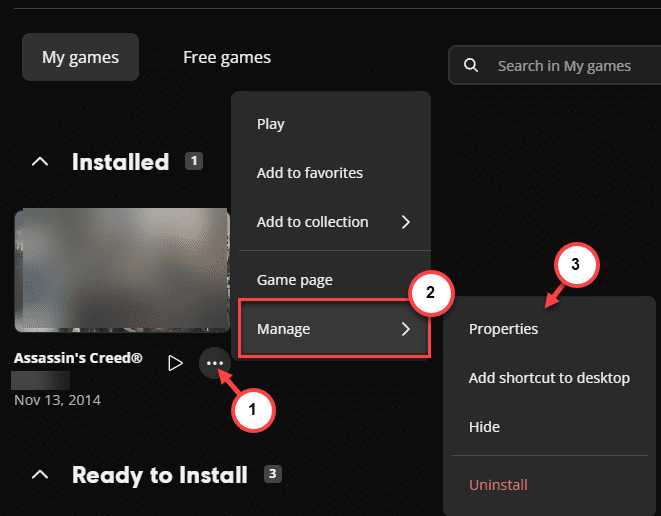
Step 4 – In the ‘Add Launch argument:‘ section, add the “-dx12” phrase.
Step 5 – Save the changes there.
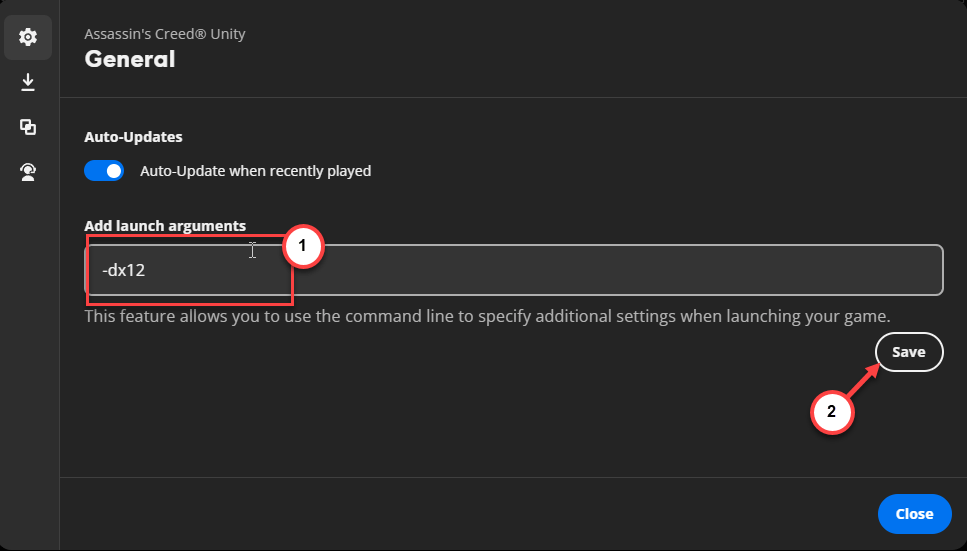
Give the AC Shadows another try.
Fix 5 – Reset the shader’s cache
Corrupted shaders can cause this problem. You may clear out the shaders from your local disk.
Step 1 – Open up a Run box, using the Win+R shortcut keys.
Step 2 – Depending upon the NVIDIA or AMD card you are using, use any of these file paths –
NVDIA - %USERPROFILE%\AppData\Local\Temp\NVIDIA
AMD - %USERPROFILE%\AppData\Local\AMD
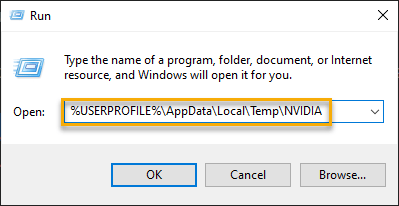
Step 3 – Delete all the contents of the folder.
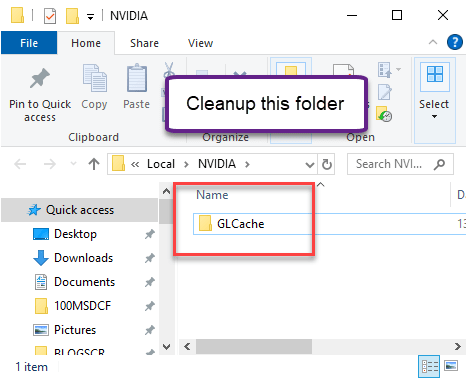
After this, restart your PC once, and later, you can enjoy AC Shadows without any issues.
Fix 6 – Turn off Overlays
If you have got the AC Shadows, there should be at least two overlays active while you are gaming. So, we recommend turning off the Steam and Ubisoft Connect overlays.
Step 1 – Load up the Steam on your machine.
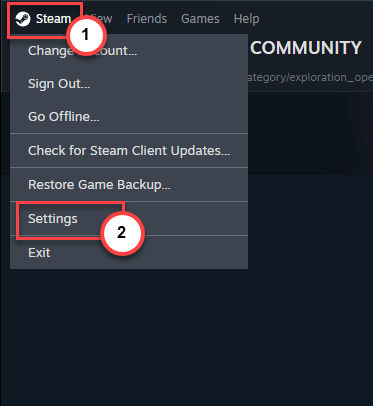
Step 2 – Then, tap the “Steam” menu on the menu-bar and tap “Settings” to load up Steam settings.
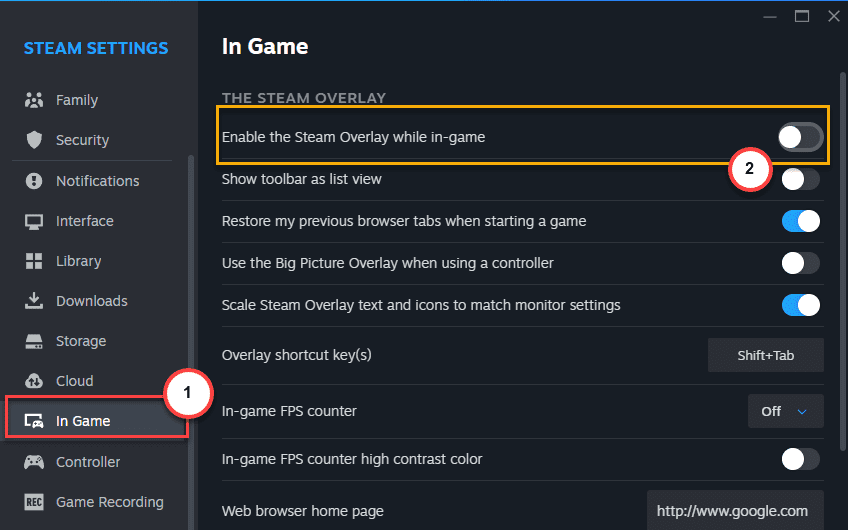
Step 3 – Load up the “In Game” panel on the left pane.
Step 4 – Turn off the “Enable the Steam Overlay in-game” setting.
Step 5 – After disabling the Steam overlay, launch the Ubisoft Connect app.
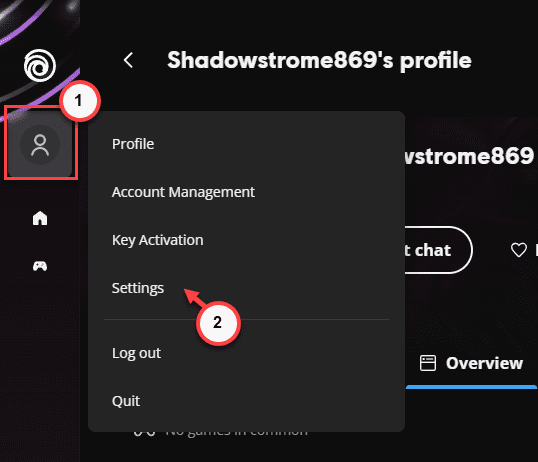
Step 6 – Tap the profile icon on the left-top corner.
Step 7 – Click the “Settings” option to load up the Ubisoft Connect settings console.
Step 8 – Tap to load up the “Interface” settings.
Step 9 – Uncheck the “Enable in-game overlay for supported games” setting.
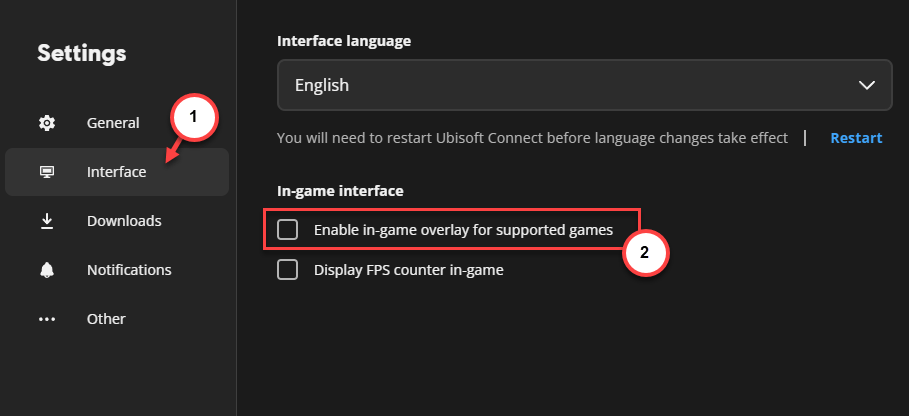
Once you have disabled all the overlays, launch the AC Shadows and check it out yourself.
Fix 7 – Disable the FSR, DLSS
DLSS, the frame generation technology from the house of NVIDIA and, AMD’s FSR (FidelityFX Super Resolution) are display technologies that serve different purposes. But, sometimes these feature may come in the way of the AC Shadow’s gameplay.
You can disable these frame-generation systems from the AC Shadows in-game settings. Once you have disabled the settings, play the game. Continue playing the game for a longer period of time.