You search a mapped network drive for a file you know is there. Windows thinks about it. Then: no results.
Open the folder by hand and there’s the file, sitting right in front of you. So the file exists. Search just refuses to see it.
Why This Happens
Windows Search doesn’t actually search your files. It searches an index — a big pre-built list of everything on your PC. That’s why local searches come back instantly.
But network drives don’t get indexed. Not by default, anyway.
So when you search a mapped drive or a UNC path (that’s a path starting with two backslashes, like the server address you connected to), Windows falls back to crawling the folder live, over the network, one file at a time. It’s slow. And it gives up early, which is why you get nothing back on a folder with any real number of files in it.
Two more things make it worse. Windows treats unknown network paths as untrusted, so it won’t index them even if you ask nicely. And the little services that find things on your network — Function Discovery, they’re called — have a habit of quietly not running after an update.
Six fixes below, easiest first.
Fix 1 – Restart the Network Discovery Services
Two services handle finding things across your network. They get stopped by updates, by power settings, sometimes for no reason you’ll ever learn. Set them to start automatically and kick them.
1 – Press Windows + R, type services.msc, and press Enter.
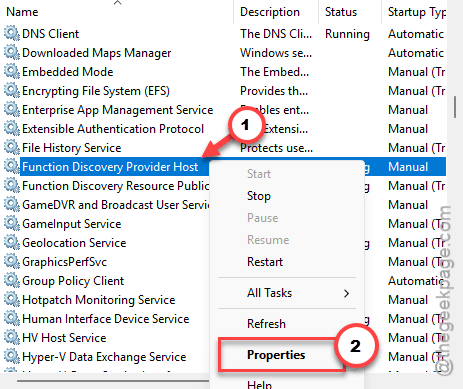
2 – Scroll down to Function Discovery Provider Host. The list is alphabetical.
3 – Right-click it and choose Properties.
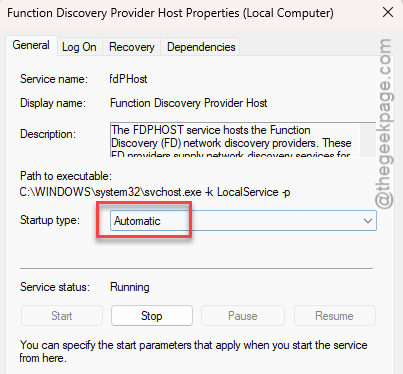
4 – Set Startup type to Automatic.
5 – Click Start if the button is available, then click OK.
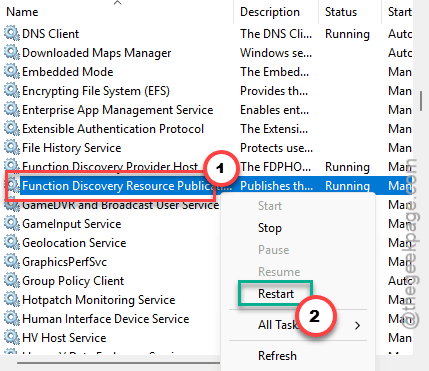
6 – Do exactly the same thing for Function Discovery Resource Publication, which sits directly below it.
7 – Right-click each one and choose Restart.
Now search the drive again. Cheapest fix on the list, so it’s worth ruling out first.
Fix 2 – Let Windows Index Network Drives
This is the real fix, and it’s the one that makes search fast instead of merely working. You’re turning on indexing for network locations. Windows ships with it off.
1 – Press Windows + R, type regedit, and press Enter. Click Yes.
2 – Paste this path into the address bar at the top and press Enter:
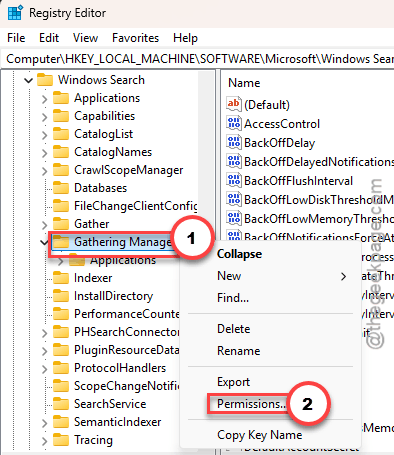
HKEY_LOCAL_MACHINE\SOFTWARE\Microsoft\Windows Search\Gathering Manager
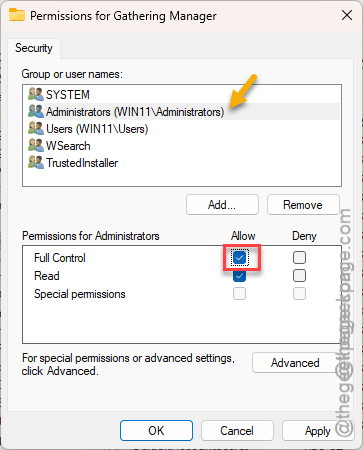
3 – Right-click Gathering Manager in the left pane and choose Permissions.
4 – Click Administrators in the top box.
5 – Tick Full Control in the Allow column, then click OK. Without this you can’t edit the value in the next step.
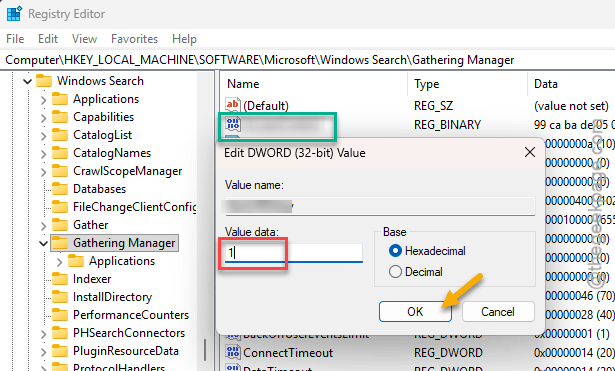
6 – In the right pane, double-click AllowNetworkDriveIndexing.
7 – Type 1 in the Value data box and click OK.
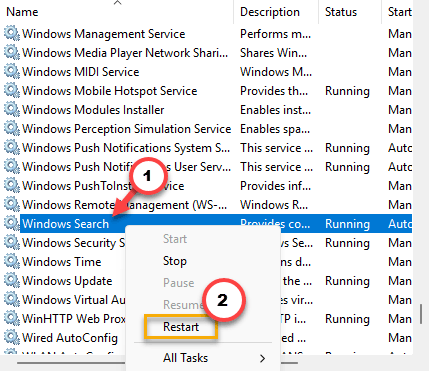
8 – Press Windows + R, type services.msc, press Enter, right-click Windows Search, and choose Restart.
Give it time. Indexing a network share takes anywhere from a few minutes to a few hours, depending on how much is on it. Search will stay unreliable while it builds.
Fix 3 – Tell Windows the Path Is Trusted
Sometimes, if the server is at work or NAS device, Windows may not trust the location.
1 – Press the Windows key, type Internet Options, and press Enter.
2 – Click the Security tab.
3 – Click Local intranet, then click the Sites button.
4 – Click Advanced.
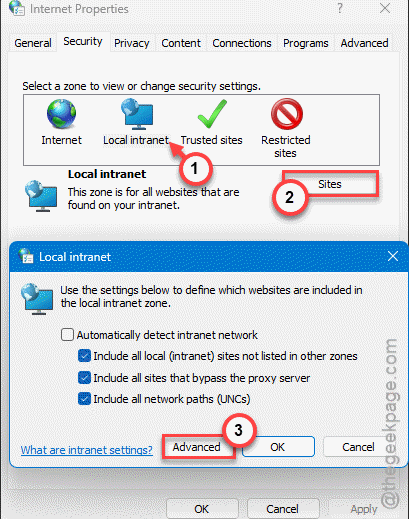
5 – Type the UNC path in the box at the top — the full server address, like \\fileserver\shared.
6 – Click Add, then Close, then OK twice.
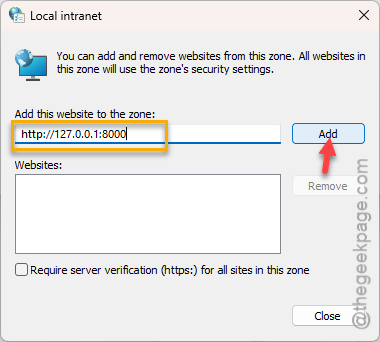
Yes, this is the old Internet Explorer settings window. It’s still where Windows keeps its trusted-location list in 2026, and no, nobody knows why.
Fix 4 – Enable Network Indexing in Group Policy
You should enable the network indexing in the group policy settings.
1 – Press Windows + R, type gpedit.msc, and press Enter.
2 – In the left pane, expand Computer Configuration.
3 – Expand Administrative Templates, then Windows Components, then click Search.
4 – In the right pane, find Allow indexing of encrypted files and double-click it.
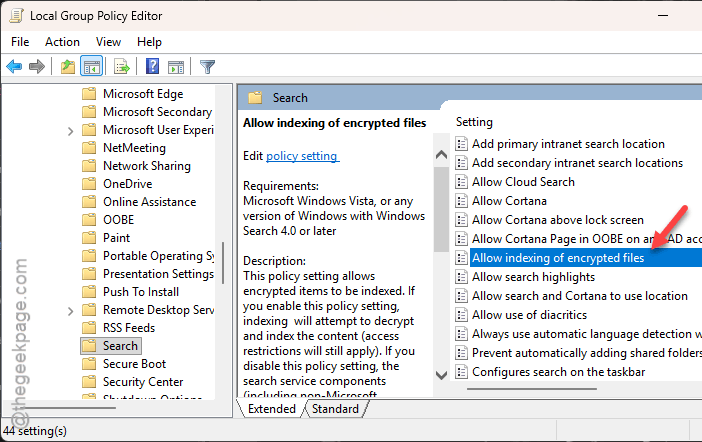
5 – Select Enabled, then click OK.
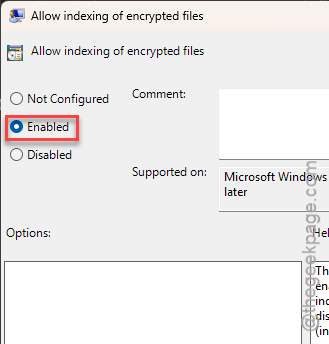
6 – Close the editor and restart your PC.
Fix 5 – Rebuild the Search Index
Did Fix 2 and search is still weird? The index itself is probably damaged.
1 – Press Windows + I, go to Privacy & security.
2 – Then, click Search.
3 – Now, scroll to the bottom, and click Advanced indexing options.
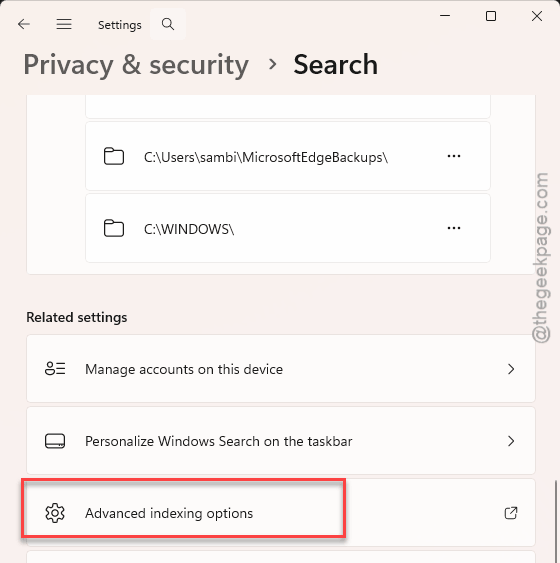
4 – In the window that opens, click Advanced option.
5 – Then, click Rebuild and confirm.
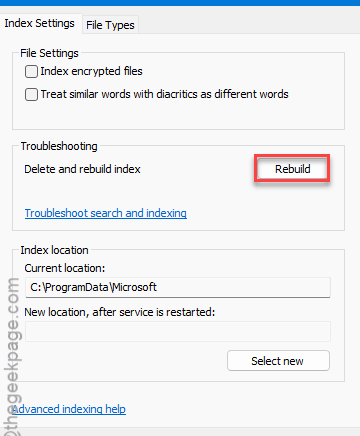
Windows throws away the old index and builds a fresh one. Expect an hour or more, and expect search to be useless while it runs. Leave the PC on and awake.
Fix 6 – Make the Folder Available Offline
Clever workaround. Windows keeps a local copy of the folder on your PC, and local copies get indexed like any other file. Search becomes instant. The catch is disk space, so don’t do this to a 2 TB share.
1 – Press the Windows key, type Control Panel, and press Enter.
2 – Click Sync Center. If you don’t see it, switch View by to Small icons in the top right.
3 – Click Manage offline files in the left sidebar.
4 – Click Enable offline files.
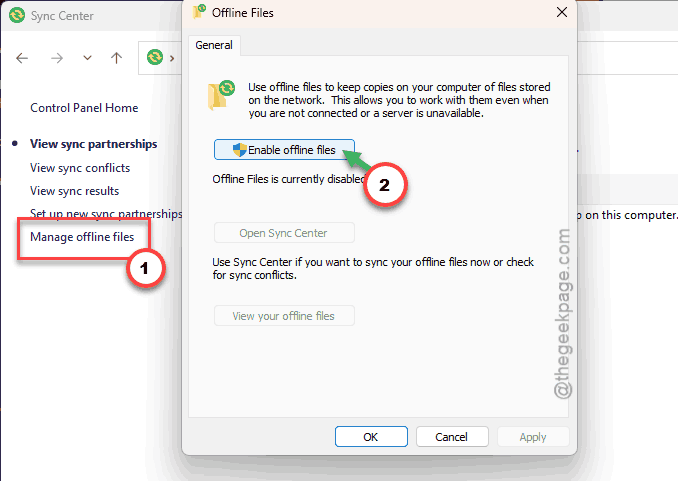
5 – Click OK and restart your PC when it asks.
6 – After the restart, open File Explorer and right-click the network folder you want to search.
7 – Choose Always available offline.
The first sync can take a while — you’re copying the whole folder down. A green sync icon on the folder means it finished.
How to Prevent This
– Turn on network drive indexing once (Fix 2) and it stays on. Best five minutes you’ll spend on this.
– After every feature update, check those two Function Discovery services. Updates reset them constantly.
– Add your regular network shares to the Local intranet zone. Trust once, search forever.
– Search from inside the folder, not from the Start menu. Start menu search barely touches network paths.
– For folders you hit every day, use Always available offline. Nothing beats a local index for speed.
People Also Ask
Should I disable drive indexing?
No, you should not disable drive indexing. It costs a little disk space and some background CPU. On an old, slow hard drive you might notice it — on any SSD you won’t. Leave it on.
How do I get the UNC path from a mapped drive?
Open File Explorer and click This PC. Under Network locations, the real UNC path is printed right under each mapped drive letter. Prefer a command? Open Command Prompt and type net use. It lists every mapped letter next to its full server path.