Another Patch Tuesday, another PC that sounds like a hair dryer. The August 2026 update went in to millions of Windows 11 users, and now the fans never stop! Task Manager says 100% CPU. The memory creeps up for an hour until something crashes. There are two things are to blame. The update broke the Cross Device Service (the background piece that Phone Link uses), and it now spins a core at full speed doing nothing. And the network stack got a new IPv6 packet handler that leaks memory. So the PC cooks. Both are fixable without waiting for Microsoft.
Fix 1 – Find Out What’s Actually Eating the CPU
Thirty seconds. Worth it before you change anything.
1 – Press Ctrl + Shift + Esc to open Task Manager.
2 – Click Processes in the left sidebar if it isn’t already selected.
3 – Click the CPU column header at the top. The hungriest process jumps to the top.
4 – Click Memory and check that column too.
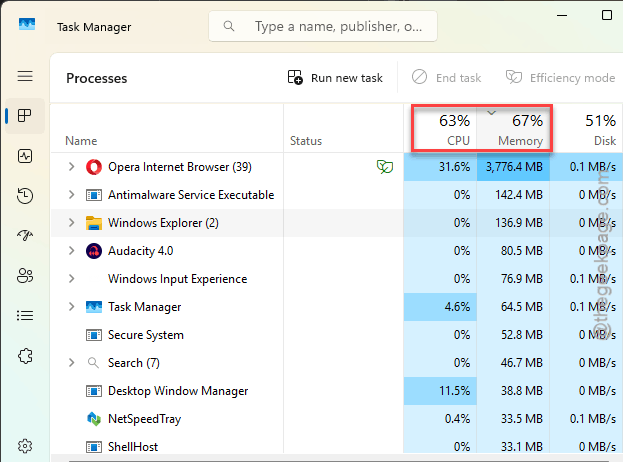
Is it a third-party app? A RGB software, an antivirus, some updater you forgot about? Do this:
1 – Launch the Task Manager console.
2 – At first, Right-click it and click End task.
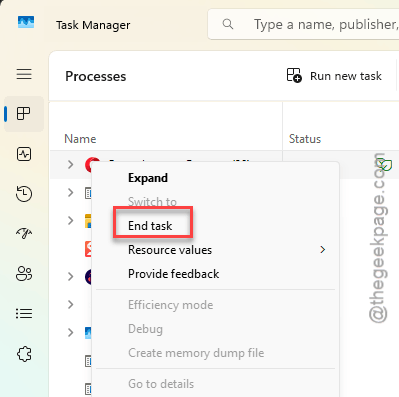
3 – If it comes back on the next boot, uninstall it.
The problem will be solved, and it wasn’t the update at all.
But if the top entry is a Windows process (Service Host, System, anything with “Cross Device” in the name), the fixes below are for you.
Fix 2 – Disable the Cross Device Service
This is the big one. The service polls your phone connection in a loop, and the loop never ends.
1 – Press Windows + R.
2 – Type services.msc and press Enter.
3 – Scroll down the alphabetical list to Cross Device Service.
4 – Right-click it and click Properties.
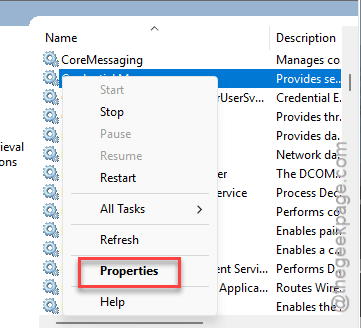
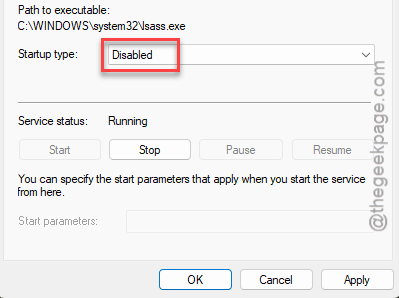
5 – Change Startup type to Disabled.
6 – Click Stop under Service status. Wait for the status to read Stopped.
7 – Click Apply, then OK.
8 – Restart your PC.
Fans should calm down within a minute of logging back in. But give it that full minute.
Fix 3 – Turn Off SysMain
SysMain (you might know it by its old name, SuperFetch) preloads apps it thinks you’ll open. On a fast SSD it helps nobody.
1 – Open Services again like in Fix 2.
2 – Later, scroll down to SysMain.
3 – Next, right-click it and click Properties.
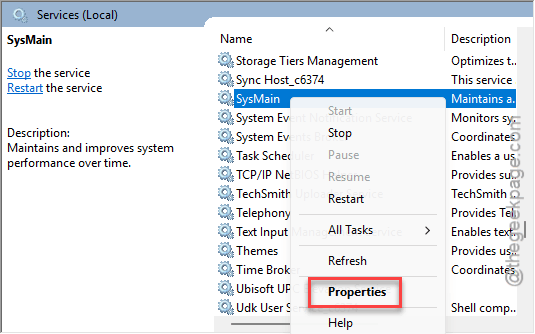
4 – Click Stop.
5 – Change Startup type to Disabled.
6 – Click Apply, then OK.
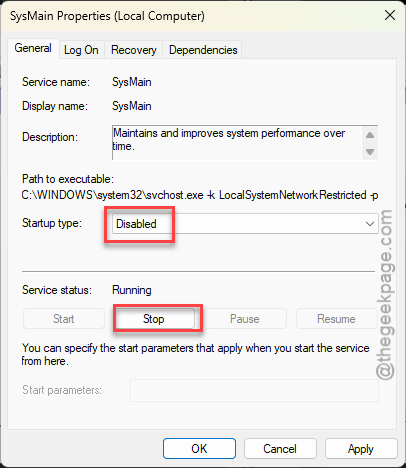
No restart needed. Watch the Memory column in Task Manager for ten minutes. If it stops climbing, this was it.
Fix 4 – Reset the Network Stack
Still climbing? Then it’s the network side. The new IPv6 handling holds onto packets it should be dropping.
1 – At first, click Start and typecmd.
2 – Next, you must right-click Command Prompt and click Run as administrator.
3 – Type this line of code in there and press Enter.
netsh int ip reset
4 – Wait for the list of “Resetting… OK” lines to finish.
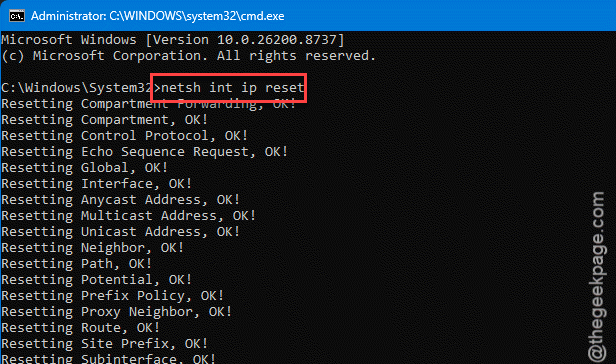
5 – Restart your PC.
You’ll have to reconnect to Wi-Fi after (the reset forgets saved network settings, not passwords).
If the leak comes back within a day, disable IPv6 on your adapter as well.
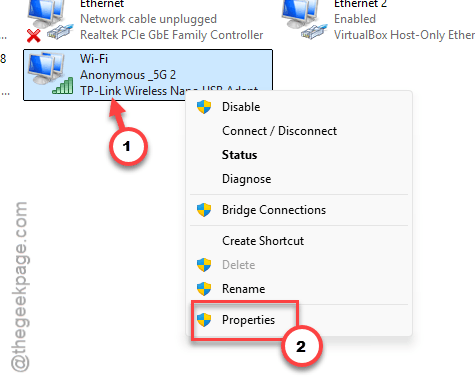
1 – At first, press Windows + R keys together.
2– Then, type ncpa.cpl in there.
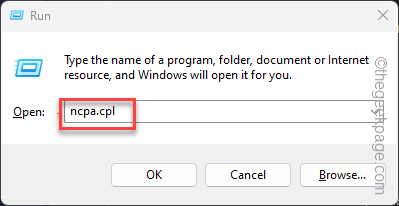
3 – Next, right-click your active adapter, click Properties.
4 – Then, untick Internet Protocol Version 6 (TCP/IPv6).
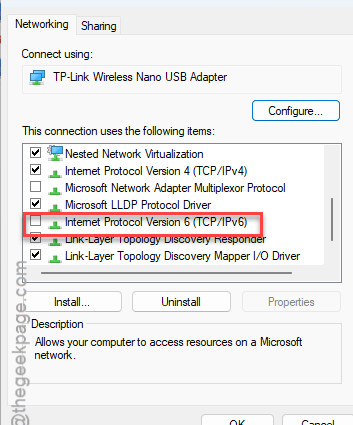
Most home networks won’t miss it.
Fix 5 – Uninstall the August Update
Nuclear option. Rolls back the whole patch, including the security fixes, so only do it if the PC is unusable. Windows will offer the update again later, and by then it may be fixed.
1 – Press Windows + I to open Settings.
2 – Click Windows Update at the bottom of the left sidebar.
3 – Click Update history.
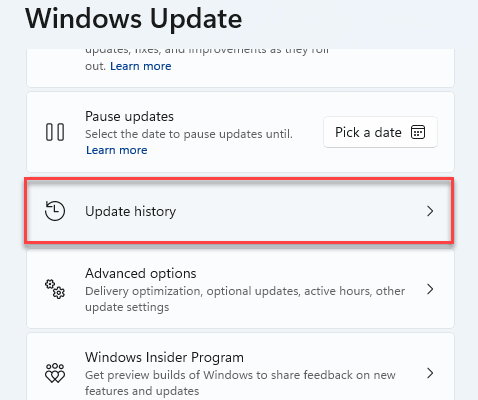
4 – Scroll to the bottom and click Uninstall updates.
5 – Find KB5041585 and click Uninstall next to it.
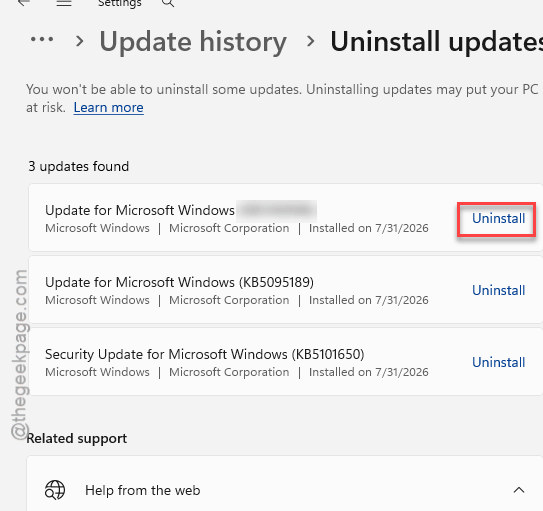
6 – Restart when asked. Takes a few minutes.
And pause updates for a couple of weeks so it doesn’t reinstall overnight.
Keep It From Coming Back
- Leave Cross Device Service disabled unless you use Phone Link daily. Nobody misses it.
- After every big update, open Task Manager once and sort by CPU. Ten seconds. Catches this stuff before the fans do.
- Pause updates for a week when a new patch lands. Let the bugs surface on someone else’s PC first.
- Skip the motherboard RGB and monitoring apps. They’re the usual third-party suspects in Fix 1, and they never uninstall cleanly.
People Also Ask
How do I fix 100% CPU usage in Windows 11?
Open Task Manager with Ctrl + Shift + Esc and sort by CPU to see the culprit. If it’s a Windows process after the August update, disable Cross Device Service and SysMain in services.msc, then restart. Still pegged? Reset the network stack with netsh int ip reset, or uninstall update KB5041585 as a last resort.
How can I fix a memory leak on Windows 11?
Watch the Memory column in Task Manager for ten minutes. If it climbs with nothing open, a service is leaking. After the August update the usual ones are SysMain and the IPv6 network handler. Disable SysMain, run netsh int ip reset as admin, and restart. And if it keeps growing, untick IPv6 on your adapter.