Got your brand new iPhone 17 stuck on SOS mode? Some iPhone users have recently faced this problem where their new iPhone got stuck in the SOS mode, without any cellular reception. This is clearly a frustrating experience, as you can’t call someone from your new device or use the cellular service on your iPhone. If you have found yourself in this state, these quick fixes will help you resolve the issue.
Fix 1 – Refresh the network with Airplane mode
You have to turn on and off the Airplane mode on your iPhone once to refresh the network system.
Step 1 – At first, pull down the Control Centre on your iPhone and tap the ✈ Airplane mode icon.
Step 2 – Now, wait for a few seconds in this state. Then, tap the Airplane mode icon to turn it off.
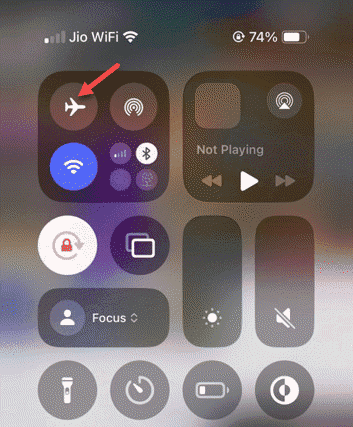
When you disable the airplane mode, it should restore the cellular services, Wi-Fi connection on your iPhone. It should be out of the SOS mode.
Fix 2 – Reinsert the SIM
There can be some issues with the SIM card on the new iPhone. If you are using the physical SIM, follow this approach –
Step 1 – At first, take the SIM ejector tool and use it to eject the SIM card tray from the iPhone.
Step 2 – Then, check the SIM card in the SIM tray.
Step 3 – If you are using a single SIM in the first slot, you should use it in the second slot.
Step 4 – Re-insert the SIM tray back to it’s place in the iPhone.

After this, the cellular connection should be restored on your device.
Fix 3 – Refresh the SIM line to Restore Cellular connectivity
Turn off the current SIM connection line, and later, turn it back on to restore the cellular connectivity on your iPhone.
Step 1 – You have to open the iPhone’s Settings page, first.
Step 2 – Next, open the Mobile Service panel.
Step 3 – Now, find your carrier settings. Look for the Turn on This Line option, and disable it. Turn off the Wi-Fi on your iPhone, too.
Step 4 – Wait for a few minutes. Then, enable it.
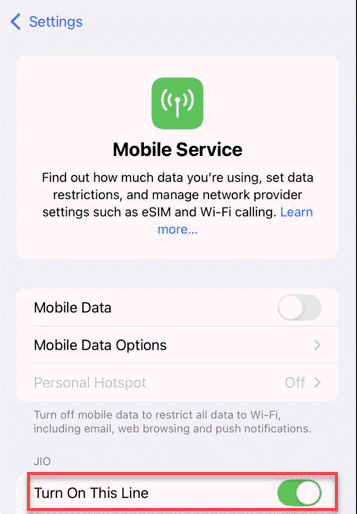
After enabling the carrier line, the cellular connections on your iPhone will be restored to normalcy.
Fix 4 – Use an eSIM to activate the cellular service
Converting the physical SIM car to eSIM version should help you fix the issue. Some users have recommended converting to the eSIM from the physical SIM has helped them to restore connection. iPhone 17 Air does only supports eSIM. So, if you have purchased an iPhone Air, you must activate the eSIM following proper steps.
Verizon users – Download the My Verizon app to check compatibility.
At&T users – Dial *06# number from the dial pad to find an IED number. If you can see one, you can get an eSIM for your current line.
Fix 5 – Reset the Network Settings on iPhone
If your iPhone still stuck into the SOS mode, your iPhone network settings a complete overhaul.
Warning – Keep in mind that resetting the network configuration on your iPhone will also remove any saved network configurations.
Step 1 – Load up the iPhone Settings. Next, proceed to the General settings panel.
Step 2 – Follow this path –
Transfer or reset iPhone ⇾ Reset
Step 3 – Use the Reset Network Settings option there.
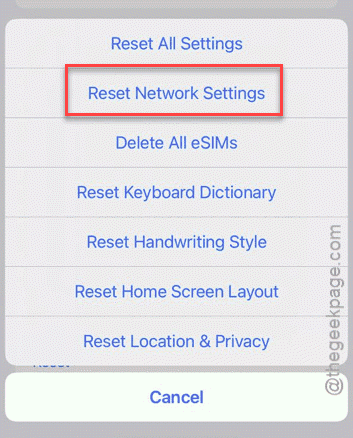
Step 4 – Confirm your choice using the Apple passcode there to reset all the networking configuration on your device.
Do check whether this works or not.
FAQs on iPhone 17 stuck on SOS mode?
1. Why my iPhone is stuck on SOS mode?
iPhones do get stuck on SOS mode only when there is no cellular reception on your device. The SOS mode or the Emergency Only mode is caused due to lack of improper cellular configuration, inactive credit line, deactivated or wrong SIM card setup. Refreshing the device using the Airplane mode should solve the issue.
2. How to fix the iPhone got stuck in SOS/Emergency mode?
If you have an active line of credit, but your iPhone still stuck to the SOS mode, you should restart the line from the cellular connection settings. Ejecting the SIM card and reinserting the same should restore the normal network connection.