Your Snapdragon laptop starts downloading a Windows update. Then it just stops. Zero percent, and the bar hasn’t moved in an hour. And a restart doesn’t help. It drops right back to 0% and sits there. Painfully stuck.
Why This Happens
Short version: the downloaded files got corrupted, and Windows keeps trying to resume them anyway.
Every update lands in a folder called SoftwareDistribution before it installs. Think of it as a staging area. If a download gets cut off partway — dropped Wi-Fi, a forced restart, the laptop sleeping at the wrong moment — the broken pieces stay behind. And Windows won’t throw them out on its own. It just retries the same bad files.
There’s no error message either. No warning. Just a bar frozen at zero while you sit there guessing. Why Microsoft made that failure silent is anyone’s guess.
Fix 1 – Clear Out the Update Cache
Start here. This wipes the staging folder so Windows has to download the update fresh instead of retrying broken files. It clears stuck downloads more often than anything else on this list.
1 – Click Start, type cmd, then right-click Command Prompt and choose Run as administrator.
2 – Type this and press Enter.
net stop wuauserv
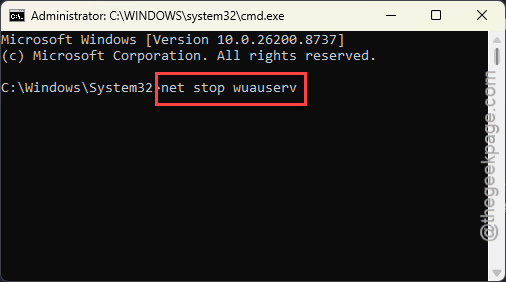
This pauses Windows Update. You’ll see a confirmation line when it stops.
3 – Press Windows + E to open File Explorer.
4 – Paste C:\Windows\SoftwareDistribution into the address bar at the top and press Enter.
5 – Press Ctrl + A to select everything inside, then delete it. (You’re only clearing cached update files — none of your personal stuff lives in here.)
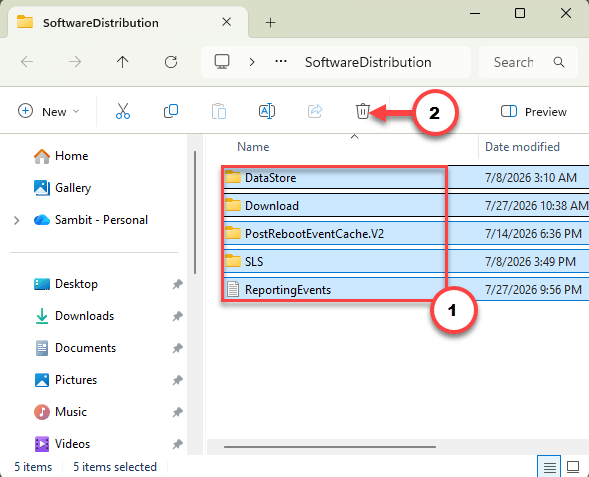
6 – Go back to Command Prompt, type this , and press Enter.
net start wuauserv
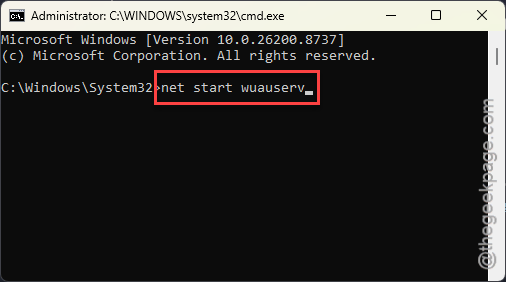
Open Settings and check for updates again.
Fix 2 – Grab the Installer Yourself
Bar still frozen? Then skip Windows Update entirely. Microsoft hosts every update as a standalone file you can download and run like a normal program.
1 – Open your browser and go to the Microsoft Update Catalog.
2 – Type your update’s KB number in the search box, followed by arm64 — for example, KB5101650 arm64. (The KB number sits right next to the stuck update in Settings > Windows Update.)
3 – In the results, pick the row that says arm64. This part matters. An x64 file will not install on a Snapdragon PC.
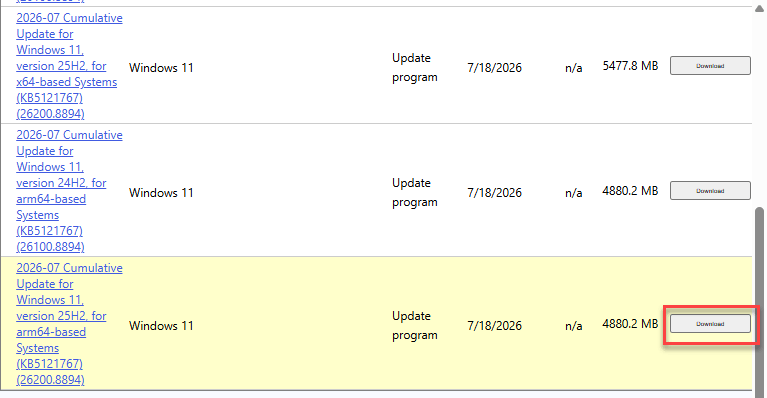
4 – Click Download, then click the link in the small popup window.
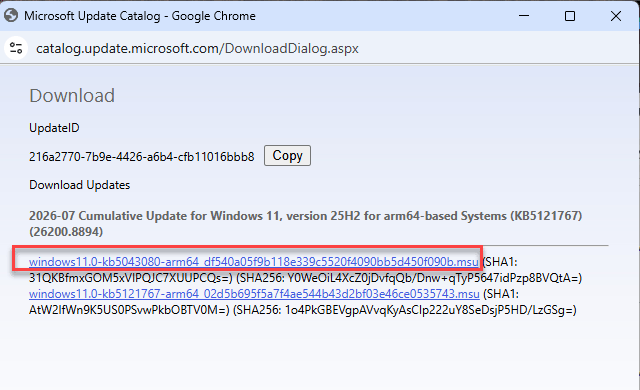
5 – Open the downloaded .msu file and follow the prompts.
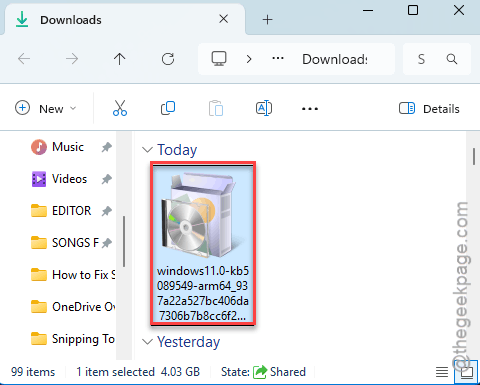
But give it time. A cumulative update can take 20 minutes or more to unpack, and the screen may look frozen partway through. Let it finish.
Fix 3 – Copy the Missing Boot File
If the standalone installer starts and then dies on you, this is probably why. It looks for a small security file on the boot drive, and on some Snapdragon machines that file simply isn’t where it expects.
1 – Press Windows + E and paste C:\Windows\Boot\EFI into the address bar.
2 – Find the file named boot.stl and copy it with Ctrl + C.
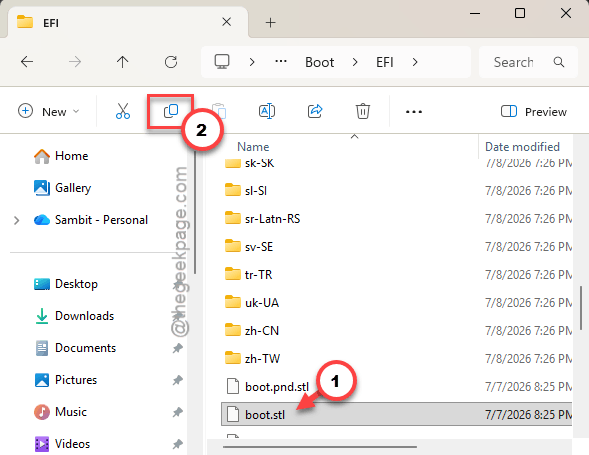
3 – Open the root of your installation drive. That means the very top level, not inside any folder.
4 – Paste it there with Ctrl + V.
5 – Run the .msu installer from Fix 3 again.
Fix 4 – Install It From the Command Line
Last option. DISM is a repair tool built into Windows that installs an update package directly, ignoring the update screen completely.
1 – Move the .msu file from Fix 3 somewhere short and easy to type, like C:\Updates.
2 – Open Command Prompt as administrator, like in Fix 1.
3 – Type this line, swapping in your actual file name, then press Enter:
DISM /Online /Add-Package /PackagePath:"C:\Updates\windows11-kb5101650-arm64.msu"
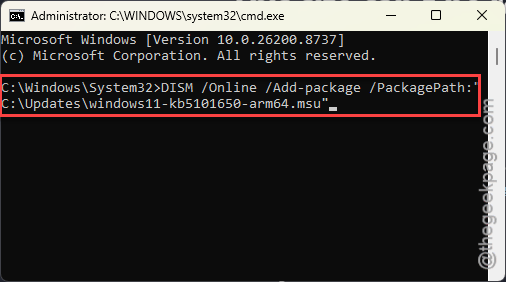
4 – Wait. The percentage crawls, and it can sit on one number for several minutes without moving.
5 – Restart your PC once it finishes.
And if DISM throws an error code, write it down. That code actually tells you what’s broken — which is more than the update screen ever did.
Fix 5 – Let the Troubleshooter Take a Pass
Quick one before the heavier stuff.
1 – Press Windows + I, click System settings.
2 – Then Troubleshoot, then Other troubleshooters.
3 – Find Windows Update in the list and click Run.
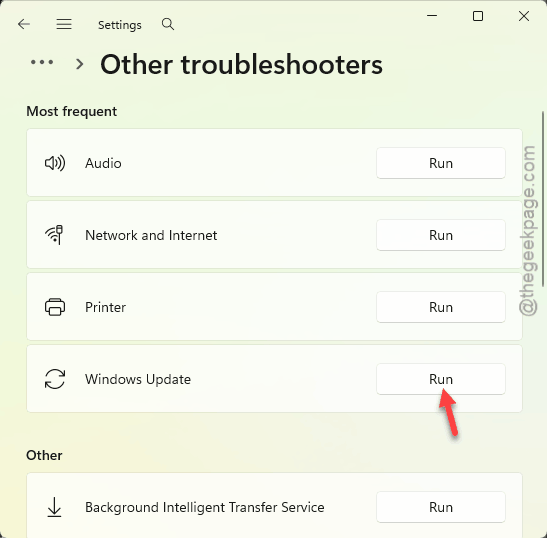
It takes a couple of minutes and cleans up the boring stuff on its own — stopped services, broken permissions, that sort of thing. Worth trying while the window is open.
How to Prevent This
– Plug the laptop in before a big update. A dead battery mid-download is exactly what corrupts the cache in the first place.
– Don’t force a restart while an update is downloading. Even at 3%. That’s how you end up right back here.
– Run updates on a connection you trust.
– Keep 15-20GB free on your C: drive. ARM64 updates unpack big, and a tight drive fails in confusing ways.
– Jot down the KB number whenever an update misbehaves. Makes the Catalog route in Fix 3 much faster next time.
People Also Ask
Why is my Windows 11 update stuck at 0%?
Almost always a corrupted download cache. Windows keeps retrying broken files instead of fetching clean ones. Clearing the SoftwareDistribution folder forces a fresh download and solves most cases. On Snapdragon and other ARM64 PCs, a missing boot file can stall the installer too, with no error shown.
How do I force a Windows update to install manually?
Head to the Microsoft Update Catalog and search your KB number. Download the .msu file matching your processor type — arm64 for Snapdragon machines, not x64 — then run it like any installer. If that still fails, DISM can install the same file from an admin Command Prompt.
Is it safe to delete the SoftwareDistribution folder?
Yes. It only holds temporary update files, nothing of yours. Windows rebuilds it automatically on the next check. Stop the Windows Update service first, though — deleting while it’s running can leave things in a weird half-finished state. Your update history resets, and that’s the only real side effect.