Another session, another recording that falls apart at the 30-minute mark. The first half hour of the recording is perfect. Then the frames start dropping, the preview stutters, and when it reaches the 40 minute mark, the whole recording is a slideshow. You will never know the actual reason in the OBS. So it isn’t your PC being too slow. A slow PC lags from the first second. Something is building up over time, and that something is fixable.
What’s Really Happening
OBS has a few slow leaks. Each one is small. But together, over half an hour, they add up to a stutter.
The big one is the render queue. If your game runs at 144 frames a second and OBS records at 60, OBS has to throw away most of what the game hands it. It keeps up at first. But the backlog grows a little every minute, and eventually it overflows. That’s your 30-minute wall.
Browser sources are the second leak. Those alert boxes and overlays are tiny web pages, and a web page left open for an hour eats more memory than it did at the start. Why? Because that’s what web pages do, and OBS doesn’t clean up after them. A 1080p overlay for a box that shows at 400 by 300 is the classic mistake.
And then the small stuff. The preview window steals GPU time to draw something you’re probably not watching. Gigabytes of old log files slow down every write. None of it matters for a five-minute clip. All of it matters at minute 40.
Fix 1 – Clear Out the Old Logs
Quick one first. OBS writes a log every session and never deletes them, and the crash folder is worse. After a year that’s thousands of files, and OBS chokes reading and writing through the pile.
1 – Close OBS.
2 – Press Windows + R.
3 – Type this code, and press Enter.
%appdata%\obs-studio
4 – Open the logs folder.
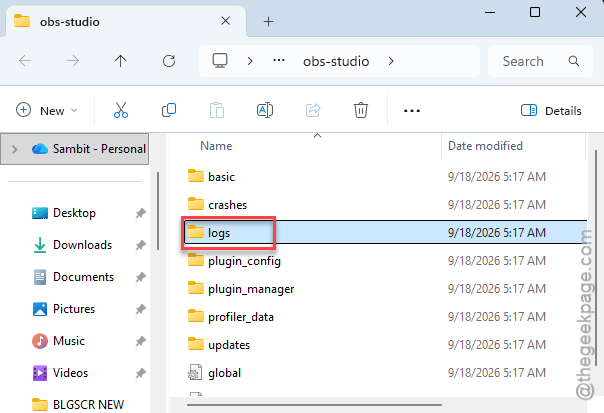
5 – Press Ctrl + A to select everything, then hold Ctrl and click today’s file to leave it out of the selection.
6 – Press Delete.
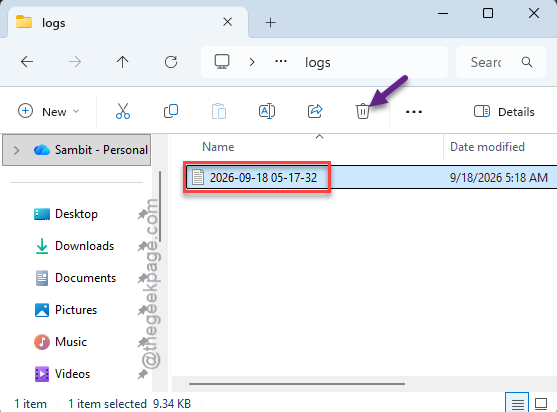
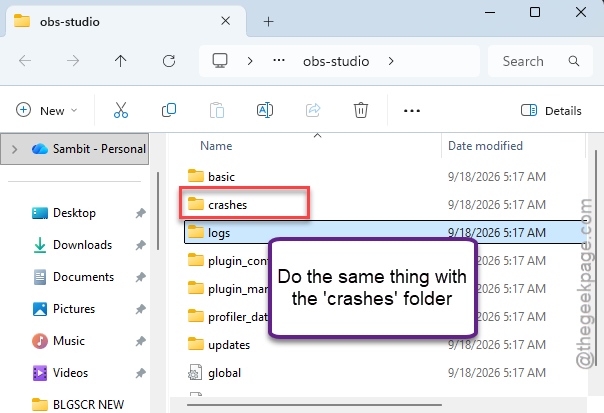
7 – Go back one folder and do the same inside crashes.
8 – Empty the Recycle Bin and open OBS again.
Nothing in there affects your scenes or settings. It’s just text. And do it every few months. You’ll never think about it again.
Fix 2 – Turn Off the Preview
The preview is OBS drawing your whole scene a second time, just for you to look at. Half the time you’re in the game anyway (or alt-tabbed to chat). So switch it off and give that GPU time back to the recording.
1 – Open OBS Studio.
2 – Right-click anywhere on the big preview area in the middle of the window.
3 – Click Enable Preview to remove the checkmark.
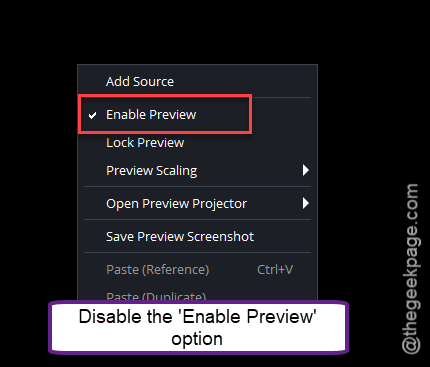
The preview goes gray. Don’t panic, the recording keeps capturing exactly as before. You just don’t see it live. Right-click and tick it again whenever you need to check a layout.
Fix 3 – Lock the Game and OBS to the Same Frame Rate
This is the one that fixes the 30-minute wall for most people. Cap the game at 60 and record at 60, and the render queue never has a backlog to build. Two halves to this.
First, the game:
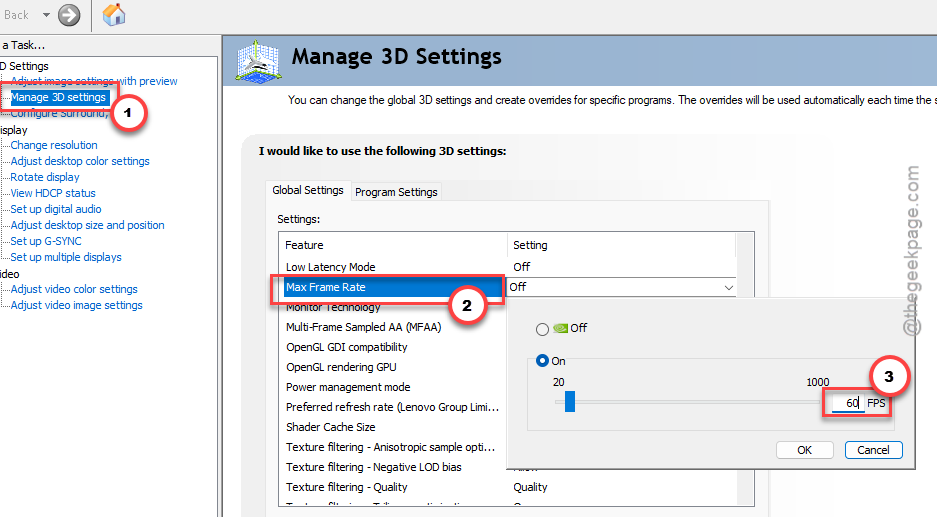
1 – Right-click your desktop and open NVIDIA Control Panel (AMD users, it’s AMD Software and the setting is called Frame Rate Target Control).
2 – Click Manage 3D Settings in the left panel.
3 – Find Max Frame Rate in the list, turn it on, and set it to 60.
4 – Click Apply at the bottom right.
Then OBS:
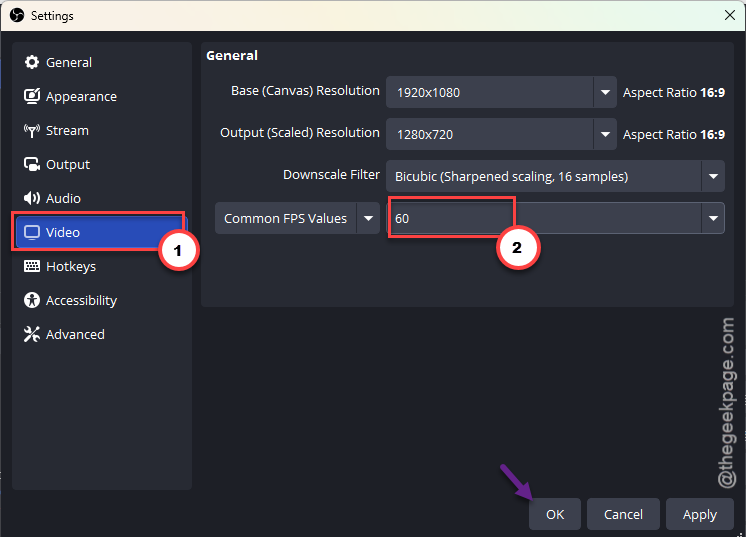
5 – In OBS, click Settings at the bottom right.
6 – Click Video in the left column.
7 – Set Common FPS Values to 60.
8 – Click Apply, then OK.
Then record for a full 30 minutes as a test. Yes, really, the whole 30. This bug doesn’t show up in a two-minute check, which is exactly why it’s so annoying to chase.
Fix 4 – Shrink Your Browser Sources
Every browser source should be the size it actually appears on screen. And not 1920 by 1080 “just in case.” A big canvas for a small widget leaks memory for the whole session, and it’s the most common thing I find when someone sends me their scene collection.
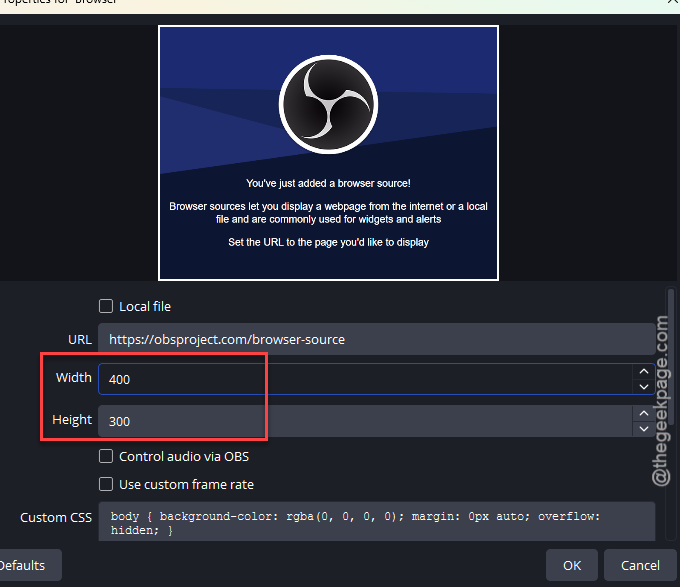
1 – In the Sources panel at the bottom, double-click a browser source (alerts, chat box, overlay, anything with the globe icon).
2 – Look at the Width and Height boxes.
3 – Change them to the size the widget really shows at. For a small alert box, something like 400 by 300 is plenty.
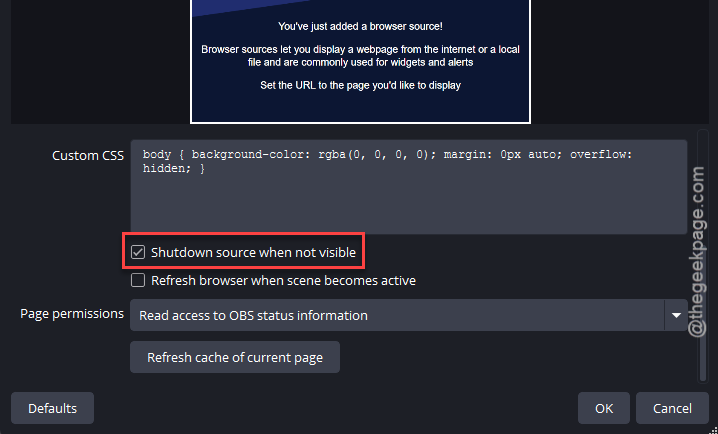
4 – Scroll down and tick Shutdown source when not visible.
5 – Click OK.
6 – Repeat for every browser source in every scene you use.
Widget looks blurry after? You went too small. Bump the numbers up until it’s crisp, and stop there.
Fix 5 – Turn On Browser Hardware Acceleration
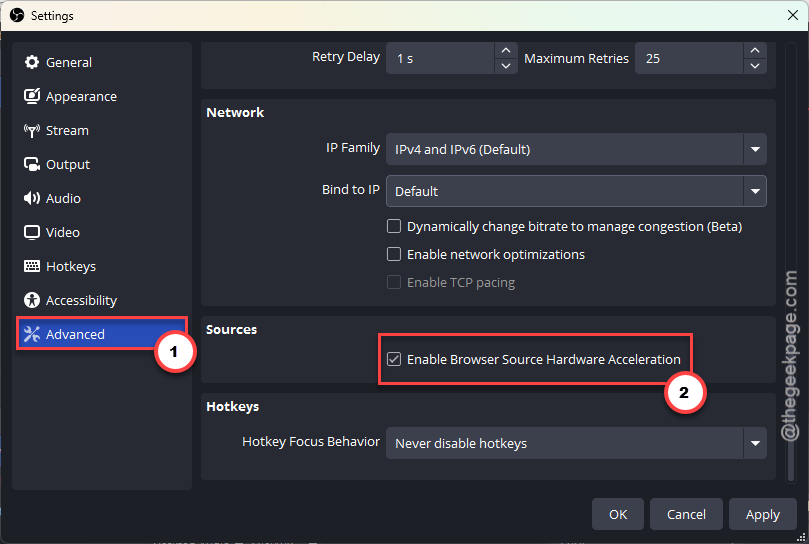
By default OBS may be drawing those widgets on the CPU. Handing them to the graphics card stops the CPU from being the bottleneck late in a session. One checkbox, buried where nobody looks (under Advanced, of all places).
1 – Click Settings at the bottom right of OBS.
2 – Click Advanced at the bottom of the left column.
3 – Scroll down to the Sources section.
4 – Tick Enable Browser Source Hardware Acceleration.
5 – Click OK, then close and reopen OBS.
The change only applies on a fresh launch.
Keeping It Smooth Next Time
- Match the game’s frame cap to the recording frame rate. Always. It’s the whole ballgame.
- Build every browser source at its real display size from day one. Resizing later is a pain, and you’ll forget one.
- Clear the logs folder every couple of months. Thirty seconds.
- Do one long test recording after any big OBS update (the 30-minute kind, not the two-minute kind). Updates reset settings more than they should, and this bug hides until minute 30.
Quick Answers
Why does OBS start lagging after 30 minutes of recording?
Something is building up, not breaking. Usually the render queue overflows because the game runs faster than OBS records, or browser sources slowly leak memory. Cap the game at 60 in your GPU control panel, set OBS to 60 under Settings then Video, and shrink every browser source to its real display size.
Does turning off the OBS preview affect the recording?
No. The preview is only a copy drawn for you to watch. Right-click the preview area and uncheck Enable Preview, and the screen goes gray while the recording continues exactly as before. It frees up GPU time, which is why it helps on long sessions. Tick it back on anytime to check your layout.
Should my game FPS match my OBS FPS?
Yes, or the lag comes back. When a game runs at 144 and OBS records at 60, OBS has to discard most of the frames it’s handed, and the backlog grows over a long session until it overflows. Cap the game at 60 in NVIDIA Control Panel under Max Frame Rate, and set OBS to 60.
Why do browser sources make OBS lag?
Each one is a small web page running inside OBS, and web pages left open for an hour use more memory than they did at the start. A big canvas makes it worse. Set each source’s width and height to its real on-screen size, tick Shutdown source when not visible, and turn on browser hardware acceleration under Settings then Advanced.