Another match, another taskbar squatting over the bottom of your game. Full-screen is supposed to mean full screen, right? But one notification pings, Windows decides the taskbar is now the most important thing alive, and there it stays. Quick to fix, at least.
Why the Taskbar Won’t Move
The taskbar jumps on top because Windows thinks something on it needs you. A badge update. A flashing app. Even the Game Bar quietly logging your session counts. Any of those bumps the taskbar’s foreground priority. And your game loses the fight.
Also, “full-screen” games these days often aren’t truly exclusive. DX12 titles render through the same compositor as the desktop (the layer that draws every window on screen). So the taskbar can legally paint itself over them. That’s exactly why the borderless trick in Fix 5 works so well.
Fix 1 – Restart Windows Explorer
First aid. This kills the stuck priority instantly.
1 – Press Ctrl + Shift + Esc to open Task Manager.
2 – Find Windows Explorer in the process list.
3 – Right-click it and select Restart.
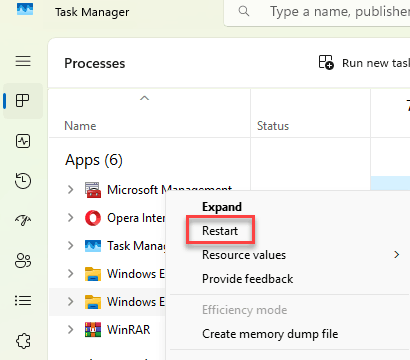
The screen flashes black for a moment while the taskbar rebuilds. That’s expected. Then get back to your game.
Fix 2 – Toggle Auto-Hide On and Off
Flipping auto-hide resets the taskbar’s foreground status.
1 – Right-click an empty spot on the taskbar and select Taskbar settings.
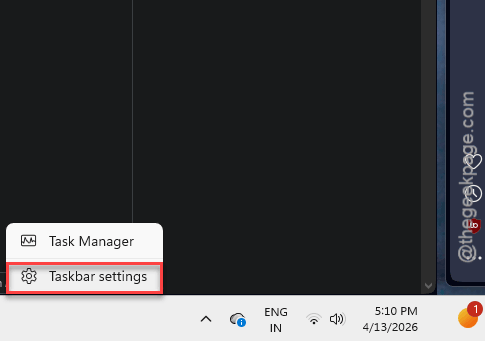
2 – Click Taskbar behaviors to expand the section.
3 – Check Automatically hide the taskbar.
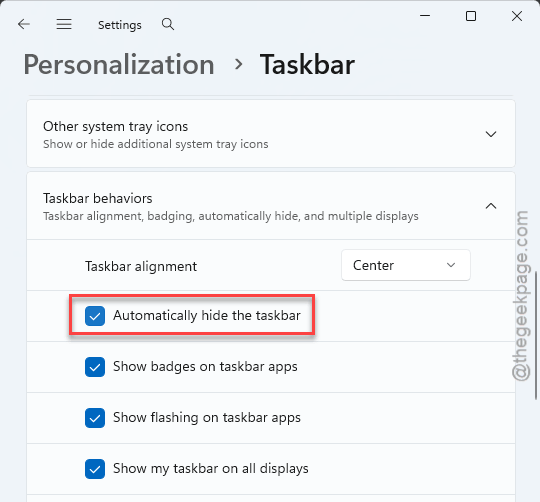
4 – Click into your game once, then come back and uncheck the box if you prefer the taskbar visible on the desktop.
Some people just leave auto-hide on for good. Solves this permanently, costs nothing.
Fix 3 – Turn Off App Badges
Those little notification counters are the usual trigger — every new badge yanks the taskbar forward.
1 – Right-click the taskbar and open Taskbar settings again (same place as Fix 2).
2 – Expand Taskbar behaviors.
3 – Uncheck Show badges on taskbar apps.
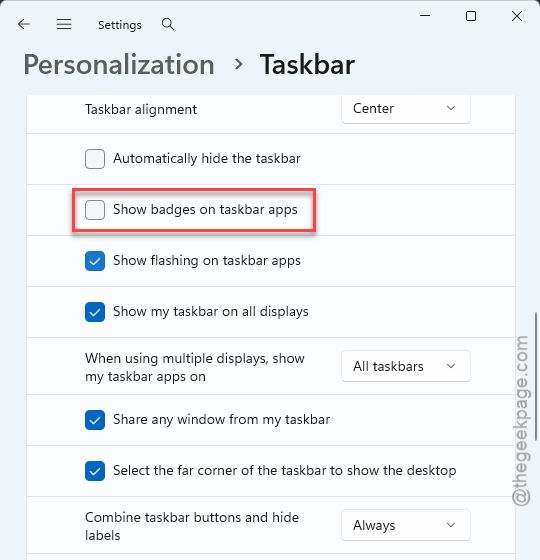
4 – Close Settings and relaunch your game in full-screen.
Test if this works.
Fix 4 – Stop the Game Bar’s Background Hook
The Xbox Game Bar hooks into every game so it’s ready to record clips. But that hook is buggy, and it drags the taskbar along with it.
1 – Press Windows + I to open Settings.
2 – Click Gaming in the left sidebar.
3 – Open the Xbox Game Bar section.
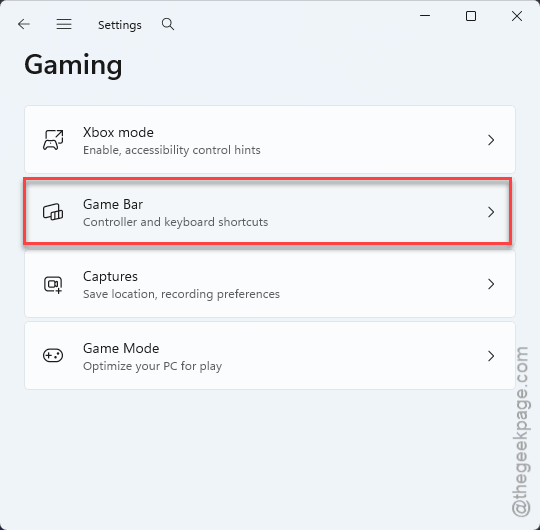
4 – Disable the Allow your controller to open Game Bar option.
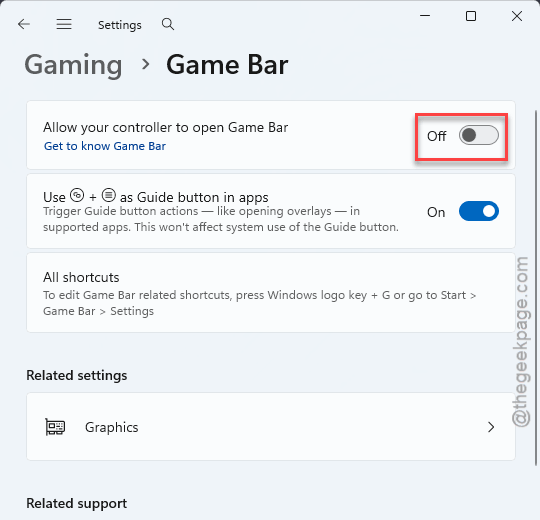
Don’t record clips anyway? So leave it off for good — one less overlay fighting your games.
Fix 5 – Switch the Game to Borderless Windowed
Sounds backwards. Works great.
1 – Open your game’s graphics or video settings.
2 – Find the Display Mode option.
3 – Change it from Fullscreen to Borderless Windowed.
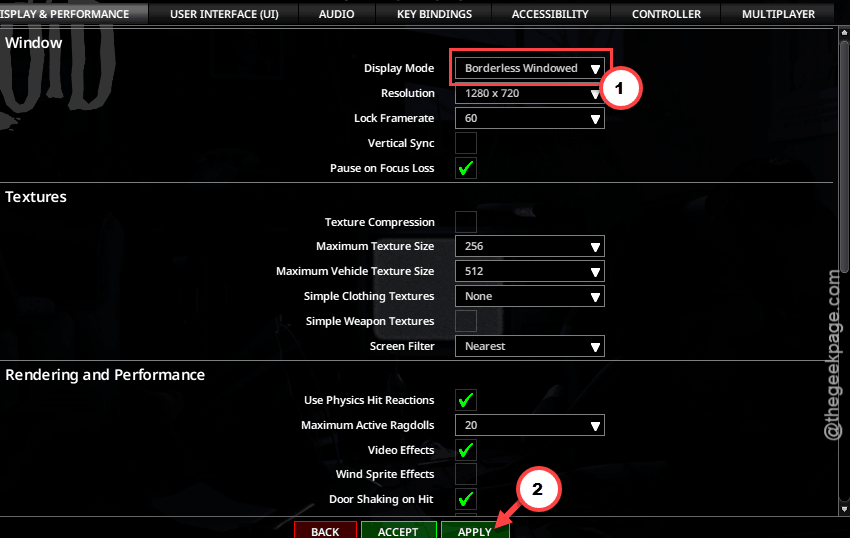
Borderless mode hands control to the Windows compositor, so the game and taskbar stop fighting over the screen (and Alt-Tab gets faster too).
Fix 6 – Disable Fullscreen Optimizations
The opposite approach: force classic exclusive full-screen and cut Microsoft’s overlay layer out of the picture entirely.
1 – Right-click the game’s .exe file (usually in the game’s install folder) and select Properties.
2 – Click the Compatibility tab.
3 – Check Disable fullscreen optimizations.
4 – Click Apply, then OK.
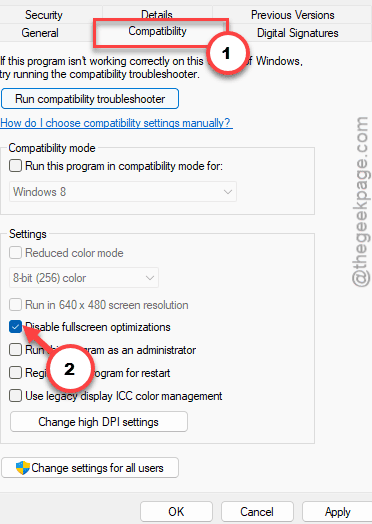
Use this or Fix 5, not both. They pull in opposite directions.
People Also Ask
Why is my taskbar showing over fullscreen games?
A notification badge, a flashing app, or the Xbox Game Bar bumped the taskbar’s priority above your game. Restarting Windows Explorer clears it immediately.
Why does my cursor drift out of full-screen games in Windows 11?
That’s usually borderless windowed mode on a multi-monitor setup — nothing physically fences the cursor in. Look for a “confine cursor” or “lock mouse to window” option in the game, or switch that game back to exclusive fullscreen mode.