You hit Alt-Tab to check Discord. The screen goes black. After a few seconds, the desktop finally shows up, the game flashes once, and you tab back to find you’ve been shot. You can very easily resolve the issue.
Why This Happens
Exclusive fullscreen is the culprit most of the time. The game owns the monitor outright. Alt-Tab makes the graphics card hand the screen back to Windows. And if the game runs at a different resolution or refresh rate than your desktop? The monitor has to re-sync its whole display mode. That’s the blackout.
But there’s more going on in newer builds. Windows 11 flips Do Not Disturb on when a game goes fullscreen and off when you leave. That toggle adds a hitch. Fullscreen optimizations, which are meant to make old games behave, do the opposite for some of them.
Then there’s MPO (multi-plane overlay, a trick that lets the GPU stack windows without redrawing everything). During a quick switch it scrambles the screen buffer. Great feature. Terrible timing.
Why is any of this on by default? No idea. A lot of moving parts for one keypress.
Fix 1 – Switch the Game to Borderless Windowed
Biggest fix. Try it first.
Borderless windowed looks exactly like fullscreen. But the game no longer owns the monitor, so Alt-Tab just puts the desktop on top. No handoff. No black screen.
1 – Launch the game and open its Video or Graphics settings.
2 – Find the Display Mode option. Some games call it Window Mode.
3 – Change it from Fullscreen (or Exclusive Fullscreen) to Borderless Windowed. It may be called Windowed Fullscreen.
4 – Apply the change.
Alt-Tab now. Should be instant. If it is, you’re done.
One thing. Borderless costs a frame or two on some setups because Windows keeps compositing the desktop underneath. Most people never notice.
Fix 2 – Match Your Desktop to the Game
Prefer real fullscreen? Fine. Then the game and the desktop have to agree on resolution and refresh rate. Any mismatch forces the monitor to renegotiate every single switch (that’s the two-to-three-second blackout).
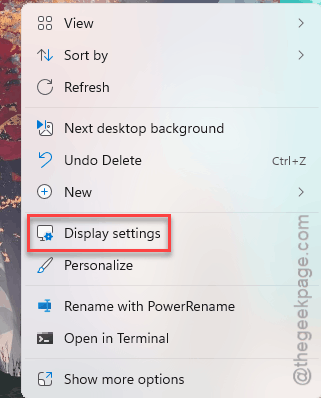
1 – Right-click an empty part of the desktop and choose Display settings.
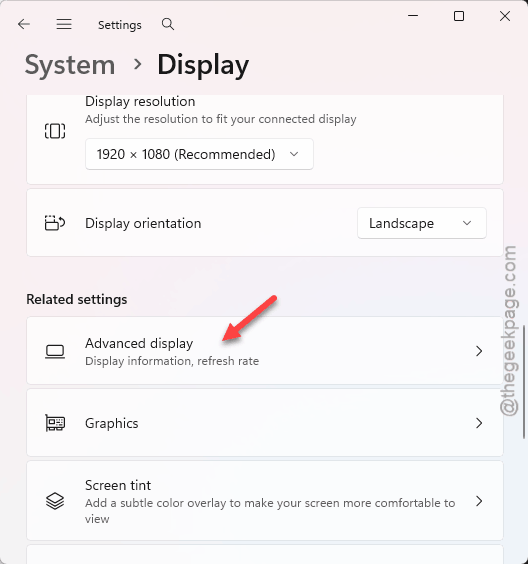
2 – Scroll down and click Advanced display.
3 – Write down the resolution and the refresh rate shown there. Something like 2560 x 1440 at 144 Hz.
4 – Launch the game and open its Video settings.
5 – Set the in-game resolution to the exact number you wrote down.
6 – Set the in-game refresh rate to match too. Not “Auto”. The actual number.
7 – Apply and restart the game.
Games love to default to 60 Hz on a 144 Hz monitor. Check every one you play.
Fix 3 – Disable Fullscreen Optimizations
Windows wraps fullscreen games in its own overlay layer. Older games hate it. The Alt-Tab lag gets worse, not better.
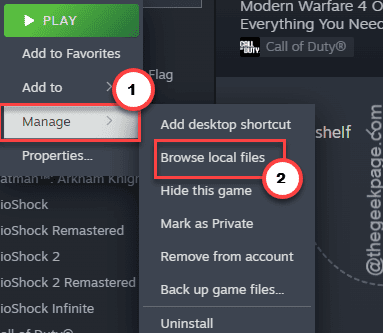
1 – Find the game’s main .exe file. For Steam games, right-click the game in your library, choose Manage, then Browse local files.
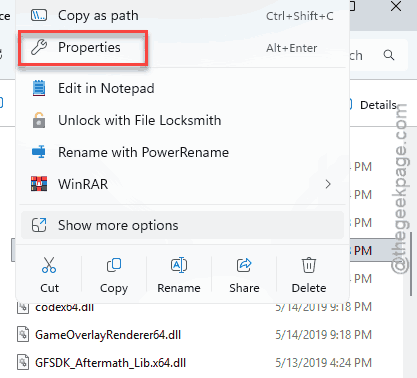
2 – Right-click the .exe and choose Properties.
3 – Click the Compatibility tab.
4 – Check Disable fullscreen optimizations.
5 – Click Apply, then OK.
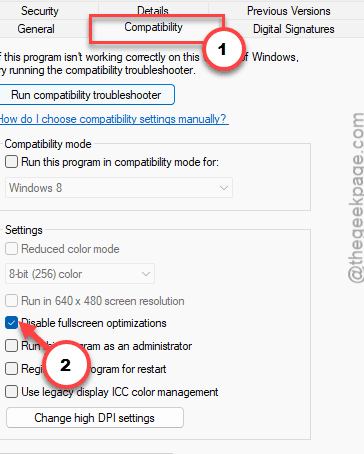
Per game, sadly. There’s no global switch.
Fix 4 – Stop Do Not Disturb From Toggling
Windows 11 turns on Do Not Disturb by itself when a game goes fullscreen. Then turns it off when you Alt-Tab out. Then on again when you go back. Each flip pauses the shell for a beat.
1 – Press Windows + I to open Settings.
2 – Click System, then Notifications.
3 – Scroll down and click Turn on do not disturb automatically to expand it.
4 – Uncheck When playing a game.
5 – Uncheck When using an app in full-screen mode.
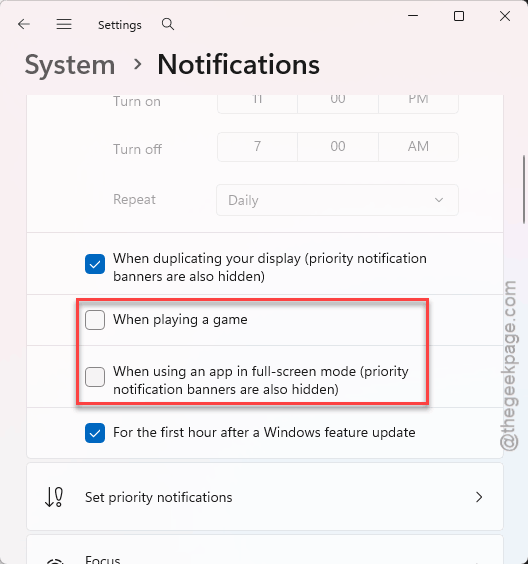
Notifications will pop up mid-game after this. Trade-off. If that bugs you, turn Do Not Disturb on manually before you play (click the clock in the bottom right corner and hit the bell icon).
Fix 5 – Turn Off Variable Refresh Rate and GPU Scheduling
Both live on the same Settings page. Both cause Alt-Tab hitches on some setups. Off they go.
The Windows-level variable refresh rate toggle is separate from G-Sync or FreeSync on your monitor. Turning it off here leaves the monitor’s own sync working. One person reported still getting the G-Sync confirmation on their monitor’s menu after switching it off. So you lose nothing.
1 – Open Settings and click System.
2 – Click Display, then scroll down and click Graphics.
3 – Open Advanced graphics settings.
4 – Switch Variable refresh rate to Off.
5 – Switch Hardware-accelerated GPU scheduling to Off.
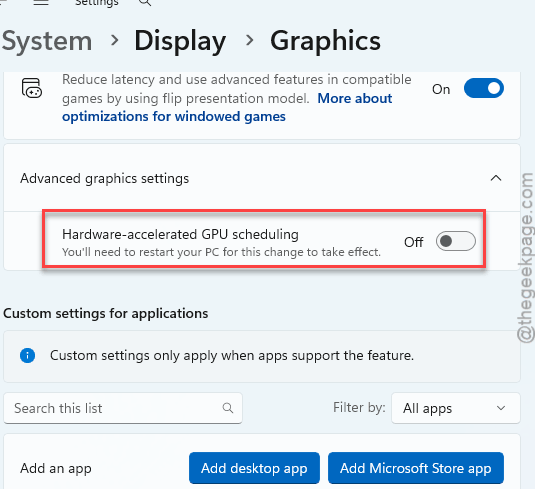
6 – Restart your PC. The scheduling change needs it.
How to Prevent This
- Use borderless windowed everywhere. Set it once per game and forget it.
- After a big Windows update, re-check the graphics settings page. The GPU scheduling toggle likes to come back on. Annoying.
- New monitor? Set the desktop refresh rate the day you plug it in. Windows defaults to 60 Hz and never tells you.
People Also Ask
How can I fix the lag when Alt-Tabbing in Windows 11?
Switch the game to borderless windowed mode. That removes the monitor handoff that causes the lag. If you want to stay in exclusive fullscreen, match the game’s resolution and refresh rate to your desktop exactly. Then turn off the automatic Do Not Disturb rules under Settings, System, Notifications.
Why is there a delay when I Alt-Tab?
The game has exclusive control of your monitor. When you switch away, the graphics card gives control back to Windows, and the monitor re-syncs its display mode. That takes one to three seconds. A different resolution or refresh rate between game and desktop makes it worse. Borderless mode skips the whole handoff.
Does borderless windowed reduce FPS?
A little, on some systems. Windows keeps drawing the desktop underneath, which costs a few frames. On modern GPUs the hit is usually too small to see. And the instant Alt-Tab is worth it for most people. Fullscreen still wins if you chase every last frame in competitive games.