Leftover Build 41 junk. That’s the cause behind most Build 42 black screens — old config files and old mods feeding a brand-new engine data it chokes on instantly. Build 42 rewrote the renderer. But it happily reads your years-old settings folder and your 200 Workshop mods at launch. Unstable branch, unstable results. And a few of the new options are broken all by themselves — custom sandbox settings and the zoom toggle can both black-screen the game with zero help from your files.
Fix 1 – Clean Out the Zomboid User Folder (Keep Your Saves)
The old configs are the prime suspect. Delete them. And let Build 42 rebuild everything fresh.
1 – Press Windows + R, type %userprofile%, and press Enter.
2 – Open the Zomboid folder.
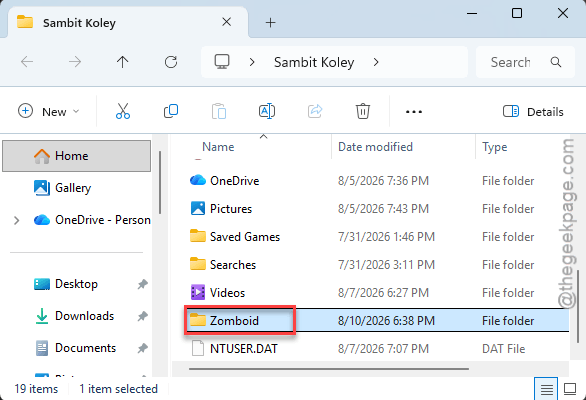
3 – Delete everything inside except the Saves folder.
4 – Launch the game. It rebuilds clean configuration files on startup.
Your keybinds and options reset to default (that’s the point). Still black-screening? Some players needed to remove the whole folder, Saves included — so copy your Saves folder somewhere safe first if you go that far.
Fix 2 – Unsubscribe From Your Workshop Mods
Every legacy Build 41 mod is a landmine under Build 42. And they detonate before the main menu even loads.
1 – Open Steam and go to the Project Zomboid Workshop page.
2 – Open your Subscribed Items list.
3 – Click Unsubscribe on your mods (all of them, painful as that sounds).
4 – Launch the game and test.
Mods will catch up to Build 42 eventually. Re-subscribe one at a time as their pages announce updates. Not all at once. You know you’re tempted.
Fix 3 – Force Windowed Mode From Steam
A black screen at launch is often the fullscreen hook failing. But starting windowed slips right past it.
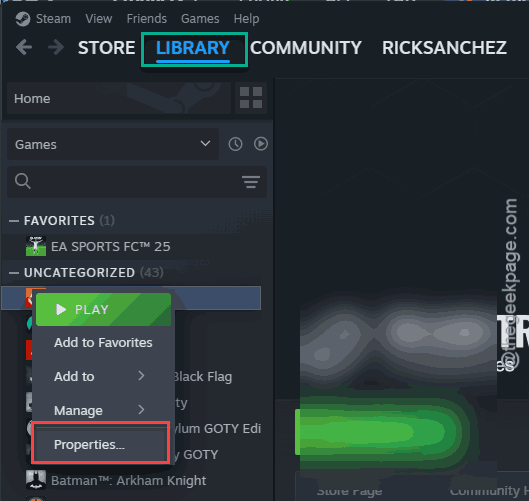
1 – Right-click Project Zomboid in your Steam library and select Properties.
2 – In the General tab, scroll down to the Launch Options box.
3 – Type -window (no spaces before it).
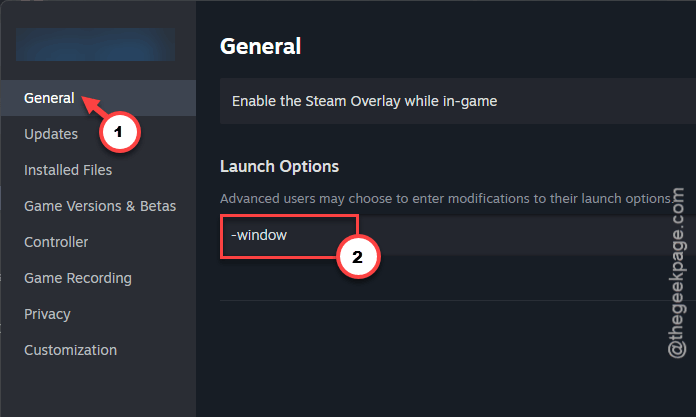
4 – Close the window and launch the game.
5 – Once the main menu appears, go to Options and change the display mode to Borderless Window. Apply.
6 – Go back to Steam and remove -window from Launch Options.
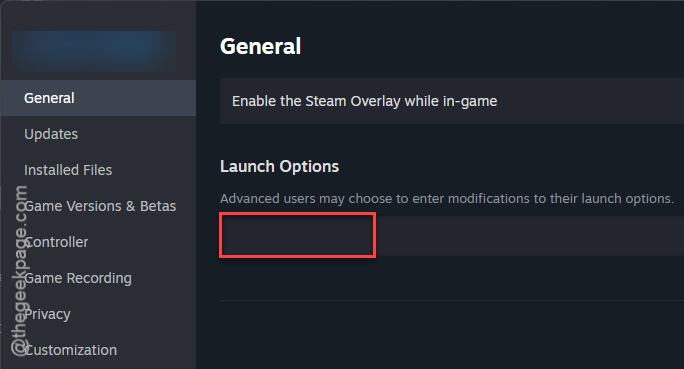
The game remembers borderless mode on its own from here.
Fix 4 – Force the Dedicated GPU
Laptops love handing this game to the weak integrated graphics chip. Build 41 tolerated that. Build 42 doesn’t.
1 – Press Windows + I and go to System, then Display.
2 – Click Graphics.
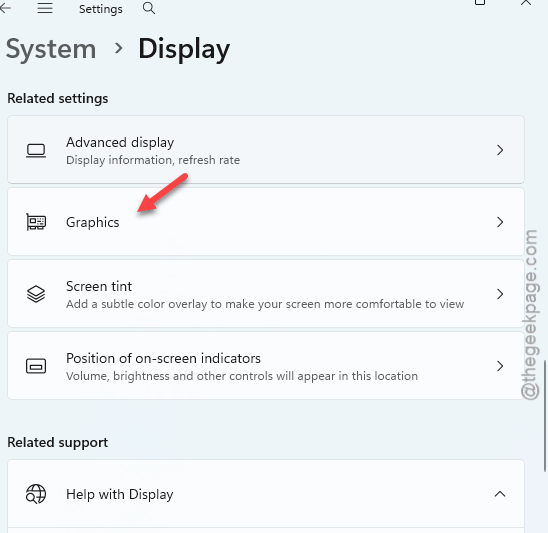
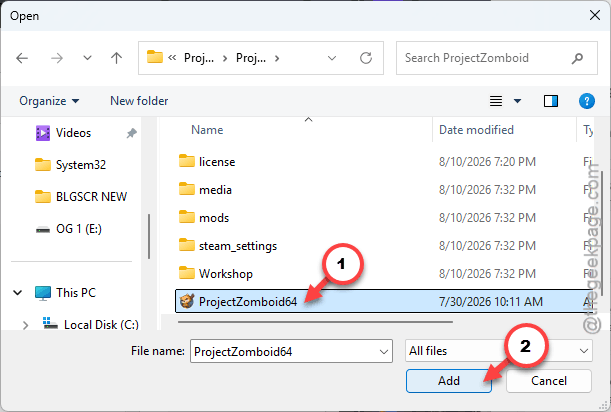
3 – Under Custom options for apps, click Browse.
4 – Go to C:\Program Files (x86)\Steam\steamapps\common\ProjectZomboid and select ProjectZomboid64.exe.
5 – Click the game in the app list, click GPU Preference, and choose High performance.
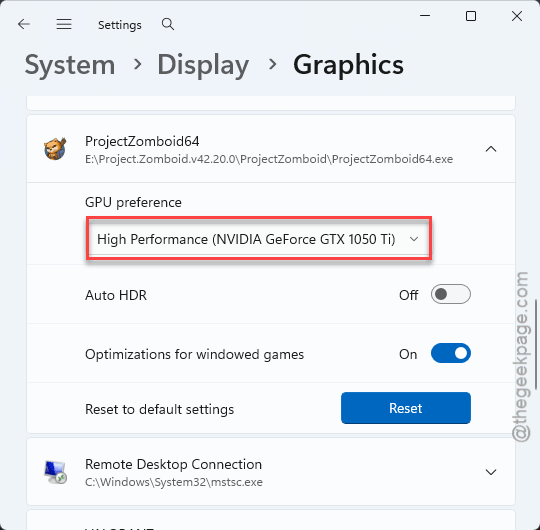
6 – Save the setting, restart your PC, and launch the game.
Fix 5 – Switch to the Alternate Launcher
The main executable can’t hook your display? The alternate one usually can. And that’s its whole job.
1 – Right-click Project Zomboid in Steam and select Properties.
2 – Stay on the General tab.
3 – Find the Boot Options dropdown and pick the Alternate Launcher.
4 – Close the window and launch normally.
Keep It From Coming Back
- Stay away from custom sandbox settings for now. They’re bugged in the unstable build and force a black screen — standard survival and the tutorial work fine.
- Leave the Zoom option alone, at its default. Toggling it off breaks the Build 42 camera renderer. Of course it does.
- Unsubscribe from mods before switching builds. Not after the crash.
- It’s an unstable branch. So expect breakage, and keep a copy of your Saves folder somewhere safe.
People Also Ask
How do I get Project Zomboid to stop crashing?
On Build 42, clear the Zomboid folder in your user directory (keep Saves), unsubscribe from Build 41 mods, and make sure the game runs on your dedicated GPU. Skip custom sandbox settings and don’t touch the zoom toggle — both are known to black-screen this build.
Is Project Zomboid Build 42 unstable?
Yes — it literally ships on the “unstable” branch, and the developers say so up front. Black screens from legacy configs, incompatible mods, and bugged options are known issues with known workarounds. If you want zero drama, stay on Build 41 until 42 goes stable.