Why would a game drop to the desktop every time you click? Because something behind it keeps grabbing the window focus. And on Windows 11 24H2 and 25H2, that something is usually Windows itself. Borderless games hand it over. Then you’re staring at the taskbar mid-fight. Overlays and RGB lighting software do the same thing, just less often. But fixable in about ten minutes.
Fix 1 – Switch to Exclusive Fullscreen
Borderless windowed mode is the default in most games now, and it’s the weak spot here. It behaves like any other window. So anything can push in front of it. Exclusive fullscreen locks the screen to the game.
1 – Open the game and go to its video or display settings.
2 – Find Display Mode (sometimes called Window Mode or Screen Mode).
3 – Then, switch from Borderless or Windowed to Fullscreen (or Exclusive Fullscreen, if both are listed).
4 – Next, apply this and check. Some of the older games needs a restart for this change to take effect.
Alt-tabbing out takes a half-second longer now (the screen goes black for a moment). Small price.
Fix 2 – Disable Fullscreen Optimizations for the Game
Windows has a feature that quietly turns exclusive fullscreen back into a borderless window behind your back. Wondering why Fix 1 didn’t help? This is probably why.
1 – Right-click the game’s .exe file or its desktop shortcut and choose Properties.
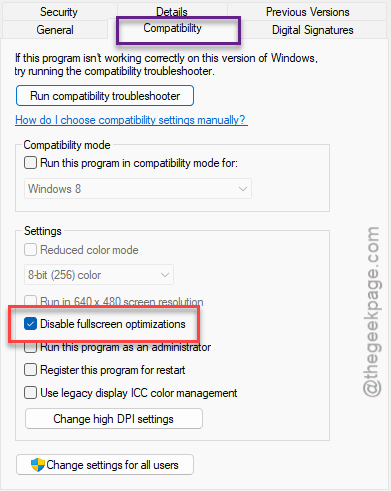
2 – Click the Compatibility tab.
3 – Then, tick the Disable fullscreen optimizations.
4 – Click Apply, then OK.
5 – Launch the game and play for a few minutes.
Windows will not swap it back to borderless now. Steam users: right-click the game in your library, pick Manage, then Browse local files to find the .exe.
Fix 3 – Turn Off Overlays and Lighting Software
A couple of 25H2 updates broke how those apps talk to your gear, so now they poke the game window constantly.
1 – If you are on Steam,
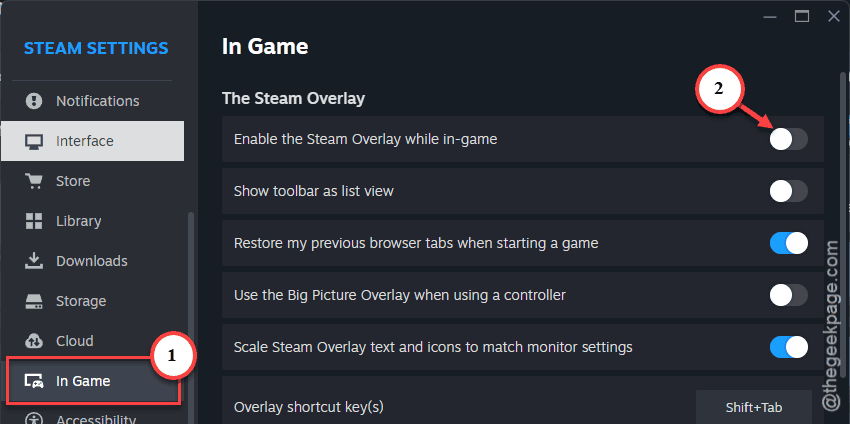
- tap the Steam in the top left, then Settings,.
- Then go to the In Game, and turn off Enable the Steam Overlay while in-game feature.
2 – In Discord, open User Settings (the gear at the bottom left).
- Click Game Overlay, and switch off Enable in-game overlay.
3 – Press Windows + I buttons together.
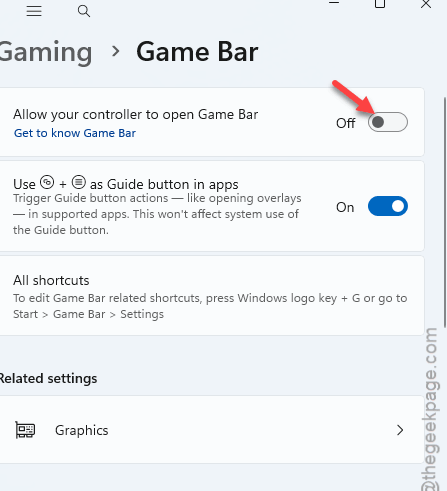
- go to Gaming section and go to Game Bar.
- Turn off every toggle you see there.
4 – Close your RGB software (iCUE, Armoury Crate, Razer Synapse, whatever you run). Right-click its tray icon in the bottom right and pick Exit.
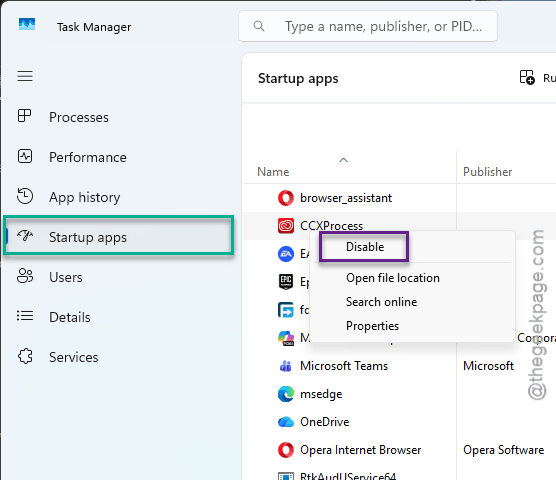
5 – Press Ctrl + Shift + Esc together.
6 – Proceed to the Startup apps in the left sidebar, and disable the lighting app so it stays closed after the next boot.
Your lights fall back to their default pattern. Annoying, I know. But test the game first, then decide what’s worth bringing back.
Fix 4 – Stop the Text Input Service
If the game still drops out, ctfmon.exe is the one grabbing focus. You can stop it. But (and this is a real but) it also runs your keyboard language switching, and some apps lose typing entirely while it’s off.
1 – At first, press Windows + R.
2 – Type services.msc, and press Enter.
2 – Scroll down to Text Input Management Service.
3 – Right-click it and choose Stop.
4 – Play. When you’re done, come back here and click Start on it again.
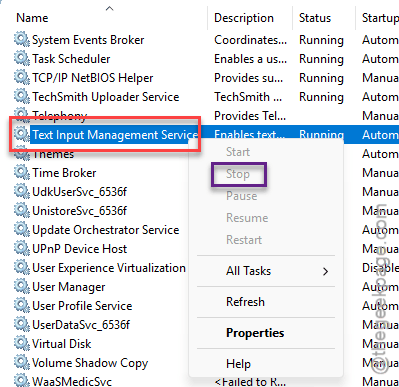
Typing goes weird in some apps while it’s stopped? That’s expected, and starting the service brings it right back. And don’t set it to Disabled permanently. Not worth the side effects.
Fix 5 – Upgrade to 26H2 With the Installation Assistant
Still on 25H2? That’s the build where this bug lives.
Check first: press Windows + R, type winver, and press Enter. The box shows your version.
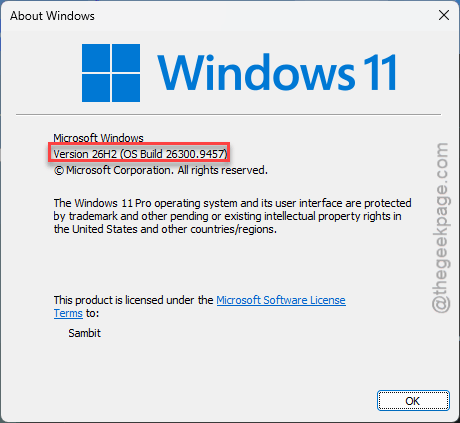
1 – Go to Microsoft’s Windows 11 download page and download the Windows 11 Installation Assistant.
2 – Run it and click Accept and Install.
3 – Wait. The download and install take 30 to 60 minutes, and the PC restarts a few times.
4 – Sign back in and open the game.
It is an in-place upgrade, not a reinstall. Already on 26H2 and still seeing it? Then the fixes above are your answer, since a build swap won’t change anything.
Keep It From Coming Back
- Pick Fullscreen over Borderless in every new game you install. Borderless is convenient. It’s also the first thing to break.
- Keep RGB software out of your startup apps. Open it when you want to change colors, then close it. Trust me.
- Pause optional updates for a couple of weeks after a big Windows release. Let the first patches land before you install.